
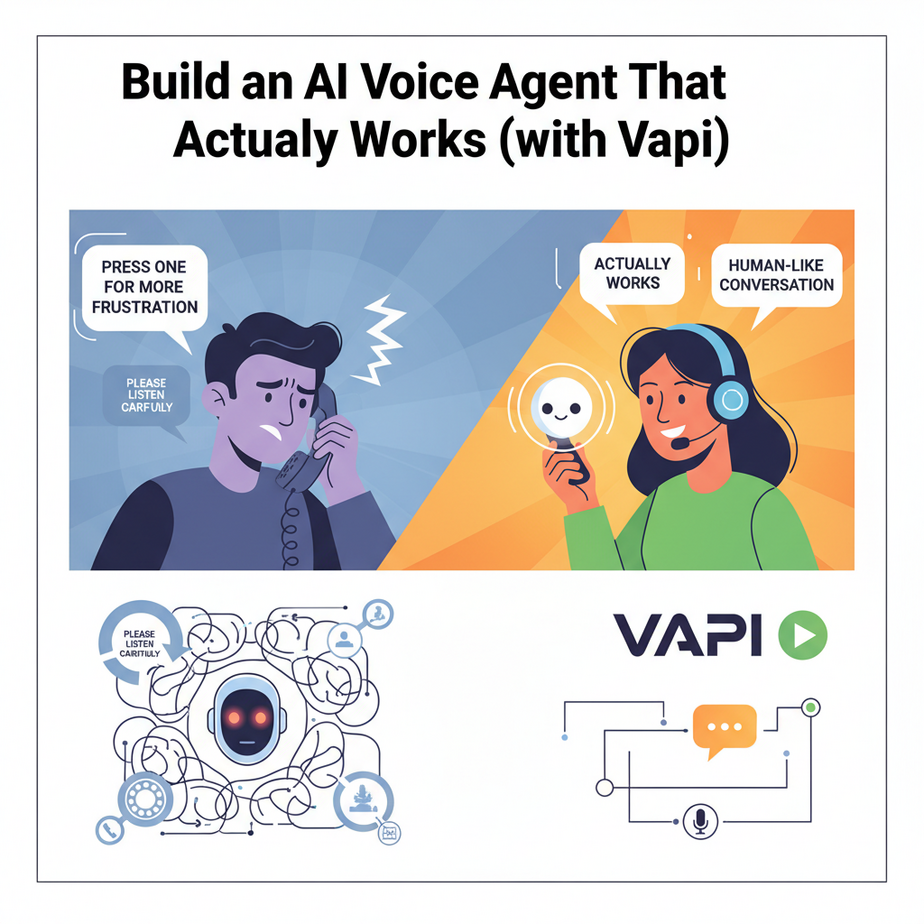
“Press One for More Frustration.”
You know the drill. You call your bank. A cheerful, soulless robot voice greets you. “Please listen carefully as our menu options have changed.” You mash the zero key, praying for a human. The robot continues, unphased. “I’m sorry, I didn’t get that. To hear our business hours, press one.”
This is digital purgatory. It’s the experience we’ve been conditioned to hate. These old systems, called IVRs, are glorified telephone keypads. They don’t listen; they just match button presses to pre-recorded audio files. They are the opposite of helpful.
Now, imagine a different world. You call your local dental clinic. A calm, natural voice answers immediately. “Hi, thanks for calling Smile Bright Dental. How can I help you today?” You say, “Yeah, I need to book a cleaning for next week, maybe Wednesday afternoon?” The voice replies, without a robotic pause, “Of course. Let me check. We have a 2 PM and a 3:30 PM open on Wednesday. Which works better for you?”
That’s not science fiction anymore. Today, we’re building that second experience. We’re replacing the clunky, hated IVR with a true conversational AI that solves problems instead of creating them.
Why This Matters
A good voice agent isn’t just a cool gadget. It’s a fundamental upgrade to your business operations. A voice agent that works 24/7 and can handle 80% of common requests is a force multiplier.
This workflow replaces:
- Clunky IVR Systems: Those “Press 1 for Sales” dinosaurs that everyone despises.
- Overwhelmed Receptionists: Free up your human staff from repetitive tasks like booking appointments, checking order statuses, and answering FAQs so they can handle high-value, complex customer issues.
- Customer Wait Times: An AI agent can handle thousands of calls simultaneously. There is no “on-hold” music in the future.
This is about providing instant, effective service at a massive scale, turning a major customer frustration point into a surprisingly delightful experience.
What This Tool / Workflow Actually Is
Today’s core tool is **Vapi**. Vapi is not an AI brain. Vapi is the *mouth, ears, and phone line* for an AI brain.
It’s a platform that handles all the messy, complex parts of real-time voice conversation:
- Connecting to the phone network: It provides a real phone number for your agent.
- Speech-to-Text: It listens to the human caller and transcribes their words into text, instantly.
- Text-to-Speech: It takes the AI’s text response and converts it into realistic, low-latency human-like speech.
- Conversation Management: It manages the back-and-forth flow, interruptions, and connection to the AI model of your choice (like GPT, Claude, or a super-fast one like Groq’s Llama 3).
Think of it as the ultimate communications officer for your AI. You provide the AI with its instructions (the “brain”), and Vapi handles the entire high-stakes job of putting that brain on a live phone call. It is NOT a pre-built agent; it’s the toolkit you use to build your own custom agents.
Prerequisites
This is a bit more involved than our last lesson, but you can absolutely do it. Don’t be intimidated.
- A Vapi Account: Go to Vapi.ai and sign up. They have a free developer tier to get you started. Once you’re in, find and copy your API key.
- Ngrok: This is a magic tool that creates a secure, public web address for the code running on your own computer. Vapi, which lives on the internet, needs this address to talk to your local code. Sign up for a free account at ngrok.com and follow their setup instructions to install it and add your authtoken.
- Python and a Code Editor: Same as before. We’ll use VS Code.
- Patience: You’re connecting a live phone call to a piece of code on your laptop. If it doesn’t work the first time, take a breath. You’re building a robot that talks. It’s supposed to be a little tricky.
Step-by-Step Tutorial
We’re going to build a simple server that acts as the “brain” for our agent. When Vapi hears something from the user, it will send the message to our server for instructions.
Step 1: Project Setup
In your terminal, create a new project:
mkdir vapi_agent
cd vapi_agent
Create and activate a Python virtual environment:
python -m venv venv
source venv/bin/activate  # Mac/Linux
.\\venv\\Scripts\\activate    # Windows
Step 2: Install Libraries
We need Flask to create our web server and the Vapi Python SDK.
pip install vapi-python flask python-dotenvStep 3: Create the Brain (Your Flask Server)
Create a file named `server.py`. This code will simply listen for messages from Vapi and tell the agent what to do next. For now, we’ll make it a simple echo bot.
from flask import Flask, request, jsonify

app = Flask(__name__)

# This is the endpoint Vapi will call
@app.route('/', methods=['POST'])
def handle_vapi_call():
    payload = request.json
    message = payload.get('message', {})

    # We only care about 'transcript' messages for this simple example
    if message.get('role') == 'user' and message.get('type') == 'transcript':
        user_transcript = message['transcript']
        print(f"User said: {user_transcript}")

        # For now, let's just send a simple message back
        # This will be spoken by the Vapi agent
        return jsonify({
            "response": f"You said: {user_transcript}"
        })

    # Return an empty response for other message types
    return jsonify({})

if __name__ == '__main__':
    # Flask runs on port 5000 by default
    app.run(debug=True, port=5001)
Step 4: Expose Your Server with Ngrok
Open a NEW terminal window (keep the one running your server). Navigate to your project folder. Start Ngrok and tell it to point to the port your Flask server is running on (we chose 5001).
ngrok http 5001Ngrok will give you a public URL that looks something like `https://random-string-123.ngrok-free.app`. Copy this HTTPS URL. This is the public address for your robot’s brain.
Step 5: Configure the Agent in Vapi
- Log in to your Vapi dashboard and go to “Assistants.”
- Click “Create Assistant.” Give it a name like “My First Agent.”
- Choose an AI Model. For best results, use `gpt-3.5-turbo` for now, or if you have a Groq API key, use that for incredible speed.
- Choose a Voice. Pick one you like.
- This is the most important step: In the “Server URL” section, paste your HTTPS Ngrok URL. This tells Vapi where to send messages.
- Set a “First Message” like, “Hi, you’ve reached my AI assistant. What can I do for you?”
- Save the assistant. Vapi will automatically assign it a phone number.
Step 6: Make the Call
Call the phone number provided by Vapi. You should hear the first message. When you speak, you’ll see the transcript appear in your `server.py` terminal window, and the agent will respond with “You said: [whatever you said].”
Congratulations. You just had a live phone conversation with a piece of code running on your laptop.
Complete Automation Example
An echo bot is fun for five seconds. Let’s build our **Dental Appointment Booker**.
The goal is to have a conversation that extracts three key pieces of information: `name`, `preferred_day`, and `preferred_time`.
Step 1: Define a ‘Function’ in Vapi
In your Vapi assistant settings, scroll down to the “Tools” section. This is where we teach the agent about tasks it can perform.
- Click “Add Tool” and choose “Function.”
- Set the function name to `create_appointment`.
- Add three parameters:
- `name` (type: string), description: “The full name of the patient.”
- `day` (type: string), description: “The day of the week the patient wants their appointment, e.g., ‘Wednesday’.”
- `time` (type: string), description: “The preferred time for the appointment, e.g., ‘2 PM’.”
- Save the tool and the assistant.
Now, the AI model knows that it should try to fill these three slots during the conversation. When it has all three, it will call our server with the details.
Step 2: Update Your Server Code to Handle the Function
Modify your `server.py` to handle this new `create_appointment` tool call.
from flask import Flask, request, jsonify

app = Flask(__name__)

@app.route('/', methods=['POST'])
def handle_vapi_call():
    payload = request.json
    message = payload.get('message', {})

    # Check if this is a function call message
    if message.get('type') == 'function-call':
        function_call = message.get('functionCall', {})

        if function_call.get('name') == 'create_appointment':
            params = function_call.get('parameters', {})
            name = params.get('name')
            day = params.get('day')
            time = params.get('time')

            # In a real app, you would save this to a database or Google Calendar
            print(f"\
--- BOOKING RECEIVED ---")
            print(f"Name: {name}")
            print(f"Day: {day}")
            print(f"Time: {time}")
            print(f"------------------------\
")

            # Send a response back to the user to confirm
            return jsonify({
                "response": f"Great! I've booked an appointment for {name} on {day} at {time}. You'll get a confirmation text shortly. Is there anything else?"
            })

    # For all other messages, just let Vapi handle the conversation
    return jsonify({})

if __name__ == '__main__':
    app.run(debug=True, port=5001)
Step 3: Update the System Prompt in Vapi
Go back to your assistant in the Vapi dashboard. The final piece is telling the AI what its job is. Update the “System Prompt” with something like this:
You are a friendly and efficient receptionist for a dental clinic called Smile Bright Dental. Your primary goal is to help callers book a new appointment. Be polite and conversational. When you have the patient's name, their desired day, and their desired time, use the `create_appointment` tool to book it. Do not make up information.
Step 4: Test the Full Flow
Restart your `server.py` and your `ngrok` terminal (ngrok will give you a new URL, so update it in Vapi). Now call the number again. Try to book an appointment. Have a conversation. You’ll see the `— BOOKING RECEIVED —` message appear in your terminal once the agent has gathered all the required information.
Real Business Use Cases
- Restaurant/Hospitality: Automated reservation booking, answering questions about hours or menu items, and taking simple takeout orders.
- E-commerce Support: Inbound calls for checking order status (“Where’s my stuff?”) or initiating a return process, integrated with a Shopify or Magento backend.
- Insurance Claims: Handling the First Notice of Loss (FNOL) call, gathering initial details about an incident (who, what, where, when) before passing it to a human claims adjuster.
- Real Estate Lead Qualification: Answering calls from “For Sale” signs 24/7, asking qualifying questions (budget, desired beds/baths, pre-approved for mortgage?) and scheduling a showing with a human agent if the lead is qualified.
- Basic IT Helpdesk: Handling Tier 1 support calls for password resets, VPN connection issues, or creating a support ticket by gathering the user’s name, employee ID, and a description of the problem.
Common Mistakes & Gotchas
- Ngrok URL Expired: The free version of Ngrok gives you a temporary URL that expires after a few hours. If your agent suddenly stops working, check if your Ngrok session is still active and if the URL needs to be updated in Vapi.
- Slow LLM Response: Using a slow, powerful model like GPT-4 for a simple conversation will feel terrible. The pauses will be unnatural. Start with a fast model like GPT-3.5-Turbo or Groq’s Llama-3 for the best conversational experience.
- Vague System Prompt: The AI doesn’t know it’s a dental receptionist unless you tell it. Be explicit. Give it a name, a personality, and a very clear goal. The prompt is 90% of the magic.
- Over-engineering Functions: Don’t create a function with 20 parameters. Keep your tools simple and focused on one job. It’s better to have several simple tools than one complex, confusing one.
How This Fits Into a Bigger Automation System
Our `print()` statement is just a placeholder for a real-world integration. That server is the central nervous system connecting your voice agent to the rest of your business:
- CRM/Calendar Integration: Instead of printing the appointment, your Python code would use the Google Calendar API to create an event on the clinic’s calendar or the HubSpot API to create a new deal in your sales pipeline.
- Database Lookups (RAG): For an order-status bot, the server would take the order number from the user, query your company’s database to get the shipping status, and then formulate a natural language response to send back to the agent.
- Human Escalation: Vapi has a feature to transfer the call. Your server can include logic like, “If the user says ‘human’ three times, or if their sentiment is highly negative, trigger a transfer to the real support line.”
- Omnichannel Follow-up: After the agent books the appointment, your server can call the Twilio API to send a confirmation SMS to the user’s phone number, creating a seamless experience.
What to Learn Next
You’ve done something incredible today. You’ve built an AI that can pick up a phone, understand a human, and perform a task. You’ve bridged the gap between the digital world of code and the analog world of human conversation.
Our agent is good, but it’s still just following instructions. It can’t answer questions you haven’t explicitly programmed it for. What if a caller asks, “Do you offer Invisalign?” or “Is Dr. Smith available on Fridays?” Our current agent would be stumped.
In our next lesson, we’re going to give our agent a library to read from. We’re going to connect it to a knowledge base of your business’s documents, FAQs, and data. We’re moving from a simple task-doer to a true expert system using a technique called Retrieval-Augmented Generation (RAG). Your agent is about to get a whole lot smarter.