
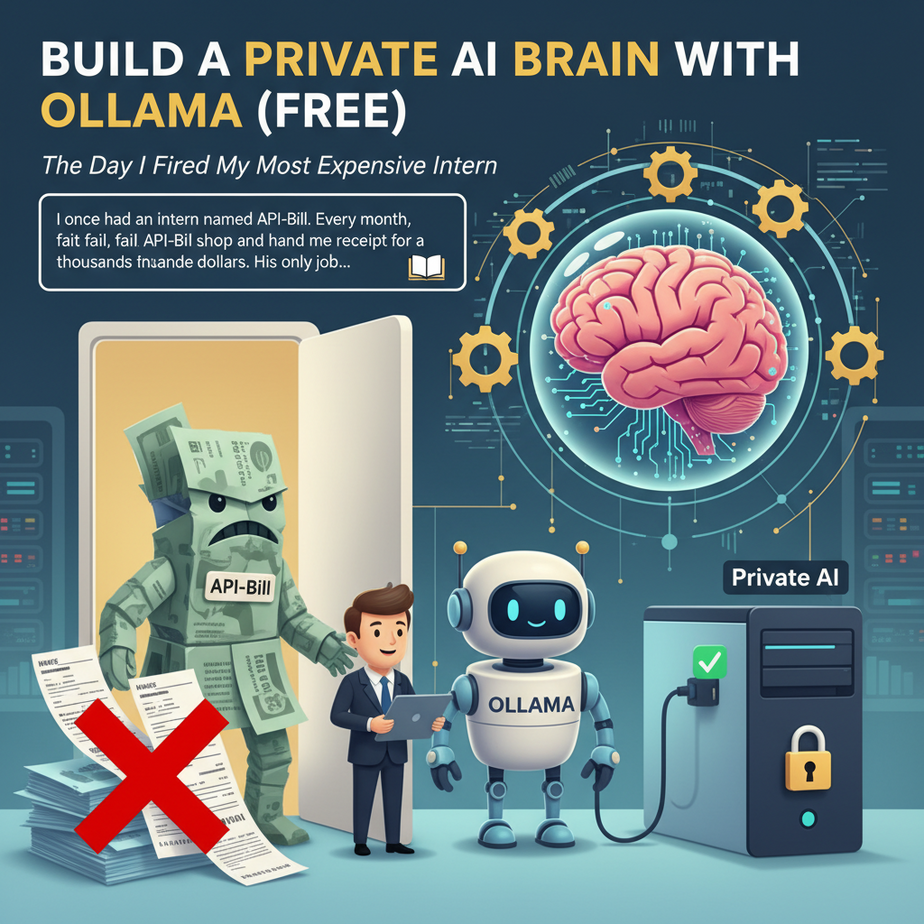
The Day I Fired My Most Expensive Intern
I once had an intern named API-Bill. Every month, without fail, API-Bill would show up and hand me a receipt for thousands of dollars. His only job was simple: read customer feedback emails, decide if they were “Positive,” “Negative,” or a “Bug Report,” and put them in the right spreadsheet column.
He was fast, but expensive. And frankly, a little creepy. I had to send him all my private customer data, and I had no idea what he was doing with it after he was done. I just had to trust him.
One day, after signing another four-figure check for this glorified sorting task, I’d had enough. I said, “API-Bill, you’re fired.” I decided to build my own intern. One that lived in my computer, worked for free, kept all my data private, and never took a coffee break.
Today, I’m going to show you how to build that same intern. Welcome to the world of local AI.
Why This Matters
This isn’t just a cool tech demo. This is a fundamental shift in how you build automations. Running a language model locally gives you three superpowers:
- It Costs Zero Dollars. The models are open-source. The software is free. Your only cost is the electricity to run your computer. You can make a million API calls and your bill is still $0. This unlocks automations that would be financially insane to run with a paid service.
- It’s 100% Private. The data never leaves your machine. Ever. You can process sensitive financial documents, private customer conversations, or secret company roadmaps without a single byte being sent to OpenAI, Google, or anyone else. It’s a digital fortress.
- It’s Fast. For many structured tasks, a local model running on decent hardware can be faster than a round trip to a cloud API. No network latency. Just pure, local processing speed.
You’re essentially replacing a dependency on a giant, external corporation with a tool you completely control. It’s like owning the factory instead of just renting a single machine.
What This Tool / Workflow Actually Is
We’re using a wonderful piece of software called Ollama. Here’s the simple breakdown:
What it is: Ollama is a tool that lets you download and run powerful, open-source Large Language Models (LLMs) on your own computer with a single command. It handles all the complicated setup, so you can just get to work. Think of it as an app store for local AI models.
The magic part? Ollama automatically creates a local API server. This server listens for requests on your computer, just like the official OpenAI API. This means any tool, script, or application that knows how to talk to OpenAI can be tricked into talking to your local model instead, often with only a one-line change.
What it is NOT: It is not GPT-4. Local models are typically smaller and less capable of writing a Shakespearean sonnet about your cat. But for 90% of business automation tasks—like classification, extraction, summarization, and reformatting—they are more than powerful enough. You don’t need a sledgehammer to hang a picture.
Prerequisites
I’m serious about making this accessible. Here’s the brutally honest list of what you need:
- A reasonably modern computer. A Mac, Windows, or Linux machine from the last few years will work. If you have a dedicated graphics card (GPU), it will be much faster, but it’s not required. At least 8GB of RAM is needed, but 16GB is highly recommended.
- The ability to copy and paste. We will be opening a “terminal” or “command prompt,” but I promise you won’t have to do any real coding there. Just copy, paste, and press Enter.
- About 20 minutes. That’s it.
You do NOT need a credit card. You do NOT need to be a programmer. If you can follow a recipe to bake a cake, you can do this.
Step-by-Step Tutorial: Let’s Wake Up Your AI Brain
Follow these steps exactly. Don’t skip ahead. We are building our foundation.
Step 1: Install Ollama
This is the easiest part. Go to ollama.com and download the installer for your operating system (macOS, Windows, or Linux). Run the installer. That’s it. A tiny Ollama icon should now be in your menu bar or system tray.
Step 2: Open Your Terminal
This is the black window that looks like something from a hacker movie. Don’t be scared of it.
- On Mac: Open the Spotlight search (Cmd+Space) and type
Terminal. Press Enter. - On Windows: Open the Start Menu and type
cmdorPowerShell. Press Enter.
Step 3: Download Your First AI Model
We need to give our Ollama server a “brain” to work with. We’ll use a small, fast, and very capable model called llama3:8b. It’s a great all-rounder. In your terminal window, type this command and press Enter:
ollama run llama3:8bYou’ll see a bunch of text as it downloads the model file (it’s a few gigabytes, so it might take a minute). Once it’s done, you’ll be dropped into a chat interface right in your terminal. You can ask it a question like “Why is the sky blue?” to see it work. Type /bye to exit the chat.
The important thing is this: the model is now downloaded, and Ollama is running a server in the background.
Step 4: Prove the API is Working
How do we know the server is actually running? We’ll send it a direct request. This is the universal test. Copy and paste the following command into your terminal and press Enter.
For Mac/Linux:
curl http://localhost:11434/api/generate -d '{ "model": "llama3:8b", "prompt": "Give me one marketing slogan for a coffee shop.", "stream": false }'For Windows Command Prompt (cmd):
curl http://localhost:11434/api/generate -H "Content-Type: application/json" -d "{\\"model\\": \\"llama3:8b\\", \\"prompt\\": \\"Give me one marketing slogan for a coffee shop.\\", \\"stream\\": false}"You should get back a JSON response that contains a clever slogan. If you see that, congratulations. You have a fully functional, private AI API running on your machine. You just built the workshop.
Complete Automation Example: The CSV Categorizer Bot
Let’s put our new local AI to work on a real business problem. We’re going to automate the boring task of categorizing customer feedback from a spreadsheet.
The Goal
We have a CSV file named feedback.csv with one column: review. We want to create a new file, feedback_categorized.csv, with a second column, category, filled in by our AI.
The Setup
1. Create a file named feedback.csv in a new folder on your desktop. Put this text inside it:
review
"The user interface is confusing and I can't find the export button."
"I absolutely love the new dashboard feature, it saves me so much time!"
"My invoice for last month seems incorrect, can someone please check it?"
"The app crashed twice today when I tried to upload a file."
2. Create a file named process_feedback.py in the SAME folder. You’ll need Python installed for this. If you don’t have it, it’s a quick and free install from python.org. Paste the following code into this file:
import requests
import json
import csv

# The local Ollama API endpoint
OLLAMA_ENDPOINT = "http://localhost:11434/api/generate"

# The model we want to use
MODEL = "llama3:8b"

# The prompt template is the key to getting consistent results
PROMPT_TEMPLATE = """
Read the following customer feedback and classify it into one of these three categories: 'Bug Report', 'Feature Request', or 'Positive Feedback'.

Feedback: "{review_text}"

Return only the category name and nothing else.
Category:"""

def get_category(review):
    """Sends the review to the local Ollama model and gets a category."""
    prompt = PROMPT_TEMPLATE.format(review_text=review)

    payload = {
        "model": MODEL,
        "prompt": prompt,
        "stream": False
    }

    try:
        response = requests.post(OLLAMA_ENDPOINT, json=payload)
        response.raise_for_status() # Raise an exception for bad status codes
        # The actual response is a JSON string, so we parse it twice
        response_data = json.loads(response.text)
        category = response_data.get("response", "").strip()
        return category
    except requests.exceptions.RequestException as e:
        print(f"Error connecting to Ollama: {e}")
        return "Error"

# Let's process the CSV
input_filename = 'feedback.csv'
output_filename = 'feedback_categorized.csv'

with open(input_filename, mode='r', newline='', encoding='utf-8') as infile, \\
     open(output_filename, mode='w', newline='', encoding='utf-8') as outfile:

    reader = csv.DictReader(infile)
    fieldnames = reader.fieldnames + ['category']
    writer = csv.DictWriter(outfile, fieldnames=fieldnames)
    writer.writeheader()

    print("Starting feedback categorization...")
    for row in reader:
        review_text = row['review']
        print(f"Processing: '{review_text[:50]}...' ")
        category = get_category(review_text)
        row['category'] = category
        writer.writerow(row)
        print(f"  -> Categorized as: {category}")

print(f"\
Done! Categorized feedback saved to {output_filename}")
Run the Automation
Open your terminal again. Navigate to the folder where you saved the two files. (Hint: use the cd command, like cd Desktop/MyProject). Then run the script:
python process_feedback.pyWatch the magic. The script will go line by line, call your local AI, and print the category it decided on. When it’s finished, you’ll have a new CSV file with the work done for you, automatically. You just performed thousands of dollars worth of intern work for the cost of a few watts of electricity.
Real Business Use Cases
This isn’t just for CSVs. This pattern—taking unstructured text and applying structure with a local LLM—is a universal business automation primitive. Here are five examples:
- HR Department: An automation watches an email inbox for resumes. When a new one arrives, the local LLM extracts key info (Name, Years of Experience, Key Skills) into a structured JSON format and adds it to an applicant tracking system.
- E-commerce Store: A script runs every night, pulling all new product reviews. The local LLM classifies them by sentiment (Positive, Neutral, Negative) and topic (Shipping, Product Quality, Price). The results are fed into a dashboard for the support team.
- Marketing Agency: They dump raw notes from client calls into a folder. An automation uses the local LLM to summarize the notes, identify action items for the team, and draft a follow-up email to the client for approval.
- Law Firm: A paralegal needs to find all clauses related to “liability” in a 200-page contract. A script splits the document into chunks, and a local LLM reads each chunk, flagging the relevant ones. This reduces hours of manual reading to minutes.
- Software Startup: All user bug reports from GitHub are piped to a script. The local LLM rewrites the user’s emotional description into a clean, standardized bug report format (e.g., Steps to Reproduce, Expected Behavior, Actual Behavior) before creating a ticket in Jira.
Common Mistakes & Gotchas
- Using a model that’s too big. You don’t need a 70-billion parameter model to classify sentiment. Start with a small one like
llama3:8borphi3. They are faster and use less memory. Only upgrade if the quality isn’t good enough. - Forgetting about the prompt. The model is a brilliant but very literal intern. Your prompt is everything. In our script, the prompt was very specific: `Return only the category name and nothing else.` Being that direct prevents the model from getting chatty and breaking your automation.
- Treating it like a human. The AI doesn’t “know” things. It’s a pattern-matching machine. If you get inconsistent results, don’t argue with it. Change the prompt. Make your instructions clearer.
- Ignoring your computer’s limits. If you try to run a model that requires 32GB of RAM on a laptop with 8GB, things will go very, very slowly or crash. Check the model’s requirements before you run it.
How This Fits Into a Bigger Automation System
This local API isn’t an island. It’s a component—a powerful, free, and private brain that you can plug into any other system you build.
- No-Code Tools (Zapier/Make): You can use a “Webhook” action in these tools to call your local Ollama API (this requires a bit of networking know-how, like using ngrok, which we’ll cover later). Imagine triggering a local AI workflow every time you get a new Stripe sale.
- CRMs: A custom script can listen for events in your CRM (like a new lead) and use your local LLM to enrich the data—for example, by researching the lead’s company and writing a one-sentence summary.
- Multi-Agent Systems: This is huge. You can use cheap, fast local models as a team of “worker” agents. A local agent could do initial data cleanup and classification, then pass only the important, difficult tasks to an expensive, powerful model like GPT-4. This is called a cascading workflow and it saves a fortune.
- RAG (Retrieval-Augmented Generation): You can use a local LLM to power a RAG system that answers questions based on *your* private company documents, without ever sending those documents to the cloud.
What to Learn Next
You’ve done the hard part. You’ve installed a brain and taught it to perform a task. You now have a foundational piece of the automation puzzle that puts you ahead of 99% of people.
But that Python script is still a bit manual. You have to run it yourself. What if we could make this happen automatically, without touching the terminal?
In the next lesson in our course, we’re going to do just that. We’ll connect our new, private AI brain to the outside world. We’ll learn how to trigger this local AI from a no-code tool, building a system that can automatically process any file dropped into a Google Drive folder. You’ll build a true, set-it-and-forget-it automation pipeline.
You’ve built the factory. Next, we build the conveyor belts.
“,
“seo_tags”: “Ollama, Local LLM, AI Automation, Private AI, Ollama API, Free AI, Python Automation, Business Automation, Self-hosting LLM”,
“suggested_category”: “AI Automation Courses