
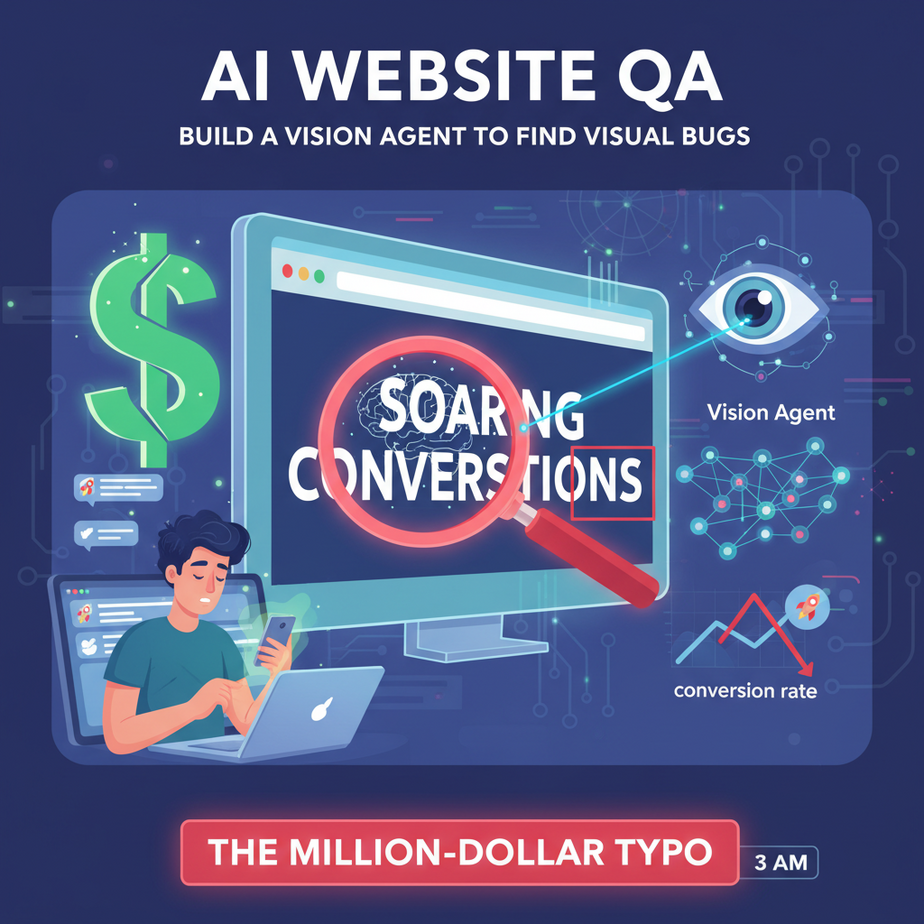
The Million-Dollar Typo
It’s 3 AM. The new marketing site is live. The team is celebrating on Slack with a flurry of rocket emojis. You finally go to sleep, dreaming of soaring conversion rates.
You wake up to a different kind of rocket emoji: the one that means “everything is on fire.” It turns out, on the iPhone 12 Mini and only the iPhone 12 Mini, a single line of CSS broke. The “Buy Now” button, the glorious, money-printing heart of your entire launch, was hiding behind the cookie consent banner. For 8 hours, nobody on that specific device could buy your product.
This isn’t a database failure or a server crash. This is a visual bug, a tiny, dumb, and incredibly expensive mistake that a human would have spotted in two seconds… if only they had the time, willpower, and every single phone model on the planet to test it.
Why This Matters
Manual Quality Assurance (QA) is a bottleneck. It’s slow, mind-numbingly repetitive, expensive, and humans are… well, human. We miss things. Especially after staring at the same webpage for six hours.
This automation doesn’t just save time; it fundamentally changes how you build and ship products. It replaces the “junior QA tester” or the “unlucky developer” whose job is to click through every page on every device before a launch.
- Speed: Go from a day of manual testing to a 5-minute automated scan. This means you can deploy changes faster and with more confidence.
- Coverage: An AI agent can tirelessly test dozens of screen sizes and pages that a human would inevitably skip.
- Cost: Human QA hours are expensive. An API call to an AI vision model costs pennies. The math is not subtle.
We’re building a robot QA assistant. It never gets tired, it never gets bored, and its only job is to look at your website and tell you if it looks broken.
What This Tool / Workflow Actually Is
We are using an AI Vision Model, specifically OpenAI’s GPT-4o. Think of it as a standard language model like ChatGPT, but with a pair of eyes. It can process and understand images just like it processes text.
Our workflow is a simple, elegant pipeline:
- The Eyes: We use a browser automation tool called Selenium to visit a webpage and take a perfect screenshot, exactly as a user would see it.
- The Brain: We send this screenshot to the GPT-4o vision API.
- The Checklist: Along with the image, we send a carefully crafted prompt—our “QA checklist”—telling the AI exactly what to look for (e.g., overlapping text, broken images, buttons that look weird).
- The Report: The AI analyzes the image against our checklist and sends back a structured JSON report detailing every visual bug it found.
What it does NOT do: This agent can’t test your backend logic. It doesn’t know if your database calculations are correct. It can’t check your API response times. It is a specialist, focused solely on the visual presentation layer—the part your customer actually sees and interacts with.
Prerequisites
This looks intimidating, but it’s not. All the tools are free (except the API calls, which are very cheap) and the code is copy-paste friendly.
- An OpenAI API Key. If you’ve been following this course, you already have one. If not, head to OpenAI’s platform, sign up, and create a key. You’ll need to add a credit card to use the vision models, but we’ll be spending less than a dollar.
- Python. You need it on your machine.
- Google Chrome. We’ll be using Selenium to control Chrome, so you need the browser installed.
That’s it. No servers, no DevOps, just one script to rule them all.
Step-by-Step Tutorial
Let’s build our QA-bot. We’ll start piece by piece.
Step 1: Install the Tools
Open your terminal or command prompt. We need four Python libraries. Let’s install them all at once.
pip install openai selenium webdriver-manager PillowHere’s what they do:
openai: The official library to talk to OpenAI’s API.selenium: The tool that lets us control a web browser with code. Our robot’s hands and eyes.webdriver-manager: A helper that automatically downloads the right driver for Selenium to talk to Chrome. It saves us a lot of setup headaches.Pillow: A popular image processing library. Selenium uses it behind the scenes.
Step 2: Take a Screenshot with Selenium
First, let’s just prove we can control the browser. Create a file called `qa_agent.py` and add this code. This function will open a URL and return the screenshot data we need.
import base64
from selenium import webdriver
from selenium.webdriver.chrome.service import Service as ChromeService
from webdriver_manager.chrome import ChromeDriverManager

def get_website_screenshot_as_base64(url, width=1280, height=800):
    """Navigates to a URL and returns a base64 encoded screenshot."""
    chrome_options = webdriver.ChromeOptions()
    chrome_options.add_argument("--headless") # Run without opening a visible browser window
    chrome_options.add_argument("--no-sandbox")
    chrome_options.add_argument("--disable-dev-shm-usage")

    driver = webdriver.Chrome(
        service=ChromeService(ChromeDriverManager().install()), options=chrome_options
    )

    driver.set_window_size(width, height)
    driver.get(url)

    # It's a good practice to wait a bit for the page to fully load
    import time
    time.sleep(2)

    # Get screenshot as base64
    screenshot_base64 = driver.get_screenshot_as_base64()
    driver.quit()

    return screenshot_base64

# --- Test it out ---
if __name__ == '__main__':
    # NOTE: Using a site known to have layout examples
    test_url = "https://getbootstrap.com/docs/5.3/examples/jumbotron/"
    screenshot_data = get_website_screenshot_as_base64(test_url)
    print(f"Got screenshot data! First 100 chars: {screenshot_data[:100]}")
Run this file (`python qa_agent.py`). If it prints a long string of random-looking characters, congratulations. You’ve just captured an image of a website as data your script can use.
Step 3: Craft the AI QA Prompt
This is the soul of our machine. We need to tell the AI *exactly* what its job is. A vague prompt gets vague results. We will be specific and demand JSON in return.
QA_SYSTEM_PROMPT = """You are an expert QA Engineer. Your task is to analyze a screenshot of a webpage and identify any visual bugs or UI/UX issues.

Your response MUST be a valid JSON object with a single key, "issues_found", which is a list of objects. Each object in the list represents a single issue and must have two keys: "issue_summary" (a brief description of the bug) and "severity" (rated as 'Low', 'Medium', or 'High').

If no issues are found, return an empty list: {"issues_found": []}.

Analyze the screenshot for the following potential issues:
1.  **Layout & Alignment:** Are elements misaligned, overlapping, or awkwardly spaced?
2.  **Text:** Are there any typos, unreadable text (e.g., bad color contrast), or text that overflows its container?
3.  **Images & Icons:** Are any images broken, blurry, or disproportionately scaled?
4.  **Responsiveness:** Does the layout look broken for the given viewport size (e.g., elements off-screen, crowded navigation)?
5.  **Consistency:** Are button styles, fonts, or color schemes inconsistent across the page?
"""
This prompt is our contract with the AI. It sets the persona, the output format, and the exact checklist to follow.
Complete Automation Example
Now, let’s tie it all together. We’ll create a main function that takes a URL, gets the screenshot, sends it to OpenAI with our prompt, and prints a clean report.
Add this to your `qa_agent.py` file. Make sure to set your OpenAI API key as an environment variable first (`export OPENAI_API_KEY=’sk-…’`).
import os
import json
from openai import OpenAI

# ... (keep the get_website_screenshot_as_base64 function from before) ...
# ... (keep the QA_SYSTEM_PROMPT constant from before) ...

client = OpenAI(api_key=os.environ.get("OPENAI_API_KEY"))

def analyze_screenshot_for_bugs(screenshot_base64):
    """Sends the screenshot to OpenAI Vision API and returns the analysis."""
    try:
        response = client.chat.completions.create(
            model="gpt-4o", # Or "gpt-4-vision-preview"
            messages=[
                {
                    "role": "system",
                    "content": QA_SYSTEM_PROMPT
                },
                {
                    "role": "user",
                    "content": [
                        {
                            "type": "image_url",
                            "image_url": {
                                "url": f"data:image/png;base64,{screenshot_base64}"
                            }
                        }
                    ]
                }
            ],
            max_tokens=1024,
            # Force JSON mode for models that support it
            response_format={"type": "json_object"}
        )

        report = json.loads(response.choices[0].message.content)
        return report

    except Exception as e:
        print(f"Error analyzing image: {e}")
        return {"issues_found": [{"issue_summary": "Failed to analyze image.", "severity": "High"}]}


# --- Main Execution Block ---
if __name__ == '__main__':
    target_url = "https://getbootstrap.com/docs/5.3/examples/checkout/" # A complex form is a good test
    viewports = [
        {"name": "Desktop", "width": 1920, "height": 1080},
        {"name": "Mobile", "width": 390, "height": 844}
    ]

    print(f"🚀 Starting QA scan for {target_url}...")

    for viewport in viewports:
        print(f"\
---
🔎 Scanning in {viewport['name']} view ({viewport['width']}x{viewport['height']})...")

        # 1. Capture screenshot
        b64_image = get_website_screenshot_as_base64(target_url, viewport['width'], viewport['height'])

        # 2. Analyze with AI
        analysis_result = analyze_screenshot_for_bugs(b64_image)

        # 3. Print report
        issues = analysis_result.get("issues_found", [])
        if not issues:
            print("✅ No visual issues found.")
        else:
            print(f"🚨 Found {len(issues)} potential issues:")
            for issue in issues:
                print(f"  - [{issue['severity']}] {issue['issue_summary']}")

    print("\
---
✅ QA Scan Complete.")
Run the script. Watch as it opens a headless browser, scans the page on two different screen sizes, and prints a professional-looking bug report. You just did 20 minutes of manual QA work in 30 seconds.
Real Business Use Cases
This isn’t a toy. This exact workflow can be plugged into real business processes today:
- E-commerce Store: After deploying new code, the system automatically scans the 10 most popular product pages and the entire checkout funnel. If an “Add to Cart” button is ever hidden or misaligned, it alerts the dev team on Slack *before* a customer notices.
- SaaS Platform: The QA agent runs nightly on the main user dashboard, checking for data tables that overflow, navigation menus that break on smaller screens, or broken icons after a component library update.
- Marketing Agency: Before a client presentation, the agent scans the staging link for a new landing page. It catches embarrassing typos, images that failed to load, and forms that look terrible on mobile, ensuring a flawless client demo.
- Content Publishing: A news website uses the agent to scan every new article before it goes live, checking that ads aren’t covering headlines and that embedded videos are rendering correctly.
- CI/CD Pipeline: A developer pushes code to GitHub. A GitHub Action automatically triggers our Python script. If the AI finds any ‘High’ severity visual bugs on key pages, the deployment is automatically blocked, and a bug report is filed in Jira with the screenshot attached.
Common Mistakes & Gotchas
- Ignoring Page Load State: Taking a screenshot too early will just give you a picture of a loading spinner. The `time.sleep(2)` is a crude but effective way to wait. Professionals use Selenium’s explicit waits for better reliability.
- Forgetting About Cookies and Pop-ups: Your script might be taking a perfect screenshot of a giant cookie banner. Your Selenium script might need to include steps to click “Accept” before taking the final picture.
- Underestimating Costs: Vision API calls are more expensive than text-only calls. A single `gpt-4o` image analysis costs about half a cent. Running this across 1,000 pages will add up. Use it strategically on your most critical pages.
- Expecting Perfection: The AI is an amazing assistant, but it’s not a perfect oracle. It might occasionally miss a subtle bug or flag something that isn’t actually a problem (a false positive). It’s a tool to augment human oversight, not eliminate it entirely.
How This Fits Into a Bigger Automation System
This QA agent is a single, powerful module. It becomes truly transformative when you connect it to other systems.
- CI/CD Integration: As mentioned, this is a perfect check to run in a deployment pipeline using tools like GitHub Actions or Jenkins. Pass/fail results can determine if code gets promoted to production.
- Ticket Management: The JSON output isn’t just for printing. It can be sent to the Jira or Asana API to automatically create detailed bug tickets, assigning them to the right developer and attaching the incriminating screenshot.
- Scheduled Monitoring: You can run this script on a schedule (e.g., every hour) using a cloud service like AWS Lambda or Google Cloud Functions. This turns it into a monitoring system that constantly watches your live site for visual degradation.
- Multi-Agent Workflows: The output of this “QA Agent” could be the input for another agent. For example, if it finds a bug, it could pass the report to a “Code Analysis Agent” that tries to guess which recent code change might have caused the issue.
What to Learn Next
Fantastic work. You’ve built an AI that can *see* and *critique*. It can analyze a static image of a website and provide expert feedback. But the web isn’t static. It’s interactive.
Our agent can spot a broken “Login” button, but it can’t actually try to click it. It can see a broken form, but it can’t try to fill it out and submit it to see what happens next.
In the next lesson, we’re going to upgrade our QA-bot from a passive observer to an active participant. We’ll teach it not just to see the page, but to interact with it—clicking buttons, typing in fields, and navigating through a user journey. We’re moving from visual analysis to full-blown autonomous web agents.
You’ve built the eyes. Next, we build the hands. See you then.
“,
“seo_tags”: “ai qa, automated testing, gpt-4 vision, selenium python, visual regression testing, ui automation, openai api”,
“suggested_category”: “AI Automation Courses