
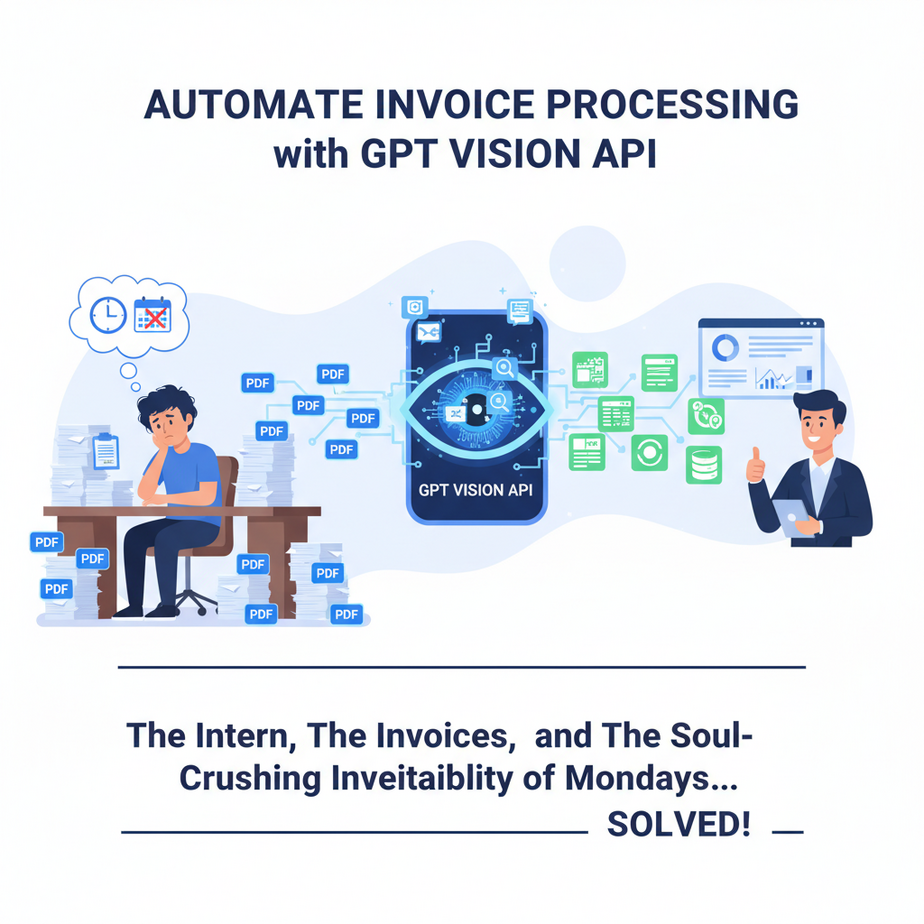
The Intern, The Invoices, and The Soul-Crushing Inevitability of Mondays
Meet Kevin. Kevin is our new intern. His primary job is to take the stack of PDF invoices that lands in our inbox every morning, open each one, and manually type the vendor name, invoice number, due date, and total amount into a Google Sheet.
Kevin is… trying his best. Which means he gets about 60% of them right. For the other 40%, he misspells the vendor name, mixes up the invoice and P.O. numbers, and occasionally enters the subtotal instead of the total amount due. Last Tuesday, he entered a due date of “2023” for a bill that was due Friday. Chaos ensued.
We don’t blame Kevin. We blame the job. It’s a horrible, soul-crushing task designed for a machine. So today, we’re going to build that machine. We’re going to build an AI that does Kevin’s entire job in 30 seconds, with 99% accuracy, and without drinking all the good coffee. Sorry, Kevin.
Why This Matters
This isn’t just about saving an intern from a mind-numbing task. This is about building a core business system component. Manual data entry is the silent killer of productivity. It’s slow, expensive, and a breeding ground for costly errors.
Every minute someone spends copying and pasting data from a document into a system is a minute they’re not spending on something valuable. Every error they make costs time and money to fix.
This automation replaces a broken, human-powered assembly line with a single, hyper-efficient robot. It’s the difference between paying someone to move piles of paper around and having a system that just *knows* what’s in the paper. It’s the foundation for automating your entire accounts payable, expense tracking, or logistics pipeline.
What This Tool / Workflow Actually Is
We’re using the OpenAI GPT-4 Vision API. Forget the hype for a second. Here’s what it is: it’s a Large Language Model (like ChatGPT) that can *see*.
You give it an image (like a screenshot of an invoice, a photo of a receipt, or a page from a PDF) and a text prompt. The model then analyzes the image and answers your question based on what it sees.
What it does:
It “reads” text and understands the layout of documents. We can tell it, “Look at this invoice and pull out the total amount, the vendor, and the due date.”
What it does NOT do:
This is not a complete accounting software. It doesn’t pay the bills, connect to your bank, or file your taxes. It is a highly specialized data *extractor*. Its only job is to look at a document and hand you back clean, structured data (we’ll be using JSON). What you do with that data is where the real automation begins.
Prerequisites
I know some of you are allergic to code. Don’t panic. If you can copy and paste, you can do this. I promise.
- An OpenAI API Key: You need an account at platform.openai.com. You’ll also need to set up billing by adding a credit card. Yes, this costs money, but we’re talking pennies per invoice, which is a lot cheaper than Kevin’s hourly rate.
- Python 3 installed: Most computers have it already. If not, a quick Google search for “install python” will get you there.
- An example invoice: Find a PDF invoice and take a screenshot of it. Save it as something simple like
invoice.pngin the same folder where you’ll save your code.
That’s it. No fancy servers, no complex software. Just you, a text editor, and a desire to never manually enter an invoice again.
Step-by-Step Tutorial
Let’s build this robot, piece by piece. Open a plain text editor (like VS Code, Sublime Text, or even Notepad) and save an empty file named process_invoice.py.
Step 1: Install the necessary libraries
Open your terminal or command prompt and run this command. This gives our script the tools to talk to OpenAI and handle images.
pip install openai python-dotenv PillowWe’re installing openai to talk to the API, python-dotenv to manage our secret API key safely, and Pillow to help with image processing if needed (good practice to have it).
Step 2: Set up your API Key
Create a new file in the same folder called .env. The dot at the beginning is important. Inside this file, add this single line, replacing `sk-YOUR-KEY-HERE` with your actual OpenAI API key:
OPENAI_API_KEY="sk-YOUR-KEY-HERE"This keeps your secret key out of your main script. It’s a good habit.
Step 3: Write the Python script to encode the image
We can’t just send an image file to the API. We have to convert it into a format called Base64. It sounds complicated, but it’s just a few lines of code. Add this to your process_invoice.py file.
import base64

# Function to encode the image
def encode_image(image_path):
  with open(image_path, "rb") as image_file:
    return base64.b64encode(image_file.read()).decode('utf-8')
This little function takes the path to your image file, reads it, and spits out a long string of text that represents the image. The AI understands this text-based version of the image.
Step 4: Craft the prompt and make the API call
This is where the magic happens. We need to tell the AI *exactly* what to do. A vague prompt gets you vague results. A specific prompt gets you structured data.
Add the rest of the code to your process_invoice.py file:
import os
from openai import OpenAI
from dotenv import load_dotenv

load_dotenv()

client = OpenAI()
# Set your API key using: client.api_key = os.getenv("OPENAI_API_KEY")
# Note: The above line is optional if you have OPENAI_API_KEY in your environment

# Path to your image
image_path = "invoice.png"

# Getting the base64 string
base64_image = encode_image(image_path)

response = client.chat.completions.create(
    model="gpt-4-vision-preview",
    messages=[
        {
            "role": "user",
            "content": [
                {
                    "type": "text",
                    "text": "You are an expert accounts payable clerk. Analyze this invoice and extract the following information in a valid JSON object format. Do not include any extra text or explanations, just the JSON. The total_amount should be a float, not a string. The keys should be: vendor_name, invoice_number, invoice_date, due_date, total_amount."
                },
                {
                    "type": "image_url",
                    "image_url": {
                        "url": f"data:image/png;base64,{base64_image}"
                    }
                }
            ]
        }
    ],
    max_tokens=1024,
)

print(response.choices[0].message.content)
Look closely at the prompt. We’re telling it its role (“expert accounts payable clerk”), what we want (“extract the following information”), the exact format we need (“valid JSON object”), and even data type instructions (“total_amount should be a float”). This level of detail is what makes the automation reliable.
Complete Automation Example
Your final process_invoice.py file should look like this. Make sure your invoice.png and .env files are in the same folder. Then, open your terminal and run python process_invoice.py.
import base64
import os
from openai import OpenAI
from dotenv import load_dotenv

# Function to encode the image
def encode_image(image_path):
  with open(image_path, "rb") as image_file:
    return base64.b64encode(image_file.read()).decode('utf-8')

# --- Main execution ---
load_dotenv()
client = OpenAI()

# Path to your image file
image_path = "invoice.png"

if not os.path.exists(image_path):
    print(f"Error: Image file not found at {image_path}")
else:
    # Encode the image
    base64_image = encode_image(image_path)

    # Make the API call
    response = client.chat.completions.create(
        model="gpt-4-vision-preview",
        messages=[
            {
                "role": "user",
                "content": [
                    {
                        "type": "text",
                        "text": "You are an expert accounts payable clerk. Analyze this invoice and extract the following information in a valid JSON object format. Do not include any extra text, markdown formatting, or explanations, just the raw JSON object. The total_amount should be a float, not a string. The keys must be: vendor_name, invoice_number, invoice_date, due_date, total_amount."
                    },
                    {
                        "type": "image_url",
                        "image_url": {
                            "url": f"data:image/png;base64,{base64_image}"
                        }
                    }
                ]
            }
        ],
        max_tokens=1024,
    )

    # Print the clean JSON output
    print(response.choices[0].message.content)
When you run it, your terminal should print something beautiful and clean like this:
{
  "vendor_name": "Office Supplies Co.",
  "invoice_number": "INV-12345",
  "invoice_date": "2024-05-10",
  "due_date": "2024-06-09",
  "total_amount": 255.99
}
That, my friends, is structured data. Ready to be plugged into any other system you can imagine. We just did Kevin’s job for the day in under a second.
Real Business Use Cases (MINIMUM 5)
- Business Type: Freelancer/Consultant
Problem: Manually logging expenses from dozens of receipts for tax purposes.
Solution: Use this script to photograph receipts. The AI extracts the merchant name, date, and total amount, then inserts it directly into a spreadsheet or expense tracking software. - Business Type: E-commerce Store
Problem: Manually verifying that the items listed on a supplier’s packing slip match the purchase order.
Solution: The script scans the packing slip, extracts a list of items and quantities into JSON, and a second script compares that JSON against the original order in your database, flagging discrepancies automatically. - Business Type: Real Estate Property Management
Problem: Tracking utility bills (water, gas, electric) for hundreds of properties.
Solution: Automate the processing of utility bill PDFs. The script extracts the property address, usage period, and amount due, then logs it in the property management system. - Business Type: Logistics Company
Problem: Digitizing information from thousands of Bills of Lading (shipping documents) to track shipments.
Solution: A scanner or phone camera captures the document, and the Vision API extracts the shipper, consignee, tracking number, and freight details for instant entry into the logistics system. - Business Type: Marketing Agency
Problem: Analyzing competitor ads to understand their messaging and offers.
Solution: Take screenshots of social media ads. The script can extract the headline, body text, call-to-action, and any discount codes mentioned, compiling everything into a competitive analysis database.
Common Mistakes & Gotchas
- Not Asking for JSON: If your prompt is just “What’s the total?”, you’ll get back a sentence like “The total amount is $255.99.” This is useless for automation. Always, ALWAYS demand clean JSON output.
- Ignoring Image Quality: A blurry, crumpled, coffee-stained receipt will give you garbage results. The AI is good, but it’s not a miracle worker. Ensure your input images are clear and well-lit.
- Forgetting to Parse the Output: The API returns a text *string* that looks like JSON. In a real application, you need to tell your code to parse it. In Python, you’d use
json.loads(response_text)to turn the string into a usable object you can access data from (e.g.,data['total_amount']). - API Costs: Vision models are more expensive than text-only models. Processing 1,000 invoices might cost a few dollars. This is incredibly cheap compared to manual labor, but don’t leave a script running in an infinite loop unless you want a surprise bill. Monitor your usage in the OpenAI dashboard.
- Trusting it 100%: The model is extremely accurate, but not perfect. For critical applications like accounting, your system should have a human review step for flagged items or amounts over a certain threshold. Think of it as 99% automated, with a 1% human-in-the-loop for safety.
How This Fits Into a Bigger Automation System
What we built today is a single, powerful gear. It’s not the whole machine. The JSON output from this script is the fuel for much larger, more impressive automations.
- Email Automation: Connect this to an email server. When an email with the subject “New Invoice” arrives, automatically save the attachment, run this Vision script, and forward the extracted JSON to your accounting team.
- CRM/ERP Integration: Pipe the JSON directly into your CRM (like HubSpot) or ERP (like NetSuite) via their APIs to create a new bill record automatically. No human ever touches it.
- Multi-agent Workflows: This is just Agent #1 (The Extractor). You could have Agent #2 (The Validator) check the extracted vendor name against a list of approved vendors. Agent #3 (The Notifier) could then send a Slack message to the finance channel saying, “New invoice from Office Supplies Co. for $255.99 approved and logged.”
- RAG Systems (Retrieval-Augmented Generation): Store all your extracted invoice data in a vector database. You can then ask questions in plain English like, “How much have we spent with Office Supplies Co. in the last 6 months?” and get an instant, accurate answer.
What to Learn Next
You’ve successfully built a robot that can see and read. You’ve turned a messy image into clean, structured data. This is a fundamental skill in the AI Automation Academy.
But running a script manually is still work. The true goal is a system that runs itself.
In our next lesson, we’re going to take this exact script and hook it up to a trigger. We’ll build an automated workflow that watches a specific folder (or even an email inbox) and runs our invoice processor automatically the moment a new file appears. We’re going from a tool you have to run to a system that works while you sleep. Welcome to real automation.
Stay tuned.
“,
“seo_tags”: “AI Automation, GPT Vision API, Invoice Processing, OCR, Data Extraction, OpenAI Tutorial, Python Automation, Business Automation”,
“suggested_category”: “AI Automation Courses