
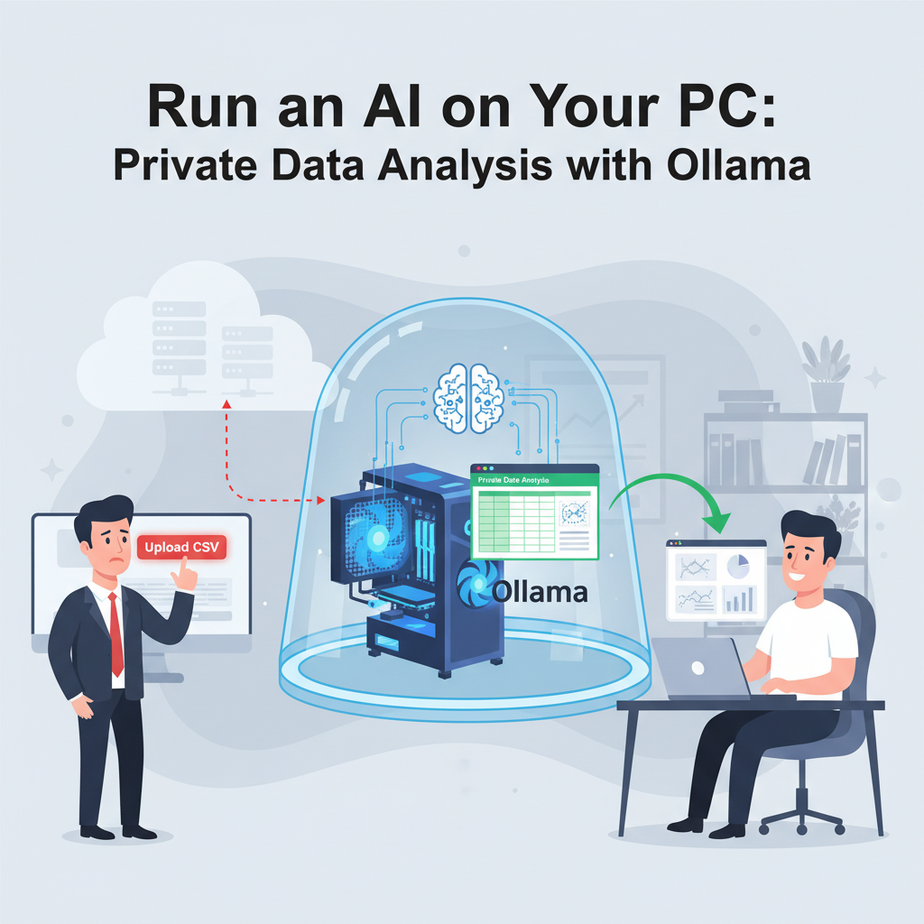
The Cold Sweat of the ‘Upload CSV’ Button
I was on a call with a founder last week. Let’s call him Mark. Mark runs a successful e-commerce business. He had a CSV file with 10,000 of his most loyal customers—names, email addresses, and a full history of their brutally honest feedback comments.
He wanted to use an AI to analyze the feedback, find themes, and maybe identify his happiest (and angriest) customers. A smart move.
“So, just upload the CSV to ChatGPT, right?” he asked.
I could almost hear the silence on the other end of the line as his brain caught up with his mouth. He imagined that entire list, the lifeblood of his business, sitting on a server somewhere in California, being used to train the next version of some mega-corporation’s AI. He pictured a data breach notification with his company logo on it. The cold sweat was immediate.
“Absolutely not,” I said. “We’re not letting that data leave your laptop. Today, we’re building you a private AI, an intern that lives entirely on your computer and never, ever talks to the internet.”
Why This Matters
Every time you paste text into a public AI tool, you’re essentially handing over your data. For harmless stuff, who cares? For business data—financial reports, employee reviews, client lists, legal documents—it’s insane.
This workflow isn’t just about privacy. It’s about control and cost.
- Control: The AI model runs on your machine. It’s yours. No internet connection needed. No company can change its terms of service, revoke your access, or get hacked, affecting your workflow.
- Cost: API calls to powerful models cost money. Pennies per query, sure, but analyzing 100,000 documents will leave a dent. A local model costs you nothing but the electricity to run it. It’s a one-time setup for infinite use.
- Replaces: This replaces the need to hire a data scientist for simple-to-medium analysis tasks, the risk of using public AI tools for sensitive data, and the tedious manual labor of a poor intern reading thousands of feedback forms.
You’re building a secure, internal data processing factory instead of outsourcing the work to a company you can’t trust.
What This Tool / Workflow Actually Is
We’re going to use a tool called Ollama. It’s the simplest way to download, manage, and run powerful open-source Large Language Models (LLMs) directly on your own computer.
What it does:
Think of Ollama as a simple command-line tool that turns your laptop or desktop into a self-contained AI server. You tell it, “Hey, get me the Llama 3 model from Meta,” and it downloads it and gets it ready to run. Then, you can talk to that model from your terminal or, more importantly, from a simple Python script.
What it does NOT do:
It is NOT connected to the internet. The AI model has no idea what happened in the news today. It cannot browse websites. Its knowledge is frozen at the time it was trained. This is a feature, not a bug. It’s a brilliant, isolated brain in a box.
Prerequisites
I need you to be brutally honest with yourself here. This is simple, but not magic.
- A Decent Computer: You don’t need a supercomputer, but you do need a reasonably modern machine. The key ingredient is RAM. 8GB of RAM is the absolute minimum, and you’ll be limited to smaller models. 16GB is comfortable for most good models, and 32GB+ is fantastic.
- Ollama Installed: It’s a one-click install for Mac and Windows. For Linux, it’s a single command. Go to ollama.com and download it.
- Python Installed: If you’re on a Mac or Linux, you likely already have it. If not, Google “install python” and follow the instructions for your OS. We’re not doing anything complicated, I promise.
That’s it. No credit card, no complex sign-up, no cloud server configuration. If you can install a program and open a command prompt (or Terminal), you’re ready.
Step-by-Step Tutorial
Let’s get your private AI intern hired and ready for work.
Step 1: Install and Run a Model with Ollama
Open your Terminal (on Mac/Linux) or PowerShell/CMD (on Windows). First, we’ll download Meta’s new Llama 3 8B model. It’s powerful and runs well on most modern machines. The ‘8B’ stands for 8 billion parameters—a measure of its size.
Type this command and press Enter:
ollama run llama3This will download the model, which might take a few minutes depending on your internet speed. It’s a few gigabytes. Once it’s done, you’ll see a message like >>> Send a message (/? for help). You’re now chatting directly with an AI running on your machine. Type “Tell me a joke about automation” and see what happens. Type /bye to exit.
Step 2: Set Up Your Python Environment
We need a way for our code to talk to Ollama. The Ollama team created a dead-simple Python library for this. In your terminal, install it using pip, Python’s package manager.
pip install ollamaIf that gives an error, try pip3 install ollama. Done. Seriously.
Step 3: Write a Simple Python Script to Talk to the AI
Create a new file called test_ai.py and open it in any text editor (VSCode, Notepad, whatever). Paste this code in:
import ollama

# The model we want to use
model_name = 'llama3'

# The prompt we want to send
prompt = 'Why is running AI locally for business a good idea? Be concise.'

print(f"--- Sending prompt to {model_name} ---")
print(f"PROMPT: {prompt}")

# Call the Ollama API
response = ollama.chat(
    model=model_name,
    messages=[
        {
            'role': 'user',
            'content': prompt,
        },
    ]
)

print("--- AI RESPONSE ---")
# Print just the content of the response
print(response['message']['content'])
Save the file. Make sure the Ollama application is running in the background. Now, run the script from your terminal:
python test_ai.pyYou should see your prompt printed, followed by a well-reasoned answer from the AI, all generated 100% on your computer. You just built your first local AI application.
Complete Automation Example: Analyzing Sensitive Customer Feedback
Now for Mark’s problem. We’re going to create a script that reads a CSV of customer feedback, asks our local AI to classify each comment, and saves the results to a new CSV.
Step 1: Create the Sample Data
Create a file named feedback.csv and paste this inside. This is our sensitive data that we will NOT upload to the cloud.
id,comment
1,"The checkout process was a nightmare. I almost gave up."
2,"I absolutely love the new design! So much cleaner and easier to use."
3,"The product arrived on time, but the packaging was damaged."
4,"Your customer support team is fantastic. Sarah was incredibly helpful."
5,"I'm not sure if I'll order again. The quality wasn't what I expected."
Step 2: Create the Python Automation Script
Create a new file named analyze.py and paste this code in. Read the comments to understand what each part does.
import ollama
import csv

# Define the model we're using
MODEL = 'llama3'

# The function that will call the local AI
def analyze_sentiment(comment):
    # This is the 'System Prompt'. It tells the AI its job.
    system_prompt = """
    You are a sentiment analysis expert. Classify the user's comment into one of three categories: Positive, Negative, or Neutral.
    You MUST respond with only a single word: Positive, Negative, or Neutral.
    """

    try:
        response = ollama.chat(
            model=MODEL,
            messages=[
                {'role': 'system', 'content': system_prompt},
                {'role': 'user', 'content': comment}
            ]
        )
        sentiment = response['message']['content'].strip()
        # Basic validation to ensure we get one of the expected words
        if sentiment in ["Positive", "Negative", "Neutral"]:
            return sentiment
        else:
            return "Unclassified"
    except Exception as e:
        print(f"An error occurred: {e}")
        return "Error"

# --- Main script execution ---

# Open the input CSV and prepare the output CSV
with open('feedback.csv', 'r') as infile, open('analysis_results.csv', 'w', newline='') as outfile:
    reader = csv.DictReader(infile)
    writer = csv.writer(outfile)

    # Write the header row for our new file
    writer.writerow(['id', 'comment', 'sentiment'])

    print("Starting analysis...")

    # Loop through each row in the input file
    for row in reader:
        comment_id = row['id']
        comment_text = row['comment']

        # Analyze the sentiment of the comment
        sentiment = analyze_sentiment(comment_text)

        # Write the result to our new file
        writer.writerow([comment_id, comment_text, sentiment])

        print(f"Processed ID {comment_id}: {sentiment}")

print("--- Analysis complete! Results saved to analysis_results.csv ---")
Step 3: Run the Automation
Save the file and run it from your terminal:
python analyze.pyYou’ll see it process each line one by one. When it’s done, you’ll have a new file called analysis_results.csv. Open it up. It should look like this:
id,comment,sentiment
1,"The checkout process was a nightmare. I almost gave up.",Negative
2,"I absolutely love the new design! So much cleaner and easier to use.",Positive
3,"The product arrived on time, but the packaging was damaged.",Neutral
4,"Your customer support team is fantastic. Sarah was incredibly helpful.",Positive
5,"I'm not sure if I'll order again. The quality wasn't what I expected.",Negative
Boom. You just performed a sophisticated data analysis task on sensitive data without it ever leaving your computer. No API keys, no data privacy statements, no monthly bills. Just pure, private automation.
Real Business Use Cases
This exact pattern can be used everywhere:
- HR Department: Feed anonymous employee satisfaction surveys into the script. The prompt could be: “Identify the main theme of this feedback: Compensation, Management, Work-Life Balance, or Other.”
- Law Firm: Process thousands of pages of discovery documents. The prompt: “Does this paragraph mention ‘Project Nightingale’? Respond with only YES or NO.”
- Financial Consulting: Analyze client portfolio statements. The prompt: “Extract the total value of assets in the ‘Equities’ category from this text. Respond with only the number.”
- Marketing Agency: Go through a list of potential leads from a private database. The prompt: “Based on the company description, is this a B2B or B2C company?”
- Software Company: Analyze bug reports from a private ticketing system. The prompt: “Categorize this bug report: UI, Backend, Database, or Authentication.”
Common Mistakes & Gotchas
- Running out of RAM: If your script is slow or crashes, you might be using a model that’s too big for your machine. Try a smaller one. Instead of
llama3(the 8B model), trytinyllamaormistral:7b. - Bad Prompting: The AI is only as good as your instructions. Notice how specific our prompt was: “You MUST respond with only a single word.” If you’re vague, you’ll get back chatty sentences that break your script. Be a drill sergeant.
- Forgetting It’s Offline: Don’t ask it about current events or expect it to know about new technologies. Its knowledge is locked in the past.
- Processing Huge Files: This script processes one by one. For 1 million rows, it will be slow. That’s a scaling problem for a later lesson, but for tens of thousands of items, it works just fine.
How This Fits Into a Bigger Automation System
What we built today is a single, powerful gear in a much larger machine. This local, private AI ‘brain’ is a component you can now plug into anything.
- Connect to a CRM: You could build an automation that pulls new notes from your CRM every hour, summarizes them using your local AI, and pushes the summary back into a custom field.
- Power a RAG System: This is the engine for a Retrieval-Augmented Generation system. You can have it read your company’s internal wiki or SharePoint drive (all locally, of course) and answer questions about internal procedures.
- Feed Other Agents: One AI agent could use this local model to categorize an incoming email. If it’s ‘Negative’, it could pass it to another, more specialized agent designed to draft apology emails.
Think of it as your secure, on-premise ‘Head of Analysis’. Any other system you build can now consult it without ever exposing data to the outside world.
What to Learn Next
You’ve successfully hired your first private AI intern and put it to work on a real business task. It can read and classify data with perfect obedience and privacy.
But right now, it only knows what you tell it in the prompt. Its memory is short, and its knowledge is generic.
In the next lesson in this course, we’re going to give it a library card. We will build a complete, local RAG system that connects this AI to your own private documents. You’ll be able to ask it questions like, “What was our revenue in Q3 according to the internal finance report?” and get an accurate answer, cited from your own files.
You’ve built the brain. Next, we give it the knowledge.
“,
“seo_tags”: “Ollama, Local LLM, Private AI, Python, Data Analysis, AI Automation, Business AI, Llama 3”,
“suggested_category”: “AI Automation Courses