
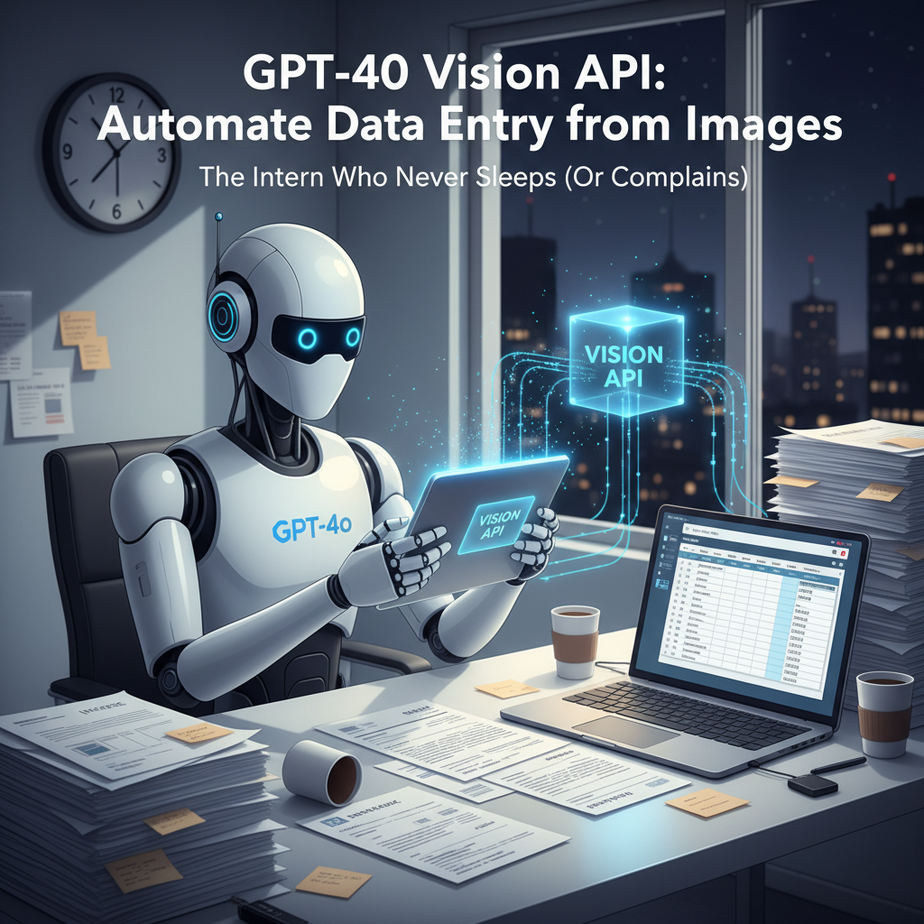
The Intern Who Never Sleeps (Or Complains)
Picture this. It’s 11 PM. You’re at the office, surrounded by a mountain of paper. Invoices, new client forms, handwritten feedback cards… a whole forest’s worth of dead trees mocking you. Your only companion is a lukewarm coffee and the ghost of your social life.
Somewhere in this paper nightmare is a number you need for a report due in the morning. So you start the soul-crushing work of manual data entry. Typing, typing, tabbing. Your eyes blur. You enter a ‘1’ instead of a ‘7’. You don’t notice. The report is wrong. The client is unhappy. Your week is ruined.
We’ve all been there. We’ve all hired the proverbial intern—let’s call him Barry—whose sole job is to turn paper into data. Barry is slow, expensive, and makes mistakes because, well, he’s human. Today, we’re going to build a better Barry. A digital one. One that works 24/7, costs fractions of a penny per document, and never gets tired.
Why This Matters
This isn’t just a cool party trick. This is a fundamental upgrade to how your business handles information. Every piece of paper that enters your company is a bottleneck. An invoice from a vendor, a signed contract from a client, a work order from a technician—they all sit there, useless, until a human manually translates them into a digital format.
This automation replaces:
- Hours of manual data entry.
- Costly data entry services or temp staff.
- The human error that creeps in when you’re tired and bored.
By teaching a machine to *read* and *understand* documents, you turn a slow, manual process into an instant, automated one. The data becomes available the second the document arrives. This is how you build a business that runs while you sleep.
What This Tool / Workflow Actually Is
We’re using the OpenAI GPT-4o Vision API. Let’s break that down.
Think of a normal AI like ChatGPT as a brain in a jar. It can think and write, but it’s blind. The Vision API gives that brain a pair of eyes. It can look at an image you send it and understand what it’s seeing.
What it does:
- It looks at an image (like a photo of an invoice).
- It reads the text, even if it’s messy handwriting.
- It understands the *layout* and *context* (it knows which number is the ‘Total’ and which is the ‘Invoice Number’).
- It follows your instructions to pull out specific information and structure it neatly (like in a JSON format).
What it does NOT do:
- It is not 100% perfect. For mission-critical data, you still need a human validation step, at least initially.
- It can’t magically read a blurry, coffee-stained photo taken in a dark room. Garbage in, garbage out.
- It doesn’t automatically connect to your accounting software. It just extracts the data. We’ll handle connecting it to other systems in a future lesson.
Prerequisites
I know some of you just felt your stomach drop when you saw the word “API.” Relax. If you can follow a recipe to bake a cake, you can do this. I promise.
- An OpenAI Account: You need an account at platform.openai.com.
- An API Key: Once you have an account, you’ll create a “secret key.” This is like the password for your AI robot. Keep it safe.
- A Few Dollars: This is not free, but it’s insanely cheap. We’re talking pennies or less per document. You’ll need to add a credit card and put about $5 of credit on your account to get started.
- A Python Environment: If you don’t have Python on your computer, don’t panic. You can use a free online tool like Replit. No installation needed.
That’s it. No coding experience is required. I’m going to give you the exact code to copy and paste.
Step-by-Step Tutorial
Let’s build our digital intern. We’ll teach it to read a document and give us back clean, structured data.
Step 1: Get Your OpenAI API Key
Go to your OpenAI account. In the left-hand menu, click on “API Keys.” Click “Create new secret key,” give it a name (like “DataEntryBot”), and copy the key that appears. Save this somewhere safe. You will not be able to see it again.
Step 2: Set Up Your Python Script
Whether you’re on your own computer or on Replit, you need to install the OpenAI library. Open your terminal or shell and run this command:
pip install openaiNow, create a new file named read_form.py. This is where our robot’s brain will live.
Step 3: Prepare Your Image
The API can’t just take a JPG file directly. We need to convert the image into a long string of text called a “base64 encoding.” It sounds complicated, but it’s easy. You can use a free online tool like base64-image.de. Just upload your image, and it will give you a giant block of text to copy.
For this tutorial, find any invoice online, or even take a picture of a receipt. Upload it and get that base64 string.
Step 4: Write The Python Code
Open your read_form.py file and paste the following code. We’ll walk through what it does line by line.
import openai
import os

# --- CONFIGURATION ---
# IMPORTANT: Replace "YOUR_API_KEY" with your actual OpenAI API key
# It's better to set this as an environment variable for security
client = openai.OpenAI(api_key="YOUR_API_KEY")

# --- IMAGE DATA ---
# Replace this with the base64 string of your image
base64_image = "PASTE_YOUR_BASE64_ENCODED_IMAGE_HERE"

# --- THE PROMPT: This is where you tell the AI what to do ---
prompt_text = """
Look at this image of an invoice.
Extract the following information:
- invoice_number
- invoice_date
- customer_name
- total_amount

Please return the information ONLY as a valid JSON object. Do not include any other text or explanations.
Example format:
{
  "invoice_number": "INV-123",
  "invoice_date": "2024-05-21",
  "customer_name": "John Doe",
  "total_amount": 150.75
}
"""

# --- API CALL ---
try:
    response = client.chat.completions.create(
        model="gpt-4o",
        messages=[
            {
                "role": "user",
                "content": [
                    {"type": "text", "text": prompt_text},
                    {
                        "type": "image_url",
                        "image_url": {
                            "url": f"data:image/jpeg;base64,{base64_image}"
                        }
                    }
                ]
            }
        ],
        max_tokens=500 # Adjust as needed
    )

    # Print the clean JSON output
    print(response.choices[0].message.content)

except Exception as e:
    print(f"An error occurred: {e}")
What’s happening here?
- Configuration: We’re telling the script what our API key is so it can talk to OpenAI.
- Image Data: We’re pasting in the base64 string of our image.
- The Prompt: This is the most important part. We are giving the AI very clear instructions. We tell it what document it’s looking at, exactly what pieces of information to find, and—critically—to return it as a JSON object. Providing an example format makes it almost foolproof.
- API Call: This is the code that packages up our prompt and image and sends it off to the GPT-4o model. It then waits for the response and prints it to the screen.
Complete Automation Example
Let’s run a real scenario. Imagine you’re a freelance designer and you’ve just received a scanned invoice from a contractor.
The Image: It’s a standard invoice. It has your contractor’s name, an invoice number (say, #1042), a date (June 15, 2024), your name as the client, a list of services, and a total amount ($850.00).
The Process:
- You take a picture or scan of the invoice.
- You convert it to base64 using an online tool.
- You paste the API key and the base64 string into our Python script.
- You adjust the prompt to ask for the fields you care about (invoice number, date, total amount, contractor name).
- You run the script from your terminal:
python read_form.py
The Output: The script will print something that looks exactly like this:
{
  "invoice_number": "1042",
  "invoice_date": "2024-06-15",
  "customer_name": "Your Name Here",
  "total_amount": 850.00
}
Boom. No typing. No mistakes. Just clean, structured data ready to be used. You just did in 5 seconds what would have taken Barry the intern 5 minutes (plus another 5 to fix his typos).
Real Business Use Cases
This isn’t just for invoices. This one pattern can be applied across dozens of industries.
- E-commerce Store: Customers send back handwritten return forms. Use this automation to instantly read the form, extract the order number and reason for return, and automatically trigger the right refund process in your system.
- Real Estate Agency: Digitize handwritten client intake forms from an open house. Instantly add new leads to your CRM without an agent having to type them all in later.
- Logistics Company: A truck driver takes a photo of a signed Bill of Lading. The automation extracts the signature confirmation, BOL number, and timestamp, then automatically updates the shipment status to “Delivered.”
- Restaurant: Scan customer feedback cards. The AI extracts the star rating and reads the handwritten comments, performing sentiment analysis to flag any urgent complaints for the manager.
- Field Service Business: A plumber takes a picture of a signed work order on their phone. The system reads the parts used, hours worked, and customer signature, and automatically generates an invoice to be emailed to the client before the plumber has even left the driveway.
Common Mistakes & Gotchas
Your new digital intern is brilliant, but it can be naive. Here’s how to avoid rookie mistakes:
- Garbage In, Garbage Out: A blurry, dark, or crumpled photo will give you bad results. Ensure your input images are as clear as possible.
- Vague Prompts: If you just say “Get the data from this form,” you’ll get a messy paragraph. Be ruthlessly specific. Tell it *exactly* which fields you want and demand JSON output.
- Forgetting the Example: Including a small example of the JSON structure you want in your prompt dramatically improves reliability.
- Expecting Perfection: For things like financial data, don’t trust the AI 100% at first. Build a simple review step where a human quickly glances at the extracted data before it goes into your accounting system. Trust, but verify.
- Ignoring Rate Limits: If you try to process 10,000 documents in one minute, OpenAI will temporarily block you. For high-volume work, you need to add small delays in your code. We’ll cover that in a more advanced lesson.
How This Fits Into a Bigger Automation System
What we’ve built today is a powerful component, but it’s not a full system on its own. Think of it as one station in an automated factory assembly line.
The real magic happens when you connect it to other tools:
- Email -> Vision API -> CRM: An automation tool like Zapier or Make.com can watch a specific email inbox. When an email with an attachment arrives (the invoice), it sends the image to our Python script. Our script runs, extracts the JSON, and the automation tool then uses that data to create a new record in your CRM or accounting software.
- Web Form -> Vision API -> Google Sheets: A customer uploads a photo of their ID to a form on your website. The image is sent to our Vision API. It extracts their name, date of birth, etc., and logs it neatly in a new row in a Google Sheet for verification.
- Multi-Agent Workflows: This is the really fun stuff. One AI agent (our Vision bot) reads the document. It passes the extracted data to a *second* AI agent, whose job is to analyze it. For example, Agent 1 reads a legal contract. Agent 2 reads the extracted text and flags any non-standard clauses.
This single skill—turning images into data—is a gateway to building these more complex, high-value automations.
What to Learn Next
Congratulations. You just built an AI that can see and understand the physical world. You’ve replaced one of the most tedious, error-prone tasks in modern business with a fast, cheap, and reliable robot.
You’ve taught your AI to *read*. But what good is reading if you can’t act on what you’ve learned? What if your AI could not only read the invoice, but also email the vendor with a question about a line item? Or what if it could not only digitize a new lead’s form, but also call them on the phone to schedule an appointment?
In our next lesson in the Academy, we’re going to do just that. We’ll take the structured data we created today and feed it to an AI Voice Agent. We’re going to teach our machine to *talk*.
Stay sharp. The factory is just getting started.
“,
“seo_tags”: “GPT-4o, Vision API, AI Automation, Data Entry, OpenAI Tutorial, Business Process Automation, Python, Structured Data Extraction, Invoice Processing”,
“suggested_category”: “AI Automation Courses