
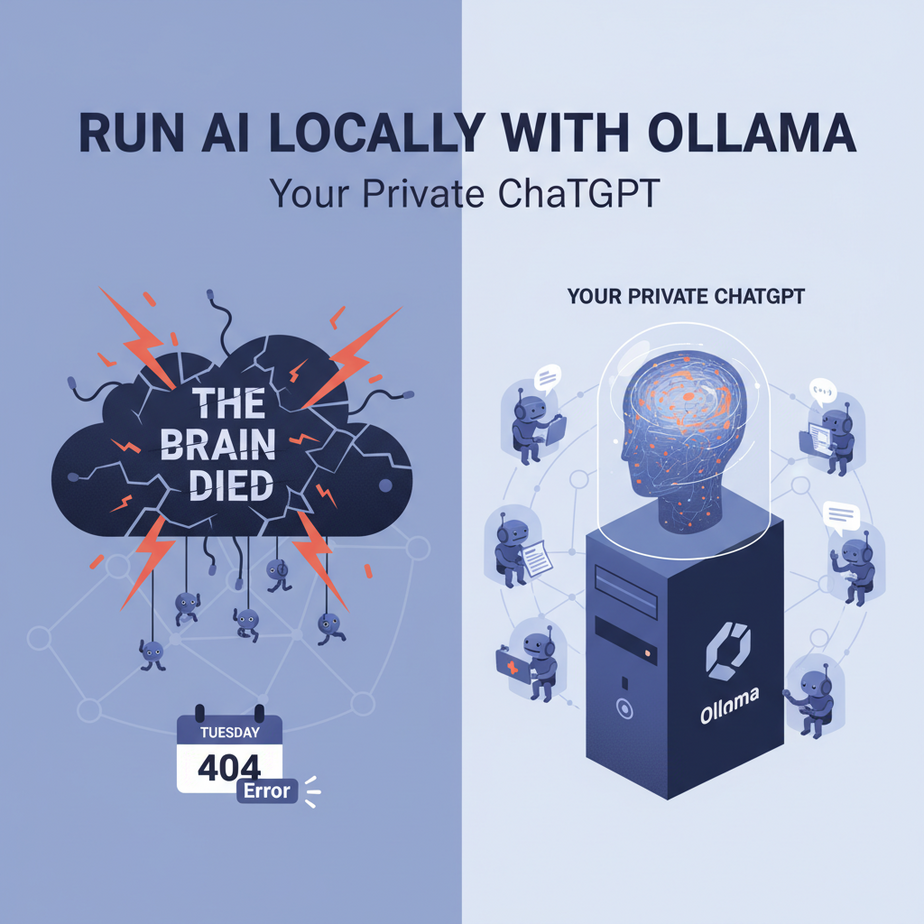
The Day the Cloud Brain Died
It was a Tuesday. Our entire customer support system, a glorious symphony of AI automations, was humming along. New tickets were being read, categorized, and summarized by an AI assistant we’d built using a popular cloud API. It was beautiful.
Then, at 10:17 AM, everything stopped. The API went down. Hard. Our glorious symphony turned into a silent movie. Tickets piled up. Customers got angry. We were flying blind, forced to revert to the Stone Age of reading every single email manually. We were completely paralyzed because the AI “brain” we rented from a big tech company had a headache.
Relying 100% on a third-party API for your core business automation is like building your house on your neighbor’s property. It’s convenient, until they decide to build a swimming pool where your kitchen used to be. Today, we’re taking back control. We’re building our own house on our own land. We’re bringing the AI brain in-house.
Why This Matters
Running AI models locally, on your own hardware, is a superpower. It’s not just for hobbyists; it’s a strategic business decision with massive advantages:
- Total Privacy: When you use a cloud API, you are sending your data to someone else’s computer. For sensitive information—legal documents, medical records, financial data, secret product plans—this is a non-starter. A local model means your data never leaves your machine. Ever.
- Zero API Costs: Cloud models charge you per token, like a tiny gas meter on every thought. A local model has a one-time hardware cost (your computer) and that’s it. You can run it 24/7, processing billions of tokens, and your bill is always $0.
- Control & Reliability: No more surprise API changes breaking your code. No more outages taking your business offline. You control the model, the version, and the uptime. It works even if your internet is down.
- Customization: You can fine-tune these open-source models on your own data, creating a specialized expert AI that knows your business inside and out.
This workflow replaces dependency with sovereignty. You’re building an asset, not renting a service.
What This Tool / Workflow Actually Is
We’re using a combination of two incredible tools to make this easy.
What Ollama is:
Ollama is the magic that makes running complex AI models ridiculously simple. Think of it as an App Store for open-source AI. It’s a tool that you download and run on your computer. Once it’s running, you can type a single command like ollama run llama3, and it handles all the complicated setup to download and serve that model, ready for your applications to use. It turns your computer into a personal AI server.
What LangChain is:
LangChain is the universal translator for your code. It’s a Python library that provides a standardized way to talk to hundreds of different AI models. By using LangChain, we can write our code once, and switch the “brain” from OpenAI to Groq to a local model via Ollama just by changing a single line of code. It’s the plumbing that connects your application to any AI model without you needing to rewrite everything.
Prerequisites
This is a little different from our previous lessons, as it requires software on *your* machine. But it’s still incredibly beginner-friendly.
- Ollama Installed: Go to ollama.com and download the application for your operating system (Mac, Windows, or Linux). Install it like any other program. That’s it.
- A Decent Computer: You don’t need a supercomputer, but running local models requires a good amount of RAM. I recommend at least 16GB of RAM to have a smooth experience with the models we’ll use today. A modern laptop will work fine.
- Python and LangChain: You need Python on your machine. We’ll be using a couple of LangChain packages, which you can install from your terminal with one command:
pip install langchain-community langchain-core pydantic
Note: Because Ollama runs on your local machine, cloud-based coding environments like Replit won’t work for this specific tutorial. You’ll need to run the Python script on the same computer where Ollama is installed.
Step-by-Step Tutorial
Let’s get our private AI server up and running.
Step 1: Start the Ollama Server
After installing Ollama, it should be running in the background. On Mac, you’ll see a little llama icon in your menu bar. On Windows, it’ll be in the system tray. If not, just open the Ollama application to start it.
Step 2: Download an AI Model
Now we need to download the brain. Open your computer’s terminal (Terminal on Mac, PowerShell or Command Prompt on Windows) and type this command:
ollama pull llama3This will download the Llama 3 8B model, one of the best small models available. It’s a few gigabytes, so it might take a minute. Once it’s done, the model is ready to be used.
Step 3: Write the Python script to connect
Create a new Python file called local_ai.py. We’ll write a very simple script to prove that our code can talk to our new local AI server.
from langchain_community.chat_models import ChatOllama

# Point to the local server
llm = ChatOllama(model="llama3")

print("Local AI is ready. Ask a question!")

# Ask a question
response = llm.invoke("Explain the importance of bees in one sentence.")

print("--- AI Response ---")
print(response.content)
Look how simple that is! We import ChatOllama, tell it which model to use (the one we just downloaded), and then we can .invoke() it just like we would with any other LangChain integration.
Step 4: Run the script
Go to your terminal, navigate to the folder where you saved local_ai.py, and run:
python local_ai.pyIn a few seconds, you’ll see the AI’s response printed to your screen. You just ran a powerful AI model on your own machine. No API keys, no fees, no data sent to the cloud.
Complete Automation Example
Let’s use our local AI for a real business task: analyzing customer feedback privately. We’ll use LangChain’s structured output feature to get clean JSON back, just like we did with the cloud APIs.
from langchain_community.chat_models import ChatOllama
from langchain_core.pydantic_v1 import BaseModel, Field
import json

# --- 1. Define the desired output structure ---
class FeedbackAnalysis(BaseModel):
    sentiment: str = Field(description="The overall sentiment of the feedback, one of: positive, negative, neutral.")
    category: str = Field(description="The product area the feedback is about, e.g., 'UI/UX', 'Billing', 'Performance'.")
    summary: str = Field(description="A concise one-sentence summary of the user's key point.")

# --- 2. Create the local model instance ---
# We chain .with_structured_output to force the model to return JSON
llm = ChatOllama(model="llama3", temperature=0)
structured_llm = llm.with_structured_output(FeedbackAnalysis)

# --- 3. The raw, unstructured data ---
customer_reviews = [
    "The new dashboard is super confusing and I can't find the export button anymore. I hate it.",
    "I was charged twice for my subscription this month! Please fix this immediately.",
    "Wow, the performance of the app has gotten so much faster after the last update. Great job, team!"
]

# --- 4. The Automation Loop ---
print("Analyzing customer feedback locally...")
all_analyses = []

for review in customer_reviews:
    print(f"\
Processing review: '{review}'")

    # The prompt tells the AI what to do
    prompt = f"Analyze the following customer feedback and extract the required information: \
\
Feedback: {review}"

    # Run the model
    response = structured_llm.invoke(prompt)

    # Add the structured data to our list
    all_analyses.append(response.dict())

# --- 5. The Final Output ---
print("\
--- COMPLETE ANALYSIS ---")
print(json.dumps(all_analyses, indent=2))
When you run this, you will get a perfectly structured JSON array of the analysis, all generated on your machine, with zero data leakage.
Real Business Use Cases
This exact local AI pattern is a game-changer for any business handling sensitive data.
- Healthcare Startup:
- Problem: You need to summarize doctor’s audio notes into structured reports, but patient data is protected by HIPAA and cannot be sent to third-party APIs.
- Solution: Run a local model on a secure, on-site server. The audio is transcribed locally, and our script feeds the text to the local LLM for summarization. Zero data ever leaves the clinic’s network.
- Law Firm:
- Problem: Lawyers need to perform discovery on thousands of confidential case documents, looking for key names, dates, and arguments.
- Solution: Set up a workstation with Ollama. The firm can run a local model to scan, categorize, and extract entities from terabytes of documents without ever violating attorney-client privilege.
- Financial Institution:
- Problem: You want to build an internal chatbot to help employees understand complex compliance policies.
- Solution: Deploy Ollama on an internal server. The chatbot uses a local model that has been fine-tuned on the company’s private policy documents. Employees get instant answers without confidential info ever touching the public internet.
- R&D Department:
- Problem: Your team is working on a top-secret new product. You want to use AI to brainstorm and review technical specifications.
- Solution: Every engineer runs Ollama on their machine. They can use a local AI as a coding assistant or a brainstorming partner, knowing that their proprietary IP is 100% secure.
- Factory Floor Operations:
- Problem: A factory has an industrial network that is air-gapped from the internet for security. They need to analyze sensor logs in real-time to predict machine failures.
- Solution: A computer on the factory floor runs a local model. It processes log files as they are generated, identifies anomalies, and raises alerts, all without needing an internet connection.
Common Mistakes & Gotchas
- Using an Underpowered Machine: If the AI is responding very slowly, it’s likely a hardware limitation. Smaller models (like Llama 3 8B or Phi-3 Mini) are much faster and require less RAM. Don’t try to run a 70-billion-parameter model on a laptop with 8GB of RAM.
- Forgetting Ollama is a Server: Your Python script is a client. It needs to connect to the Ollama server. If you get a “Connection Refused” error, it’s almost always because the Ollama application isn’t running in the background.
- Prompting is Still Key: Just because it’s local doesn’t mean it’s a mind reader. Open-source models can be less polished than commercial ones. Clear, explicit prompts—especially for structured data—are crucial for getting good results.
- Inconsistent Output: If you’re getting wildly different answers to the same question, check your `temperature` setting. For analytical tasks, set `temperature=0` to make the output more deterministic.
How This Fits Into a Bigger Automation System
A local AI model is a powerful, swappable component. Now that you have a private brain, you can plug it into any of the systems we’ve talked about in this course.
- Private RAG Systems: This is the holy grail for many businesses. You can combine a local LLM with a local vector database (like ChromaDB) to build a Retrieval-Augmented Generation system that is 100% private. You can “chat with your documents” with zero risk of data exposure.
- Hybrid AI Systems: You can build sophisticated workflows that use different models for different tasks. Use a cheap, fast cloud model for trivial tasks like basic classification, but route all sensitive data to your secure, local Ollama model for processing.
- Multi-Agent Workflows at Scale: Since local models have no per-use cost, you can run fleets of them. Imagine 10 different AI agents, each running a small, specialized local model, working together on a complex problem, all day long, for free.
What to Learn Next
This is a huge milestone. You now have the keys to both public cloud AIs and private local AIs. You can choose the right tool for the job based on cost, privacy, and performance. You’ve unlocked a new level of power and control over your automations.
But all our agents, whether local or in the cloud, have a critical flaw: they have amnesia. Every time we run our script, the agent starts fresh, with no memory of past conversations or learned facts.
In our next lesson, we are going to fix that. We will teach our AI agent to remember. We’re going to connect it to a simple database, giving it a long-term memory. This will transform our one-shot tools into persistent, evolving assistants that get smarter over time. Get ready to build an AI that actually knows who you are. I’ll see you in the next lesson.