
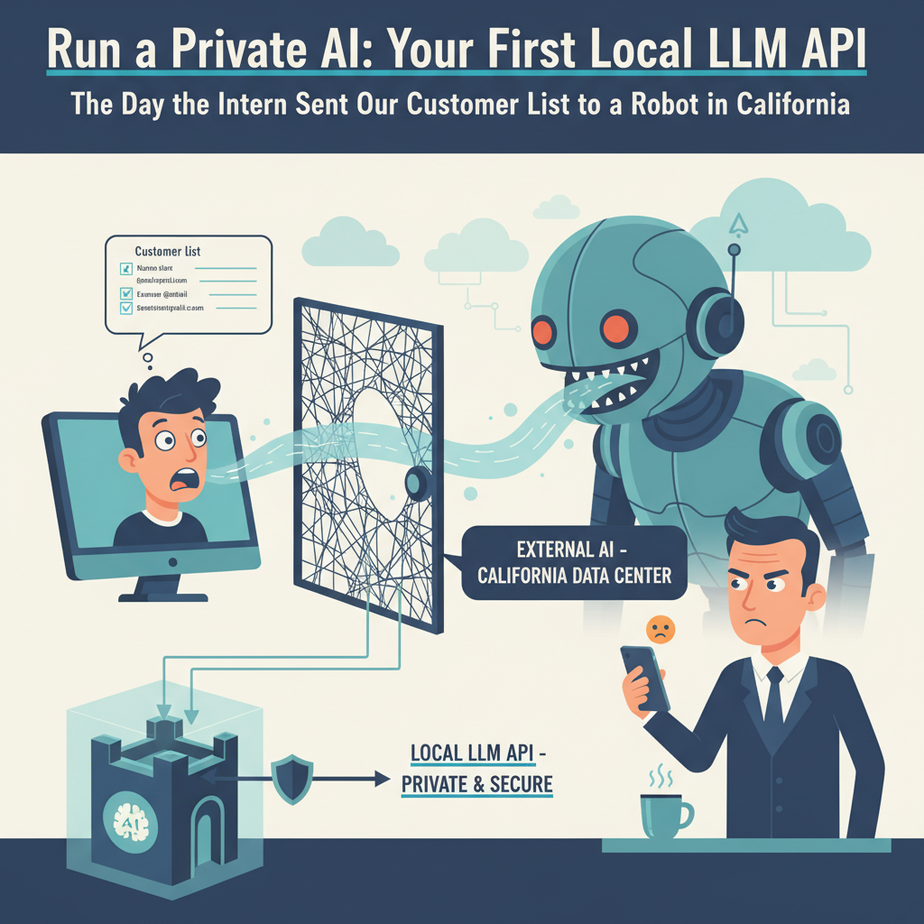
The Day the Intern Sent Our Customer List to a Robot in California
Picture this. It’s 9 AM. My coffee is just right. The CEO walks over to my desk, holding his phone with a weird look on his face. “Ajay,” he says, “I was reading the terms of service for that fancy AI tool you set up… does it say here that they can use our data to train their models?”
He was talking about the script our new intern, bless his heart, had just proudly deployed. A script that was happily summarizing our most sensitive customer feedback emails by sending them, one by one, to a massive server farm owned by a multi-billion-dollar company we’d never met.
We shut it down immediately. The intern learned a valuable lesson about data privacy, and I learned I needed a better way. A way to get all the power of a large language model without sending our company’s secrets across the internet. I needed a brain in a box, right here, in our own office.
Why This Matters
Every time you use a third-party AI API like OpenAI or Claude, you’re essentially renting a slice of their giant, world-spanning brain. It’s powerful, convenient, and for many things, it’s great. But it comes with three unavoidable truths:
- Cost: It’s a meter that’s always running. The more you use it, the more you pay. A successful automation can easily lead to a surprise four-figure bill.
- Privacy: You are sending your data to someone else’s computer. Even with the best privacy policies, it’s a risk. For legal, medical, or financial data, it’s often a non-starter.
- Control: They can change the model, change the pricing, or have an outage, and your entire automation pipeline breaks. You’re building your house on rented land.
Running a local LLM is like firing the expensive, chatty consultant and hiring a silent, loyal, and free-to-use intern who lives in your server room. It’s the ultimate move for privacy, cost control, and stability.
What This Tool / Workflow Actually Is
We’re going to install a piece of software called Ollama. Think of Ollama as an incredibly simple manager for AI models. It downloads them, runs them, and most importantly, exposes them as a standard API on your own computer.
An API (Application Programming Interface) is just a universal remote control. Once Ollama is running, any script, any application, any other automation tool can “press the buttons” on your local AI’s remote control to make it think, write, or summarize.
What it does: Gives you a private, OpenAI-compatible API endpoint on your machine (or a server you control) that you can use for unlimited, free text generation tasks.
What it does NOT do: It won’t magically give you a computer powerful enough to run a model the size of GPT-4. The quality of your results depends on your hardware and the specific model you choose to run.
Prerequisites
I’m not gonna lie, this isn’t as easy as signing up for a website. But it’s close. You need three things:
- A decent computer. If you have a modern Mac (M1/M2/M3) or a PC with a dedicated graphics card (an NVIDIA GPU with at least 8GB of VRAM is a great start), you’re in business. If not, it will still work, but it might be slow. Don’t panic, just try it.
- Docker Desktop. This is a program that lets you run software in tidy little containers. It’s the cleanest, safest way to run things like this. It’s free. Go install it now. I’ll wait.
- Comfort with the command line. If you’ve never opened a Terminal or Command Prompt window, take a deep breath. We are going to copy and paste exactly three commands. You can do this.
That’s it. No coding experience needed to get the server running.
Step-by-Step Tutorial
Let’s build our brain in a box. Open your Terminal (on Mac/Linux) or PowerShell (on Windows).
Step 1: Install Ollama with Docker
This single command will download and run the official Ollama container. It will also expose the necessary port (11434) so we can talk to it, and it tells Docker to use your GPU if you have one.
docker run -d --gpus=all -v ollama:/root/.ollama -p 11434:11434 --name ollama ollama/ollamaPress Enter. Docker will work its magic. To check that it’s running, you can type docker ps. You should see `ollama` in the list.
Step 2: Download an AI Model
Now we need to give our Ollama manager a brain to manage. We’ll download `llama3`, a powerful and popular model from Meta. This command tells the `ollama` container to pull the model from the library.
docker exec -it ollama ollama run llama3This will take a few minutes as it downloads several gigabytes. Once it’s done, you’ll see a message like `>>> Send a message (/? for help)`. You are now in a chat session with your own private AI! Type `Hello! Who are you?` and see what it says. To exit the chat, type `/bye`.
Step 3: Test the API
The chat is cool, but the real power is the API. This is the part other programs can talk to. We can test it right from our command line using a tool called `curl`. This is the programmatic equivalent of asking it a question.
Copy and paste this entire block into your terminal and press Enter:
curl http://localhost:11434/api/generate -d '{ "model": "llama3", "prompt": "Why is the sky blue?", "stream": false }'You should get a big block of JSON text back. Buried inside that text will be a `”response”` field containing a beautifully geeky explanation of Rayleigh scattering. If you see that, congratulations. Your private, secure, free-to-use AI API is now live.
Complete Automation Example
Let’s use this thing. Here’s a simple Python script that automates a common business task: categorizing incoming user feedback.
The Goal: Read a text file containing customer feedback, ask our local AI to categorize it as a `Bug`, `Feature Request`, or `Question`, and print the result. No data ever leaves our computer.
Step 1: Create the Feedback File
Create a file named `feedback.txt` and put this text inside it:
Hello, I was trying to export my report to PDF but the button seems to be broken and nothing happens when I click it. Can you help? Thanks, Sarah.Step 2: Create the Python Script
Create a file named `categorize.py` in the same directory. You’ll need to install the `requests` library if you don’t have it (`pip install requests`).
import requests
import json

# The local API endpoint we set up earlier
OLLAMA_ENDPOINT = "http://localhost:11434/api/generate"

# The model we want to use
MODEL = "llama3"

# Read the customer feedback from our local file
with open("feedback.txt", "r") as f:
    feedback_text = f.read()

# The instruction for the AI
# We give it the text and force it to choose ONE category.
PROMPT = f"""Read the following customer feedback and classify it into one of three categories: Bug, Feature Request, or Question. Respond with only a single word.

Feedback: "{feedback_text}"

Category:"""

# The data payload for the API request
data = {
    "model": MODEL,
    "prompt": PROMPT,
    "stream": False
}

# Make the magic happen
print("Sending feedback to local AI for categorization...")
response = requests.post(OLLAMA_ENDPOINT, json=data)

# Check for a successful response
if response.status_code == 200:
    response_data = response.json()
    # The actual answer is inside the 'response' key
    category = response_data.get("response", "").strip()
    print(f"\
--- Analysis Complete ---")
    print(f"Feedback: {feedback_text[:100]}...")
    print(f"Detected Category: {category}")
    print("-------------------------")
else:
    print(f"Error: Failed to get response from Ollama API. Status: {response.status_code}")
Step 3: Run the Automation
In your terminal, in the same directory as your two files, run the script:
python categorize.pyThe output should be:
Sending feedback to local AI for categorization...

--- Analysis Complete ---
Feedback: Hello, I was trying to export my report to PDF but the button seems to be broken and nothing happens ...
Detected Category: Bug
-------------------------
Boom. You just built a fully private, free, and secure text classification system. Imagine this script running on 10,000 feedback emails. The cost? Zero. The privacy risk? Zero.
Real Business Use Cases
This exact pattern can be applied everywhere.
- Law Firm: An associate needs to summarize a 50-page deposition. Instead of copy-pasting it into a public tool (a massive ethics violation), they use a local script that sends the text to their private Llama3 for a safe, confidential summary.
- Healthcare Startup: They have thousands of doctor’s notes. A script can read each note, send it to a local AI with the prompt “Extract all mentions of medication from this text and format as JSON,” and build a structured database, all without patient data ever hitting the internet.
- E-commerce Store: The owner has a CSV of 500 new products with just basic specs. A script iterates through each row, generates a compelling marketing description using the local LLM, and writes it back to the CSV, ready for import. No per-description API fee.
- Financial Advisor: They have call transcripts with clients. A local automation can perform sentiment analysis on each transcript to flag unhappy clients for a follow-up call, protecting sensitive financial information.
- Internal HR Department: They want to build a chatbot to answer employee questions about the company benefits handbook. They can feed the handbook into a local model (we’ll cover how in a future lesson) and build a bot that only uses internal, confidential company data.
Common Mistakes & Gotchas
- Using a model that’s too big for your computer. If you try to run a massive 70-billion-parameter model on a laptop with 8GB of RAM, it will either crash or be painfully slow. Start with smaller models (like Llama3 8B or Phi-3) and work your way up.
- Forgetting the API is local. This API only works on the machine it’s running on (at `localhost`). You can’t just send a request from another computer on the network without configuring Docker networking, which is a whole other lesson.
- Ignoring the prompt format. Some models are very particular about how you ask them questions. If you get weird or bad responses, search for the model’s recommended “prompt template.” Often it requires special tokens like `[INST]` or `<|user|>`.
- Expecting GPT-4 quality from a small model. The models you can run on a laptop are amazing, but they are not super-geniuses. Use them for focused, specific tasks like classification, summarization, and reformatting. Don’t ask them to write a novel.
How This Fits Into a Bigger Automation System
This local API isn’t just a toy; it’s a foundational building block. This is the private brain you can plug into everything else.
- CRM Integration: You can hook this into Zapier or Make via a webhook. When a new lead comes into your CRM, it triggers a call to your local API to enrich the data, score the lead, or draft a personalized intro email.
- Voice Agents: You can build a voice-activated assistant where the transcription service turns speech to text, sends that text to your *local* LLM for processing, and then sends the text response back to a text-to-speech engine. The core logic happens privately.
- Multi-Agent Workflows: You can have multiple local models working together. A small, fast model could act as a router, deciding which bigger, specialized model to send a task to.
- RAG Systems: This is the holy grail we’re building towards. A RAG (Retrieval-Augmented Generation) system allows an LLM to answer questions about your own private documents. Your local API is the engine for that system, ensuring your documents and the AI thinking about them both stay completely in-house.
What to Learn Next
You’ve done it. You have an AI brain running on your own terms. It’s sitting there, waiting for instructions, ready to work for free, forever. But right now, it only knows what it learned from the public internet.
What if you could teach it about *your* business? What if it could read your internal wiki, your product documentation, or your past project reports and answer questions that only you could answer?
In the next lesson, we’re going to connect this local LLM to your private data. We are going to build a simple, powerful RAG system so you can finally, and safely, **Chat With Your Documents**.
You have the foundation. Next, we build the skyscraper.
Class dismissed.
“,
“seo_tags”: “local llm, ollama tutorial, ai automation, private ai, self-hosted llm, business automation, python api”,
“suggested_category”: “AI Automation Courses