
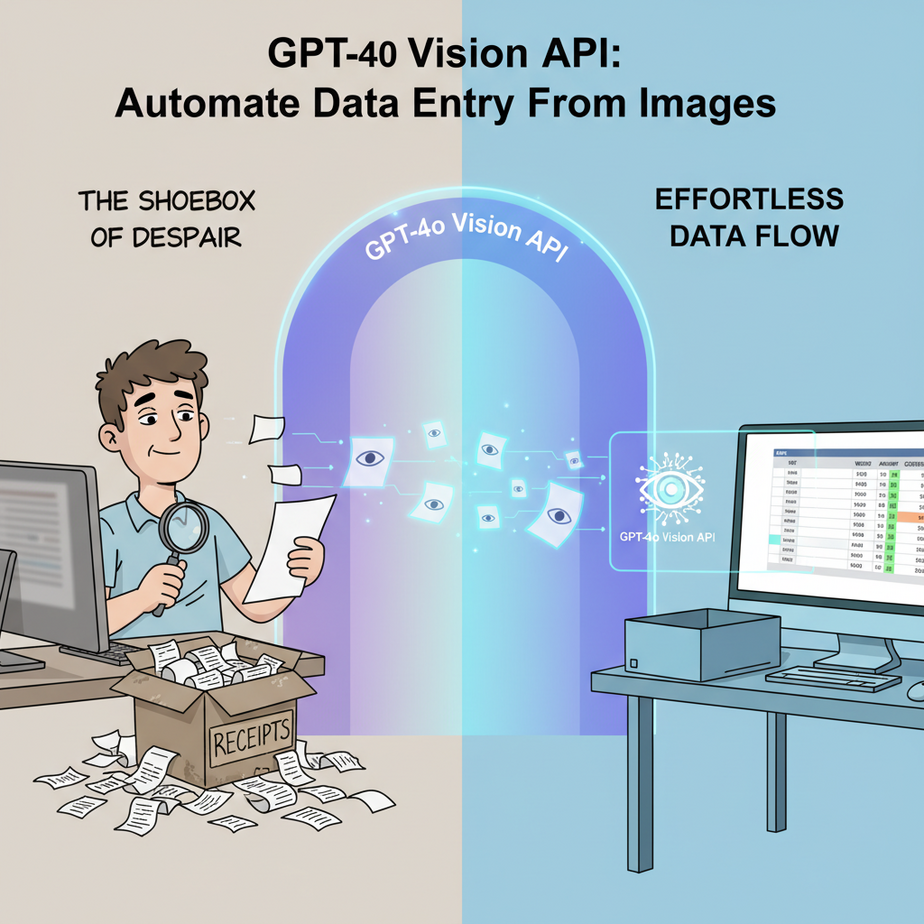
The Shoebox of Despair
Picture this. It’s 3 PM on a Friday. You hand your new intern, let’s call him Kevin, a shoebox overflowing with crumpled receipts. Kevin is optimistic. He’s ready to change the world. Your instructions? “Just, uh, put all this into a spreadsheet. By Monday.”
You return on Monday to find Kevin, a hollowed-out husk of his former self, staring at a spreadsheet with 47 typos, two transposed numbers that will later trigger a minor financial crisis, and a single tear rolling down his cheek. The shoebox is still half full.
This is the soul-crushing reality of manual data entry. It’s slow, it’s expensive, and it’s where human error goes to throw a party. We’ve all been Kevin. Today, we fire Kevin. Or rather, we promote him to do something a human brain is actually good at, and we hire a robot to read the receipts.
Why This Matters
This isn’t just about saving Kevin from a life of existential dread. This is about your business.
Time: An AI can process a thousand receipts in the time it takes Kevin to find the right spreadsheet tab. The time you and your team spend on manual data entry is time you’re not spending on sales, product, or strategy.
Money: Kevin’s time costs money. The mistakes Kevin makes cost even more money. An API call to an AI model costs fractions of a penny. The ROI isn’t just positive; it’s astronomical.
Scale: You can’t hire 100 Kevins to process a sudden influx of 100,000 invoices. But you can scale an API call to infinity with a few clicks. This automation lets you grow without exponentially growing your back-office headcount.
We are replacing a broken, manual, error-prone process with a lightning-fast, scalable, and remarkably accurate digital assembly line.
What This Tool / Workflow Actually Is
We’re using the OpenAI Vision API, specifically with the new GPT-4o model. Think of it as giving your computer a pair of eyes connected to a hyper-intelligent brain.
Here’s what it does: It looks at an image you send it (a receipt, an invoice, a business card, a screenshot) and understands the content and context. It doesn’t just read the text; it understands that “$19.99” next to the word “TOTAL” is the total amount.
Here’s what it does NOT do: It doesn’t think for itself. It doesn’t feel. It’s not magic. It’s a ridiculously powerful pattern-matching engine. If you give it a blurry, coffee-stained image taken in a dark cave, it will struggle. Garbage in, garbage out.
The goal is to send it an image and get back perfectly structured data—specifically, JSON—that another machine can instantly use.
Prerequisites
I know the words “API” and “JSON” can sound scary. Relax. If you can follow a recipe to bake a cake, you can do this. The bar is incredibly low.
- An OpenAI Account: If you’ve used ChatGPT, you have one. If not, go to
platform.openai.comand sign up. - An API Key: This is your secret password to use the AI. Go to your OpenAI account settings, find “API Keys,” and create a new one. Copy it and save it somewhere safe. DO NOT SHARE THIS. It’s like the key to your apartment; anyone with it can run up your bill.
- A Sample Image: Find a clear picture of a receipt or an invoice. Save it to your computer.
That’s it. No coding experience needed. No server setup. No selling your soul.
Step-by-Step Tutorial
Okay, let’s get our hands dirty. We’re going to talk directly to the AI from our computer’s command line. It sounds technical, but it’s just sending a text message to a robot.
Step 1: The Image Problem (Base64 Encoding)
You can’t just attach a JPG to a command line request. We need to convert our image into a giant block of text that the API can read. This process is called Base64 encoding.
Don’t panic. You don’t need to know how it works. Just use a free online tool.
- Go to a site like
base64-image.de. - Upload your receipt image.
- Click “copy image.” It will copy a massive wall of text to your clipboard. That text is your image now.
Step 2: The Prompt (Giving Instructions)
This is the most important step. We need to tell the AI exactly what we want, and what format we want it in. Vague instructions get vague results.
Here is a great prompt template. We’re telling it to act like an expert and to return clean JSON.
You are an expert accounting assistant. Analyze the following image of a receipt and extract the following information in a pure JSON format. Do not include any explanatory text before or after the JSON object.

- Vendor Name (string)
- Transaction Date in YYYY-MM-DD format (string)
- Total Amount, as a number (float)
- A list of line items, each with a 'description' and 'price' (array of objects)
Step 3: The API Call (Putting It All Together)
We’ll use a tool called curl, which is built into virtually every Mac, Windows, and Linux command line. It just sends our request to OpenAI’s servers.
Open your Terminal (on Mac/Linux) or Command Prompt/PowerShell (on Windows) and paste the following. Then, replace the placeholder text.
curl https://api.openai.com/v1/chat/completions \\
  -H "Content-Type: application/json" \\
  -H "Authorization: Bearer YOUR_API_KEY" \\
  -d '{
    "model": "gpt-4o",
    "messages": [
      {
        "role": "user",
        "content": [
          {
            "type": "text",
            "text": "You are an expert accounting assistant. Analyze the following image of a receipt and extract the following information in a pure JSON format. Do not include any explanatory text before or after the JSON object. Extract the vendor name, transaction date in YYYY-MM-DD format, the total amount as a number, and a list of all line items, each with a description and a price."
          },
          {
            "type": "image_url",
            "image_url": {
              "url": "data:image/jpeg;base64,PASTE_YOUR_BASE64_IMAGE_STRING_HERE"
            }
          }
        ]
      }
    ],
    "max_tokens": 1000
  }'
CRITICAL:
- Replace
YOUR_API_KEYwith your actual OpenAI API key. - Replace
PASTE_YOUR_BASE64_IMAGE_STRING_HEREwith that giant wall of text you copied in Step 1.
Now, press Enter. After a few seconds, OpenAI will send back a response directly in your terminal.
Complete Automation Example
Let’s say we used a photo of a simple cafe receipt.
Input: A photo of a receipt from “The Daily Grind Cafe” for a coffee and a croissant, dated today.
After running the `curl` command from Step 3, the AI will spit back something that looks like this (inside a larger response object):
{
  "vendor_name": "The Daily Grind Cafe",
  "transaction_date": "2023-10-27",
  "total_amount": 8.75,
  "line_items": [
    {
      "description": "Latte",
      "price": 4.50
    },
    {
      "description": "Almond Croissant",
      "price": 4.25
    }
  ]
}
Look at that. It’s perfect. It’s clean. It’s structured. A computer can read this instantly. You could now pipe this data directly into QuickBooks, your CRM, a Google Sheet, or anywhere else. No Kevin required. This is the core of the automation.
Real Business Use Cases
- Business Type: Freelancers & Small Agencies
Problem: Piles of receipts for expense tracking and client billing.
Solution: Create a simple app or a shared folder where you drop receipt photos. An automation runs this workflow on each new image and populates an expense tracking spreadsheet automatically. - Business Type: Logistics & Shipping Company
Problem: Manually typing in tracking numbers and addresses from thousands of shipping labels and bills of lading.
Solution: Warehouse staff take photos of documents. The Vision API extracts all key data (sender, recipient, tracking number, weight) and inputs it into the logistics management system. - Business Type: Real Estate
Problem: Onboarding new clients requires manually entering data from drivers’ licenses, utility bills, and bank statements.
Solution: Clients upload documents to a secure portal. The Vision API reads the documents, extracts names, addresses, and account numbers, and pre-fills the digital onboarding forms for review. - Business Type: Marketing Analytics
Problem: Manually tracking competitor ads by taking screenshots and logging the headline, call-to-action, and offer in a spreadsheet.
Solution: An automated scraper takes screenshots of ads. The Vision API analyzes them, extracting all text elements into a structured database for competitive analysis. - Business Type: Insurance
Problem: Processing claims requires agents to manually read and key in information from photos of damaged vehicles, property, and medical bills.
Solution: A claimant uploads photos via an app. The Vision API identifies the type of document/damage, extracts policy numbers, dates, and itemized costs to create a draft claim, flagging it for human review.
Common Mistakes & Gotchas
- Vague Prompts: If you just say “What’s in this image?” you’ll get a sentence, not clean JSON. Be ruthlessly specific about the format you want.
- Bad Images: A blurry, dark, or crumpled receipt will result in errors or missed data. Good lighting and a clear shot are non-negotiable. The AI is smart, but it’s not a miracle worker.
- API Key Exposure: If you accidentally paste your API key into a public place (like a GitHub repository), disable it IMMEDIATELY and generate a new one. Scammers have bots that scan the internet for these keys.
- Trusting it 100%: For mission-critical data like financial transactions, don’t run this system completely blind. The AI is maybe 95-99% accurate. Your workflow should include a final, quick human review step for any data going into your accounting system.
How This Fits Into a Bigger Automation System
This single API call is a building block, a single gear in a much larger machine. The real power comes when you connect it to other systems, usually with a tool like Zapier or Make.com.
- Connecting to Email & Cloud Storage: The workflow trigger can be a new email with an attachment in a specific Gmail folder, or a new file dropped into a Google Drive or Dropbox folder.
- Connecting to CRM: Take a photo of a business card. The Vision API extracts the name, company, email, and phone number. The next step in your automation adds that data as a new lead in your HubSpot or Salesforce CRM.
- Connecting to Voice Agents: Imagine a field technician who needs to identify a machine part. They take a photo, the Vision API reads the serial number, that number is looked up in a database, and an AI voice agent reads the part’s inventory status and location back to the technician.
- Connecting to RAG Systems: You can use this to build a knowledge base. Feed the Vision API thousands of pages from your scanned product manuals. It extracts the text and diagrams, which you then store in a vector database for a customer support chatbot to reference.
This isn’t just about reading a receipt. It’s about creating a data pipeline from the physical world to your digital systems, automatically.
What to Learn Next
Congratulations. You just gave your automations the power of sight. They can now read and understand images, turning the unstructured chaos of the real world into the clean, ordered data that software loves.
You’ve built a powerful gear. But what if you could build the whole engine? What if you could create systems where multiple AI agents work together, passing tasks back and forth, to accomplish complex goals?
In our next lesson in the AI Automation Academy, we’re going to do just that. We’ll move beyond single API calls and build our first Multi-Agent Workflow. We’ll build a research team of AI agents that can browse the web, analyze data, and write a detailed report, all while you sleep.
You’ve taught your robot to see. Next, you’ll teach it to think strategically.
“,
“seo_tags”: “GPT-4o, Vision API, OpenAI, automation, data entry, OCR, invoice processing, receipt scanning, business automation, AI for business”,
“suggested_category”: “AI Automation Courses