
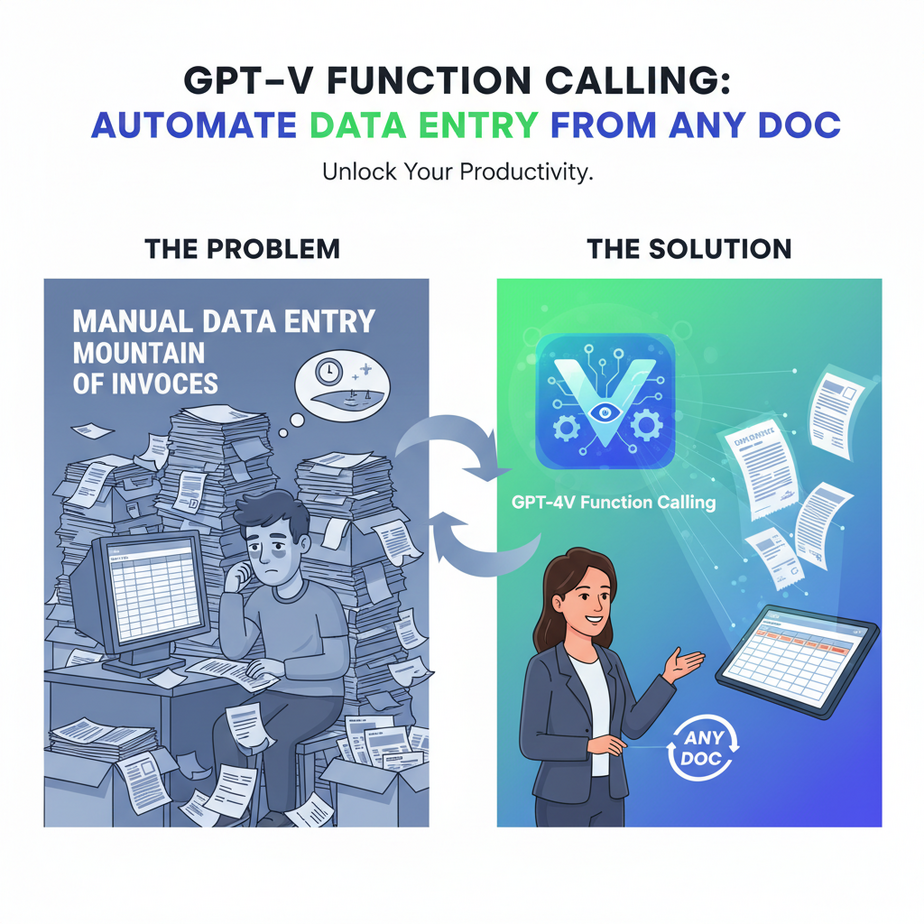
The Miserable Intern and the Mountain of Invoices
Picture this. It’s 3 PM on a Friday. You’re dreaming of the weekend. But somewhere in a dimly lit corner of the office sits Timmy, our beloved (and tragically underpaid) intern. His task? To manually type data from a teetering stack of 500 invoices into an Excel spreadsheet.
His eyes are glazed over. His soul is slowly leaking out through his ears. He just typed ‘$54.99’ as ‘$5499.00’ for the third time today, a mistake that will cost someone hours to track down next month. Timmy is a human doing a robot’s job, and he is a bottleneck, an error factory, and a sad monument to inefficient processes.
Today, we’re going to fire Timmy. Not out of cruelty, but out of mercy. We’re going to replace his miserable task with an AI that does the same job in seconds, with superhuman accuracy, for pennies. We’re building an AI that can see a document and perfectly fill out a form about it.
Why This Matters
This isn’t just a cool party trick. This is a fundamental upgrade to how businesses handle information. Every company on earth deals with unstructured documents: invoices, receipts, contracts, resumes, application forms, shipping labels. Getting the information *out* of those documents and *into* a system (like a CRM, database, or accounting software) is a massive, expensive, and error-prone manual process.
This workflow replaces:
- Manual Data Entry Clerks: The most obvious one. The cost savings are immediate and massive.
- Expensive OCR Software: Old-school Optical Character Recognition (OCR) tools are often rigid, expensive, and require perfect templates. This new method is flexible and understands context, not just characters.
- Operational Chaos: Stop losing receipts. Stop dealing with data-entry typos. Go from a photo of a document to structured, usable data in your system in under five seconds.
We are building a scalable, intelligent data-intake pipeline. It’s the digital equivalent of a mailroom that automatically opens, reads, understands, and files every piece of mail the second it arrives.
What This Tool / Workflow Actually Is
Let’s break it down. We’re combining two powerful features from OpenAI:
1. GPT-4 Vision (GPT-4V): This is a version of GPT-4 that can see. You can show it an image and ask it questions about what’s in that image. You could show it a photo of your fridge and ask for a dinner recipe. Today, we’re showing it a picture of an invoice and asking, “What’s the total amount?”
2. Function Calling: This is the secret sauce. Normally, when you ask an AI a question, it just chats back. Function Calling is a way to force the AI to respond in a perfectly structured format, like JSON. You give it a template, and it fills in the blanks. It’s like telling a person, “Don’t just tell me the answer, fill out this exact form.”
What it is: A way to turn an image of any document into a clean, predictable JSON object of data you can use in other software.
What it is NOT: It’s not a magical solution that is 100% perfect every time. It can still misread things, especially on blurry images. It’s also not a database or a complete application; it’s a powerful component *in* a larger automation system.
Prerequisites
I promise, you can do this. Even if the word “API” makes you nervous.
- An OpenAI API Key: You need an account at platform.openai.com. You’ll need to add a payment method to get an API key, but running these tests will cost you less than a cup of coffee.
- Python 3 installed: We’ll use a simple Python script. If you don’t have Python, don’t panic. You can use an online tool like Replit to run the code without installing anything.
- An image of a document: Grab your phone, take a picture of a receipt or an invoice. Save it as a
.pngor.jpgfile.
That’s it. We’re not building a rocket ship. We’re assembling some very powerful LEGO bricks.
Step-by-Step Tutorial
Let’s build our AI intern. We’ll walk through the logic, and then I’ll give you the complete code to copy-paste.
Step 1: Get your API Key
Log in to your OpenAI account. Go to the “API Keys” section in the left-hand menu. Create a new secret key. Copy it and keep it safe. NEVER share this key publicly.
Step 2: Prepare Your Image (Translate it for the AI)
You can’t just send an image file directly to the API. You need to convert it into a text format called Base64. Think of this like translating the image into a language the internet can speak fluently. Python makes this easy.
import base64

# Function to encode the image
def encode_image(image_path):
  with open(image_path, "rb") as image_file:
    return base64.b64encode(image_file.read()).decode('utf-8')
This little function takes the path to your image file and spits out a giant string of text. That text is your image.
Step 3: Define Your Data Template (The Function)
This is where you tell the AI exactly what information you want and what format it should be in. We’ll define a “tool” with a “function” inside it. Let’s say we want to extract data from an invoice.
invoice_schema = {
  "type": "function",
  "function": {
    "name": "extract_invoice_data",
    "description": "Extracts key information from an invoice document.",
    "parameters": {
      "type": "object",
      "properties": {
        "vendor_name": {
          "type": "string",
          "description": "The name of the company that sent the invoice."
        },
        "invoice_number": {
          "type": "string",
          "description": "The unique identifier for the invoice."
        },
        "total_amount": {
          "type": "number",
          "description": "The final total amount due on the invoice."
        },
        "due_date": {
          "type": "string",
          "description": "The date the invoice payment is due, in YYYY-MM-DD format."
        }
      },
      "required": ["vendor_name", "invoice_number", "total_amount", "due_date"]
    }
  }
}
Look closely. We’re just defining a simple form. We’re telling the AI: “I want you to call a function named `extract_invoice_data`. To do that, you MUST provide a vendor name (string), an invoice number (string), a total amount (number), and a due date (string).” The descriptions help the AI find the right info on the page.
Step 4: Build and Send the API Request
Now we assemble the final request. We give the AI our image, our instructions, and the data template we just defined. The most important part is `tool_choice`. This forces the AI to use our function instead of just chatting.
# The full payload to send to the API
payload = {
  "model": "gpt-4o",
  "messages": [
    {
      "role": "user",
      "content": [
        {
          "type": "text",
          "text": "Please extract the information from this invoice using the provided tool."
        },
        {
          "type": "image_url",
          "image_url": {
            "url": f"data:image/png;base64,{base64_image}"
          }
        }
      ]
    }
  ],
  "tools": [invoice_schema],
  "tool_choice": {"type": "function", "function": {"name": "extract_invoice_data"}}
}
Complete Automation Example
Let’s put it all together. Imagine you have an image named invoice.png in the same folder as your script.
Here is the complete, copy-paste-ready Python script. Just replace "YOUR_OPENAI_API_KEY" with your actual key.
import os
import base64
import json
from openai import OpenAI

# --- Configuration ---
API_KEY = "YOUR_OPENAI_API_KEY"
IMAGE_PATH = "invoice.png" # The image you want to analyze

# --- 1. Initialize OpenAI Client ---
client = OpenAI(api_key=API_KEY)

# --- 2. Function to encode the image to Base64 ---
def encode_image(image_path):
    with open(image_path, "rb") as image_file:
        return base64.b64encode(image_file.read()).decode('utf-8')

# --- 3. Define the data structure you want to extract (your "function") ---
invoice_schema = {
  "type": "function",
  "function": {
    "name": "extract_invoice_data",
    "description": "Extracts key information from an invoice document.",
    "parameters": {
      "type": "object",
      "properties": {
        "vendor_name": {
          "type": "string",
          "description": "The name of the company that sent the invoice."
        },
        "invoice_number": {
          "type": "string",
          "description": "The unique identifier for the invoice."
        },
        "total_amount": {
          "type": "number",
          "description": "The final total amount due on the invoice."
        },
        "due_date": {
          "type": "string",
          "description": "The date the invoice payment is due, in YYYY-MM-DD format."
        }
      },
      "required": ["vendor_name", "invoice_number", "total_amount"]
    }
  }
}

# --- 4. Main execution block ---
def main():
    print(f"Processing image: {IMAGE_PATH}")

    # Encode the image
    base64_image = encode_image(IMAGE_PATH)

    # Make the API call to GPT-4 Vision with Function Calling
    response = client.chat.completions.create(
        model="gpt-4o",
        messages=[
            {
                "role": "user",
                "content": [
                    {
                        "type": "text",
                        "text": "Extract the details from the invoice using the extract_invoice_data function. Ensure the date is in YYYY-MM-DD format."
                    },
                    {
                        "type": "image_url",
                        "image_url": {
                            "url": f"data:image/png;base64,{base64_image}"
                        }
                    }
                ]
            }
        ],
        tools=[invoice_schema],
        tool_choice={"type": "function", "function": {"name": "extract_invoice_data"}},
        max_tokens=1000
    )

    # --- 5. Extract and print the structured data ---
    tool_call = response.choices[0].message.tool_calls[0]
    if tool_call.function.name == "extract_invoice_data":
        extracted_data = json.loads(tool_call.function.arguments)
        print("\
--- Extracted Data ---")
        print(json.dumps(extracted_data, indent=2))
        print("\
Automation successful!")
    else:
        print("Error: Could not extract data using the specified function.")

if __name__ == "__main__":
    main()
When you run this, assuming invoice.png exists, your output will look something like this:
--- Extracted Data ---
{
  "vendor_name": "Office Supplies Inc.",
  "invoice_number": "INV-12345",
  "total_amount": 150.75,
  "due_date": "2024-10-26"
}

Automation successful!
Boom. You just turned a picture into perfect, structured, machine-readable data. Timmy is officially obsolete.
Real Business Use Cases
This exact same pattern can be applied across countless industries. You just change the schema.
- E-commerce Seller:
- Problem: Receiving packing slips and supplier invoices as PDFs or even photos from the warehouse floor.
- Solution: Use this script to extract `product_sku`, `quantity`, and `cost_price` to automatically update inventory and accounting systems.
- HR & Recruiting Agency:
- Problem: Hundreds of resumes arrive in different formats, making it impossible to search and filter candidates effectively.
- Solution: Create a schema to extract `candidate_name`, `email`, `phone_number`, `skills` (as an array of strings), and `years_of_experience`. The output JSON goes directly into your Applicant Tracking System (ATS).
- Insurance Company:
- Problem: Processing photos of car accidents from claim forms, including handwritten notes and details from damage reports.
- Solution: Define a schema for `policy_number`, `date_of_incident`, `location`, and `description_of_damage`. This creates a structured claim record the moment the photo is submitted.
- Legal Tech Firm:
- Problem: Reviewing thousands of pages of scanned contracts to find key clauses.
- Solution: Use a schema to identify and extract `contracting_parties`, `effective_date`, `termination_clause`, and `liability_limit`. This turns a week of paralegal work into a few minutes of processing.
- Restaurant Owner:
- Problem: Tracking food costs by manually entering data from daily supplier receipts.
- Solution: A simple phone app that takes a picture of each receipt. The script extracts `supplier_name`, `item_name`, `quantity`, and `price` to feed a real-time food cost dashboard.
Common Mistakes & Gotchas
- Bad Image Quality: A blurry, poorly lit, or crumpled document will confuse the AI. Garbage in, garbage out. Ensure your input images are clear.
- Overly Complex Schema: Don’t ask for 50 fields at once. If you have a very complex document, break it down into multiple calls or simplify what you’re asking for. Start small and add more fields as you confirm it works.
- Forgetting
tool_choice: If you leave this out, the model might decide to just describe the image in a chat message instead of using your function. `tool_choice` is your way of telling it, “No talking, just fill out the form.” - Trusting it Blindly: The AI is amazing, but it’s not infallible. For critical data like financial transactions, always have a final human review step in your workflow. The AI can do 99% of the work, and a human can verify it in seconds.
How This Fits Into a Bigger Automation System
This script is a single, powerful gear. The real magic happens when you connect it to other gears to build a fully automated machine.
Imagine this:
- Trigger: A tool like Zapier or Make.com watches a specific Google Drive folder or a dedicated email inbox (e.g., invoices@mycompany.com).
- Action 1: When a new file/attachment arrives, it triggers our Python script (which could be running on a cheap cloud server like AWS Lambda or Google Cloud Functions).
- Action 2: Our script processes the image and gets the structured JSON data back.
- Action 3: The script then uses another API to push that data somewhere useful:
- Create a new bill in QuickBooks.
- Add a new candidate to your Airtable database.
- Insert a new record into your company’s CRM.
- Send a Slack notification to the finance team for approval.
This little vision script becomes the front door for all unstructured information entering your business, automatically routing and processing it without a single human click.
What to Learn Next
You now have a superpower. You can turn pictures into data. You have an infinitely scalable, tireless intern who never makes typos.
But what if we could do more? What if, after extracting the invoice data, our system could then analyze it? What if it could check if the total amount is over a certain budget, draft an approval email to the manager, and if approved, automatically schedule the payment in the bank?
In the next lesson in this course, we’re going to do exactly that. We’ll move from a single-task robot to a multi-agent workflow. We’re going to build an autonomous accounts payable *department*, not just a data-entry clerk. Stay tuned.
“,
“seo_tags”: “GPT-4 Vision, Function Calling, AI Automation, Data Extraction, OCR, Document Processing, Python, OpenAI API”,
“suggested_category”: “AI Automation Courses