
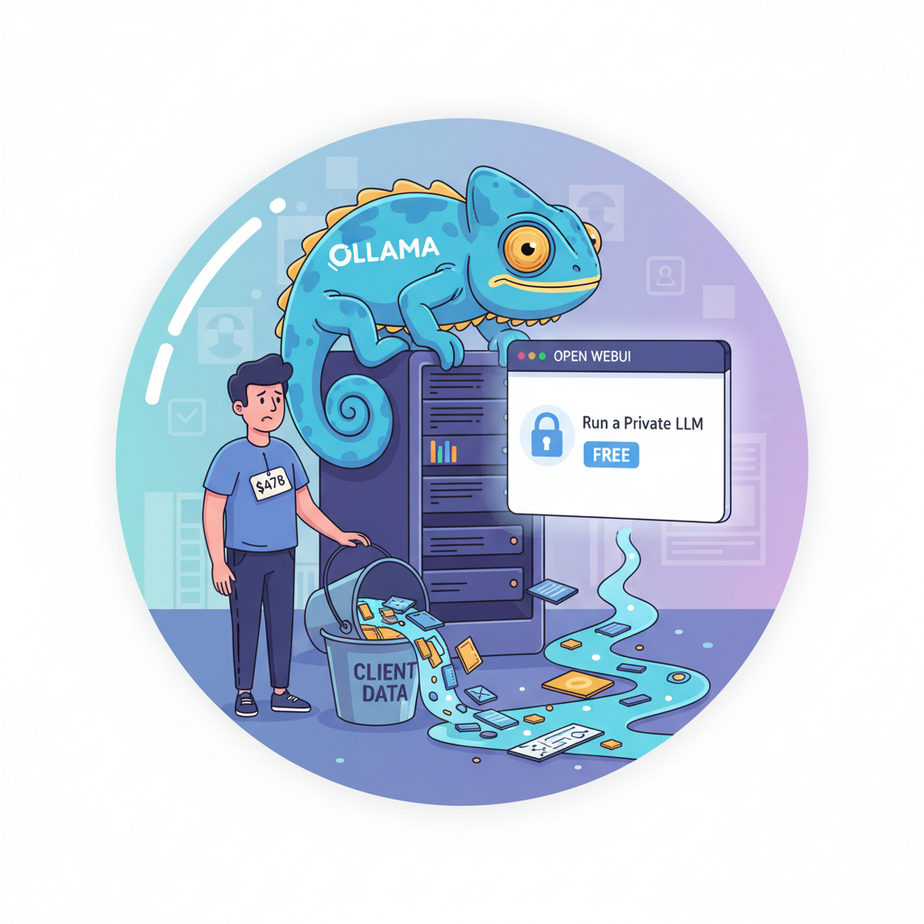
The $478 Intern
I once hired an intern. Let’s call him Sam. Sam was great, except for one tiny flaw: he was expensive and a little… leaky. I gave him a simple task: take all our client meeting transcripts from the past month and summarize them. A classic intern job.
The next morning, I woke up to an email notification. It was a bill from OpenAI for $478. Sam, my diligent digital intern, had run a script all night, sending every single transcript—all our confidential client data—to a third-party server in the cloud. He’d done the job, sure, but he’d also racked up a bar tab I didn’t approve of and blabbed our company secrets to a bartender who promised not to listen.
I fired Sam on the spot. Not the real Sam, of course. The script. That day, I decided I was done paying rent for my AI. I was going to build my own, right here, on my own machine. One that worked for free, kept its mouth shut, and didn’t have an expense account.
Today, you’re going to do the same.
Why This Matters
Look, the big cloud AI models are powerful. They’re also expensive, slow, and a privacy nightmare. Every time you send them a prompt, you’re shipping your data—your customer lists, your secret product ideas, your embarrassing first drafts—off to a server you don’t control.
This workflow is the antidote. We are building an AI “brain” that lives exclusively on your computer. Think of it as your own private, loyal, and unpaid intern.
- It’s Free: After the one-time cost of your computer, running it costs nothing. No tokens, no per-user fees, no surprise bills.
- It’s Private: Your data never leaves your machine. Ever. Analyze financial reports, client medical data, or top-secret business plans with zero risk.
- It’s Fast: For many tasks, running locally is faster than waiting for a round-trip to a cloud server.
- It’s Yours: You own the entire system. No one can change the terms, raise the price, or shut you down.
This isn’t just about saving money. It’s about building a sovereign business asset that you fully control.
What This Tool / Workflow Actually Is
We’re using two pieces of free, open-source software to build our private AI powerhouse. Don’t let the names intimidate you; this is incredibly simple.
Ollama: The Engine Room
Ollama is the workhorse. It’s a simple application that downloads, manages, and runs powerful Large Language Models (LLMs) on your computer. It turns your machine into a self-contained AI server. You tell Ollama which “brain” you want (like Llama 3, Mistral, etc.), and it handles all the complicated stuff, serving it up through a dead-simple local API.
Open WebUI: The Cockpit
Open WebUI is the pretty dashboard. It’s a clean, browser-based user interface that looks and feels just like ChatGPT. It connects to your local Ollama engine and lets you chat with your models, manage them, and tweak settings without ever touching a command line. It’s the user-friendly control panel for your AI engine.
What it is NOT: This is not a magical replacement for GPT-4o on every single creative task. The massive cloud models are still a bit better at writing poetry or screenplays. But for 90% of business automation tasks—summarization, data extraction, categorization, drafting emails—your local intern is more than up to the job.
Prerequisites
I’m going to be brutally honest. You need a halfway-decent computer. But you probably already have one.
- A modern computer. A Mac with an Apple Silicon chip (M1, M2, M3) is fantastic. A Windows or Linux PC with a modern NVIDIA graphics card (GPU) with at least 8GB of VRAM is also perfect. If you don’t have a GPU, it will run on your CPU, just much slower.
- An internet connection. You only need this to download the tools and the models. Once downloaded, the whole system can run 100% offline.
- The ability to click “download” and copy-paste. Seriously. If you’ve ever installed a program before, you are overqualified. Zero coding is needed for this setup.
That’s it. Don’t be nervous. We’re just installing a couple of apps.
Step-by-Step Tutorial
Let’s build your AI intern. This should take about 15 minutes.
Step 1: Install Ollama (The Engine)
Ollama’s job is to manage the AI models. Go to ollama.com and download the installer for your operating system (macOS or Windows). It’s a standard installation.
If you’re on Linux or prefer the command line on Mac, you can just run this one command in your terminal:
curl -fsSL https://ollama.com/install.sh | shOnce installed, Ollama runs quietly in the background, waiting for instructions. It’s perfect.
Step 2: Download Your First AI Model (The Brain)
Now we need to give our engine a brain to work with. There are many open-source models, but a great starting point is Meta’s `Llama 3 8B`. It’s powerful, fast, and small enough to run well on most modern machines.
Open your Terminal (on Mac/Linux) or PowerShell/CMD (on Windows) and run this command:
ollama run llama3:8bThe first time you run this, it will download the model file (it’s a few gigabytes, so it might take a minute). After it downloads, it will drop you directly into a chat session in your terminal. You can ask it a question to confirm it’s working. Type /bye to exit.
Congratulations, you now have a powerful LLM running locally. The hard part is over.
Step 3: Install Open WebUI (The Cockpit)
We need a nice interface to chat with our model. We’ll use a tool called Docker to run Open WebUI.
What is Docker? Don’t panic. It’s just a free app that runs other apps in tidy, self-contained boxes so they don’t mess with your computer. It’s the industry standard for this stuff.
- Go to the Docker Desktop website and install it.
- Once Docker Desktop is installed and running, open your terminal again and paste this ONE command. This will download and run Open WebUI in a container.
docker run -d -p 3000:8080 --add-host=host.docker.internal:host-gateway -v open-webui:/app/backend/data --name open-webui --restart always ghcr.io/open-webui/open-webui:mainWhy this command? It tells Docker to run Open WebUI, make it accessible on your machine at port 3000, and critically, allows it to see the Ollama engine running on your main computer (`–add-host`).
Step 4: Start Chatting
You’re done. Open your web browser and go to this address: http://localhost:3000
You’ll see the Open WebUI interface. It will ask you to create a local account. Sign up, log in, and you can start chatting with the `llama3:8b` model you downloaded. It’s your own private ChatGPT, running entirely on your machine.
Complete Automation Example
This is cool, but we’re here to build automations. The magic of Ollama is that it automatically creates an API that is compatible with OpenAI’s standard. This means any tool that knows how to talk to OpenAI can be pointed at your local model instead.
Let’s automate the task that got my digital intern “Sam” fired: triaging an angry customer email.
Here’s a simple Python script. You don’t need to be a Python expert. Just see how we point the `openai` library to our local machine.
The Workflow: Email Triage Bot
Goal: Read a customer email, extract key information, and output it as structured JSON for our ticketing system.
First, make sure you have the OpenAI library: pip install openai
Now, here’s the script:
import openai

# Point the client to your local Ollama server
# The API key can be anything; it's not used by Ollama
client = openai.OpenAI(
    base_url='http://localhost:11434/v1',
    api_key='ollama',
)

customer_email = """
SUBJECT: My order is LATE and I'm FURIOUS

I ordered the Acme Rocket Skates (order #A123) two weeks ago and they still haven't arrived! Your tracking system is useless. This is for my nephew's birthday and you've RUINED it. I want a refund and I want it NOW. This is the worst service I have ever experienced.

- Angry Andy
"""

system_prompt = """
You are a support ticket classification bot. Your ONLY job is to analyze an email and output a clean JSON object with the following fields:
- "summary": A one-sentence summary of the user's problem.
- "category": One of ['Shipping', 'Billing', 'Technical', 'Other'].
- "sentiment": One of ['Positive', 'Neutral', 'Negative'].
- "order_id": The order number, if found.
"""

response = client.chat.completions.create(
    model="llama3:8b",
    messages=[
        {"role": "system", "content": system_prompt},
        {"role": "user", "content": customer_email}
    ],
    temperature=0.0,
    response_format={"type": "json_object"} # Ask for JSON output
)

print(response.choices[0].message.content)
When you run this, the output will be beautiful, structured JSON, ready to be piped into any other business system:
{
  "summary": "The customer's order for Acme Rocket Skates has not arrived after two weeks, causing them to be furious.",
  "category": "Shipping",
  "sentiment": "Negative",
  "order_id": "A123"
}
No data was sent to the cloud. The cost was $0.00. This is the power you now have.
Real Business Use Cases
This same pattern—feeding unstructured text to your local LLM and getting structured data back—can transform dozens of workflows.
- E-commerce Store: Ingest all new product reviews. Use your local LLM to classify them as `Positive Feedback`, `Negative Feedback`, `Bug Report`, or `Feature Request` and automatically create tasks in your project management tool.
- Law Firm: Feed a 50-page deposition transcript into your local model to generate a summary of key facts, dates, and named entities. Your confidential client data stays 100% private.
- Marketing Agency: Draft a blog post, then ask your local model to generate 20 different title variations, 5 tweets, and a LinkedIn post based on the content.
- Recruiting Firm: Parse incoming resumes (PDFs converted to text) to extract candidate name, contact info, years of experience, and key skills into a structured format for your applicant tracking system.
- Real Estate Agency: Analyze property descriptions to automatically extract features like number of bedrooms, bathrooms, square footage, and special amenities (e.g., ‘swimming pool’, ‘hardwood floors’) to populate a database.
Common Mistakes & Gotchas
- Using a model that’s too big. Models come in different sizes (e.g., `llama3:8b` is 8 billion parameters, `llama3:70b` is 70 billion). Trying to run a 70B model on a laptop with 16GB of RAM will be painfully slow or crash. Stick to smaller models (`7B`, `8B`, `13B`) unless you have a beast of a machine.
- Forgetting to change the API endpoint. When adapting scripts, it’s easy to forget to change the `base_url` to your `http://localhost:11434/v1`. If you forget, you’ll be sending your private data right back to OpenAI. Double-check your code!
- Expecting human-level creativity. Local models are incredible at structured tasks. They are less amazing at writing a novel. Use them for what they’re good at: being a relentlessly consistent and free information processor.
- Docker networking issues. The `–add-host=host.docker.internal:host-gateway` part of the Docker command is CRITICAL. It lets the Open WebUI container see the Ollama service running on your main machine. If you skip it, the UI won’t find your models.
How This Fits Into a Bigger Automation System
Your new local AI engine is not an island. It’s the central processing unit for a much larger automation factory. This is where it gets really exciting.
- CRM Integration: Connect this to your HubSpot or Salesforce. After a sales call, send the audio transcript to your local LLM to summarize action items and update the customer record automatically.
- Email Automation: Use a tool like n8n or Zapier to watch a specific inbox. When a new email arrives, send it to your local LLM for classification (like our example), then route it to the right person or send an auto-reply.
- Private RAG Systems: This is the big one. Your local LLM can be the brain for a Retrieval-Augmented Generation system. You can feed it your entire company knowledge base—all your PDFs, Word docs, and Confluence pages—and ask it questions in natural language. It becomes a private expert on *your* business.
- Voice Agents: You can build a customer service voicebot that uses your local LLM for its thinking. The entire conversation, from voice-to-text to AI processing to text-to-speech, can happen on your own servers, ensuring total customer privacy.
What to Learn Next
You’ve done it. You have a powerful, private AI brain running on your own hardware. You’ve broken free from the endless cycle of API bills and data privacy anxiety. This is a foundational skill for every automation builder.
But right now, your AI only knows what it was trained on. It doesn’t know anything about you, your business, or your specific data. It’s a brilliant intern with amnesia.
In the next lesson, we’re going to give it a memory. We will build a full RAG system from scratch, connecting your local LLM to your own private documents. You’ll learn how to create an AI that can read your PDFs, search your knowledge base, and answer specific questions about *your* data, all while remaining 100% offline and private.
You’re not just learning to use AI. You’re learning to build your own. Welcome to the academy.
“,
“seo_tags”: “Ollama, Open WebUI, Local LLM, Free AI, Private AI, AI Automation, Self-hosting LLM, Ollama tutorial, Open WebUI tutorial, AI for business”,
“suggested_category”: “AI Automation Courses