
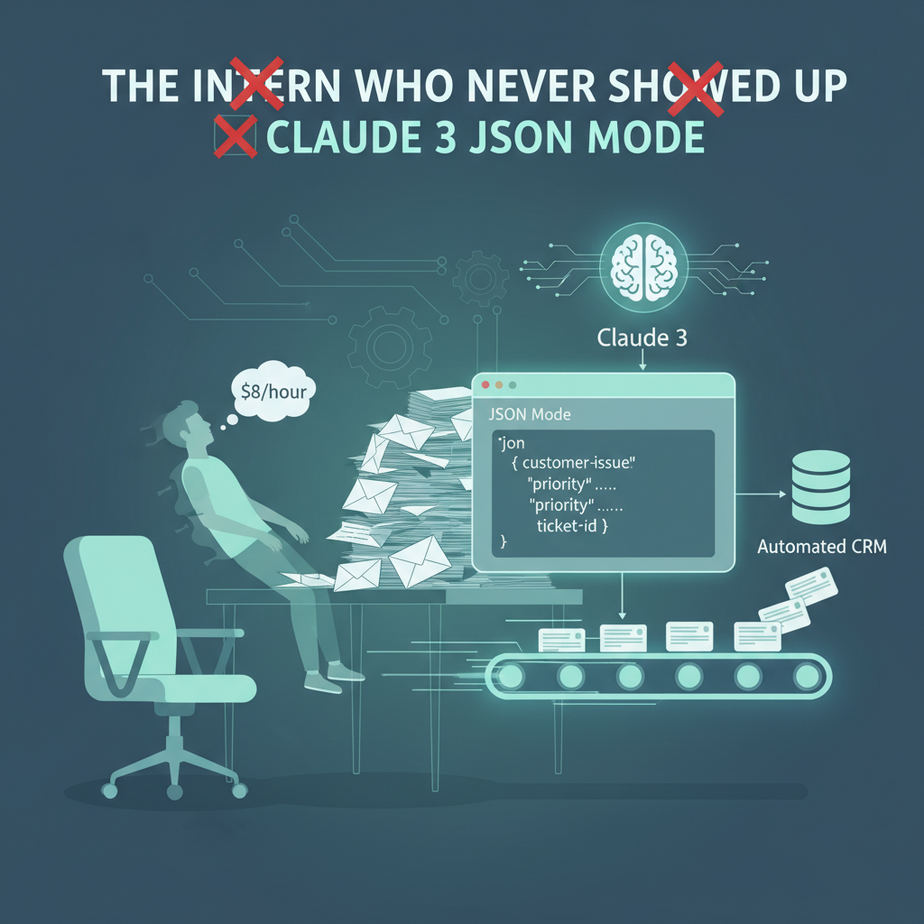
The Intern Who Never Showed Up
Let me tell you about Barry. I hired Barry off a freelance site for $8 an hour. His job was simple: read through a hundred customer support emails a day, pull out the key details—name, order number, issue—and type them into a spreadsheet. Simple, right?
On day one, Barry was a champion. On day two, the order numbers started having typos. By day three, he was categorizing “refund request” as “general inquiry.” On day four, Barry’s profile was deleted and he vanished into the digital ether, leaving me with a spreadsheet full of chaos and a fresh wave of caffeine-fueled regret.
We’ve all hired a “Barry.” Maybe it was a real person, maybe it was you on a Sunday night, drowning in receipts. The root of the problem is always the same: turning messy, unstructured human text into clean, structured data that a machine can understand. It’s the most boring, error-prone work in the entire business world. And today, we’re going to fire Barry for good.
Why This Matters
This isn’t just about saving a few bucks on a flaky freelancer. This is about building a scalable, reliable foundation for every other automation in your business. When you can instantly and accurately convert any piece of text into structured data, you unlock a new level of operational efficiency.
This automation replaces:
- Manual data entry clerks.
- You, losing your mind copying and pasting.
- Expensive, brittle software that uses outdated text-parsing rules.
- The chaos of inconsistent data that messes up your reports and workflows.
Think of this as building the receiving dock for your digital factory. If the raw materials coming in are a mess, the entire production line grinds to a halt. We’re installing a brilliant, tireless robot at the door that inspects and organizes every single package perfectly, 24/7, without coffee breaks.
What This Tool / Workflow Actually Is
We’re using a feature in Anthropic’s Claude 3 models (specifically Opus, Sonnet, or Haiku) called Tool Use, which we can cleverly use to force JSON output. Don’t let the name intimidate you. It’s a fancy way of saying we’re giving the AI a very strict template and telling it, “I don’t want a friendly paragraph. I want you to fill out this form, and ONLY this form.”
The “form” is a JSON schema you define. JSON (JavaScript Object Notation) is just a clean, organized way to store data in key-value pairs, like "name": "Sarah". It’s the universal language for web applications. By forcing the AI to speak it, we make its output perfectly predictable and ready to be plugged into any other software—a CRM, a database, an email autoresponder, you name it.
What it does NOT do: This workflow doesn’t store your data. It doesn’t create a database. It doesn’t magically know what you want without you telling it. It is a powerful data *transformer*, not a complete data management system.
Prerequisites
I’m serious when I say anyone can do this. Here’s the brutally honest list of what you need.
- An Anthropic API Key. Go to Anthropic’s website, sign up, and grab your API key. They usually give you some free credits to start, which is more than enough for this lesson.
- A way to run a tiny bit of Python. If you’ve never used Python, don’t panic. You can use a free tool like Replit right in your browser. No installation required. If you have Python on your machine, that’s great too. You just need to be able to copy, paste, and run one command.
- That’s it. No, really. If you can follow a recipe to bake cookies, you can do this.
Step-by-Step Tutorial
Let’s build our data-extracting robot. We’ll use Python because it’s clean and easy to read.
Step 1: Install the Anthropic Library
Open your terminal or a shell in Replit and type this one command. This is like installing an app on your phone.
pip install anthropicStep 2: Create Your Python File
Create a new file called data_extractor.py. We’ll put all our code in here.
Step 3: The Basic Code Structure
Copy and paste this code into your file. I’ll explain each part.
import anthropic
import os
import json
# --- CONFIGURATION ---
# It's better to use environment variables for security!
# For this lesson, you can paste your key here directly.
API_KEY = "YOUR_ANTHROPIC_API_KEY"
# --- INITIALIZE THE CLIENT ---
client = anthropic.Anthropic(api_key=API_KEY)
# The messy, unstructured text we want to process
text_to_process = """
Hi there,
I'm writing to you from Innovate Corp. My name is John Doe and I'm the Head of Operations. We're very interested in your enterprise software solution and would like to get a quote for approximately 500 users.
Could you have someone reach out to me at john.doe@innovatecorp.com?
Thanks,
John
"""
# --- THE MAGIC HAPPENS HERE ---
def extract_contact_details(text):
print("🤖 Starting data extraction...")
try:
response = client.messages.create(
model="claude-3-haiku-20240307", # Use Haiku for speed and cost!
max_tokens=1024,
tool_choice={"type": "tool", "name": "contact_extractor"},
tools=[
{
"name": "contact_extractor",
"description": "Extracts contact information from a text.",
"input_schema": {
"type": "object",
"properties": {
"contact_name": {"type": "string", "description": "The full name of the person."},
"company_name": {"type": "string", "description": "The name of the company."},
"email_address": {"type": "string", "description": "The contact's email address."},
"user_count": {"type": "integer", "description": "The number of users they are inquiring about."},
"summary": {"type": "string", "description": "A brief, one-sentence summary of the inquiry."}
},
"required": ["contact_name", "company_name", "email_address", "summary"]
}
}
],
messages=[
{
"role": "user",
"content": f"Please extract the contact information from the following text:\
\
{text} "
}
]
)
# Find the tool_use block and parse its JSON content
tool_use = next((content for content in response.content if content.type == 'tool_use'), None)
if tool_use:
extracted_data = tool_use.input
print("✅ Extraction successful!")
return extracted_data
else:
print("❌ No tool was used by the model.")
return None
except Exception as e:
print(f"An error occurred: {e}")
return None
# --- RUN THE EXTRACTION ---
structured_data = extract_contact_details(text_to_process)
if structured_data:
# Print it nicely
print("\
--- Extracted Data ---")
print(json.dumps(structured_data, indent=2))
Step 4: Understand the Key Parts
API_KEY = "...": This is where you paste your key. Be gentle with it.text_to_process: This is the messy email from our example. You can replace this with any text.model="claude-3-haiku...": I’m using Haiku because it’s fast and cheap for tasks like this. You could use Sonnet or Opus for more complex tasks, but always start with the cheapest one that works.tools=[...]: This is the most important part. We define our “form” here. We give it a name (contact_extractor) and, crucially, aninput_schema. This schema tells the AI *exactly* what fields we want (contact_name,company_name, etc.) and what type of data they should be (string, integer).tool_choice={"type": "tool", "name": "contact_extractor"}: This is the secret sauce. This line *forces* Claude to use our tool. It prevents it from just chatting back. It MUST fill out the form.response.content...: The rest of the code is just pulling the filled-out form data from the AI’s response and printing it nicely.
Step 5: Run the Code!
Replace "YOUR_ANTHROPIC_API_KEY" with your actual key. Then, in your terminal, run:
python data_extractor.pyYou should see this beautiful, clean output:
🤖 Starting data extraction...
✅ Extraction successful!

--- Extracted Data ---
{
  "contact_name": "John Doe",
  "company_name": "Innovate Corp",
  "email_address": "john.doe@innovatecorp.com",
  "user_count": 500,
  "summary": "John Doe from Innovate Corp is interested in a quote for the enterprise software solution for approximately 500 users."
}
Look at that. Perfect, structured JSON, extracted from a messy block of text in under a second. Barry could never.
Complete Automation Example
The code above is the complete, working example! You can take that exact script and adapt it for any purpose. The only things you need to change are:
- The
text_to_processvariable to feed it new input. - The
input_schemainside thetoolsdefinition to change the fields you want to extract.
For example, if you wanted to parse product reviews, your schema might look like this:
"input_schema": {
    "type": "object",
    "properties": {
        "product_name": {"type": "string"},
        "rating": {"type": "integer", "description": "A rating from 1 to 5."},
        "sentiment": {"type": "string", "enum": ["positive", "neutral", "negative"]},
        "summary": {"type": "string"}
    },
    "required": ["product_name", "rating", "sentiment"]
}
See the pattern? Define the structure you want, and the AI will fill it in.
Real Business Use Cases
This exact same automation pattern can be applied across dozens of industries.
- E-commerce Store: Automatically parse incoming support emails. Extract fields like
order_id,customer_email, andissue_type(‘refund’, ‘delivery_status’, ‘defective_item’) to automatically tag and route tickets in Zendesk or Help Scout. - Recruiting Agency: Feed in resumes (as plain text) and extract
candidate_name,years_of_experience,key_skills(as an array of strings), andcontact_info. This data can then populate an applicant tracking system (ATS) automatically. - Real Estate Brokerage: Scrape property descriptions from a website and extract structured data like
address,price,square_footage,bedrooms, andamenities(‘pool’, ‘garage’, ‘fireplace’) into a database for market analysis. - Financial Analyst: Process quarterly earnings call transcripts to extract key metrics like
reported_revenue,earnings_per_share, andforward_guidance_summary, saving hours of manual reading. - Law Firm: Analyze client intake forms or case notes to pull out
client_name,case_type,opposing_counsel, and asummary_of_disputeto create new records in case management software like Clio.
Common Mistakes & Gotchas
- Overly Complex Schemas: Don’t ask for 50 fields at once. If your schema is too complicated, the AI might get confused or miss things. It’s better to do a few simple, focused extractions than one giant, fragile one.
- Forgetting
tool_choice: If you leave this out, Claude might just answer your prompt with a sentence instead of using the tool. You’ll be scratching your head wondering why you aren’t getting JSON. Always force the tool for this workflow. - Ignoring Model Cost/Speed: Don’t use Opus if Haiku will do the job. For simple data extraction, Haiku is a monster—it’s incredibly fast and dirt cheap. Test with Haiku first, then move up to Sonnet or Opus only if the quality isn’t good enough.
- Trusting the Output Blindly: The AI is brilliant, but it’s not infallible. It might occasionally misinterpret something or “hallucinate” a value that wasn’t in the text. Your downstream system should have some basic validation (e.g., is the email address a valid format?). Treat it like a very smart intern who still needs a tiny bit of adult supervision.
How This Fits Into a Bigger Automation System
This is a foundational building block. The structured JSON output is useless by itself. Its power comes from what you connect it to.
- CRM Automation: Hook this script up to a tool like Zapier or Make. When a new email arrives in Gmail (Trigger), run this Python script (Action), and then use the resulting JSON to create a new lead in HubSpot or Salesforce (Action).
- Email Automation: Parse a support ticket, and if the extracted
issue_typeis ‘refund’, automatically send the data to a script that looks up the order in Shopify and drafts a reply for a support agent to approve. - Voice Agents: A customer calls your support line. A voice-to-text service transcribes the call. This script then parses the transcript to extract the caller’s name and problem, creating a structured ticket before a human even sees it.
- Multi-Agent Workflows: This is Agent #1 (The ‘Clerk’). It extracts the data. Agent #2 (The ‘Researcher’) takes the extracted
company_nameand looks up the company on LinkedIn. Agent #3 (The ‘Writer’) takes all this data and drafts a hyper-personalized sales email.
What to Learn Next
Okay, Professor. You’ve turned a messy email into a clean JSON object sitting in your terminal. You’ve built the perfect receiving dock for your factory.
But a factory with nothing connected to the dock is just a fancy warehouse. The real magic happens when the conveyor belts start moving.
In our next lesson in the Academy, we’re building those conveyor belts. We’re going to take this exact script and hook it up to a real-world system. We’ll set up an automation that watches a Gmail inbox, runs our extractor on every new email, and dumps the clean data into a Google Sheet in real-time—no human intervention required. We are going to build a fully automated, ‘No-Touch’ lead capture machine from scratch.
You have the fundamental skill now. Next, we give it a body and put it to work.
Class dismissed.
“,
“seo_tags”: “claude 3, json mode, ai automation, data extraction, data entry, anthropic api, python, business automation, structured data”,
“suggested_category”: “AI Automation Courses