
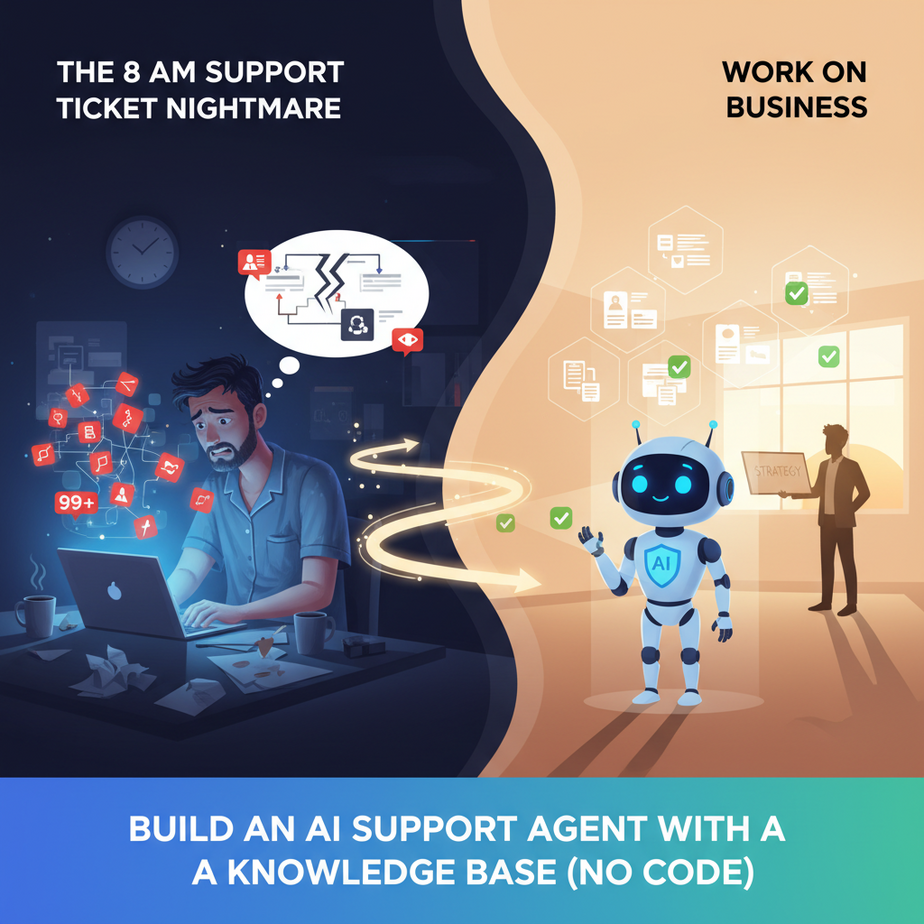
The 8 AM Support Ticket Nightmare
It’s 8:01 AM. You open your laptop, feeling optimistic. Today’s the day you work ON the business, not IN the business. You’re going to be strategic. Visionary, even.
Then you open the support inbox.
“What’s your refund policy?”
“Do you ship to Canada?”
“How do I reset my password?”
It’s the same three questions. Again. The same questions you answered yesterday, and the day before, and the day you swore you’d write an FAQ page that nobody ever reads.
By 9:30 AM, your strategic vision is dead, buried under a pile of repetitive, soul-crushing keyboard taps. You’ve become a highly-paid, over-caffeinated copy-paste machine. You’ve thought about hiring a support person, but the cost, the training, the management… it feels like trading one headache for another.
What if you could hire an intern? An intern who has already read every single document in your company, works 24/7, never asks for a raise, never takes a coffee break, and can talk to a thousand customers at once. Today, we’re going to build that intern.
Why This Matters
This isn’t about building a cute little chatbot that says “Hello! How can I help you?” and then immediately fails.
This is about building an asset. It’s a Tier 1 Support Agent that runs on autopilot. Think about the business impact:
- Time: You instantly reclaim hours per week. What could you do with an extra 5, 10, or 20 hours? (Hint: Something more valuable than explaining your refund policy for the 800th time).
- Money: A fully-loaded support hire costs thousands per month. This system costs less than your Netflix subscription and handles more volume. It’s an insane ROI.
- Scale: Your human team can handle 5, maybe 10 conversations at once. This AI agent can handle ten thousand. It removes the direct link between business growth and hiring more support staff.
- Sanity: It deflects 70-80% of the repetitive noise, letting your human team (or you) focus on the complex, high-value customer problems that actually require a brain.
We are replacing the chaos of a shared inbox and the manual labor of a human copy-paster with a calm, efficient, infinitely scalable AI worker.
What This Tool / Workflow Actually Is
We’re using a tool called Voiceflow. Think of it as a drag-and-drop canvas for building conversations. If you can make a flowchart, you can use Voiceflow. No code. Period.
The core concept we’re using is its Knowledge Base feature.
Here’s the metaphor: Instead of teaching an intern every single fact about your company, you give them a binder. This binder contains your FAQs, your product specs, your company policies. When a customer asks a question, the intern doesn’t pull the answer from memory; they quickly look it up in the binder and give a perfect, consistent response.
That’s exactly what the Knowledge Base does. You give the AI your “binder” of documents (PDFs, text files, website URLs), and it uses that information to answer questions in real-time. This is a simple, powerful form of an advanced technique called Retrieval-Augmented Generation (RAG), but all you need to know is: You give it documents, it answers questions based on them.
What it does NOT do: It won’t make things up (hallucinate). It won’t answer questions about things not in your documents. It’s a specialist, not a generalist know-it-all. Its entire world is the information you provide.
Prerequisites
This is where people get nervous. Don’t be. Here’s the brutally honest list of what you need:
- A Voiceflow account. The free plan is more than enough to get started.
- A document. Any document. A PDF of your FAQ, a simple
.txtfile with your shipping policy, or even just the URL to your company’s “About Us” page. - 45 minutes of uninterrupted time. Put your phone on silent.
- ZERO coding experience. I’m serious. If you can click a mouse and type, you’re overqualified.
That’s it. Let’s build.
Step-by-Step Tutorial
Follow these steps exactly. I’ll explain the ‘why’ behind each one.
Step 1: Create a New Assistant in Voiceflow
After you sign up and log in, you’ll see a dashboard. Click the “Create Assistant” button. Give it a name, like “Website Support Agent”. Select “Web Chat” as the channel. For now, just click through the setup prompts.
Step 2: Find the AI’s Brain (The Knowledge Base)
On the left-hand menu, you’ll see an icon that looks like a database cylinder or a stack of books. It’s labeled “Data”. Click it. This is where we’ll upload our documents. Think of it as the AI’s library.
Step 3: Upload Your Data Sources
Click the “New Data Source” button. You’ll see several options. Let’s try two:
- Upload a File: Grab a PDF or a
.txtfile from your computer and upload it. Voiceflow will automatically process it. - Add a URL: Click on “URLs” and paste in the address of a webpage, like your pricing page or a blog post. Voiceflow will go and “read” that page.
Why this works: Behind the scenes, Voiceflow is breaking your documents into small, searchable chunks and storing them in a special database. This is what allows the AI to find the exact right piece of information instantly.
Step 4: Design the Conversation Flow
Click back to the “Design” view (the top icon on the left menu). You’ll see a canvas with a green “Start” block.
- Capture User Input: Drag a Listen block from the left-hand menu onto the canvas. This block is the AI’s ears; it waits for the user to type something.
- Query the Knowledge Base: Drag an AI block onto the canvas, specifically the Response AI block. In its settings, make sure the “Data Source” is set to “Knowledge Base”. This block is the AI’s brain; it takes the user’s question and searches the library you just created.
- Give the Answer: Drag a Speak block onto the canvas. This is the AI’s mouth. In its settings, we need to tell it to say whatever the Knowledge Base found. To do this, type a left curly brace
{and select the variable{last_response}. This special variable holds the answer generated by the Response AI block.
Step 5: Connect the Blocks
Now we connect the dots to create a logical flow. Click and drag from the small circles on each block to the next one in the sequence:
Start→Listen(Wait for the user to say something)Listen→Response AI(When they do, send their text to the AI brain)Response AI→Speak(Take the AI’s generated answer and say it)Speak→Listen(Go back to listening for the next question, creating a loop)
Your canvas should look like a simple, continuous circle. This is a complete conversational loop.
Step 6: Test Your AI Agent
In the top right corner, click the blue “Run” button. A test chat window will pop up. Ask it a question that can only be answered from the document or URL you uploaded. Watch it work.
Congratulations. You just built a functional AI support agent.
Complete Automation Example
Let’s make this real. Imagine we run an e-commerce store called “Cozy Candles Co.” We are drowning in questions about shipping.
The Problem: Every day, we get 20 emails asking “Do you ship to Australia?” and “How long does shipping take?”
The Automation:
- Create the Knowledge Source: We create a simple text file named
shipping_policy.txt.
Cozy Candles Co. Shipping Policy

- We ship to the United States and Canada.
- We DO NOT currently ship to Australia, the UK, or the EU.
- Standard shipping takes 5-7 business days.
- Expedited shipping takes 2-3 business days.- Upload to Voiceflow: In our “Website Support Agent”, we go to Data > New Data Source and upload
shipping_policy.txt. - Build the Flow: We create the exact
Start→Listen→Response AI→Speak→Listenloop described above. - Add a Safety Net: In the Response AI block’s settings, we find the “Prompt” section. There is a path for when the AI can’t find an answer. We set a custom response here, like: “I couldn’t find a clear answer for that in my documents. A human from our team will get back to you shortly.” This is CRITICAL for a good user experience.
- Test It:
- We type: “Do you ship to Australia?”
Bot Response: “We DO NOT currently ship to Australia, the UK, or the EU.” - We type: “How fast is shipping?”
Bot Response: “Standard shipping takes 5-7 business days, and expedited shipping takes 2-3 business days.” - We type: “What’s the best candle scent?”
Bot Response: “I couldn’t find a clear answer for that in my documents. A human from our team will get back to you shortly.”
- We type: “Do you ship to Australia?”
It works perfectly. It answers what it knows and gracefully admits what it doesn’t.
Real Business Use Cases
This exact same pattern can be applied everywhere:
- SaaS Company: Upload your technical documentation and feature lists. The bot can answer questions like “Does your API support webhooks?” or “What is the file size limit on the Pro plan?”
- Real Estate Agency: Create a separate text file for each property listing. The bot can answer specific questions like “Is the backyard at 123 Maple Street fenced?” or “What year was the roof replaced?”
- Online Course Creator: Upload course syllabi and lesson transcripts. The bot can answer student questions like “When is the final project due?” or “Which video covers topic X?” 24/7.
- Local Service Business (Plumber/Electrician): Upload a document detailing services offered, service areas, and business hours. The bot can pre-qualify customers by answering “Do you service the Northridge area?” or “Can you fix a leaking faucet?”
- Internal HR Bot for a Company: Feed the bot the employee handbook. It can instantly answer employee questions like “How many PTO days do we get?” or “What is the company policy on remote work?”
Common Mistakes & Gotchas
- Garbage In, Garbage Out: The AI is only as smart as the documents you give it. If your shipping policy PDF is from 2018, it will give 2018’s answers. Keep your source material clean, clear, and up-to-date.
- Forgetting the Fallback: The single biggest mistake beginners make is not defining what happens when the AI doesn’t know the answer. A bot that says “Sorry, I can’t help” is frustrating. A bot that says “Sorry, I can’t find that, but I’ve notified a human who will email you” is a great experience. Always configure the “Not Found” path.
- Using One Giant Document: Don’t upload a single 300-page manual. It can work, but you’ll get better, faster, and more accurate results by breaking your information into smaller, logical documents (e.g., `pricing.pdf`, `features.pdf`, `policy.pdf`).
- Poor Document Formatting: The AI reads text. It can get confused by complex tables, weird layouts, or text embedded in images. Simple, clean text documents work best.
How This Fits Into a Bigger Automation System
This Q&A bot is a powerful standalone tool, but it’s also a fundamental building block in a much larger automation factory.
- CRM Integration: When the bot can’t find an answer (the “Not Found” path), instead of just showing a message, it could use an API block in Voiceflow to create a new ticket in your Help Scout, Zendesk, or HubSpot CRM, complete with the user’s question.
- Lead Capture: Before answering a question, the bot could ask for the user’s email address and save it to a Google Sheet or your email marketing tool.
- Voice Agents: The exact same Knowledge Base and logic can be attached to a phone number. When a customer calls, the AI answers the phone and responds using the same document library.
- Multi-Agent Systems: This “Support Agent” could recognize a buying signal (e.g., a question about enterprise pricing) and hand the conversation off to a different, specialized “Sales Agent” bot that is designed to book meetings.
You haven’t just built a chatbot. You’ve built your first module in a true, enterprise-grade AI system. That concept of giving an AI access to external information (Retrieval-Augmented Generation) is one of the most important patterns in modern AI.
What to Learn Next
Our agent is smart, but it’s reactive. It waits for the user to ask a question. That’s great for support, but what about sales? What about lead generation?
In the next lesson in this course, we’re going to give our agent a real mission. We will teach it to be proactive. We’ll build a bot that not only answers questions but also asks them, collects information like a user’s name, email, and budget, and then saves that data neatly into a Google Sheet, turning our support bot into an automated lead qualification machine.
You’ve already built the brain. Next, we’re giving it a job to do. See you in the next lesson.
“,
“seo_tags”: “AI automation, chatbot, Voiceflow tutorial, knowledge base, RAG, no-code AI, customer support automation, business automation”,
“suggested_category”: “AI Automation Courses