
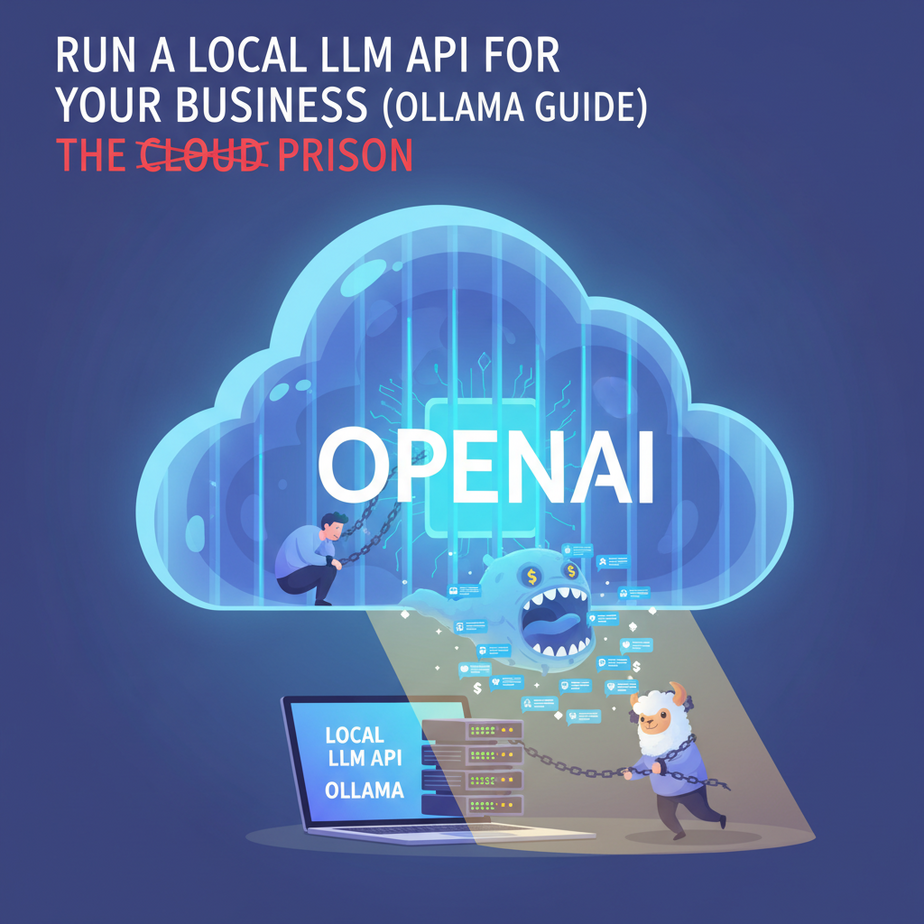
The Cloud Prison
I once had a client, a small e-commerce shop, who was paying thousands a month to OpenAI. What for? To do something ridiculously simple: read customer reviews and tag them as ‘Positive’, ‘Negative’, or ‘Needs Follow-up’.
Their bill was a rollercoaster. A busy sales month meant a terrifying API bill the next. Worse, their lawyer was having a panic attack about sending every single customer comment—typos, complaints, and all—to a third-party company in California. They felt trapped. They were renting a brain from a giant corporation, and the rent was unpredictable and the landlord was nosy.
They were in the Cloud Prison. And today, I’m giving you the key to unlock it.
Why This Matters
Running a language model on your own machine isn’t just a neat party trick for nerds. It’s a strategic business decision. It’s about taking back control.
This workflow replaces three things:
- The Unpredictable Bill: Your cost shifts from a variable, per-use fee to a fixed, one-time hardware cost (your computer) and electricity. For high-volume tasks, this is dramatically cheaper.
- The Privacy Nightmare: When the model runs locally, your data never leaves your machine. Ever. For anyone in legal, finance, healthcare, or just handling sensitive customer data, this isn’t a feature; it’s a requirement.
- The Vendor Lock-In: Is OpenAI down? Did Google change their API again? Who cares. Your local model is sitting on your machine, ready to work, completely independent of the outside world.
You’re essentially building your own private, obedient, and free-to-operate AI intern that lives in a box in your office.
What This Tool / Workflow Actually Is
What is Ollama?
Ollama is a wonderfully simple tool that does two things:
- It lets you download and run powerful, open-source Large Language Models (LLMs) like Meta’s Llama 3 or Mistral’s models, right on your own computer.
- It automatically wraps that model in a standard, OpenAI-compatible API.
In plain English: You install Ollama, type one command to download a model, and—BAM—you have a private AI running on http://localhost:11434, ready to receive instructions. It’s the engine for our private automation factory.
What it is NOT:
Ollama is not a fancy chat interface like ChatGPT. It’s not a cloud service. It is a humble, powerful, background tool that gives you the raw AI brain. We then connect that brain to other systems to make it useful.
Prerequisites
Let’s be brutally honest. You can’t run this on a potato.
- A Decent Computer: You don’t need a supercomputer, but a machine from the last 3-4 years is ideal. For a smooth experience, aim for at least 16GB of RAM. If you have a dedicated graphics card (especially NVIDIA), you’re in great shape. Modern Apple Silicon Macs (M1/M2/M3) are also fantastic for this.
- Ability to Use the Terminal: Don’t panic. This is the black screen with text. We are only going to copy and paste a few commands. If you can follow a recipe, you can do this. I promise.
- Ollama Installed: That’s it. We’ll do it together in the first step.
Seriously, that’s all you need. No coding experience is required to get the API running, but we’ll use a tiny bit of Python for our final automation example (it will be fully provided).
Step-by-Step Tutorial: Running Your First Local AI
Step 1: Install Ollama
Go to ollama.com. Click the big download button for your operating system (macOS, Windows, or Linux). Run the installer. It’s a typical, boring installation. Next, next, finish. Done.
Ollama will now be running quietly in the background.
Step 2: Download Your First AI Model
Open your Terminal (on Mac, it’s in Applications -> Utilities. On Windows, search for PowerShell or Terminal). Type the following command and press Enter:
ollama pull llama3:8bWhat does this do? It tells Ollama to download Meta’s Llama 3 model, specifically the 8-billion parameter version. It’s a multi-gigabyte download, so grab a coffee. This is a one-time download for each model you want to use.
Step 3: Test the Model in the Terminal
Once it’s finished, let’s make sure the brain is working. Run this command:
ollama run llama3:8bYour prompt will change, and you can now chat directly with the AI. Ask it something simple like “Explain gravity to a 5-year-old.” When you’re convinced it’s not a complete idiot, type /bye and press Enter to exit.
This confirms the model is installed and functional. But we’re here for automation, not for chat.
Step 4: Send Your First API Request
Here’s the magic. Even after you typed /bye, Ollama is still running its API server in the background. Your model is waiting for commands. Let’s send one.
Copy and paste this entire block of code into your terminal and press Enter. This is a `curl` command, which is just a standard way to send web requests.
curl http://localhost:11434/api/generate -d '{
  "model": "llama3:8b",
  "prompt": "Why is the sky blue?",
  "stream": false
}'
You should get back a JSON response that contains the AI’s answer. Congratulations. You just communicated with a private AI running on your own machine via a standard API. This is the fundamental building block for everything that follows.
Complete Automation Example: The Intern-Replacement-Bot
Remember my client and their sad intern, Timmy, who had to manually classify customer reviews? Let’s build the bot that gives Timmy his life back.
The Goal: Automatically analyze a list of customer comments and classify their sentiment as Positive, Negative, or Neutral.
Step 1: Get Python Ready
We’ll use a simple Python script. Most computers have Python installed. You’ll need one library called requests. Install it from your terminal:
pip install requestsStep 2: Create a File for Your Comments
Create a simple text file named comments.txt and save it in the same folder where you’ll save your Python script. Put some sample feedback in it, one comment per line:
The shipping was incredibly fast, I love it!
The product broke after two days, this is unacceptable.
I guess the color is okay.
The customer service agent was so helpful and kind.
I will be returning this item immediately.
Step 3: The Python Automation Script
Create a new file named sentiment_analyzer.py. Copy and paste the following code into it. I’ve added comments to explain what each part does.
import requests
import json

# The URL of your local Ollama API
OLLAMA_ENDPOINT = "http://localhost:11434/api/generate"

# The model we want to use
MODEL = "llama3:8b"

# The simple, direct prompt we'll use for classification
PROMPT_TEMPLATE = """
Read the following customer comment and classify its sentiment.
Respond with ONLY ONE WORD: Positive, Negative, or Neutral.

Comment: {comment}

Classification:"""

# Function to get sentiment for a single comment
def get_sentiment(comment):
    # Format the prompt with the actual comment
    prompt = PROMPT_TEMPLATE.format(comment=comment)

    # The data payload for the API request
    data = {
        "model": MODEL,
        "prompt": prompt,
        "stream": False
    }

    # Send the request to the local Ollama API
    try:
        response = requests.post(OLLAMA_ENDPOINT, json=data)
        response.raise_for_status() # Raise an error for bad responses (4xx or 5xx)

        # Parse the JSON response and get the AI's answer
        response_json = response.json()
        sentiment = response_json.get('response', 'Error').strip()
        return sentiment
    except requests.exceptions.RequestException as e:
        return f"API Error: {e}"

# --- Main part of the script ---
if __name__ == "__main__":
    # Open the file with our customer comments
    with open('comments.txt', 'r') as f:
        comments = f.readlines()

    print("--- Starting Sentiment Analysis ---")
    # Loop through each comment and analyze it
    for comment in comments:
        comment = comment.strip() # Remove any extra whitespace
        if comment:
            sentiment = get_sentiment(comment)
            print(f'Comment: "{comment}" -> Sentiment: {sentiment}')
    print("--- Analysis Complete ---")
Step 4: Run Your Automation
Save the script. Go back to your terminal, make sure you’re in the right directory, and run it:
python sentiment_analyzer.pyWatch in amazement as your computer reads each comment, sends it to your private AI, and prints the classification—all without a single piece of data leaving your machine, and for a marginal cost of zero.
Timmy is now free to work on more valuable tasks. You are a hero.
5 Real Business Use Cases
This exact same pattern—send text to a local API, get structured text back—can be used everywhere:
- HR Department: Anonymize resumes by feeding them to a local model with the prompt, “Extract the skills, years of experience, and education from this resume. Omit all personal identifying information like name, address, and age.” This helps reduce bias in hiring.
- Marketing Agency: Take a single product description and use a local model to generate 50 different variations for social media posts. The prompt: “Rewrite this description for Twitter, focusing on scarcity. Now rewrite it for LinkedIn, focusing on B2B benefits.” All for free.
- Law Firm: Feed a 50-page contract into the API and ask it to “Summarize this document into five key bullet points and identify any clauses related to liability.” All sensitive client data remains securely in-house.
- Software Company: Automatically categorize incoming bug reports. The prompt: “Read this user bug report. Is it a UI issue, a database error, an authentication problem, or a feature request? Respond with only one category.”
- Consultant: Transcribe client meeting notes (using a separate tool), then feed the transcript to a local model with the prompt, “Extract all action items from this meeting transcript and list them with the assigned person.”
Common Mistakes & Gotchas
- Using a Giant Model on a Weak Machine: You downloaded a 70-billion parameter model on your laptop and now it sounds like it’s preparing for takeoff. Start small.
llama3:8bormistral:7bare fast and capable for 90% of classification and summarization tasks. - Weak Prompts: These models aren’t as magically mind-reading as GPT-4. Be brutally specific. Notice in our script I said “Respond with ONLY ONE WORD.” This prevents the AI from getting chatty and giving you a full sentence, which would break the automation.
- Forgetting the Server is Running: If you close your terminal, the Ollama API server keeps running in the background. On a Mac, you’ll see a little llama icon in your menu bar. On Windows, it’s in the system tray. You can quit it from there if you need to free up resources.
- Firewall/Network Issues: The API runs on
localhost, meaning it only accepts connections from your own computer. If you’re trying to call it from another machine on your network, you’ll need to configure Ollama to listen on your network IP. That’s a more advanced topic for another day.
How This Fits Into a Bigger Automation System
This local API is a Lego brick. A very powerful, thinking Lego brick. On its own, it’s cool. But when you connect it to other systems, you build castles.
- CRMs: Using a tool like Zapier or Make.com, you can create a webhook that triggers your Python script whenever a new customer ticket is created in Salesforce or HubSpot. The script runs, gets the sentiment from your local model, and then uses the CRM’s API to update the ticket with a ‘Positive’ or ‘Negative’ tag.
- Email Systems: You could have a system that watches a support inbox. When an email arrives, it’s piped to our local model for categorization. If it’s tagged as ‘Urgent’ or ‘Sales Inquiry’, it’s automatically forwarded to the right person.
- Voice Agents: Imagine a customer service phone bot. It transcribes the user’s speech to text in real-time. That text can be sent to your local Ollama instance to understand intent, and the response can be fed back into a text-to-speech engine. All private, all incredibly fast.
- RAG Systems: This is the holy grail for internal knowledge. You can use local models to scan and understand all your company’s private documents (Notion, Google Drive, Confluence). When an employee asks a question, the system finds the relevant document snippets and uses your local Llama 3 to generate a perfect answer, without ever exposing your company playbook to the outside world.
What to Learn Next
Okay, professor’s hat on. You’ve successfully built a brain-in-a-box. It can think, analyze, and classify, but it’s still stuck inside your terminal. It can’t click buttons, it can’t read from a Google Sheet, and it can’t update your CRM on its own.
It has a brain, but no hands or feet.
In our next lesson in the Academy, we’re going to fix that. We’ll take our Ollama API and plug it into a visual automation platform called n8n. We will rebuild today’s sentiment analyzer with zero code, using drag-and-drop nodes. We’re going from a powerful concept to a fully operational, scheduled, automated employee that can interact with the apps you use every day.
You’ve taken the first, most important step. Now it’s time to build the rest of the robot.
“,
“seo_tags”: “Ollama, Local LLM, AI Automation, Llama 3, Private AI, Business Automation, Python AI, API Tutorial”,
“suggested_category”: “AI Automation Courses