
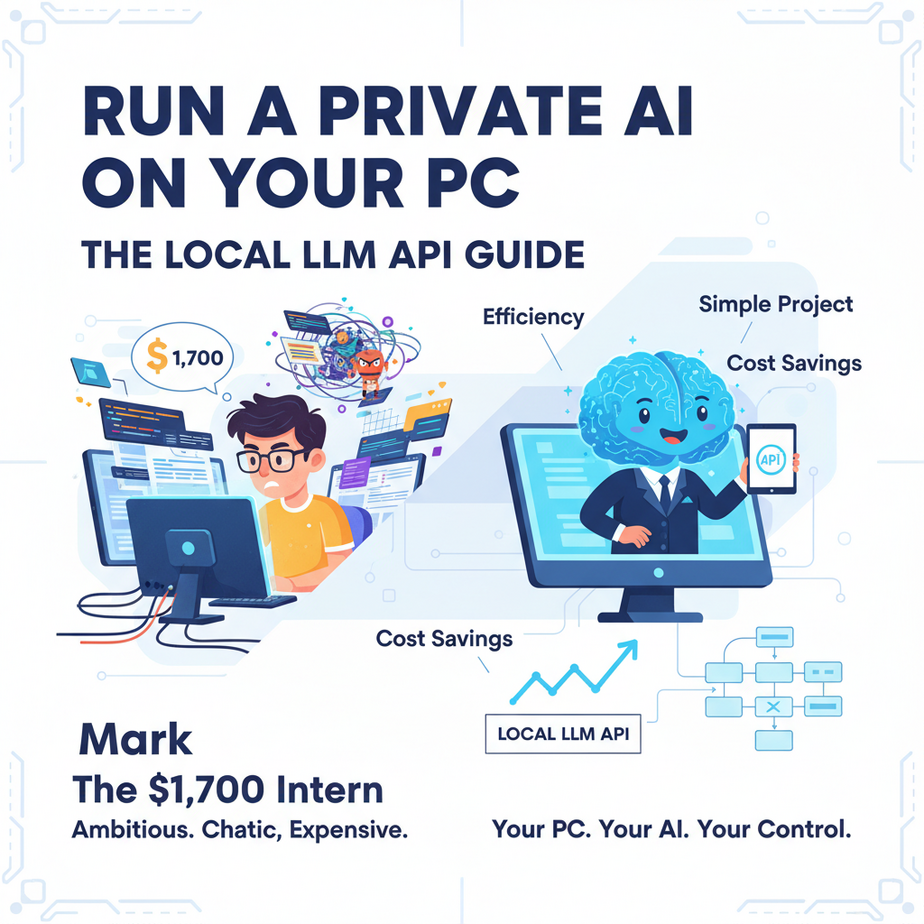
The $1,700 Intern
Let me tell you about Mark. Mark was a bright-eyed junior developer I knew. Full of ambition. A little too much ambition, maybe.
He was tasked with a “simple” project: automatically generating product descriptions for a new e-commerce site. 30,000 products. He wrote a neat little script, plugged in his company’s OpenAI API key, and let it run overnight. He came in the next morning feeling like a hero.
The hero worship lasted until the CFO saw the bill. A cool $1,700. For one night. For *draft* product descriptions.
Mark learned a valuable lesson that day: calling a super-intelligent cloud AI for every single repetitive task is like hiring a brain surgeon to apply band-aids. It’s expensive, overkill, and frankly, a little insulting to the surgeon.
Today, you’re going to learn how to hire a free, private, and infinitely patient intern who lives on your computer. One that never gets tired, never complains, and will never, ever send you a surprise bill.
Why This Matters
Running a Large Language Model (LLM) locally isn’t just a nerdy party trick. It’s a strategic business decision. Here’s what it replaces:
- Expensive API Calls: For tasks like formatting, classifying, and simple generation, you don’t need GPT-4’s massive brain. A smaller local model does it for free. Your cost drops from “unpredictable” to the price of electricity.
- Data Privacy Nightmares: Do you really want to send your sensitive customer feedback, internal documents, or client lists to a third-party server? A local model processes everything on your machine. The data never leaves.
- Dependency & Downtime: When a big AI provider has an outage, your automations grind to a halt. When your AI is on your laptop, it’s always online. You are in control.
This workflow gives you a tireless robot for processing information at scale, with zero data risk and zero marginal cost.
What This Tool / Workflow Actually Is
We’re going to use a wonderful piece of software called LM Studio.
Think of it as a web browser, but for AI models. It lets you download, manage, and run powerful open-source LLMs right on your Windows, Mac, or Linux computer. It’s a graphical, point-and-click interface, so you don’t need to be a command-line wizard.
What it does:
LM Studio’s killer feature is its built-in local server. With one click, it creates an API endpoint on your machine that behaves *exactly* like the official OpenAI API. This means any code, tool, or script you’ve written for GPT-3.5 or GPT-4 can be pointed at your local model with a one-line change.
What it does NOT do:
This is not a GPT-4 replacement for complex, creative, or deeply nuanced reasoning. The models you can run on a typical laptop are smaller and less powerful. They are fantastic for structured tasks, but don’t expect them to write a viral marketing campaign or debug complex code for you. Use the right tool for the job.
Prerequisites
I promised you this was for everyone, and it is. But let’s be brutally honest about what your machine needs.
- A Decent Computer: You don’t need a supercomputer, but a 5-year-old laptop with 8GB of RAM will struggle. A good baseline is a modern processor and 16GB of RAM. If you have a gaming PC with a dedicated graphics card (NVIDIA is best), you’re in for a treat, as it will be much faster. But it’s not required.
- LM Studio: It’s a free download for Mac, Windows, and Linux. Go to lmstudio.ai and grab it. That’s it.
- Python (Optional but Recommended): To actually *use* the API for automation, you’ll want to write scripts. We’ll use Python because it’s simple. If you’ve never used it, don’t panic. You will be able to copy-paste everything.
That’s it. No credit card, no sign-up, no cloud account. Just you, your computer, and a powerful AI.
Step-by-Step Tutorial: Your First Local AI Server
Let’s get our intern set up and ready for work.
Step 1: Download a Model
Open LM Studio. On the home screen (magnifying glass icon), you’ll see a search bar. We need a good, small, general-purpose model.
Search for: Phi-3 Mini 4k Instruct GGUF
You’ll see a list of files from different creators. Look for one by “Microsoft”. Find a version with Q4_K_M in the name. This is a good balance of size and quality. Click the “Download” button. It’s a few gigabytes, so grab a coffee.
Step 2: Load the Model
Click the two-arrow icon on the left sidebar for the “Local Server”. At the top, under “Select a model to load”, choose the Phi-3 model you just downloaded. It will take a moment to load into your computer’s memory.
Step 3: Start the Server
This is the magic button. Just scroll down a bit and click the big, beautiful “Start Server” button. You should see a log of messages appear, and finally, a confirmation that the server is running.
That’s it. You now have an OpenAI-compatible API running on your machine at this address: http://localhost:1234/v1/
Step 4: Talk to Your Local AI with Python
Now, let’s prove it works. Create a new file named test_local_ai.py and paste this exact code into it. You’ll need the OpenAI Python library: run pip install openai in your terminal if you don’t have it.
# test_local_ai.py
import openai

# Point to our local server
client = openai.OpenAI(base_url="http://localhost:1234/v1", api_key="not-needed")

completion = client.chat.completions.create(
  model="local-model", # this field is currently unused
  messages=[
    {"role": "system", "content": "You are a helpful assistant."},
    {"role": "user", "content": "What is the capital of France?"}
  ],
  temperature=0.7,
)

print(completion.choices[0].message.content)
Run this script from your terminal: python test_local_ai.py
If all went well, you’ll see the answer: “The capital of France is Paris.” Congratulations. You just had a conversation with an AI that is running 100% on your own hardware.
Complete Automation Example: The Private Feedback Classifier
Let’s do something real. Imagine you have a CSV file of raw, sensitive customer feedback. You want to classify each comment as “Positive”, “Negative”, or “Neutral” without sending it to the cloud.
The Data: feedback.csv
Create a file with this name and content:
id,comment
1,"The new dashboard is incredible! So much faster."
2,"I can't find the export button anymore, this update is frustrating."
3,"The login page looks different now."
4,"Your support team is the best, resolved my issue in 5 minutes!"
The Automation Script: classify.py
Now, the script that does the work. It will read the CSV, loop through each comment, and ask our local AI to classify it.
import openai
import csv

# Point to our local LM Studio server
client = openai.OpenAI(base_url="http://localhost:1234/v1", api_key="not-needed")

# The function that asks the AI to classify text
def classify_sentiment(text):
    system_prompt = "You are a text classification assistant. Classify the user's text into one of three categories: Positive, Negative, or Neutral. Respond with only a single word."

    response = client.chat.completions.create(
        model="local-model",
        messages=[
            {"role": "system", "content": system_prompt},
            {"role": "user", "content": text}
        ],
        temperature=0.0, # We want deterministic output
        max_tokens=10 # Save a little processing power
    )
    return response.choices[0].message.content.strip()

# Read the input CSV and write to a new output CSV
with open('feedback.csv', mode='r') as infile, open('feedback_classified.csv', mode='w', newline='') as outfile:
    reader = csv.DictReader(infile)
    writer = csv.writer(outfile)

    # Write the header for the new file
    writer.writerow(['id', 'comment', 'sentiment'])

    print("Starting classification...")
    for row in reader:
        comment_id = row['id']
        comment_text = row['comment']

        # Get the sentiment from our local AI
        sentiment = classify_sentiment(comment_text)

        print(f"  - Classifying row {comment_id}: {sentiment}")

        # Write the result to the new file
        writer.writerow([comment_id, comment_text, sentiment])

print("\
Classification complete! Check 'feedback_classified.csv'.")
Make sure LM Studio is still running the server, then run the script: python classify.py
In seconds, you’ll have a new file, feedback_classified.csv, with a new `sentiment` column, all processed privately on your machine for free.
Real Business Use Cases
This same pattern can be used everywhere. Here are five examples:
- HR Department: You have 500 resumes in text files. Use a local LLM to parse and extract key information (Name, Email, Skills, Years of Experience) into a structured CSV without sending candidate data to a third party.
- E-commerce Store: You have a list of 10,000 product titles. Use a local model to quickly generate SEO-friendly URL slugs for all of them (e.g., “Men’s Blue Cotton T-Shirt” -> “mens-blue-cotton-t-shirt”).
- Legal Tech Company: Anonymize internal case notes by running a script that finds and replaces names, addresses, and case numbers with placeholders like `[CLIENT_NAME]`, all done locally to maintain client confidentiality.
- Marketing Agency: Take a single ad headline and use a local LLM to generate 50 slight variations in a loop. It’s fast, free, and great for A/B testing fodder.
- Solo Consultant: You have messy notes from a client call. Use a local model to clean them up, fix typos, and format them into a structured summary with bullet points and action items.
Common Mistakes & Gotchas
- Choosing a Goliath Model: It’s tempting to download the biggest, baddest 70-billion parameter model. Don’t. It will bring your computer to its knees. Start small (like Phi-3 or Mistral 7B) and see if it’s smart enough for your task.
- Forgetting to Start the Server: Your script will fail with a “Connection Refused” error. It’s the equivalent of calling your intern when they haven’t shown up for work yet. Always make sure the server is running in LM Studio first.
- Wrong `base_url`: If you copy-paste code meant for OpenAI, it won’t have the `base_url=”http://localhost:1234/v1″` part. You MUST tell the client where to send the request.
- Expecting Genius-Level Replies: Remember, this is your intern, not your CEO. It will be bad at creative writing and complex reasoning. It excels at structured, repetitive language tasks. Set your expectations accordingly.
- Ignoring Model Licenses: Open-source doesn’t always mean free for commercial use. Always check the license of the model you download. Llama 3, for instance, has its own license. Phi-3 is MIT licensed, which is more permissive. Do your homework.
How This Fits Into a Bigger Automation System
A local API is a fundamental building block, like a single gear in a giant machine. Here’s how it connects:
- Local Agents: This local server can be the “brain” for an autonomous agent that runs on your computer, capable of reading files, searching your local network, and executing commands without cloud access.
- Hybrid Systems: You can build a “triage” system. Use the fast, free local model to handle 90% of simple tasks (like classification). If a task is flagged as “Complex”, the system can then escalate it by making a single, targeted call to a powerful cloud model like GPT-4. Best of both worlds.
- RAG on Internal Docs: You can build a private Retrieval-Augmented Generation (RAG) system. Use a local database to store your company’s private knowledge base, and this local LLM to answer questions about it. Zero data ever leaves your control.
What to Learn Next
You’ve done something incredible today. You’ve brought an AI to life on your own terms, in your own digital home. It’s smart, it’s private, and it’s ready to work.
But right now, it’s a brain in a jar. It can think, but it can’t *do* anything in the real world. It can’t browse the web, it can’t save a file, it can’t send an email.
In the next lesson in our course, we’re going to fix that. We’re going to give our local AI a set of tools and teach it how to use them. We are going to build the foundation for a true autonomous agent. You’ve built the engine; next, we build the rest of the car.
Stay tuned. It’s about to get really interesting.
“,
“seo_tags”: “Local LLM, AI Automation, LM Studio, Private AI, API, Business Automation, OpenAI API”,
“suggested_category”: “AI Automation Courses