
Hook
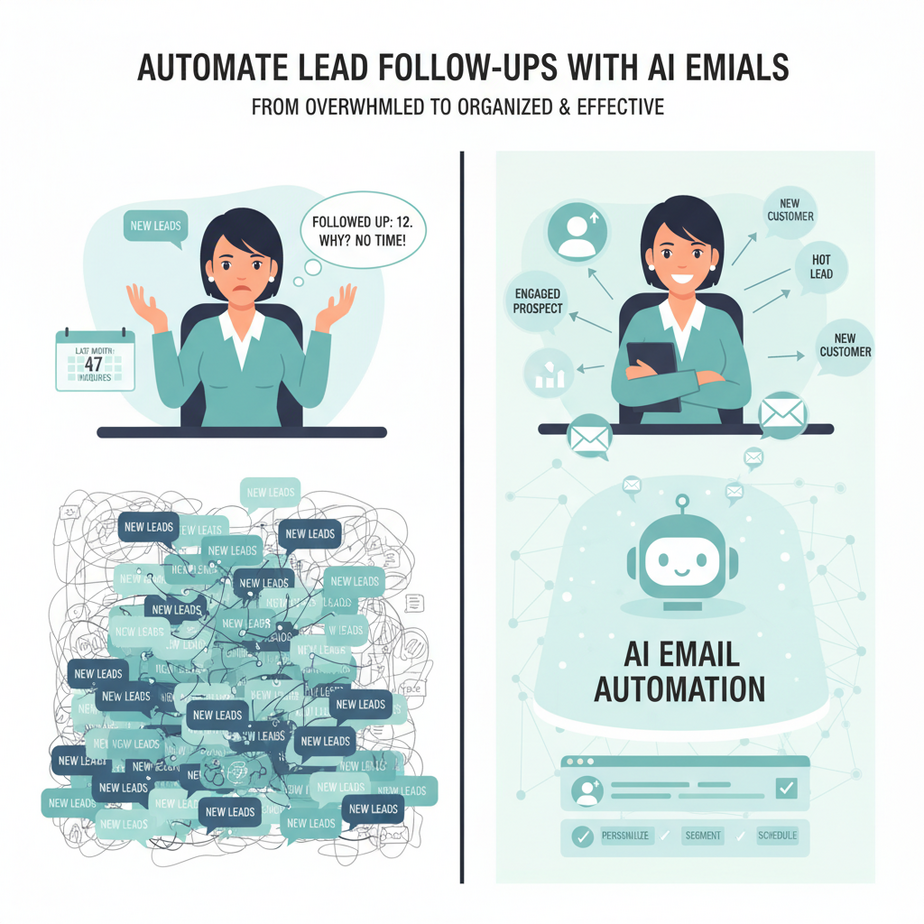
Let me tell you about Sarah. Sarah runs a small but brilliant boutique marketing agency. Last month, she got 47 new lead inquiries. Know how many she followed up with? 12. Why? Because she was “too busy” running the business to play receptionist. Those other 35 leads? They went cold, probably hired her competitor, and Sarah never even knew what she missed.
She was like a restaurant with a host stand, but the host was constantly stuck in the kitchen washing dishes. Customers walked in, looked around, and walked right back out.
This isn’t a sales problem. It’s an automation problem. And it’s one we’re going to solve in the next 10 minutes.
Why This Matters
Following up with leads is the most important, most repetitive, and most neglected task in most businesses. It’s the intern’s job—but you don’t have an intern.
When you automate lead follow-up, you’re not just saving time. You’re building a system that:
- Never sleeps: Your AI sends a response in 5 minutes, not 5 hours.
- Never forgets: Every single lead gets a touchpoint. No exceptions.
- Scales for free: 10 leads or 1000 leads, the robot doesn’t care. Same effort.
This replaces: the sticky notes on your monitor, the mental guilt of unanswered emails, and the revenue you’re currently bleeding.
What This Tool / Workflow Actually Is
We are building an Inbox Assistant. Think of it as a smart bouncer for your email. Its job is to:
- Scan your inbox for new messages (from non-contacts).
- Read the email and extract key info (name, company, need).
- Write a personalized, helpful response (in your tone).
- Send it and log the lead in a simple spreadsheet.
What this is NOT:
- A spam bot that blasts generic templates.
- A complex, enterprise-grade CRM (we’re keeping it lean).
- A mind-reader. It can’t respond to questions you don’t have answers for. Yet.
Prerequisites
You need three things. That’s it.
- An email account: Gmail works perfectly. You’ll need to enable something called “App Passwords”. I’ll show you.
- A free Zapier account: This is our automation glue. The free plan is fine to start.
- A Google Sheet: To log your new leads. You have one. Everyone has one.
You do NOT need to know how to code. You do NOT need to be technical. You just need to follow along and click where I click.
Step-by-Step Tutorial
Step 1: Prepare Your Email Fortress
First, we need to give Zapier secure access to your Gmail without handing over your main password.
- Go to your Google Account Security page: myaccount.google.com/security
- Find “2-Step Verification” and make sure it’s ON. (This is a requirement for App Passwords).
- Scroll down to “How you sign in to Google” and click on App Passwords.
- Give it a name like “Zapier Lead Hunter”. Click Create.
- Google will give you a 16-character code. Copy this and save it somewhere safe. This is your key.
Step 2: Build the Trigger in Zapier
Log into Zapier. Click the big “Create” button, then select “Zap”.
- Trigger App: Search for and select Gmail.
- Trigger Event: Choose New Email in Inbox. This tells Zapier to watch for incoming mail.
- Connect your Gmail Account: Zapier will ask for permission. If you did Step 1 correctly, it may ask for that App Password here. Grant access.
- Set up the trigger: For the “Label” field, you can leave it blank to watch your whole inbox, or create a specific label like “New Leads” and only watch that folder. Let’s leave it blank for now.
- Test your trigger: Click “Test Trigger”. Zapier should find the most recent email in your inbox. This confirms the connection is alive.
Step 3: Filter for REAL Leads (Crucial!)
We don’t want to auto-reply to your mom or your coworker. We need a filter.
- Click the + button between steps to add a new step.
- Search for and select Filter by Zapier.
- Set up the filter rule. We want to ONLY continue if the email is from someone new. A simple way is:
“From Email” (in the Gmail trigger data) Does Not Exist in your “Contacts” spreadsheet.
However, a quicker filter to start is:
“Subject” Does not contain “unsubscribe” AND “From Email” Does not contain “yourcompany.com”. This weeds out newsletters and internal emails.
Step 4: Write the AI-Powered Email
Now for the magic. We use Zapier’s built-in AI tool, Zapier Central or simply AI Actions. For this example, we’ll use a simple Text Formatter to simulate the ‘AI’ writing style, but in a real setup, you’d connect to OpenAI.
Let’s use a built-in Zapier tool called Formatter by Zapier to make a simple reply.
- Add a new step. Search for Formatter by Zapier.
- Select Text as the Action Event.
- Choose Text Formula.
- In the “Insert Fields” box, drag in the From Name and Subject from your Gmail trigger.
- Here is where you write your template using the fields.
Example Formula:
Hi {{From Name}}, I saw your email about {{Subject}}. I'd love to chat. Are you free for a quick 15-minute call tomorrow?
Pro-Tip: For real AI, you would replace this step with a “Code by Zapier” (Python) step that calls the OpenAI API, passing the email body and asking it to generate a personalized reply. We will cover that in a later lesson.
Step 5: Send the Email and Log the Lead
- Add a new step. Search for Gmail.
- Select Send Email.
- To: Map the From Email field from your trigger.
- Subject: Map the Subject field from your trigger, maybe add “Re: ” to the front.
- Body: Map the text output from your Formatter step.
- Add a final step: Google Sheets -> Create Spreadsheet Row.
- Map the From Name, From Email, and Date into your spreadsheet columns. Now you have a record of everyone your bot has contacted.
Complete Automation Example: The Consultant’s Coffee Break
David is a freelance consultant. He gets 10-15 inquiries a week. He used to spend his Monday mornings copy-pasting replies.
His New Workflow:
An email hits his inbox: “Hi David, we need help with our Shopify store SEO…”
1. Zapier triggers: Detects new email.
2. Filter passes: It’s not from his developer or his newsletter service.
3. AI writes: The system drafts: “Hey [Name], thanks for reaching out about your Shopify SEO. That’s my bread and butter. I have a slot open on Thursday afternoon. Does 2 PM work? -D”
4. Gmail sends: The reply is out in 2 minutes.
5. Sheet logs: David now has a row in his “Lead Tracker” with the person’s name, email, and the date.
David sees the log in his sheet later that day and can plan his follow-up calls. His lead response time went from 8 hours to 4 minutes. He closes 20% more deals because he’s the first to reply.
Real Business Use Cases (MINIMUM 5)
- The Real Estate Agent: Gets inquiries on Zillow/Redfin. The bot sends a “Hi, thanks for your interest in 123 Main St…” text or email immediately, asking if they want a showing. Speed is everything here.
- The E-commerce Store: Handles “Where is my order?” or “Do you do bulk?” queries. The bot can parse the subject line and send a generic helpful reply or log it for a human if it’s complex.
- The Job Recruiter: Receives applications. The bot instantly replies: “Thanks for applying! Our team will review your resume and get back to you within 48 hours.” This manages candidate expectations.
- The Wedding Photographer: Gets “Do you have my date available?” emails. The bot replies with a link to their availability calendar and asks for a brief phone consult.
- The SaaS Founder: Gets feature requests. The bot replies with a thank you and a link to the public roadmap, and logs the feature request in a separate sheet for analysis.
Common Mistakes & Gotchas
- The Loop of Doom: You auto-reply to a newsletter, which sends you a confirmation, which triggers another auto-reply. Fix: Your filter is vital. Always filter out “noreply@”, “newsletter@”, and keywords like “unsubscribe”.
- Sounding Like a Robot: Using generic templates like “Dear Customer”. Fix: Always use the From Name field. It’s a tiny detail that makes a huge difference.
- Forgetting to Test: Turning it on and hoping for the best. Fix: Always, always send a test email to yourself first to make sure the filter, the AI, and the email sending all work in sequence.
- Scaling Costs: Zapier’s free plan runs out. If you get high volume, you might need to pay. It’s a good problem to have (it means you’re getting business!), but be aware.
How This Fits Into a Bigger Automation System
This single bot is your front door. But now you can connect it to the house:
- CRM Connection: Instead of a simple Google Sheet, connect Step 5 to HubSpot or Airtable to create a real lead record.
- Voicemails: If you don’t get a reply in 24 hours, add a step to trigger an AI Voice Agent (like Vapi or Bland) to call them and leave a message.
- Slack Notification: Add a step that pings your sales channel on Slack: “New hot lead just hit the inbox: [Name]”.
- Multi-Agent Workflow: One agent handles the initial reply. A second agent (if they reply) handles scheduling. A third agent reminds you of the meeting. You’re building a team of robots.
What to Learn Next
You just built the scout. In our next lesson, we’re going to build the closer.
We’re going to cover AI-Powered Meeting Scheduling. Where your bot not only replies to the lead, but integrates with your calendar, finds an open slot, and sends them a booking link automatically. No more “What time works for you?” back-and-forth. The robot handles the negotiation.
This is Lesson 3. Next stop: Total Calendar Domination.
“,
“seo_tags”: “AI automation, email automation, lead follow-up, Zapier tutorial, business productivity, AI for beginners”,
“suggested_category”: “AI Automation Courses