
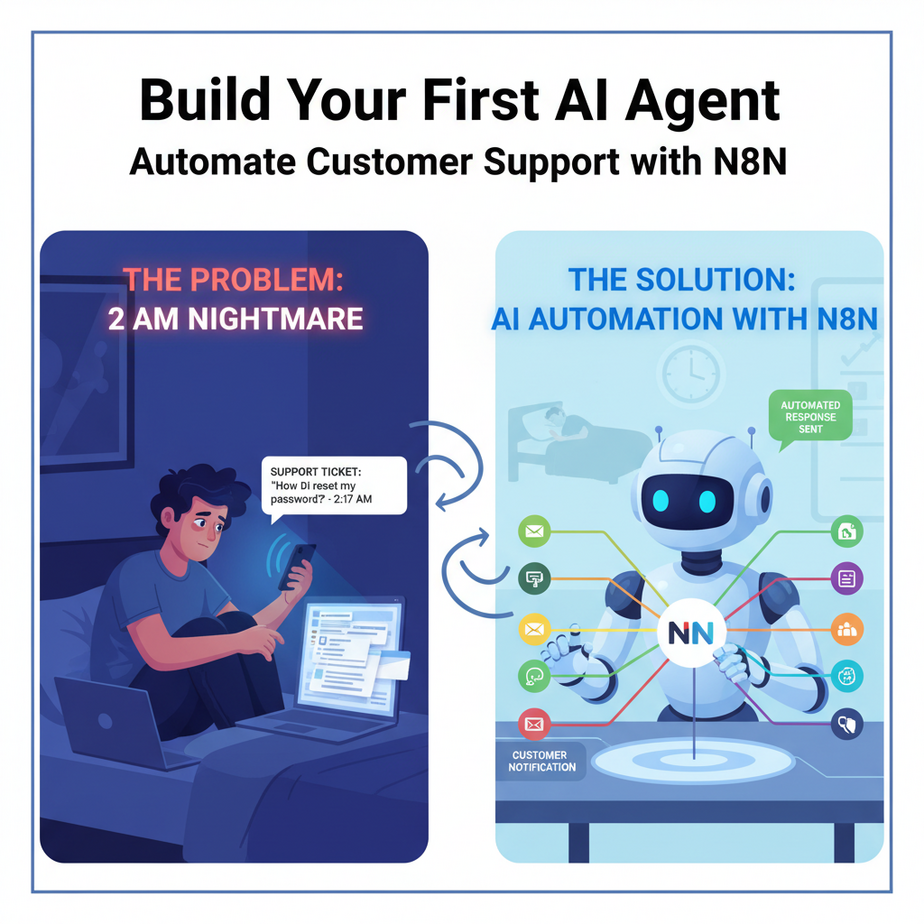
Hook: The 2AM Support Ticket Nightmare
It’s 2:17 AM. Your phone buzzes. It’s a support ticket: “How do I reset my password?” You sigh. You’ve answered this question 47 times this week. You type the same reply. Then another ping: “Where’s my order?” Then another. Suddenly, you’re not running a business—you’re a glorified helpdesk intern working the graveyard shift.
Here’s the good news: You don’t need to be a developer to escape this loop. You need an AI agent—specifically, a tireless robot built with N8N—to handle these repetitive tasks while you sleep, scale, or sip coffee.
Why This Matters
Every manual support reply is a leak in your business bucket. You’re losing:
- Time: Hours you could spend building products or acquiring customers.
- Money: Hiring full-time support staff is expensive, especially for repetitive questions.
- Sanity: Answering the same queries burns you out and makes you hate your business.
What this replaces: Your junior support intern, your spreadsheet of canned responses, and the chaotic system of checking three different inboxes every hour.
What This Tool / Workflow Actually Is
We’re building an AI Support Agent using N8N.
What it is: A workflow that automatically receives a customer message, uses an AI (like OpenAI’s GPT) to understand and answer it, and sends the reply back to the customer—all in seconds.
What it is NOT: A sentient chatbot that falls in love with your customers. It won’t handle edge cases it hasn’t been trained on. It’s a smart responder, not a psychic.
Prerequisites
Brutally honest check-in: You need an N8N account. If you don’t have one, head to n8n.io and create a free account. It’s drag-and-drop, not code-heavy.
You’ll also need an API key from an AI provider. We’ll use OpenAI (GPT-4o mini is cheap and great for this). You’ll need to add a small amount of credit—usually $5 is enough to start.
If you can drag a box on a screen and paste an API key, you can do this. No PhD required.
Step-by-Step Tutorial: Build the Agent
Let’s build. Log into N8N, and let’s create a new workflow.
Step 1: The Trigger (Listening for Incoming Messages)
First, we need to hear the customer. For this example, we’ll use N8N’s built-in Webhook node. This creates a unique URL. When a message hits that URL, our automation wakes up.
- Add a Webhook node.
- Set the method to POST.
- Copy the “Webhook URL” — this is your agent’s mailbox.
Step 2: The Brain (Understanding the Message)
Now we send the message to the AI. We use the OpenAI Chat Model node (or any other LLM node).
- Add an OpenAI node.
- Connect it after the Webhook.
- In “Credentials,” add your OpenAI API Key.
- Under “Model,” choose gpt-4o-mini.
- In the “Prompt” field, we need to be specific. We’ll use an expression to capture the incoming data.
We’re going to tell the AI to act like a customer support agent. We’ll pass the customer’s message dynamically.
Step 3: The Mouth (Sending the Reply)
The AI has generated an answer. Now we need to send it back. For this tutorial, we’ll simulate sending an email using the Email node (or you could use SendGrid, Gmail, etc.).
- Add an Email node.
- Connect it after the OpenAI node.
- Set “To” (you can hardcode your email for testing).
- Set “Subject” to
Support Reply: {{ $('Webhook').item.json.body.customer_email }}(This assumes your webhook sends JSON like{"message": "help", "customer_email": "bob@example.com"}). - Set “Text” to
{{ $json.choices[0].message.content }}(This grabs the AI’s generated response).
Step 4: Activate
Hit the Active toggle in the top right. Your agent is now live.
Complete Automation Example: The “Where Is My Order?” Workflow
Let’s simulate a real flow. Imagine a customer’s website has a form that sends a POST request to your Webhook URL.
Payload sent to Webhook:
{
  "customer_name": "Alice",
  "order_id": "#12345",
  "question": "I haven't received my order yet, where is it?"
}
How the N8N Workflow Processes It:
- Webhook Node receives: The JSON payload above.
- OpenAI Node gets: A prompt like this:
You are a helpful support agent for a company called 'TechGadgets'. A customer named {{ $json.customer_name }} asks: "{{ $json.question }}". Order ID is {{ $json.order_id }}. Check our database logic: Orders usually take 3-5 days. If it's been longer, ask for their tracking email. Keep the reply short and helpful. - AI generates: “Hi Alice, thanks for reaching out! Order #12345 typically ships in 3-5 business days. It’s only been 2 days so far. You should receive a tracking email shortly. Let me know if you need anything else!”
- Email Node sends: This reply is emailed to your support inbox or directly back to Alice if you configured a reply-to.
Real Business Use Cases
- E-commerce Store: Automates answers for “What’s the return policy?” and “Where is my tracking number?” Reduces ticket volume by 40%.
- Real Estate Agency: An agent on the website answers “What schools are in this district?” or “Can I see the floor plan?” instantly, 24/7, capturing leads while agents sleep.
- SaaS Startup: Handles “How do I change my billing info?” or “Where is the API documentation?” inside the app’s chat widget.
- Freelancer/Consultant: A pre-sales bot asks “What’s your budget?” and “What’s the timeline?” then drafts a proposal in your email for you to review.
- Online Course Creator: Answers “Does this course cover X topic?” or “When does enrollment close?” on the sales page to nudge hesitant buyers.
Common Mistakes & Gotchas
- The “Hallucination” Trap: If you don’t give the AI context (like shipping times or pricing), it might make stuff up. Always feed it data via the prompt or connect a database node (like Google Sheets) to fetch real info.
- Promiscuity: Don’t let the AI give refunds or delete accounts. Keep its permissions limited to “answering questions.” Use the prompt to set boundaries.
- Forgetting the Loop: If a customer asks a follow-up question, the workflow needs to persist memory. For beginners, just using the thread’s history in the prompt works. Advanced users can connect a Vector Database (like Pinecone) to remember past chats.
How This Fits Into a Bigger Automation System
This AI agent is just one cog in your automation factory. Here’s where it plugs in:
- CRM: After the AI answers, add a row to a Google Sheet or update a HubSpot contact tag to “Interacted.”
- Voice Agents: Chain this with a Text-to-Speech node (like ElevenLabs) and a Voice Node to make your AI answer phone calls.
- Multi-agent Workflows: One agent triages the question. If it’s a “billing issue,” it routes to a specialized “Billing Agent” node. If it’s “technical support,” it routes to a “Dev Agent” node.
- RAG Systems: Connect a Vector Database. The agent looks up your actual help docs before answering to ensure 100% accuracy.
What to Learn Next
You just hired your first digital employee. It never gets tired, it never complains, and it costs pennies.
In the next lesson, we’re going to give this agent memory and skills. We’ll connect it to a database so it can actually look up order statuses in real-time instead of guessing. We’re moving from “Chatbot” to “Actual Business Operator.”
Stay tuned. The factory is just getting started.