
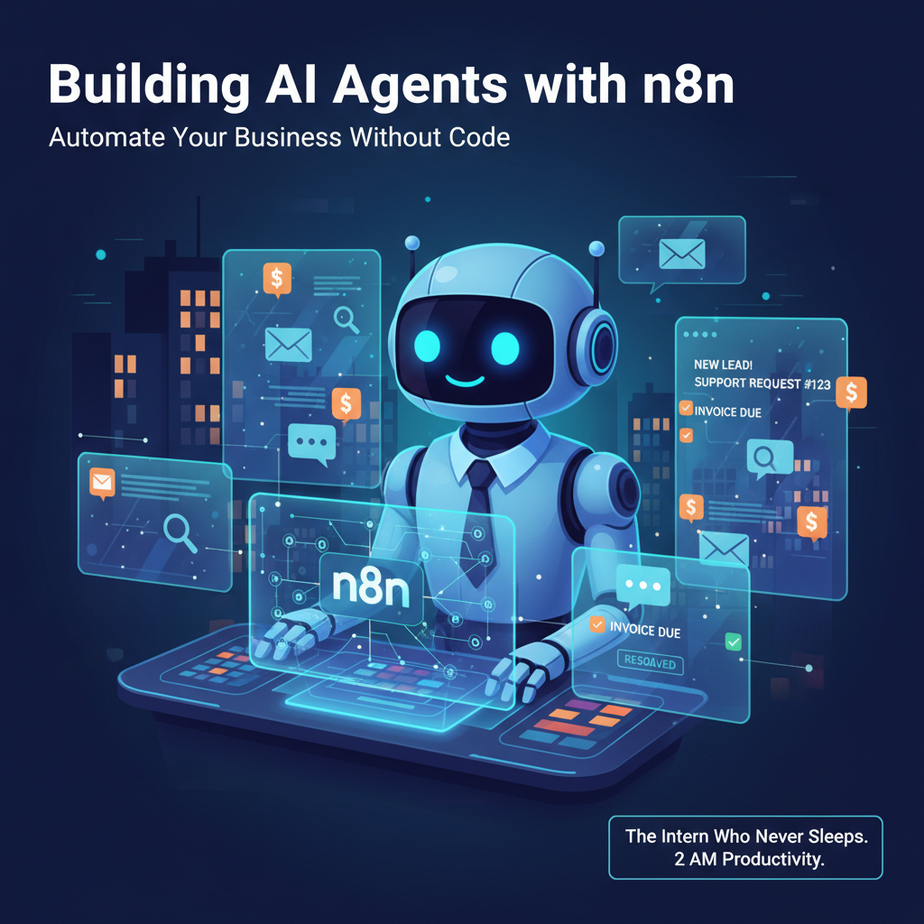
Hook: The Intern Who Never Sleeps
Imagine this: It’s 2 AM. You’re wide awake, staring at your inbox. Another 47 emails have piled up. Potential leads, customer support questions, random spam. Your human intern, bless their heart, needs sleep. And coffee. And they still reply to the wrong emails sometimes.
What if you had an intern who never slept, never complained, and could process 1,000 emails in the time it takes you to brew your morning coffee? That’s not sci-fi. That’s an AI agent.
In this lesson of the Underground AI Automation Academy, we’re building you a digital employee. One that actually reads, thinks, and acts. No code required.
Why This Matters: Your New 24/7 Employee
Manual work is a money pit. Every time you manually categorize a lead, respond to a FAQ, or route a support ticket, you’re trading your time for someone else’s problem. That intern you hired? They cost you $20/hour and still need lunch breaks.
An AI agent built in n8n costs pennies per task. It scales infinitely. It doesn’t get bored. It handles the boring, repetitive, soul-crushing work so you can focus on building your business.
Who this replaces: Junior virtual assistants, data entry clerks, your cousin who “helps out” with the business. This agent will do their job better, faster, and without asking for a raise.
What Is an n8n AI Agent?
n8n is a visual workflow automation tool. Think of it like connecting LEGO bricks. Each brick is a function: “Read email,” “Check database,” “Call AI,” “Send message.” You drag, drop, and connect them to build a process.
An AI Agent in n8n is a workflow where an AI model (like GPT-4) acts as the “brain.” It receives information, decides what to do, and triggers actions. It’s not just a script; it’s a decision-maker.
What it does: Receives input, processes it with AI, calls external tools, and returns a smart action.
What it does NOT do: It won’t magically fix your broken website or deliver coffee. Yet.
Prerequisites: What You Need Before We Start
Brutal honesty time. You need:
- An n8n account (free tier is perfect for learning). Go to n8n.io and sign up.
- An OpenAI API key (or any other AI provider supported by n8n). You’ll need to add a small credit to your OpenAI account, but testing will cost you less than a dollar.
- A basic understanding of what an “API key” is (it’s just a password for computers to talk to each other).
Don’t panic. I’ll hold your hand through the scary parts.
Step-by-Step Tutorial: Build Your First Agent
We’re building a Lead Qualification Agent. It will read incoming emails, decide if they’re potential clients, and notify you via Slack only if they’re hot leads.
Step 1: Set Up Your Workflow Trigger
First, we need to tell n8n where our data comes from. For simplicity, we’ll use a “Manual” trigger to start. Later, you can swap this for an Email trigger.
- Open n8n and click New Workflow.
- Click the big + button to add your first node.
- Search for and select Manual under the Trigger section.
Step 2: Simulate Incoming Data
Let’s pretend we received an email. We’ll use a Set node to create test data. This is like setting up a test dummy before the real fight.
- Add a new node: search for Set.
- Connect it after the Manual trigger.
- In the node settings, click Add Field.
- Name the field
email_bodyand in the value, paste this sample email:
Subject: Interested in your AI consulting services
Hi there,
My name is Sarah, and I run a mid-sized e-commerce company. We're struggling with customer support scaling. I saw your website and think you can help. Can we book a call?
Step 3: The AI Brain (OpenAI Node)
This is where the magic happens. We ask the AI to analyze the email.
- Add a new node: search for OpenAI.
- Connect it after the Set node.
- Under credentials, add your OpenAI API key.
- In the operation, choose Message an AI Model.
- In the System Message, tell the AI its job:
You are a lead qualification expert. Analyze the provided email. If the sender is clearly a potential client, respond with "HOT". If they are not a good fit, respond with "COLD". If you're unsure, respond with "WARM". Only respond with one word.- In the User Message, map the email body from the previous step. In n8n, this is usually done by typing
{{ $json.email_body }}in the field.
Step 4: The Decision (IF Node)
Now we need to branch the workflow based on the AI’s response.
- Add a new node: search for IF.
- Connect it after the OpenAI node.
- Set up a condition: If
Output from OpenAI(the text)containsHOT. - n8n will automatically create two outputs: True and False.
Step 5: The Action (Slack Notification)
If the lead is hot, we want to get notified immediately.
- Add a new node: search for Slack.
- Connect it to the True output of the IF node.
- Add your Slack credentials.
- Choose the operation Post.
- Select your channel (e.g., #leads).
- In the message text, write something like:
🔥 HOT LEAD ALERT!
{{ $json.email_body }}
Action needed!
Step 6: Test It
Click Execute Workflow. Watch the bubbles flow. The Manual trigger sends data, the AI thinks, the IF node decides, and if it’s hot, Slack gets a message. You just automated a human’s job.
Complete Automation Example: The Customer Support Router
Let’s build a real-world scenario. A customer emails “support@yourcompany.com”. You don’t know if it’s a billing issue, a bug, or a feature request. An intern has to read it and forward it to the right team. Let’s automate that.
- Trigger: Use the Email Read IMAP node to monitor your support inbox.
- AI Analysis: Use the OpenAI node with this System Message:
Classify this email into one of three categories: "Billing", "Technical Bug", or "General Inquiry". Respond with ONLY the category name. - Routing: Use an IF node with multiple conditions.
- Actions:
- If “Billing”: Send an email to your finance manager via the Email node.
- If “Technical Bug”: Create a ticket in Jira or Linear.
- If “General Inquiry”: Post to a Slack channel for the sales team.
This one workflow saves your team 5-10 hours per week. Every week. Forever.
Real Business Use Cases (MINIMUM 5)
- E-commerce Store: Automatically categorize incoming product questions by product type and route them to the right product expert via email or Slack.
- Real Estate Agency: Scrape property listings from a website daily. Use an AI agent to summarize the key specs and price, then push the top 5 best deals to a WhatsApp group for agents.
- Freelance Writer: Connect a Google Form where clients submit briefs. An AI agent reads the brief, checks if it matches your niche, and auto-replies with a “Yes, let’s talk” or “Sorry, not a fit” email template, saving you from awkward rejection emails.
- Recruitment Agency: Monitor a shared inbox for resumes. The AI agent reads the resume text (pasted in email body) and scores it 1-10 based on keywords for a specific job description. Only emails with a score of 8+ are forwarded to the hiring manager.
- Local Restaurant: Integrate with their reservation system. When a new booking comes in with special requests (e.g., “allergy to nuts”), the AI agent identifies this and sends an alert to the head chef’s kitchen tablet so they’re prepared before the guest arrives.
Common Mistakes & Gotchas
- Over-explaining to the AI: Keep your prompts simple and specific. “Respond with one word” is better than “Write me a beautiful poem about the lead’s intent.”
- Not testing edge cases: What happens if the email is in Spanish? Or is empty? Test with weird data. Add an IF node that catches “WARM” and “COLD” and logs them somewhere else so you can review later.
- API Costs: Leaving the workflow on “auto-run” and testing with huge amounts of data can cost money. Always start with manual execution and test data.
- Workflow Loops: Be careful that your workflow doesn’t trigger itself. If you send an email from the workflow that goes back to the same inbox, you’ve created a robot uprising. Use filters carefully.
How This Fits Into a Bigger Automation System
This single AI agent is just one soldier in your army. Here’s how it connects:
- CRM: The “Hot Lead” agent can create a new deal in your CRM (HubSpot, Salesforce) automatically.
- Multi-agent Workflows: The “Support Router” agent can pass the classified ticket to a second agent that drafts a technical response, which a human then reviews.
- Voice Agents: Imagine a customer calls in. A voice-to-text service transcribes it. Your AI agent reads the text, decides if it’s urgent, and triggers a voice call back to your CEO if it’s a crisis.
- RAG Systems: Connect your agent to your company’s knowledge base. When a customer asks a question, the agent looks up the answer in your docs before replying. You’ve just automated 80% of your support.
What to Learn Next
You’ve built a brain and given it eyes and hands. But what if it needs to search the web? Or update a spreadsheet? Or interact with a database?
In the next lesson, we’re going to give your agent Tools. We’ll connect your n8n agent to Google Search and a Vector Database. It will learn to research answers and pull data from your own documents.
Keep building. Your digital workforce is just getting started.