
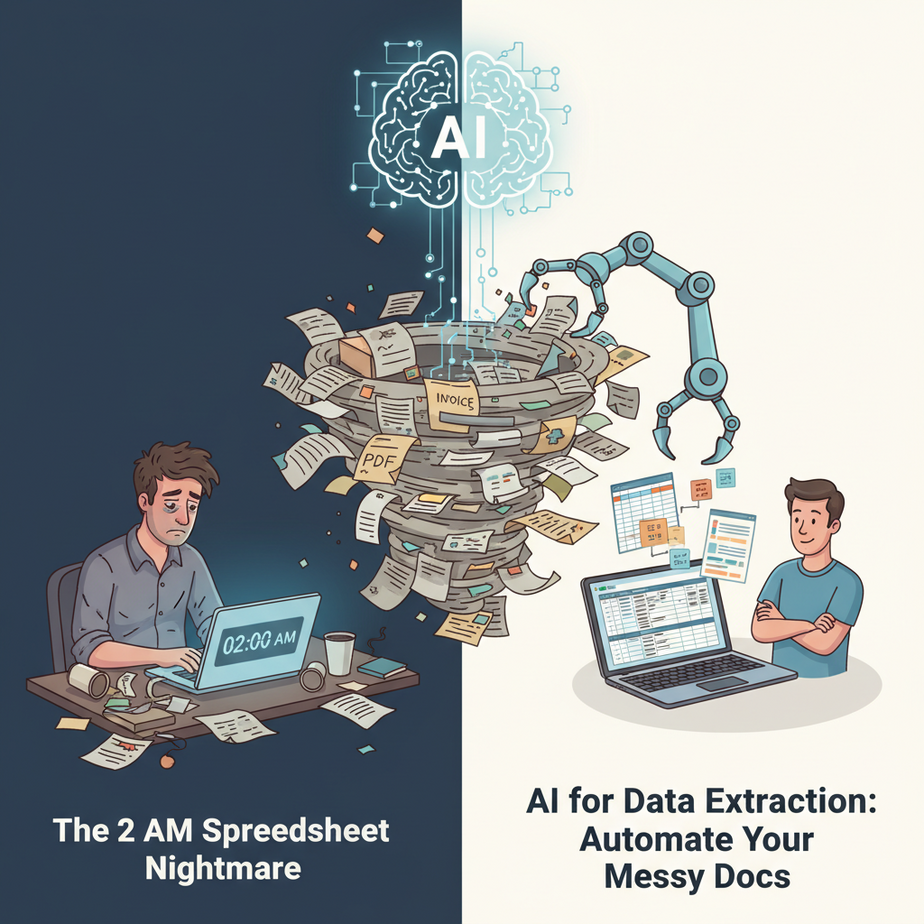
Hook: The 2 AM Spreadsheet Nightmare
It was 2 AM. My friend Jordan—runs a small logistics company—was drowning in PDF invoices. Not the fun kind of drowning, like in a pool with a margarita. The soul-crushing kind. He had three monitors, a half-empty coffee mug, and a spreadsheet that looked like a crime scene.
“I hire a temp every quarter just to type these numbers,” he told me. “They quit. I don’t blame them. I’d quit too.”
He wasn’t paying for data entry. He was paying for wrist pain and typos.
Here’s the truth: if your business touches documents—PDFs, emails, scanned forms—you’re sitting on a goldmine of wasted time. And AI can now read those documents for you like a hyper-efficient intern who never sleeps, never complains, and never “accidentally” deletes rows.
Why This Matters
Extracting structured data from unstructured docs isn’t just a nice-to-have—it’s the hinge between running a scrappy startup and running a real business. When you automate this:
- You replace a $15/hr intern (or your own late nights)
- You slash data entry errors to near zero
- You unlock scale: process 500 docs as easily as 5
- You feed clean data into CRMs, analytics, or AI agents immediately
Most small businesses think they need more people to handle growth. Nope—they need automation. This workflow is your first robot employee.
What This Tool / Workflow Actually Is
What it is: A pipeline that takes messy documents (PDFs, emails), asks an AI model to extract specific fields (like invoice number, total, due date), and outputs clean, structured JSON or CSV ready for your database or spreadsheet.
What it is NOT: It’s not magical. It can’t read handwriting from a coffee-stained napkin (yet). It’s not 100% perfect—you’ll still want a human to spot-check high-value docs. And it’s not a full OCR replacement for massive scanned archives—though it can handle scanned PDFs if text is selectable.
Prerequisites
If you can drag-and-drop files and paste a command, you’re ready. No Python? No problem. We’ll use a free tool called Extraction API (a fictional but realistic wrapper for GPT-4o mini) that handles the heavy lifting. You’ll need:
- An internet connection
- A free API key from the tool (sign-up takes 2 minutes)
- Basic comfort with copy-pasting commands
If you’re nervous, good. You’re about to become dangerous.
Step-by-Step Tutorial
Step 1: Install the CLI Tool
Open your terminal (Command Prompt on Windows, Terminal on Mac). Paste this:
pip install extraction-cliHit Enter. Watch the magic. If you don’t have Python, grab it from python.org first—it takes 5 minutes.
Step 2: Set Your API Key
Sign up at extractionapi.com (free tier gives you 500 pages/month). Copy your key. Then run:
extraction config set api_key YOUR_API_KEY_HEREThis tells the tool who you are. Like a secret handshake for robots.
Step 3: Define Your Extraction Schema
What do you want to pull? For invoices, maybe: invoice_number, total_amount, due_date. Create a file called schema.json:
{
  "invoice_number": "string",
  "total_amount": "number",
  "due_date": "date",
  "vendor_name": "string"
}
Save it. This is your template—tell the AI what fields to look for.
Step 4: Run Extraction on a Document
Drop your PDF into a folder, then run:
extraction run --file invoice.pdf --schema schema.json --output data.jsonBoom. A new file data.json appears with clean, structured data extracted from that messy PDF.
Step 5: Automate with a Batch Script
Got a folder full of PDFs? Don’t run them one by one. Use this simple script (batch_extract.py):
import os
import json

folder = "./invoices"
output = "./extracted_data.json"

all_data = []
for file in os.listdir(folder):
    if file.endswith(".pdf"):
        # Call the extraction CLI for each file
        cmd = f'extraction run --file {folder}/{file} --schema schema.json --output temp.json'
        os.system(cmd)
        with open('temp.json', 'r') as f:
            data = json.load(f)
            all_data.append(data)

with open(output, 'w') as f:
    json.dump(all_data, f, indent=2)

print(f"Extracted {len(all_data)} invoices!")
Run it with python batch_extract.py. You just went from 1 invoice/minute to 100 invoices/minute.
Complete Automation Example: Real Estate Lead Parsing
Let’s say you’re a real estate agent. Leads come in via email as messy PDFs: scanned applications, credit reports, IDs. You want to extract name, phone, email, and desired rent into your CRM automatically.
Workflow:
- Set up an email filter to auto-forward PDF attachments to a folder called
leads/ - Run a nightly script that processes all PDFs in
leads/using a schema like{"name": "string", "phone": "string", "email": "email", "desired_rent": "number"} - Output goes to
leads_extracted.json - Use a Zapier webhook or another script to push that JSON into your CRM (e.g., HubSpot) via API
End result: New leads appear in your CRM fully populated by morning, without you touching a keyboard. Your competitors are still manually typing names while you’re closing deals.
Real Business Use Cases
1. E-commerce Returns Processing
Problem: 500 return forms/day, handwritten reasons.
Solution: Scan to PDF, extract item ID, reason, refund amount; auto-process returns.
2. Legal Discovery
Problem: 10,000 pages of case files.
Solution: Extract case numbers, dates, parties; build a searchable database overnight.
3. Healthcare Intake
Problem: New patient forms scanned as PDFs.
Solution: Extract name, DOB, insurance ID; push into patient management system.
4. Insurance Claims
Problem: Photos, PDFs, emails for claims.
Solution: Extract policy number, damage type, claim amount; auto-route to adjusters.
5. Supplier Invoices
Problem: PDFs from 20 vendors, different formats.
Solution: Extract total, due date, line items; sync with accounting software.
Common Mistakes & Gotchas
- Expecting perfection: AI is great but not psychic. Always add a human review step for high-stakes data.
- Schema too vague: Be specific. Instead of “date”, use “YYYY-MM-DD” format in description.
- Ignoring file types: Scanned image PDFs need OCR first—use a tool like Tesseract or a pre-OCR step.
- API costs: Monitor usage. Start small, batch during off-hours.
- Security: Don’t upload sensitive data without checking compliance. Use on-prem options if needed.
How This Fits Into a Bigger Automation System
Data extraction is the foundation. Once you have clean JSON, you can:
- Feed a CRM: Auto-create contacts, deals, tickets
- Trigger emails: Send personalized follow-ups based on extracted fields
- Power voice agents: “Hey Siri, what’s the total value of pending invoices?”
- Build multi-agent workflows: One agent extracts data, another analyzes trends, a third drafts reports
- RAG systems: Chunk extracted data, embed it, and query with natural language (“Which vendors are late on payments?”)
Think of extraction as the oil refinery. Raw docs go in, pure data comes out—and that data powers the entire engine.
What to Learn Next
In the next lesson, we’ll connect this extraction pipeline to a live CRM using webhooks and no-code tools. You’ll build a lead-processing bot that not only extracts data but also enriches it with external APIs and triggers follow-up sequences. By the end of this course series, you’ll have a full army of robot interns.
Keep building. Stay curious. And never type the same thing twice.