
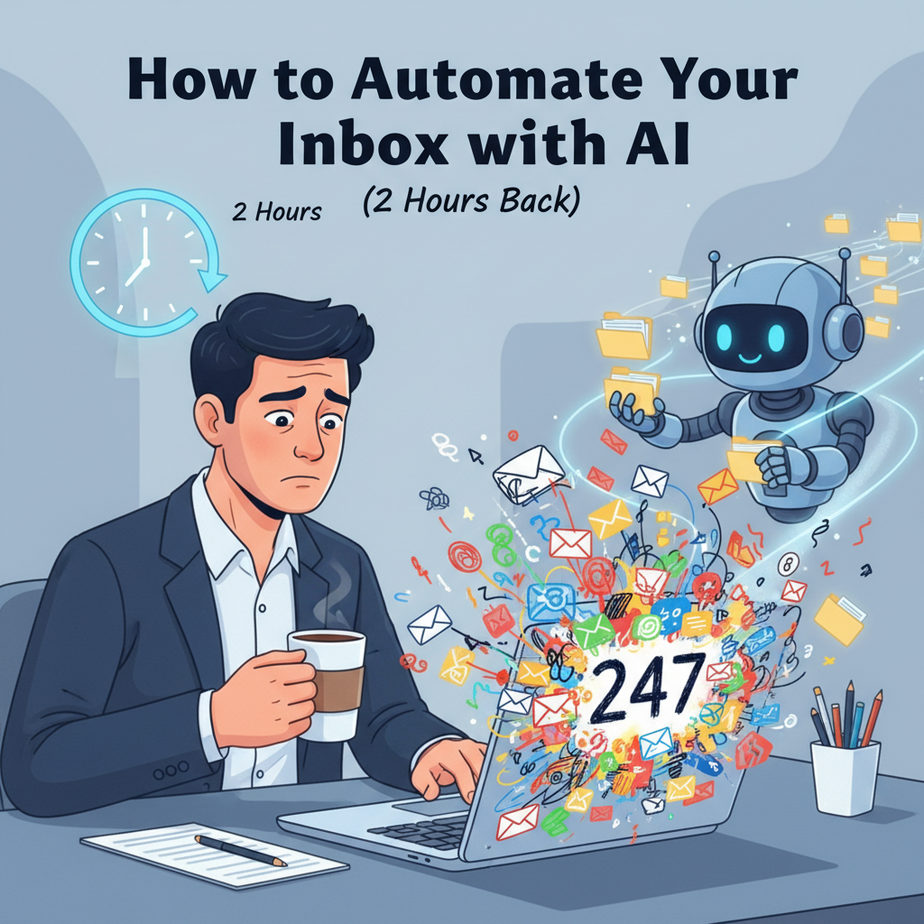
Hook: The Monday Morning Email Abyss
Imagine this: It’s 9 AM on a Monday. Coffee in hand. You open your laptop, and—BAM—your email inbox looks like a toddler’s finger-painting session. 247 unread messages. Client questions, meeting invites, spam from “SEO experts,” and that one newsletter you meant to unsubscribe from three years ago.
Your brain freezes. You start clicking, reading, sorting, and typing. Two hours vanish. Your important project? Now on the back burner. Your focus? Shot.
I once watched a founder of a $2M business literally scroll through 100+ emails every morning like a zombie. He paid himself $150 an hour to be an email clerk. We fixed that. Today, you’ll learn how to build your own digital intern to handle the chaos.
Why This Matters (The Business Case)
Email is where deals, leads, and opportunities die. A slow response is a lost sale. A missed question is a damaged reputation. Most founders spend 2-3 hours daily on email—that’s 15 hours a week, or 60 hours a month.
What could you do with 60 extra hours? Close a big client. Build a new product. Sleep.
This automation doesn’t just save time. It scales your responsiveness. One person can now manage an inbox that used to require a team. It replaces the mental load of triaging, the panic of missing something important, and the guilt of slow replies.
What This Tool / Workflow Actually Is
We’re building an AI Email Triage Agent. Think of it as a super-smart front desk receptionist for your inbox.
What it does:
- Scans every new email as it arrives.
- Classifies it: Is it urgent? Is it a billing question? A sales lead? A meeting request?
- Sorts & Labels it into folders (like an intern sorting mail).
- Drafts polite, context-aware replies for common questions (e.g., “Yes, I can meet next Tuesday at 2 PM.”).
- Flags truly critical messages for your eyes only.
What it does NOT do:
- It doesn’t send replies without your final approval (you’ll review drafts).
- It doesn’t learn your writing style overnight (it uses pre-set templates).
- It can’t handle truly ambiguous, one-of-a-kind legal disputes.
It’s a tireless, 24/7 assistant that works inside your Gmail or Outlook, handling the predictable 80% so you can focus on the 20% that requires your unique genius.
Prerequisites: Keeping It Brutally Simple
You do NOT need to be a coder. You do NOT need a computer science degree. You do NOT need to understand machine learning.
You DO need:
- A Gmail account (this tutorial uses Gmail; other services are similar).
- An AI Automation Platform account. We’ll use n8n (a visual, open-source tool you can run on your own machine or use their cloud). It’s like building with Lego blocks instead of writing Python from scratch.
- 1 hour of focused time to follow this tutorial.
Feeling nervous? That’s normal. We’ve designed this so you can click buttons, connect services, and watch your email agent come to life in real-time.
Step-by-Step Tutorial: Building Your Email Agent
Step 1: Set Up Your n8n Workflow
- Sign up for a free n8n cloud account at n8n.io (or install it locally if you’re tech-savvy).
- Create a new workflow on your dashboard. You’ll see a blank canvas—the perfect place for our robot factory.
- Find the Gmail trigger node (the inbox). Click the big “+” button, search for “Gmail”, and select the “Gmail Trigger” node. Connect it to a “Start” node.
- Authenticate Gmail. Click the node, then click “Create New” under credentials. n8n will ask you to log in to Google and authorize it to read your Gmail. This is standard and secure.
- Set the trigger. In the Gmail Trigger node settings, choose “Watch for new messages in:” and select “INBOX”. This tells your agent: “Wake up every time a new email lands.”
// In the Gmail Trigger node configuration:
Watch for new messages in: INBOX
Poll Times: Every 5 minutes (you can adjust this)
Step 2: Teach the AI to Read & Classify
Now we add our “brain”: the AI model. We’ll use a simple OpenAI GPT model to analyze email content.
- Add an AI Agent node (or a “Simple Chain” node) right after the Gmail Trigger.
- Connect a Prompt. Before the Agent, add an “AI Prompt” node. This is where we give instructions. In the prompt node, write this:
- Configure the AI Node. Connect the AI Prompt node to your AI Agent node. In the Agent settings:
- Choose your OpenAI API credentials (you’ll need a free OpenAI account and an API key).
- Select model:
gpt-3.5-turbo(fast and cheap for this task).
You are an expert email triage assistant. Your job is to classify incoming emails.

INSTRUCTIONS:
1. Analyze the subject and body text below.
2. Determine the PRIMARY CATEGORY:
   - URGENT (requires immediate personal reply)
   - SCHEDULING (meeting requests, availability)
   - FINANCIAL (invoices, payments, billing)
   - SALES (new leads, partnership proposals)
   - INFO (newsletters, updates, low-priority)
   - SPAM
3. Provide ONLY a JSON object with the classification.

INPUT:
Subject: {{ $json.subject }}
Body: {{ $json.body }}Step 3: Create Logic & Actions (The “If-This-Then-That” Brain)
We now route the classified email to different actions using a Switch Node.
- Add a Switch Node after the AI Agent.
- Set it to check the “Category” output from the AI.
- Create a new path for each category. Example: Set “Category” “equals” “URGENT” -> Create path 1. “Category” “equals” “SCHEDULING” -> Path 2, etc.
// Switch Node Configuration:
Path 1: IF Category equals "URGENT"
   -> Send notification to Slack/Teams
   -> Add label "PRIORITY"
   -> Flag as important

Path 2: IF Category equals "SCHEDULING"
   -> Send auto-draft reply (Step 4)

Path 3: IF Category equals "INFO"
   -> Archive immediately
Step 4: Draft a Smart Reply (For Scheduling Questions)
For “SCHEDULING” emails, we don’t want to auto-reply blindly. We want a draft.
- From the Switch Node’s “SCHEDULING” path, add a Draft Reply node (an action under Gmail).
- Configure it. You’ll create a template. Example:
- Crucially: Set this draft to NOT send automatically. Just create it.
// Draft Reply Template:
Hi {{ sender_name }},

Thanks for reaching out about scheduling. I'd be happy to connect.

My calendar is open next Tuesday and Thursday between 1-3 PM. Does either work for you?

Best,
{{ your_name }}Step 5: Deploy Your Agent
- Click “Test Workflow” at the top of n8n. Send a test email to yourself from a different account.
- Watch your workflow execute in real-time. You should see the Gmail Trigger fire, the AI classify it, and a new draft appear in your Gmail ‘Drafts’ folder.
- Once confirmed, toggle the workflow to “Active.” Your agent is now live, monitoring your inbox 24/7.
Complete Automation Example: The Freelance Developer
Scenario: Alex, a freelance web developer, gets 30+ emails daily—client bugs, new project inquiries, and endless “Can you hop on a call?” requests.
Problem: She spends 2 hours daily managing email, missing urgent client bugs buried under admin spam.
Automation Built:
- Trigger: New email hits inbox.
- AI Classification: Analyzes subject/body.
- Path 1 (Client Bug – “URGENT”): Flag red, send a Slack notification to Alex’s phone: “BUG REPORT: Client XYZ. Check email immediately.”
- Path 2 (New Project Inquiry – “SALES”): Auto-create a draft reply with her portfolio link and availability calendar, and move email to “Potential Clients” folder.
- Path 3 (Meeting Request – “SCHEDULING”): Draft reply with her Calendly link.
- Path 4 (Spam/Junk): Mark as read and archive instantly.
Result: Alex now responds to critical bugs in under 15 minutes. She spends 30 minutes daily on email (a 75% reduction). Her response time to new leads improved from 24 hours to 2 hours.
Real Business Use Cases (Beyond Freelancers)
- E-commerce Store Owner: Auto-categorizes emails as “Order Status,” “Return Request,” or “Wholesale Inquiry.” Drafts standard replies for each, reducing customer service time by 50%.
- Real Estate Agent: “Showing Request” emails trigger a Calendly booking link draft. “New Listing Inquiry” emails go straight to a CRM pipeline, saving hours of manual data entry.
- Consultant/Coach: “Discovery Call” requests are auto-drafted with a scheduling link. “Payment Questions” are routed to a separate financial folder for the accountant.
- Small Agency Owner: Client emails are tagged by project name, moving to specific project folders. New prospect inquiries trigger a ‘Lead Intake’ draft for the sales team.
- Solo Founder: “Investor Update” emails are labeled and archived. “Media Press Inquiry” emails get flagged and moved to a “PR” folder. Most other emails are automatically archived or summarized.
Common Mistakes & Gotchas
- Over-Automation: Don’t let it auto-send replies. Always keep the “draft” stage for sensitive emails. You want the human in the loop.
- API Cost Creep: GPT-3.5 costs fractions of a cent per email. If you get 1000 emails a month, it’s still under $5. Monitor your OpenAI billing dashboard.
- Gmail Limits: Google has API rate limits. n8n’s trigger uses webhooks efficiently, but be aware if you’re handling 100+ emails per minute.
- Vague Instructions: Your AI prompt is the heart. Be specific. Test with examples. If it misclassifies, refine your prompt instructions (this is called “prompt engineering”) and test again.
How This Fits Into a Bigger Automation System
Your email triage agent is the gatekeeper of your operations. Think of it as the first stop in a grand factory.
Here’s how it connects:
- CRM Integration: Instead of just drafting a reply for a sales inquiry, the agent can use an API to add the contact to your CRM (like HubSpot or Pipedrive) with all their info pre-filled.
- Voice Agent Handoff: The agent detects an urgent customer complaint. It doesn’t just flag it—it triggers a voice AI agent to call the customer for immediate follow-up, reading the summary from your system.
- Multi-Agent Workflow: Your email agent can hand a complex project request to a separate project management agent, which creates a Trello card or Asana task, assigns deadlines, and pings the team.
- RAG (Retrieval-Augmented Generation): For highly technical client questions, the email agent can feed the query into a RAG system that searches your private knowledge base (past docs, manuals) to draft a technically accurate reply.
This isn’t a standalone trick. It’s a foundational piece of an automated business operating system.
What to Learn Next
You’ve just built your first AI worker. You’ve taken back hours from a digital vampire. But this is only Lesson 2 in the course. In the next lesson, we’ll combine this email agent with a lead-scoring system that not only categorizes incoming inquiries but predicts which ones will become high-value clients—automatically prioritizing your pipeline.
Remember, automation isn’t about replacing human judgment. It’s about clearing the clutter so you can apply that judgment where it truly matters. Your inbox is now under control. What’s next? Your calendar? Your social media? The factory doors are open.
Stay curious. Automate relentlessly.
“,
“seo_tags”: “AI automation, email automation, Gmail automation, n8n tutorial, business productivity, AI agent, automated inbox, workflow automation”,
“suggested_category”: “AI Automation Courses