
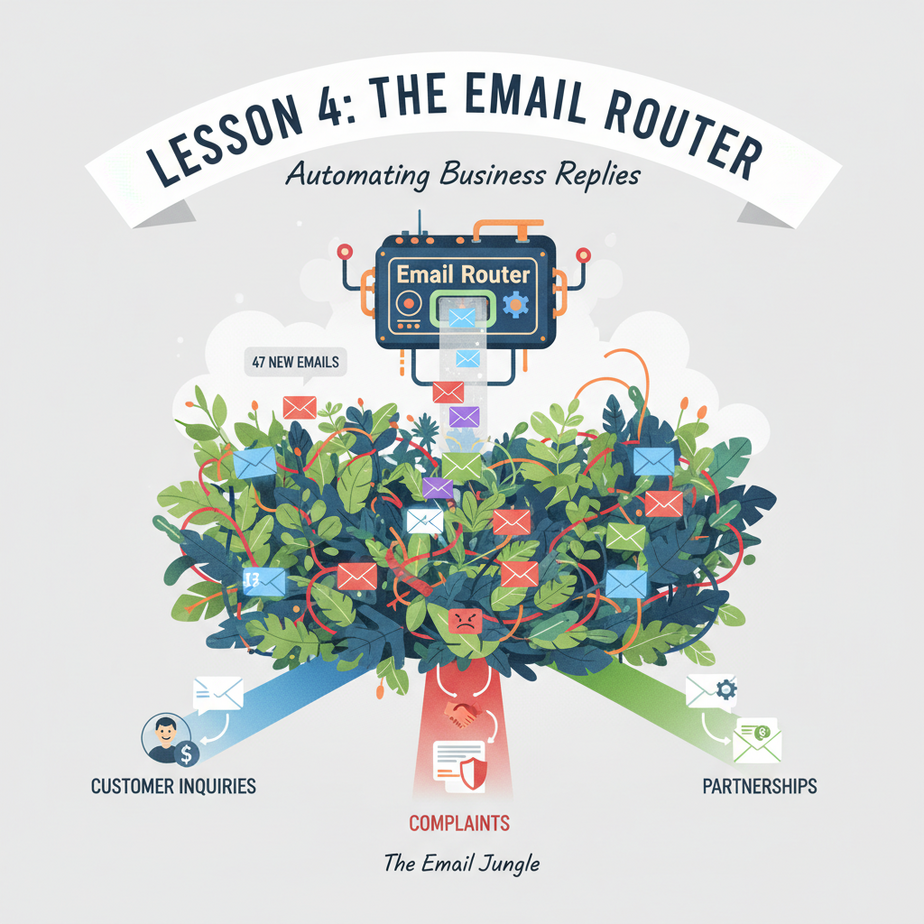
The Email Jungle
Picture this: You wake up, check your inbox, and there are 47 new emails. One is from a new customer asking for pricing. One is an angry complaint. One is a partnership proposal. One is an invoice. One is a weird LinkedIn message about keto pills.
For the next 90 minutes, you play: “Should I reply now? Does this need a human? Is this spam? Who should handle this?” It’s a mental tax that drains your business brain.
Enter the AI Email Router. This isn’t just auto-replies. This is a smart, thinking filter that reads, understands, and routes every incoming email to the perfect place, human, or action. Think of it as your highly trained postal clerk who never gets tired.
Why This Matters: Your Inbox is a Business Black Hole
Manual email sorting is a growth killer. Every hour you spend managing the inbox is an hour not spent on strategy, sales, or product. This automation replaces the junior staff member whose only job is to triage the inbox.
- Scale: Handle 1000 emails the same as 10 without hiring.
- Sanity: Never miss an urgent complaint or a hot lead again.
- Money: Faster response times to sales inquiries directly increase conversion rates.
What This Automation Actually Is
What it does: It connects to your email (via IMAP or Google Workspace API), uses an AI model (like GPT-4) to analyze the email’s intent and sentiment, then uses rules to route it. Route examples: forward to ‘sales@’, create a Trello card, flag as urgent, or send a “we got your message” reply.
What it does NOT do: It doesn’t replace complex, nuanced human conversation. It’s a router, not a chatbot. It won’t write the final email response for you (in this lesson). It does not manage your sent items folder.
Prerequisites: The Toolbox
No computer science degree required. Just basic comfort with following steps.
- An email account (Gmail is easiest). Create a test one like
automation-test@youremail.com. - A free n8n account (n8n.io). This is our automation canvas. It’s like LEGO for software.
- OpenAI API key (or any AI API). You’ll need to create one and add a small credit ($5 should last months).
Assume: You can open a web browser, copy/paste, and follow instructions. That’s it.
Step-by-Step Tutorial: Building Your Email Router
Step 1: Get Your Email Credentials
We need to let n8n read your email. For Gmail, you need to create an “App Password” because modern security blocks direct login.
- Go to your Google Account > Security.
- Turn on 2-Step Verification.
- Search for “App passwords” (you might need to scroll).
- Create a new one named “n8n-Router”. Copy the 16-character password it gives you. You’ll use this like your normal password but for this automation.
- Your email is your Gmail address, and the password is this 16-char code. Never share it.
Step 2: Create the Email Trigger in n8n
Open n8n and start a new workflow. We’ll use the Gmail node to watch for new emails.
- Click the big gray + button. Search for “Gmail” and select it.
- Double-click the node. Under “Credentials”, click “Create New”.
- Select “Gmail” and use the “OAuth” authentication. Follow the pop-up to connect your Google account (this is more secure than App Passwords for Gmail APIs). Authorize it.
- Back in the node settings, set “Resource” to “Message” and “Operation” to “Get Many”.
- Set “Format” to “Full” and “Return to” to “Inbox”.
- Set “Add Meta Fields” to Yes. This gives us flags like “UNREAD”.
- Click “Execute Node” to test. You should see your recent inbox emails load up in the right-side panel.
Step 3: Add the AI Brain (Analyze Intent)
We need our intern to read the emails. We’ll send the subject and snippet to an AI to categorize it.
- Add a new node connected to the Gmail node. Search for “HTTP Request” (or “OpenAI” if using their integration).
- We’ll use HTTP Request for universal compatibility. Choose HTTP Request node.
- Method: POST
- Click “Execute Node”. You should see the AI’s response, e.g., “SALES”.
- Add a “Switch” node connected to the HTTP Request node.
- Gmail Node: Picks up the new, unread email. Knows it’s urgent (has “broken” in it).
- AI Node: Analyzes: “Subject: Order Issue… Snippet: broken!” → Categorizes as COMPLAINT with high urgency.
- Switch Node: Routes to Complaint path.
- Action Node (Slack): Posts to #urgent-support:
🚨 URGENT COMPLAINT From: {{ $('Gmail').item.json.from.address }} Subject: {{ $('Gmail').item.json.subject }} Link: {{ $('Gmail').item.json.threadId }} - Action Node (Trello): Creates a red-card in “Active Issues” with the email snippet as the description.
- Action Node (Email): Sends an immediate auto-reply: “We’re on it. A support agent has been notified and will contact you shortly.”
- E-commerce Store: Route “Where’s my order?” emails to a database lookup, sending the customer a tracking link immediately, freeing support from routine questions.
- Real Estate Agency: Tag emails as “Buyer Inquiry” or “Rental Lead.” Auto-assign to a specific agent’s queue based on the property ZIP code mentioned in the email body.
- Freelancer/Consultant: Separate “Proposal Requests” from “Inquiries” from “Payment Reminders.” Send proposal requests to a CRM pipeline, and payment reminders to your accounting software.
- SaaS Company: Detect keywords like “bug,” “crash,” or “error” to auto-create a ticket in Jira or GitHub and tag the engineering team, while sending a standard apology email to the user.
- Non-Profit: Route “Donation” emails to a database, “Volunteer” emails to a coordinator, and “General Questions” to a public-facing FAQ bot.
- API Limits: Free Google/Gmail APIs have daily limits. For large volumes, use a paid G Suite account or spread across multiple inboxes.
- False Positives: Your AI might mis-categorize. Always have a “catch-all” node that logs unknown categories for you to review and improve your AI prompt.
- Over-Automation: Don’t auto-delete anything. Route only. Your first rule should be “Do no harm.”
- Security: NEVER expose your API keys or app passwords in screenshots or code. Use n8n’s credential system.
- CRM: Sales emails route into HubSpot/Salesforce as new leads.
- Voice Agents: After routing, a voice agent can call a VIP complaint and say, “Hi, this is from [Your Company]. We saw your email about [topic] and are fixing it.”
- Multi-Agent Workflows: The email router identifies the need, but a separate AI agent can draft the response, which a human reviews and sends.
- RAG Systems: For complex queries, the router can extract the question and query your internal knowledge base to provide the first draft of an answer.
4. URL: https://api.openai.com/v1/chat/completions (or your AI provider’s endpoint)
5. Authentication: Header Auth. Create a new credential with your OpenAI API Key as the value.
6. Headers:
{
  "Content-Type": "application/json"
}
7. Body:
{
  "model": "gpt-4o-mini",
  "messages": [
    {
      "role": "system",
      "content": "You are an email triage specialist. Analyze the subject and snippet. Categorize it into ONE of: SALES, COMPLAINT, PARTNERSHIP, INVOICE, or OTHER. Respond only with the category."
    },
    {
      "role": "user",
      "content": "Subject: {{ $('Gmail').item.json.subject }}\
Snippet: {{ $('Gmail').item.json.snippet }}"
    }
  ],
  "temperature": 0
}
See the curly braces {{ ... }}? That’s n8n grabbing data from the previous Gmail node. The AI now thinks like a human scanner.
Step 4: The Routing Logic (The Switchboard)
Now, we act on the category. Use a “Switch” node to route the flow.
2. Set “Condition” to “String” mode.
3. Under “Rules”, add four items:
– SALES → Output 1
– COMPLAINT → Output 2
– PARTNERSHIP → Output 3
– INVOICE → Output 4
4. Connect the “other” output to a generic action.
Step 5: Create Actions for Each Route
Let’s wire up useful actions.
For SALES (Output 1): Add a “Webhook” node to send the email details to a Slack channel named #sales-leads. (Configure a Slack webhook credential first).
For COMPLAINT (Output 2): Add a “Trello” node to create a card in your “Support” board. The card title could be: “Urgent Complaint: {{ $(‘Gmail’).item.json.subject }}”.
For PARTNERSHIP (Output 3): Add an “Email Send” node to auto-forward the email to partnerships@yourcompany.com.
For INVOICE (Output 4): Add a “Google Sheets” node to append a new row with invoice details, so your finance team sees it on a dashboard.
Complete Automation Example: The 24/7 Customer Support Starter
Scenario: A customer emails, “My order is broken! This is unacceptable!”
Workflow:
Result: The human support agent is alerted within seconds, the customer feels heard, and no email is lost in the void.
Real Business Use Cases (Beyond Basics)
Common Mistakes & Gotchas
How This Fits Into a Bigger Automation System
Your email router is the entry gate to your entire business stack.
What to Learn Next: From Router to Brain
Today, you built a smart mailroom. Your inbox is now organized, urgent messages are highlighted, and you’ve reclaimed hours of focus time.
But what if your router could also answer the emails? In our next lesson, Lesson 5: The Auto-Responder Agent, we’ll connect this router to a dynamic AI that reads the email, pulls relevant data from your systems, and drafts a perfect, human-sounding response for you to approve with one click.
That’s the next step from automation to autonomous assistance. Complete this lesson, get your router running, and you’ll be ready.
“,
“seo_tags”: “email automation, AI email router, business automation, n8n tutorial, Gmail automation, auto-sorting emails, productivity, AI workflow”,
“suggested_category”: “AI Automation Courses