
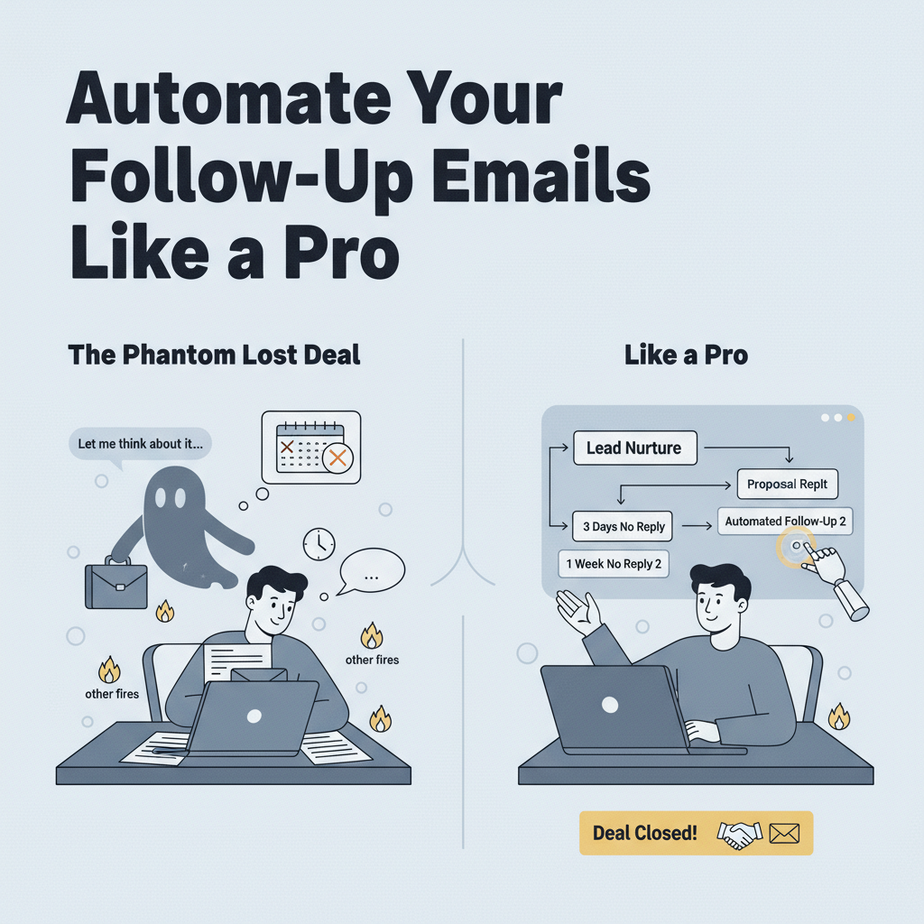
The Phantom Lost Deal
You spend two weeks nurturing a lead. You send a killer proposal. They say, “Let me think about it.” You wait. Three days pass. You get busy with other fires. A week later, you remember. You send a casual, “Hey, just checking in!” No reply. The deal is dead. It’s not because they didn’t like you. It’s because you forgot. Your brain is not a CRM. Your calendar is a chaotic intern. You need a system that does the remembering for you.
Why This Matters: Your Time Is Worth More Than Chasing
A manual follow-up system is a leaky bucket. You lose 20% of leads because they slip through cracks. An automated follow-up system acts like a relentless, polite assistant. It doesn’t sleep. It doesn’t get distracted. It ensures every lead gets the right touchpoint at the right time. This isn’t about spamming. It’s about systematic nurturing that closes deals you would have otherwise lost. It replaces hours of manual tracking and anxiety with a clean, automated workflow.
What This Automation Actually Is (And Isn’t)
This is a rules-based engine that monitors your inbox for specific triggers (like “I’ll think about it” or “Send me the pricing”) and schedules automated, personalized follow-ups. It uses your email to send messages, but the core logic lives in a simple, no-code tool. It’s like building a conveyor belt for your client conversations.
It IS NOT: a spam bot that blasts generic messages. It’s not an AI that writes your emails from scratch (yet—though we’re heading there). It’s a rule enforcer and reminder system that ensures you act on the signals you’re already getting.
Prerequisites: What You Need
1. An Email Account: Gmail or Outlook (Gmail is easier for this example).
2. A No-Code Automation Tool: We’ll use Make.com (formerly Integromat) because it has a generous free plan and is visual (like building with Lego blocks).
3. 30 Minutes of Time: That’s it. You don’t need to code. You need patience to follow steps.
Step-by-Step: Building Your Follow-Up Reminder
We’re going to create a trigger that fires when you mark an email with a specific label. Then, it will send you a Slack or email reminder after 3 days. Let’s start with the simplest, most critical version.
Step 1: Connect Your Email
1. Go to Make.com and sign up for a free account.
2. On your dashboard, click “Create a new scenario.”
3. Click the big grey circle. Search for “Gmail” and select “Watch emails in label.”
4. Click the connection icon and connect your Google account. Give Make permission to access your emails (it only reads what you tell it to).
5. Configure the module: Set the label to watch for. Create a new label in Gmail called “Follow-Up” (you can do this in Gmail settings). Use that label name here.
Step 2: Add a Delay
Now, we need to wait before reminding you. Adding a delay is crucial—you don’t want to remind someone the same second they reply.
1. Click the “+” icon after the Gmail module.
2. Search for “Tools” and select “Sleep.”
3. Set the duration. For this example, set it to 3 days. This gives the lead time to respond naturally.
Step 3: Send the Reminder
We’ll send an email back to you as a reminder. In a real system, you might send a Slack message or add a task to Asana.
1. Click the “+” after the Sleep module.
2. Search for “Gmail” again and select “Send an email.”
3. Configure the email:
– **To:** Your own email address.
– **Subject:** Use a dynamic field! Click the rubber band icon on the previous Gmail module and select “Snippet”. This will show the subject of the original email.
– **Body:** Write a clear, action-oriented message. Example: “Follow-Up Needed:
The following email needs a reply:
[Snippet of the original email body]
Click here to reply: [Insert Link to Gmail]”
Step 4: Turn It On
Click the big “Run Once” button. Then, label a test email in your Gmail with “Follow-Up.” Wait 3 days (or set your test to 1 minute). Check your inbox. You should see a reminder. If it works, switch the scenario to “Schedule” (e.g., run every hour) and activate it.
Complete Automation Example: The “Proposal Sent” Workflow
Let’s scale this. Instead of a generic label, we build a system for a specific business moment: when you send a proposal.
- Trigger: You BCC a special email address (like
proposals@yourbusiness.com) on every proposal you send. This email is connected to Make.com’s “Watch emails” module (instead of a label). It filters for emails in the “Sent” folder containing the word “proposal.” - Action 1 (Database Log): The automation adds a row to a Google Sheet with: Client Name, Email Date, and a “Next Follow-Up Due” column set to 3 days from now.
- Action 2 (Delay): It waits 3 days.
- Action 3 (Check Status): Before reminding you, it uses Gmail’s search to see if the client has replied. If a reply exists from that client’s email address, it stops the automation (no reminder needed).
- Action 4 (The Reminder): If no reply, it sends you a reminder via Slack or email. The message links directly to the Google Sheet row and the original proposal email.
- Action 5 (Repeat): It updates the “Next Follow-Up Due” in the Sheet to 7 days from now. After 7 days, the same automation runs again.
This creates a persistent, moving reminder system tied to a living spreadsheet.
Real Business Use Cases
1. Freelance Designer: Sends a contract. Instead of tracking it in a messy notebook, they label the email “Pending Contract.” The automation reminds them to follow up in 48 hours, saving the project from going cold.
2. Small Agency: When a sales rep sends a demo calendar invite, they BCC a dedicated address. The automation triggers a series of 3 follow-ups over 14 days if no reply is received, ensuring no lead is forgotten.
3. E-commerce Shop: After a customer abandons a cart, the owner sends a personalized email. The automation labels it and reminds the owner to send a special discount offer if no purchase happens in 72 hours.
4. Real Estate Agent: After showing a house, they label the client’s email “Tour Follow-Up.” The automation sends them a reminder every Monday with the client’s info and a prompt to text them a new listing.
5. Consultant: When sending a proposal, they log it in a CRM. The automation pulls from the CRM (via a webhook) and creates follow-up tasks in their project management tool, keeping their pipeline clean.
Common Mistakes & Gotchas
1. Over-Automation: Don’t automate every single email. Use it for high-value, high-revenue touchpoints first. It’s a tool, not a replacement for genuine relationship building.
2. Ignoring Replying: Your system must check for replies. Otherwise, you’ll look like a spam bot annoying your leads. This is why Step 4 in our example is critical.
3. Tool Overload: Start with one tool. Master Make.com or Zapier before adding a database. Complexity kills momentum.
4. Privacy Paranoia: Stick to well-known tools (Make, Zapier, Gmail). Don’t connect shady apps. Your data is safe with these established platforms.
How This Fits Into a Bigger Automation System
This follow-up module is the “nervous system” of your sales machine. It connects to:
– Your CRM: As you’ve seen, it can update rows in a Google Sheet (a simple CRM).
– Multi-Agent Workflows: Once a deal is marked “closed” in the CRM, a different automation could trigger a “Welcome New Client” workflow.
– AI Writing Assistants: The next evolution. Your follow-up reminder could include a generated email draft based on the client’s industry (using an AI tool like GPT-4).
– Voice AI Agents: Imagine the automation booking a follow-up call with your AI voice agent if a lead clicks a “Schedule Call” link in your reminder email.
What to Learn Next
You’ve just built a robotic assistant that never forgets. In the next lesson, we’ll upgrade this same system to Automate Your Client Onboarding with AI. We’ll take a “welcome to the team” PDF and email chaos and turn it into a smooth, automated welcome sequence that delivers value from day one. You’ll see how these automations stack to form a fully automated business engine.
Your mission: Build the 3-day reminder. Get it running. Then, come back and tell me in the comments: What’s one deal you saved by being reminded just in time?
“,
“seo_tags”: “automate follow-up emails, business automation, no-code automation, email marketing automation, workflow automation, Make.com tutorial”,
“suggested_category”: “AI Automation Courses