
Hook
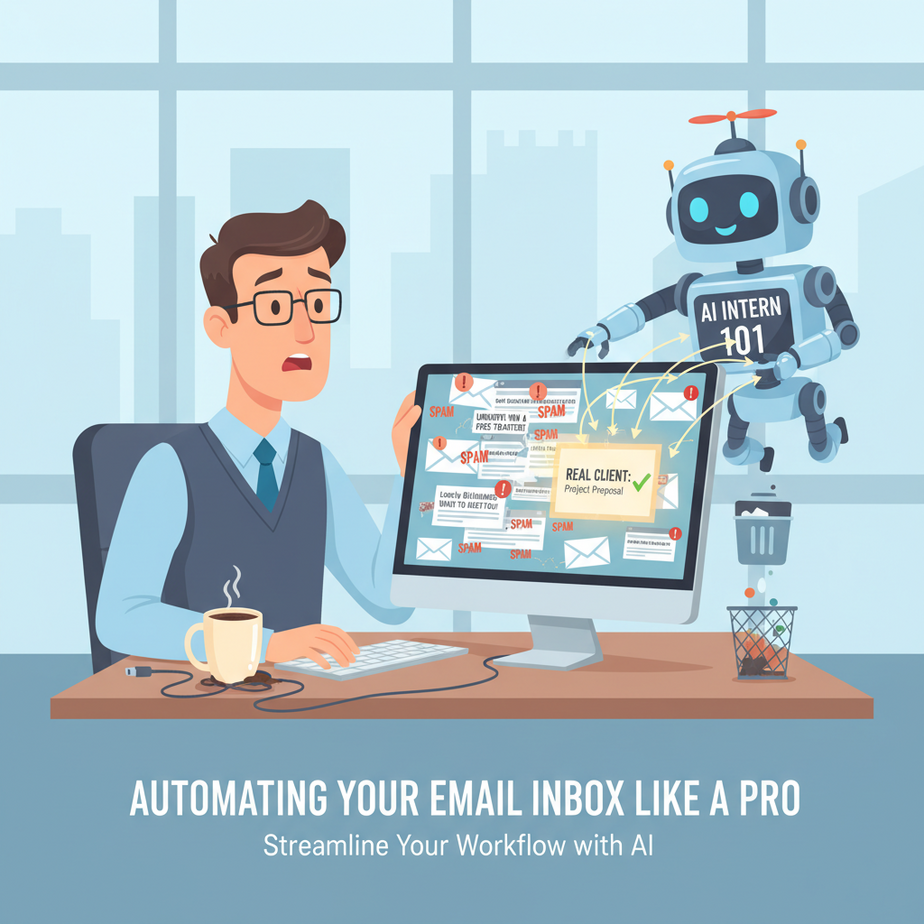
Meet Alex. Alex runs a growing consultancy. Every morning, Alex spends the first hour of their day playing a cruel game: “Spot the Real Client in a Sea of SPAM.”
It’s like being a bouncer at a club, but the club is your inbox, and every email claims to be important. Alex’s eyes glaze over by email #17. An urgent client request gets buried. A hot lead goes cold. This isn’t work; it’s digital archaeology with a deadline.
Alex’s fantasy? An intelligent intern who arrives at 8 AM, filters the rubble, flags the gold, and preps draft replies. An intern who never sleeps, never complains, and never gets ‘inbox fatigue’.
That fantasy is today’s reality. Let’s build Alex’s intern.
Why This Matters
An overflowing inbox isn’t just annoying; it’s a direct hit to your bottom line.
- Time Theft: The average professional spends 2.6 hours daily on email. That’s 13 hours a week. That’s a part-time job you’re paying for, only it’s you doing the work.
- Missed Revenue: When a critical client request gets lost in the junk, it costs trust. Lost trust costs deals.
- Scalability Killer: You can’t personally manage 500 daily emails. But you can build a system that can.
This automation replaces: The manual email triage process, the mental overhead of context switching, and the anxiety of missing something important. It upgrades you from a reactive inbox manager to a strategic leader.
What This Tool / Workflow Actually Is
We are not building Skynet. We are building a Rule-Based Triage System that uses simple logic to categorize and prioritize your emails, and a smart responder to draft replies.
What it DOES:
- Reads incoming emails.
- Uses keywords and sender reputation to classify them (e.g., “Invoice,” “Urgent,” “Subscription,” “Spam”).
- Moves emails to specific folders or labels them automatically.
- Drafts polite, context-aware reply suggestions for common requests.
What it does NOT do:
- It cannot read your mind or understand sarcasm.
- It cannot make final decisions on nuanced client negotiations.
- It is NOT a fully autonomous agent. You are still the boss. The AI is your brilliant, tireless assistant.
Prerequisites
Brutally Honest: You need zero coding skills. If you can set up a new Gmail filter, you can do this. The main tool we’ll use is a visual automation platform like Make (formerly Integromat) or Automation Anywhere. For this guide, we’ll use Make as it’s incredibly visual.
What you need:
- A Gmail account (or Outlook via a similar platform).
- A free Make.com account. (It has a generous free tier for learning.)
- An OpenAI API key (we’ll create this together, it’s simple).
Ready? You’ve got this. The system is designed for humans who are sick of doing robot work.
Step-by-Step Tutorial
Part 1: Get Your OpenAI API Key
1. Go to OpenAI’s platform site and sign up/log in.
2. On the left sidebar, click “API Keys”.
3. Click “Create new secret key”. Give it a name like “Email Assistant”.
4. IMMEDIATELY copy this key and paste it into a secure note. You won’t see it again.
Part 2: Build the Triage Automation in Make
1. Log into Make.com. Click “Create a new scenario.”
2. Step 1 – The Trigger: Click the big orange plus. Search for “Gmail.” Choose the “Watch new emails” module.
3. Connect your Gmail account. It will ask for permissions. Grant them.
4. In the module settings, set the “Folder” to “INBOX.”
3. Step 2 – The Classifier (Router): Click the semi-circle at the bottom of the Gmail module. Choose “Router.”
This is our decision point. Each path in the router will check for a different condition.
4. Step 3 – Path A: “Urgent Client” Detection:
a. In the router, click “Add a filter.” Name it “Urgent Client.”
b. Set the condition: Subject contains [URGENT] OR Subject contains help now OR Sender is keyclient@bigco.com.
c. If the condition is TRUE, add a new module: “Gmail.” Choose “Update a label.” Select your account, and choose the label “Urgent” (create one if needed).
5. Step 4 – Path B: “Invoice/Finance” Detection:
a. In the router, click “Add a filter.” Name it “Finance.”
b. Set the condition: Subject contains invoice OR receipt OR payment.
c. Add a module: “Gmail” -> “Move to a folder.” Select your “Finance” folder.
6. Step 5 – Path C: “Promotions/Spam” Detection:
a. Add a new filter. Name it “Promo.”
b. Set condition: Subject contains sale OR discount OR subscribe.
c. Add a module: “Gmail” -> “Archive the email.” (Or move to a “Promotions” folder).
7. Step 6 – The “Everything Else” Path:
a. Click the remaining path from the router. This is for all other emails.
b. Add a module: “OpenAI” -> “Create a completion (Chat GPT – Normal Mode).”
c. Connect your OpenAI account by pasting your API key.
d. In the prompt, craft this instruction for the AI:
Classify the following email and suggest a one-sentence response. Provide output in JSON format.

Email: [[EMAIL SUBJECT AND BODY FROM PREVIOUS MODULE]]

Rules:
- If the email is a meeting request, draft a polite reply asking for available times.
- If it's a simple query, draft a concise, helpful answer.
- If it's a complaint, draft an empathetic reply acknowledging the issue.
- Otherwise, draft a generic acknowledgment.

Output format:
{"classification": "Meeting Request" | "Simple Query" | "Complaint" | "Other", "suggested_reply": "Your drafted reply here."}
e. Add another module: “Tools” -> “Parse JSON.” Use the output from the OpenAI module.
f. Add a final module: “Gmail” -> “Compose a draft.” Map the suggested_reply from the parsed JSON into the “Text” field of the draft. Set the recipient to the original sender.
8. **Final Step:** Click the “Run Once” button. Send a test email from another account with subjects like “[URGENT] Need help!” and “Invoice #1234 attached.” Watch your automation in action!
Complete Automation Example
Scenario: You’re a freelance graphic designer.
Workflow in Action:
- Email Arrives: A new email hits your inbox: Subject: “Re: Logo Design Project – Final Files?”
- Trigger Fires: Make.com’s “Watch new emails” detects it.
- Router Routes: The subject doesn’t have [URGENT] or “invoice.” It goes down the “Everything Else” path.
- AI Analysis: The OpenAI module reads: “Hi Alex, can you please send the final logo files from the Acme project? We need them for a press release today. Thanks!”
– The AI classifies it as a “Simple Query”.
– It drafts a reply:"Sure, happy to help! I've attached the final logo files in EPS and PNG formats. Let me know if you need anything else. Best, Alex." - Draft Creation: A draft is automatically created in your Gmail, pre-filled with that reply, ready for you to hit “Send.”
- Your Action: You open the draft, see it’s perfect, and click send. You saved 5 minutes of mental effort and context-switching.
Real Business Use Cases (MINIMUM 5)
- E-commerce Store Owner: Problem: 50 daily emails about order status, returns, and product questions. Automation: Triage into “Order Support,” “Returns,” and “Product Info” folders. Use AI to draft standard replies with tracking links or return instructions.
- Real Estate Agent: Problem: Inquiries from Zillow/Realtor.com are chaotic. Automation: Classify emails by property address. Auto-draft replies with “Thank you for your interest in 123 Main St. Attached is the property sheet. Are you available for a viewing this weekend?”
- Consultant (HR, Marketing, Legal): Problem: Client requests and intake forms buried in noise. Automation: Flag emails from new domain names as “Potential Client.” Route all “Contract” emails to a dedicated label. Draft an automated reply: “Thank you for your inquiry. My team will review your request and get back to you within 24 hours.”
- SaaS Founder: Problem: Support tickets coming in via email alongside investor emails. Automation: Filter for keywords like “bug,” “crash,” “login error” and route to a “BUG REPORT” label. Filter for “deck,” “pitch,” or “funding” and route to “INVESTOR.”
- Non-Profit Administrator: Problem: Donation receipts, volunteer sign-ups, and press inquiries all in one flood. Automation: Move all emails containing “donation” or “receipt” to “Finance.” Route “volunteer” and “event” emails to “Community.” Send auto-drafts with gratitude and next steps.
Common Mistakes & Gotchas
- Over-Automation: Don’t automate replies to sensitive emails (e.g., legal, financial, or angry clients). Always keep the final “send” click for these categories.
- Keyword Overload: Starting with too many filters will cause errors. Begin with 3-5 broad categories and refine over a week.
- API Key Security: Never paste your OpenAI key into a public forum or unshared document. Treat it like your credit card number.
- Testing Fatigue: Run your automation with your own test emails first. Don’t let it run wild on your live inbox before it’s proven.
How This Fits Into a Bigger Automation System
This email triage is your Central Nervous System for business communication. It doesn’t live in a vacuum.
- CRM Connection: After triaging a “Potential Client” email, the workflow can create a new lead in your CRM (like HubSpot or Pipedrive) via a Make module.
- Task Management: For emails classified as “Action Required” or “Complaint,” the automation can instantly create a task in Asana or Trello, assigning it to the responsible team member.
- Multi-Agent Workflows: This is the first step in a larger chain. An email from a client with “Urgent” could trigger not just a label, but also a Slack message to your on-call developer AND a draft reply for you to review.
- Future Lesson Tease: Next, we’ll connect this system to a Voice AI Assistant. Imagine getting a phone call from a key client, and your AI first fetches all recent email history with them before you even say “hello.” That’s where we’re going.
What to Learn Next
You’ve just built the first layer of your AI automation stack: intelligent input processing. You’ve tamed the chaos. You’ve given yourself back hours of focus.
But this is just the lobby of the AI Automation Academy. The real magic happens when we connect systems together.
In our next lesson, we’re going upstream. We’re going to automate the creation of the very emails you receive. We’ll build a system that generates personalized outreach messages, follows up automatically, and fills your calendar with qualified meetings—without you writing a single cold email from scratch.
You’re not just managing your inbox anymore. You’re engineering your business’s communication flow. Welcome to the next level. The course continues.
“,
“seo_tags”: “ai automation, email automation, make.com tutorial, business workflow, inbox zero, openai api, beginner friendly automation”,
“suggested_category”: “AI Automation Courses