
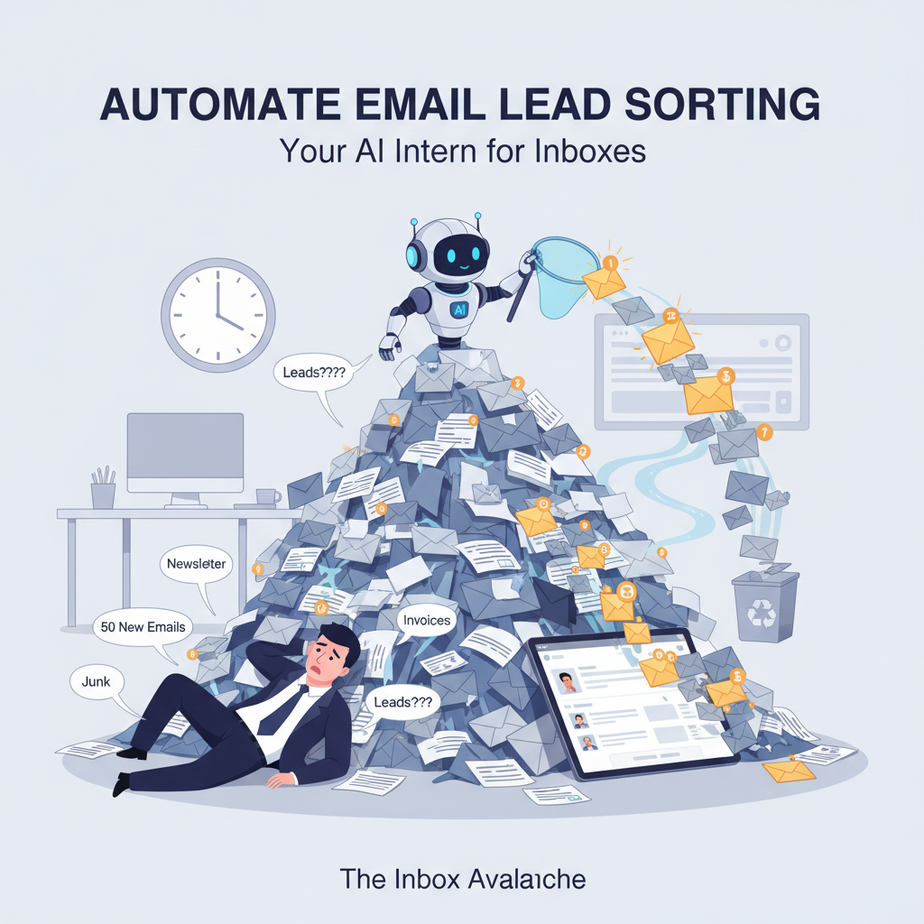
The Hook: The Inbox Avalanche
It’s Monday morning. You open your inbox and it’s a digital war zone. 50 new emails. Three are invoices, one’s a newsletter you don’t read, and the rest are… leads. Or are they? You spend the next hour playing detective. Is “Hi, got your contact info” a serious buyer or just a scout? Is the guy asking for pricing or the one asking for your services? Your brain is the filter, and it’s clogging up. You need an intern. Not a human one that needs coffee, but a digital one that runs on APIs and sleeps in the cloud.
Welcome to Lesson 3 of our Underground AI Automation Academy. Today, we’re building that intern. We’re going to automate the most tedious part of any inbox: lead qualification and sorting.
Why This Matters: From Chaos to Pipeline
Manual email sorting is the silent killer of productivity. For a business owner, founder, or even a solo freelancer, every minute spent categorizing an email is a minute not spent closing a deal. This isn’t just about saving time; it’s about scaling. If you get 20 leads a day and spend 30 minutes on them, that’s 2.5 hours. Every. Single. Day. That’s a part-time job just for triage.
Automating this replaces the role of a junior assistant or a distracted founder. It ensures no hot lead gets buried under a cold one. It turns your inbox from a chaotic pile into a prioritized action list. The business impact is clear: faster response times, better lead conversion, and your mental bandwidth freed up for real work.
What This Tool / Workflow Actually Is
This automation uses a combination of a simple automation platform (like Zapier) and a Large Language Model (LLM). The workflow is:
1. A new email arrives in a specific label/folder (e.g., “Leads”) or from a specific sender.
2. The LLM reads the email body and the subject.
3. Based on your criteria (intent, specificity, request type), it classifies the lead into a category: Hot (ready to buy), Warm (interested, needs nurturing), or Cold (just browsing).
4. The automation then moves the email to a corresponding label (like `Lead-Hot`) or flags it for action.
What it does NOT do: It doesn’t send responses. It doesn’t talk to your CRM (yet, we’ll get there). It’s a pure sorting machine. It also won’t be 100% perfect—some nuance will require human judgment, but it will catch 90% of the cases.
Prerequisites
Brutally honest? This is a beginner-friendly build. You need:
- An email account (Gmail works best for this example).
- A Zapier account (free plan is enough to start).
- An API key from an LLM provider (like OpenAI, Claude, or even a free tier like Groq). We’ll use a simple, secure method.
- Basic knowledge of Gmail’s “Labels” feature (we’ll use these as folders).
If you can create a new folder in Gmail, you can do this. No coding required. This is about setting up a smart pipeline, not writing an application.
Step-by-Step Tutorial: Building Your Lead Sorter
We’ll use Zapier as our glue service. Zapier has an AI Actions feature that lets us connect to an LLM without writing complex code.
Step 1: Prepare Your Email
First, create labels in your Gmail to organize your leads. Create three new labels: `Lead-Hot`, `Lead-Warm`, `Lead-Cold`. This is your sorting destination.
Step 2: Set Up Your Zapier Trigger
1. Go to Zapier and create a new Zap.
2. Choose the trigger app: Gmail.
3. Trigger event: New Email in Label.
4. Connect your Gmail account.
5. For the “Label” field, enter `Leads` (or the label where your inquiries come in). You can create a specific filter to catch only emails from a contact form, for example.
6. Test the trigger to make sure Zapier can see a sample email.
Step 3: Create an AI Action to Classify the Lead
This is the core. Instead of writing a custom script, we’ll use Zapier’s AI Actions. You’ll need a connected OpenAI account (or similar).
1. In the Zapier editor, after the Gmail trigger, add a new step.
2. Search for OpenAI (or your preferred AI provider).
3. Choose the action Send a Chat Message.
4. Connect your OpenAI account by providing your API key (this is in your OpenAI account settings under “API Keys”).
5. In the “Message” field, we need a prompt. This is where you teach the AI your business. Paste the following prompt, customizing the last line for your business:
You are a lead qualification assistant for a software consultancy called "TechForge". I will provide you with the subject and body of an incoming email. Your task is to analyze the intent and specificity of the email.

Categories:
- Hot: The lead explicitly requests a consultation, asks for pricing, mentions a budget, or states a clear need for your service. (e.g., "I need a custom app for my logistics company. Can we schedule a call?")
- Warm: The lead is interested, asks general questions about your services, or shows awareness of your work but hasn't made a specific request. (e.g., "Can you tell me more about your AI automation services?")
- Cold: The lead is vague, just browsing, or is an unsolicited sales pitch from another vendor. (e.g., "Hi, saw your website. We offer SEO services.")

Return ONLY the classification: either 'Hot', 'Warm', or 'Cold'.

Here is the email subject and body:
Subject: {Subject from Gmail trigger}
Body: {Body from Gmail trigger}
6. In the “Model” field, select gpt-4o-mini (or a cost-effective model).
7. In the “System Message” field (if available), you can add: “You are a precise lead sorter. Be strict with the criteria.”
8. Map the variables from your Gmail trigger: `{Subject from Gmail trigger}` and `{Body from Gmail trigger}`. Zapier will handle this with its own placeholder syntax (like `{{1: Subject}}`).
Step 4: Add Conditional Logic (The Decision Engine)
1. Add a new step after the AI action: Filter by Zapier.
2. Set up a condition. We’ll do this in a loop for all three categories. For simplicity, let’s create a branch for each outcome.
– First branch: If AI Output contains “Hot”.
– Second branch: If AI Output contains “Warm”.
– Third branch: If AI Output contains “Cold”.
(Zapier’s Path feature is perfect for this.)
Step 5: Add the Action to Label the Email
For each branch (Hot, Warm, Cold), add the Gmail app action: Add Label to Email.
Map the email thread ID from your trigger. For the “Hot” branch, label it `Lead-Hot`. For “Warm”, `Lead-Warm`. For “Cold”, `Lead-Cold`.
Step 6: Turn On Your Zap
Test it. Send a test email to your “Leads” label. Watch your Zapier history. See if the AI classifies it correctly, and if the email gets moved to the right label. Iterate on your prompt if the AI’s logic isn’t sharp enough.
Complete Automation Example
Business: A boutique graphic design studio.
Problem: The studio’s owner, Maria, gets 10-15 emails daily from a contact form on her portfolio. Most are vague, but a few are serious project inquiries. She wastes 20-30 minutes each morning sorting them, leading to slow replies to real clients.
Automation Solution: We set up the Zap as described above. Maria’s prompt is tailored to design: “Explicitly asks for a quote”, “Mentions a specific project (logo, branding, etc.)”, “Is a vendor pitch”. Her labels are `Design-Lead-Hot`, `Design-Lead-Warm`, `Design-Lead-Cold`.
Outcome: A new email from a brewery asking for a logo and packaging quote is automatically classified as `Hot` and labeled. An email asking “What are your rates?” is classified as `Warm`. A cold email selling stock photos is labeled `Cold`. Maria’s morning is now about calling the Hot leads immediately, and she feels on top of her pipeline.
Real Business Use Cases
- Consulting Firm: Sorts proposal requests from general inquiries. Responds to proposals within the hour, while nurturing queries go to a weekly newsletter list.
- Real Estate Agent: Filters buyer/seller inquiries (Hot) from automated listing alerts (Cold). Prioritizes live calls for hot buyers.
- E-commerce Store: Catches custom product requests (Hot) versus shipping questions (Warm). Routes returns (Cold) to a dedicated support workflow.
- SaaS Startup: Identifies enterprise demo requests (Hot) from free-tier user questions (Warm). Instantly schedules calls for Hot leads via a separate Zap.
- Freelance Writer: Distinguishes commission requests (Hot) from editing offers (Warm) from PR spam (Cold). Manages client intake without a manager.
Common Mistakes & Gotchas
Mistake 1: The Vague Prompt. If your prompt says “Sort leads,” the AI will guess. You must define your criteria with clear examples, like we did. It’s like training a human intern—give them specific rules.
Mistake 2: Over-Automation. Don’t auto-delete Cold leads. Marking them as `Cold` is enough for you to review later for opportunities. Deletion is irreversible.
Mistake 3: Cost Creep. Using a powerful model for every email can add up. Start with a cheaper model like `gpt-4o-mini` and monitor your API costs. Zapier’s AI Actions may have its own pricing.
Mistake 4: Forgetting the Human. The AI classifies, but you still need to act. The system provides the priority list; you close the deals. Don’t set-and-forget entirely.
How This Fits Into a Bigger Automation System
This lead sorter is a foundational module. Here’s how it plugs into the larger automation ecosystem you’re building:
- CRM Integration: The next step. When a lead is labeled `Hot`, trigger a second Zap to create a contact in your CRM (like HubSpot or Airtable) with a “Follow-up” task.
- Email Sequences: The `Warm` leads can automatically enroll in a nurturing email sequence via a marketing tool like Mailchimp or ActiveCampaign.
- Multi-Agent Workflow: This sorter becomes the “Inbox Agent.” Its output (Hot leads) can be passed to another AI agent specialized in drafting a personalized reply, which lands in your drafts folder for final approval.
- Voice Agent Setup: Hot leads from this system could be queued for a voice agent to call immediately, ensuring instant human contact.
- RAG System Enhancement: In the future, the AI sorter could use a RAG (Retrieval-Augmented Generation) system to check your project history for similar clients before classifying, adding another layer of intelligence.
What to Learn Next
You’ve just built the backbone of an intelligent lead management system. You’ve created a digital intern that never sleeps. But sorting is just the first step.
Next, we’ll automate the RESPONSE. In Lesson 4, we’ll teach this sorter to not just categorize leads, but to draft personalized, context-aware replies for each category, bringing you one step closer to a fully automated lead machine.
Keep building. Your inbox will never be the same.
“,
“seo_tags”: “AI automation, email automation, lead sorting, Zapier, workflow automation, business productivity, email filtering, AI for beginners, lead qualification, automation tutorial”,
“suggested_category”: “AI Automation Courses