
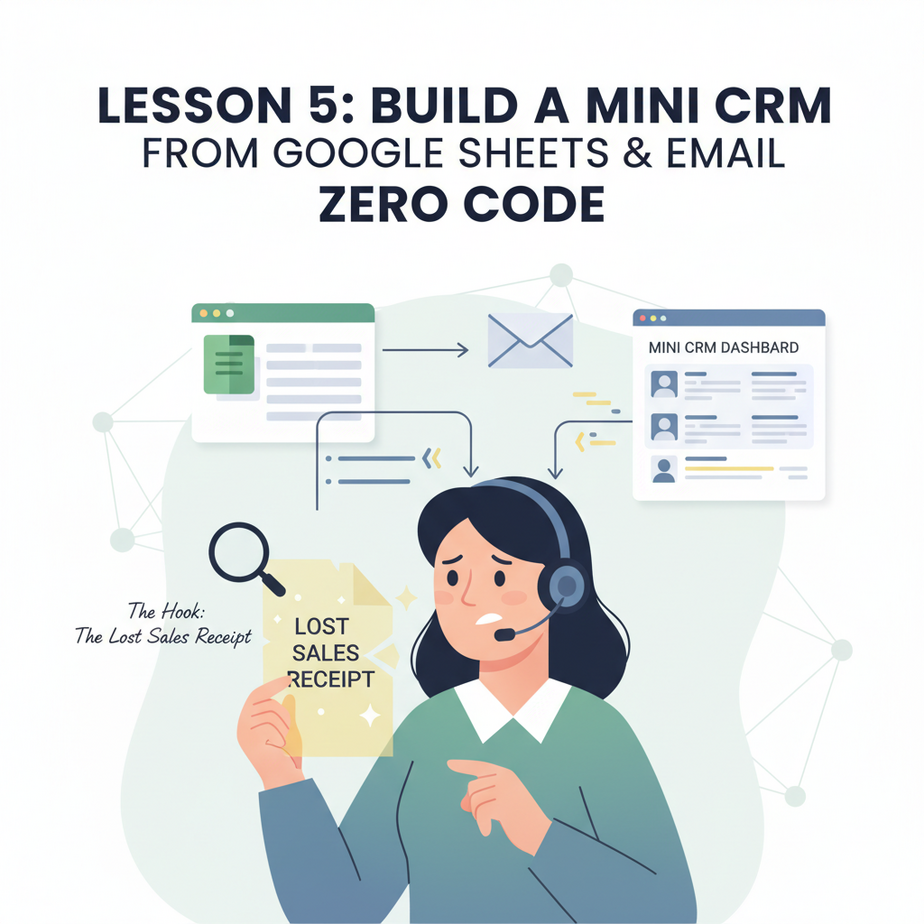
The Hook: The Lost Sales Receipt
Imagine this: It’s Tuesday. A perfect prospect, “Sarah from TechCorp,” emails you with a clear request. You replied, had a great call, and she’s ready to buy. You’re typing the email to send her the contract, and you realize… you’ve lost the thread. Where was her phone number? What was her specific pain point? Did you send her the pricing sheet? Your heart sinks. You’re digging through your inbox, your notes, and your memory. Meanwhile, Sarah’s inbox is quiet. Momentum dies. Chaos wins.
Most new entrepreneurs and freelancers run their entire client system like this—out of their email inbox. It’s not a system; it’s a constant reaction to incoming messages. You need a single source of truth. You need a system that captures and organizes this information *for you*. This isn’t about enterprise software; it’s about putting a simple, smart filter on your business stream.
Why This Matters: Your Business Nervous System
This lesson replaces chaos with clarity. This automation is your business’s nervous system. It takes scattered data points—new emails, missed calls, lead forms—and sends them to one organized place: a living customer database.
What this replaces:
- That bloated “To Sort” email folder.
- That sticky note with a customer’s name scribbled on it.
- The mental load of remembering “who needs what when.”
- The awkward follow-up gap where leads go cold because you forgot to follow up.
By the end of this lesson, you’ll have a dashboard that tells you: “Who to call, who to email, and who’s ready to buy.” You’ll go from a reactive firefighter to a strategic salesperson.
What This Tool/Workflow Actually Is
This is not a $100/month CRM like Salesforce or HubSpot (those are great, but often overkill for starters). This is a lightweight, custom mini-CRM built by stitching together two things you already know: Google Sheets and an automation tool like Zapier (or Make.com, or n8n).
What it DOES:
- Captures new leads automatically from a form or email.
- Creates a new row in your Google Sheet for each lead, with name, email, and source.
- Sets a follow-up date so you never drop the ball.
- Highlights hot leads using simple formatting rules.
What it does NOT do:
- Send calendar invites (yet—maybe a future lesson!).
- Build complex email sequences (though it can trigger them).
- Host your files or invoices. (We use other tools for that.)
Prerequisites: Do You Even Need These?
Let’s be brutally honest. You need:
- A Google Account (if you have Gmail, you have this).
- A Free Zapier Account (the free plan handles 100 tasks/month, perfect for learning and small businesses).
- 10 Minutes of Patience (and a cup of coffee).
Do you need to know how to code? No. This is a visual, click-and-configure process. If you can connect two apps on your phone, you can do this.
Do you need to be a spreadsheet wizard? No. We’ll use a simple 5-column sheet. I’ll give you the exact template.
Take a deep breath. You’ve got this.
Step-by-Step Tutorial: Building Your Lead Capture Pipeline
Step 1: Build Your “Command Center” (The Google Sheet)
Open Google Sheets. Click “Blank.” Name it “My Mini CRM.” In the first row, create these headers:
A1: Name (or Company)
B1: Email
C1: Phone
D1: Lead Source
E1: Lead Date
F1: Follow-Up Date
G1: Status
Why these columns? “Name” is obvious. “Email” is for communication. “Lead Source” tells you where your leads come from (Facebook? Referral?). “Lead Date” is automatic. “Follow-Up Date” is where you promise yourself you’ll act. “Status” is your progress tracker (New, Contacted, Working, Closed-Won, Closed-Lost).
Step 2: Choose Your Trigger (Where Do Leads Come From?)
For this example, we’ll use a simple Google Form as our lead source. Create a new Google Form titled “Get a Quote.” Add three questions:
- Full Name
- Email Address
- What’s your biggest challenge right now? (Long answer)
Make sure the form is set to collect email addresses. This form is now your lead-generation funnel. You can embed it on your website or share the link.
Step 3: Connect the Dots with Zapier (The Automation Brain)
- Log into Zapier. Click “Create Zap.”
- For Trigger, search for “Google Forms.” Select “New Form Response.”
- Connect your Google account and pick the “Get a Quote” form you created.
- Test the trigger. Fill out your form once to create a test response.
- For Action, search for “Google Sheets.” Select “Create Spreadsheet Row.”
- Connect your Google account and choose your “My Mini CRM” sheet.
- Map the data:
- Column A (Name) → Form Question: “Full Name”
- Column B (Email) → Form Question: “Email Address”
- Column D (Lead Source) → Type “Website Form”
- Column E (Lead Date) → Select “Form Response Time”
- Column F (Follow-Up Date) → Select “Form Response Time” and add 2 days (this auto-calculates!)
- Column G (Status) → Type “New”
- Test the Zap! Submit your form again. Check your Sheet. You should see a new row populate.
- Turn your Zap ON. You’re live!
Congratulations! You just built an automated lead-capture machine.
Step 4: Add Intelligence with a Simple Filter
Let’s make it smarter. We want to know who’s a high priority. In Zapier, create a new Zap.
- Trigger: Google Sheets, “New Spreadsheet Row” (Your CRM sheet).
- Action: Google Sheets, “Update Spreadsheet Row.”
- Filter (Optional but Powerful): Use the “Filter by Zapier” step BEFORE the action. Set it so if Column D (Lead Source) is “Website Form,” AND the lead email domain is NOT “@gmail.com” (to filter out test responses), then continue.
- In the Action step, map the updated row. You can change the “Status” to “Hot Lead” or even send a notification. For now, let’s just have it add a note in column H: “Checked for high intent.”
This teaches you a key concept: conditional logic. Your automation now makes a simple decision before acting.
Complete Automation Example: The Consultant’s Pipeline
Meet Priya, a freelance marketing consultant. She’s losing leads in her inbox. She sets up this exact system:
- Form: “Book a Free Strategy Call.” Asks for name, email, and current monthly ad spend.
- Automation 1 (Zapier): New form entry → Creates row in Google Sheet CRM. Sets follow-up date for 1 day later (because fast response matters).
- Automation 2 (Google Sheets): She uses Conditional Formatting (Find it under “Format > Conditional formatting”). She sets a rule: if Column F (Follow-Up Date) is today, highlight the row in red. If it’s in the past, highlight it in dark red.
Her Daily Workflow:
- She opens her “My Mini CRM” Google Sheet every morning.
- She scrolls. The red rows instantly show her who needs attention TODAY.
- She clicks the email in the sheet, drafts a reply in Gmail (“Hi [Name], saw you requested a call…”), and logs the interaction by updating the Status and Follow-Up Date to the next step.
Priya now spends less time *hunting* for leads and more time *nurturing* them. Her conversion rate goes up because no lead falls through the cracks.
Real Business Use Cases (5 Examples)
- Real Estate Agent: Lead Source = Zillow Inquiry. Action = Add to Sheet, set follow-up for 24 hours. Status = “Hot” if budget field > $500k.
- Small E-commerce Store: Lead Source = “Abandoned Cart” email list sign-up. Action = Add to Sheet, follow-up date = 3 days later (send a discount coupon). Status = “Potential Buyer.”
- Freelance Graphic Designer: Lead Source = Instagram DM. They manually add row (takes 20 seconds) but the Sheet still manages their pipeline of 50 concurrent projects.
- Nonprofit Coordinator: Lead Source = Donation Page sign-up. Action = Add to Sheet, follow-up date = 1 month later (“Thank you + impact update”). Status = “Donor.”
- Coach/Personal Trainer: Lead Source = Website “Free Session” form. Action = Add to Sheet, follow-up date = next business day. Status = “Booked Session” or “Reschedule.”
Common Mistakes & Gotchas
- Mistake 1: Not Naming Columns Clearly. If you call column F “When,” you’ll forget what it means. Be explicit: “Follow-Up Date.”
- Mistake 2: No Standardized Statuses. Having 15 different statuses (“thinking about it,” “maybe,” “ask again later”) is useless. Stick to 5 max: New, Contacted, Working, Closed-Won, Closed-Lost.
- Mistake 3: Letting the Sheet Grow Unchecked. Your sheet will get long. Use Freeze the Top Row (View > Freeze > 1 row) so headers stay visible. Archive old rows into a separate “Archive” tab every quarter.
- Gotcha: API Limits. The free Zapier plan has 100 tasks per month. One task is one form submission. That’s enough for 8-10 leads a month. If you need more, you’ll need to upgrade. This is a scaling milestone!
How This Fits Into a Bigger Automation System
This mini-CRM is your central hub. Now you can build outwards:
- To Email: When a row is updated to “Closed-Won,” trigger a Zap to send a welcome email via Gmail or Outlook.
- To Voice Agents: Use a tool like HeyGen or Voiceflow. When a new lead with a high budget (e.g., >$10k) enters the sheet, trigger a voice agent to make a personalized intro call. Your Sheet is the data source for intelligent actions.
- To RAG Systems: You can later export this Sheet data as knowledge for an AI assistant that can answer client questions by referencing past interactions.
- To Dashboards: Connect your Google Sheet to Google Data Studio (Looker Studio) for a visual dashboard of lead sources and conversion rates. (That’s an advanced lesson!)
This is the first modular piece of your business automation stack. Once it’s solid, you can stack other pieces on top of it with confidence.
What to Learn Next
In our next lesson, we’ll weaponize this CRM. You’ve got leads organized—now, let’s automate the follow-up. We’ll build a simple email reminder system that pings you 24 hours before a follow-up is due. No more missed connections. No more “I meant to email Sarah…” moments.
You’ve built the foundation of a well-oiled sales machine. The gears are starting to turn. Keep going.
Implement this. You’ve got a lead in you.
“,
“seo_tags”: “google sheets automation, zapier tutorial, mini crm, lead management, business automation, beginner automation”,
“suggested_category”: “AI Automation Courses