
Hook
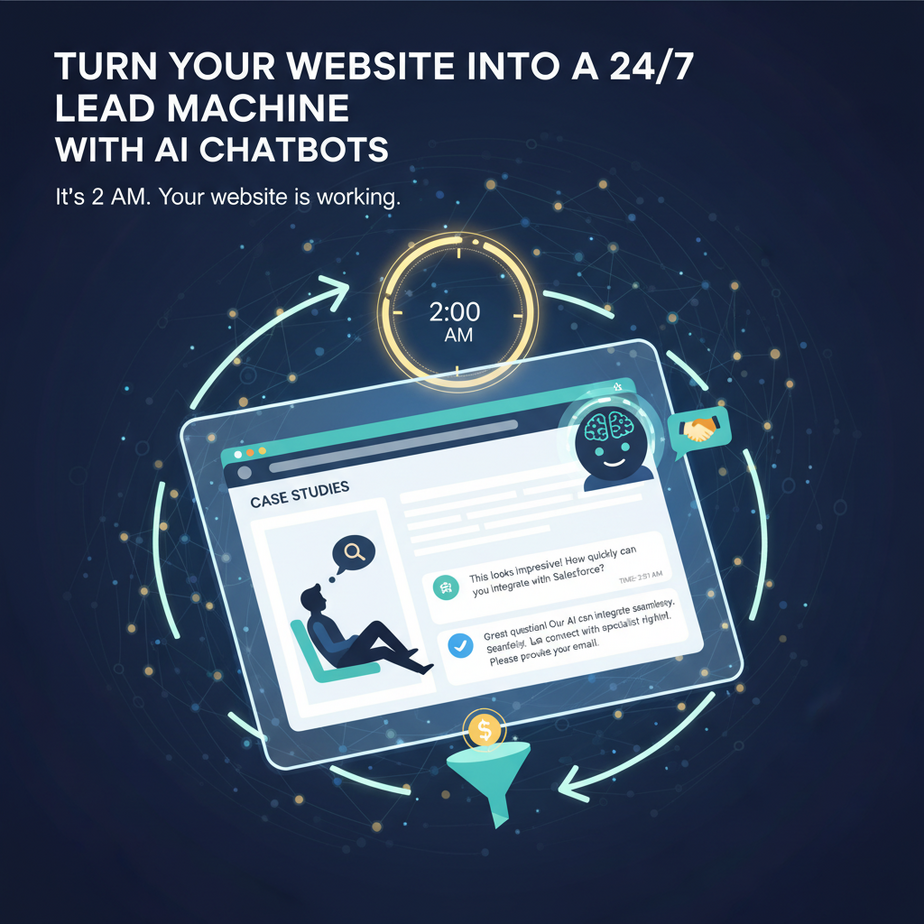
Imagine this: It’s 2 AM. A potential client is on your website, reading your case studies. They have a specific question. But instead of waiting for your contact form (or emailing you and hoping for a reply tomorrow), they start a conversation. You’re asleep. Your chatbot isn’t.
The chatbot answers their questions, qualifies them based on your criteria, books a demo on your calendar, and sends you a summary email—all before your morning coffee. This isn’t sci-fi. This is just a basic AI chatbot workflow. And if you can copy-paste, you can build one this afternoon.
Why This Matters
Most websites are like empty storefronts. Visitors walk in, look around, and leave. A traditional contact form is a suggestion box in the lobby—low conversion, high latency.
An AI chatbot is a digital greeter who can:
- Replace the Intern: It handles repetitive Q&A so your team doesn’t have to.
- Qualify Leads Automatically: It asks the right questions to separate tire-kickers from real buyers.
- Work While You Sleep: Capture leads from any time zone, 24/7.
- Scale Without Burnout: It can talk to 10 visitors or 10,000 at once without getting grumpy.
For a small business, this can mean turning your website into a predictable lead generator. For an e-commerce store, it’s like having your best salesperson handle every return and upsell question instantly.
What This Tool / Workflow Actually Is
We’re building a Chatbot Assistant. Here’s the plain English version:
What it is: A smart FAQ that can also take action. It uses a large language model (LLM) to understand a visitor’s question, pulls relevant info from your website or documents, and gives a helpful answer. It can also trigger actions like booking a calendar slot or emailing you.
What it is NOT: It’s not a human. It can’t sense tone or handle highly complex, emotional negotiations. It shouldn’t be left completely unmonitored for critical, high-value deals. It’s a sophisticated assistant, not a replacement for human judgment.
Prerequisites
Brutally honest check: You need to be comfortable using a web browser and clicking buttons. That’s it. You do NOT need to know Python, JavaScript, or machine learning.
Tools you’ll need:
- A No-Code Chatbot Builder: We’ll use Botpress (free tier available, no credit card for starter). It’s like building with digital LEGOs—drag, drop, connect.
- OpenAI API Key: (Optional for basic version, recommended for advanced). This powers the “smart” part. You can get a free tier from OpenAI.
- Your Website: You’ll need to embed a small code snippet (copy-paste) into your site’s HTML or use a plugin if you’re on WordPress.
If you can sign up for a website and install a WordPress plugin, you can do this. I’ll show you every click.
Step-by-Step Tutorial: Build Your First Chatbot in Botpress
Let’s build a customer service bot for a fictional freelance copywriter, “WordSmith Inc.” It will answer FAQs and book discovery calls.
Step 1: Create Your Botpress Account
- Go to Botpress.com and click “Get Started for Free.”
- Sign up with your email. You’ll get a free cloud workspace. No install needed.
- Click “Create a Bot.” Name it “WordSmithBot.”
Why we do this: We need a place to build and host our bot. Botpress handles the server, so you don’t have to.
Step 2: Create Your First Flow
Think of a “flow” as a conversation path. We’ll make a simple one for “Get a Price Quote.”
- In the Botpress Studio (the main screen), click the “Flows” tab on the left.
- Click the “+” to create a new flow. Name it “Price_Question.”
- You’ll see a blank canvas. Click the “+” on the node (called “Start”).
- Select “Message” from the menu. This creates a node where the bot speaks.
- In the “Text” field, type:
Hello! I'm WordSmithBot. I can answer your questions or book a call. What are you looking for help with today? - Click the “+” again under this message. Select “Intent.”
- In the “Intent” box, type
price_question. This teaches the bot to recognize this topic. - Click the node again and select “Message.” Type:
Our rates start at $500 for a basic landing page. For a full website copy, it's $2000. Would you like a custom quote? - Click “+” and select “Button.” For the text, write “Yes, get a quote.” and set the action to “Go to Price_Question_Yes.”
Why we do this: We’re giving the bot a script. The “Intent” node is key—it trains the bot to recognize the user’s goal, so they can say “How much?” or “What’s your pricing?” and still get the right answer.
Step 3: Connect to a Calendar (Advanced Action)
Let’s book a call if they want a quote.
- Create a new flow called “Book_Call.”
- In that flow, add a Message node:
Great! Let's get you on my calendar. What's your email? - Add an “Email” input node (from the “Input” section). This will capture the user’s email.
- Add a Message node:
Thanks! I'll send you a calendar link. You'll get an email shortly. - Add an “Execute Code” node. This is where we’ll plug in an action.
Here is your copy-paste-ready code for a simple email notification (using a free service like Zapier or directly with SMTP):
// This is a sample code node. In Botpress, you'd use an "Execute Code" node.
// For this example, we're simulating an email send.
// To make this real, you'd connect to an API like SendGrid or use Botpress's native integrations.

const email = event.payload.message.text; // The user's email
const userName = "Potential Client";

// You would typically have an API call here. For demo, we log it.
await axios.post("https://api.sendgrid.com/v3/mail/send", {
  personalizations: [{to: [{email: "you@yourcompany.com"}]}],
  from: {email: "bot@yourcompany.com"},
  subject: "New Lead: " + userName,
  content: [{type: "text/plain", value: `A new lead wants a call. Email: ${email}`}]
});

// In a real Botpress setup, you'd use their built-in integrations or a plugin.
// This code shows the LOGIC, which you'd configure in Botpress's visual interface.
return { next: "go_to_success" };
Note: Botpress has native integrations for Gmail, Outlook, and Calendly. You’d typically use their visual “Action” nodes to send an email, which is even easier than code. The code above is for understanding the concept.
Step 4: Test Your Bot
- Click the “Test” button in the top right of Botpress Studio.
- A chat window opens. Type: “I need help with my website copy.”
- The bot should respond with the greeting. Then ask your question. Try: “How much for a landing page?”
- It should trigger the
price_questionintent and give the pricing answer. - Click the “Yes, get a quote” button and follow the flow.
Why we do this: No deployment until you’ve tested. Iteration is everything.
Step 5: Deploy & Embed on Your Website
- Go to your Botpress Dashboard. Click “Channels” in the left menu.
- Find “Web Chat” and click to enable it.
- Botpress will generate a snippet of JavaScript code. It looks like this:
<script>
  window.botpressWebChat = {
    hostUrl: 'https://your-bot.botpress.cloud',
    botId: 'your-bot-id',
    configuration: {
      botName: 'WordSmithBot',
      botAvatar: 'URL_TO_YOUR_LOGO'
    }
  };
</script>
<script src="https://cdn.botpress.cloud/webchat/v0/inject.js"></script>- Copy this entire script.
- Go to your website (e.g., WordPress). Edit a page or use a plugin like “Header and Footer Scripts.” Paste the code into the header or footer section.
- Save your page, clear your browser cache, and visit it. You should see the chat bubble.
Why we do this: Embedding is like hanging a “Welcome” sign. The code snippet connects your website to the bot servers.
Complete Automation Example: The “Service Inquiry” Machine
Let’s wire the entire pipeline together. Here’s what happens for a visitor named Sarah:
- Trigger: Sarah lands on your services page and clicks the chat bubble.
- First Contact: Bot says: “Hi! I’m here to help. What brings you by?”
- Intent Recognition: Sarah types, “I need a new logo designed.” The Botpress engine matches this to the
design_inquiryintent. - Qualification: The bot follows a pre-built flow: “Great! Are you a small business, startup, or established brand?”
- Action (Capture Lead): Based on her answer, the bot asks for her email and company name. This is stored in Botpress as a user variable.
- Action (Book Call): The bot offers: “I can schedule a 15-min intro call to discuss. Here’s my calendar link: [BIT.LY/BOOKSARAH]”
- Action (Notify Human): Simultaneously, the bot sends a webhook to Zapier (a no-code automation tool), which adds Sarah’s info to your Google Sheets and sends you a Slack notification: “🔥 New Lead: Sarah from [Company]. Wants a logo. Email: sarah@example.com”
- Handoff (Optional): For complex queries, the bot can tag the conversation for a human agent to take over in Botpress’s live chat interface.
This is a complete, automated system that turns a visitor into a sales-qualified lead without human intervention.
Real Business Use Cases (MINIMUM 5)
- E-commerce Store: Problem: Customers abandon carts due to questions about shipping or returns. Solution: Bot instantly answers “What’s the return policy?” and can trigger a “Abandoned Cart” discount code via email, recovering lost sales.
- Real Estate Agency: Problem: Website visitors ask repetitive questions about neighborhood stats, listings, and open houses. Solution: Bot answers questions and, based on budget/location, can auto-schedule showings with your calendar link.
- Consulting Firm: Problem: Inbound leads are vague; many are not budget-ready. Solution: Bot runs a qualification script: “What’s your project timeline?” and “What’s your approximate budget range?” It only books calls with leads meeting your criteria.
- SaaS Company: Problem: High volume of “Does your product do X?” questions. Solution: Bot answers instantly using your knowledge base, reducing support ticket load and demonstrating product knowledge immediately.
- Freelancer (The Tired Writer): Problem: Spending too much time on initial emails and discovery calls that go nowhere. Solution: Bot qualifies leads by asking about project scope and deadlines, filtering out low-budget inquiries before they reach your inbox.
Common Mistakes & Gotchas
- The “Set and Forget” Trap: Never launch and walk away. Review logs weekly. You’ll see misunderstandings. Use those to train new intents and improve answers.
- Too Many Flows: Start with 3-5 core flows (Pricing, Book a Call, FAQs). Don’t try to build a bot that handles every edge case on day one.
- Ignoring the Handoff: Always give a user an escape hatch. “Can I speak to a human?” should trigger a notification to your team.
- Bad Embedding: The script goes in the
<head>or just before</body>. Putting it in the wrong place can break the bot or your site. - Legal/Privacy Oversights: In your bot’s intro message, add a line like “By chatting, you agree to our privacy policy.” If you store emails, comply with GDPR/CCPA.
How This Fits Into a Bigger Automation System
Think of this chatbot as the front desk guard of your business. It doesn’t work alone.
- CRM Connection: When the bot qualifies a lead, it should create a contact in your CRM (HubSpot, Salesforce). This is done via webhooks or Zapier. Now your sales team sees a warm lead in their pipeline.
- Multi-Agent Workflow: The first agent (your chatbot) qualifies. If it’s a technical question, it can hand off to a second agent (a technical documentation bot) for a detailed answer before returning to sales.
- RAG Systems: For complex support, the bot can be connected to a Retrieval-Augmented Generation (RAG) system. It looks up your internal docs and generates accurate, specific answers from your knowledge base.
- Voice AI Synergy: Imagine your chatbot qualifies a lead via text, then triggers a voice AI agent to make a confirmation call. The two systems work in tandem, giving you omnichannel coverage.
What to Learn Next
You’ve just built the greeter for your business. In our next lesson, we’ll teach this greeter to make phone calls.
We’re moving from text to voice. You’ll learn to build an AI phone agent that can qualify leads, schedule appointments, and handle basic customer service calls. It’s the natural next step in automating your inbound pipeline.
Until then, deploy your bot. Let it run for a week. Watch the conversations. See how it feels to have a tireless digital employee working on your behalf.
See you in the next lesson. Keep building.
– Professor Ajay