
Hook
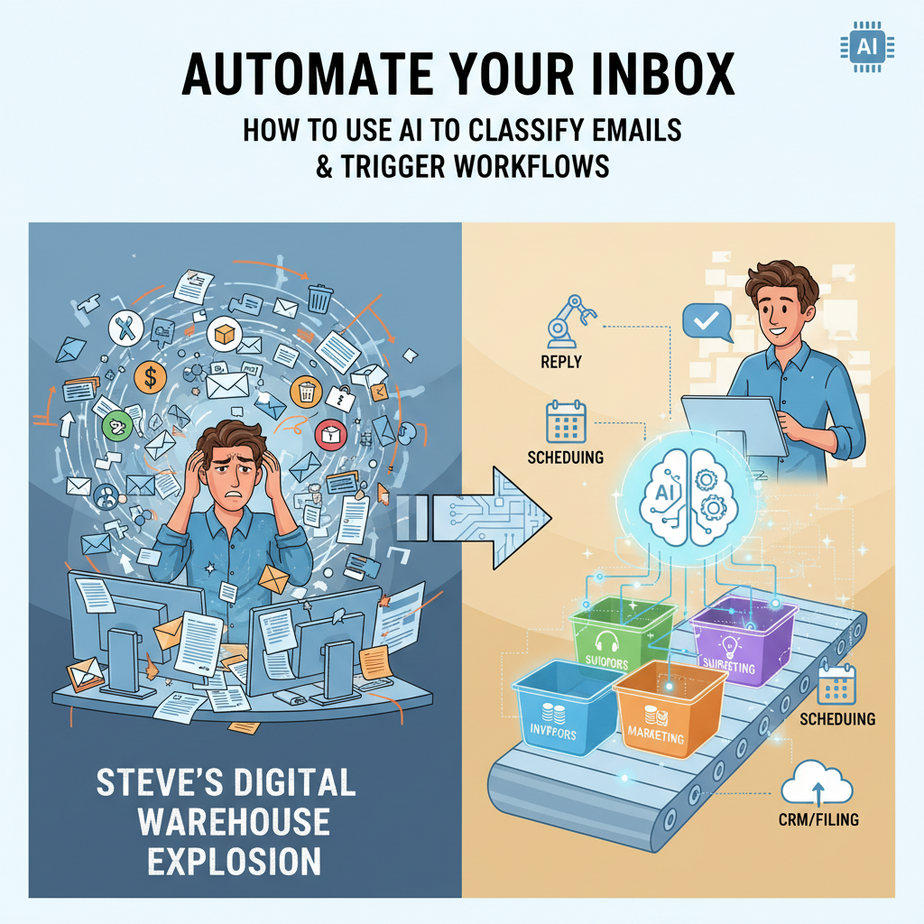
Meet Steve. Steve runs a 7-figure e-commerce store and gets 300+ emails a day. His inbox looks like a digital warehouse explosion—support tickets, invoices, supplier updates, random spam, and the occasional “You won a free cruise!” scam.
Steve spends 2 hours a day just reading and sorting. His team misses urgent requests because they’re buried in the mess. Last Tuesday, a customer’s angry refund request sat in his inbox for 36 hours because it was tucked between a Shopify newsletter and an Amazon order notification. The customer left a 1-star review. Ouch.
What if Steve had an AI intern—let’s call him “Inbox Butler”—who reads every email, decides what matters, and files it in the right place? Or better yet, triggers the right action automatically?
That’s exactly what we’re building today. No magic, just a simple AI automation that turns chaos into order.
Why This Matters
Time is your most expensive asset. Every email you manually classify is time you’re not spending on strategy, product, or family. This isn’t just about “inbox zero”—it’s about scaling your capacity.
Business Impact:
- Time Saved: Reclaim 5-10 hours per week from manual email sorting.
- Revenue Protection: Never miss a high-value lead or urgent customer complaint again.
- Team Sanity: Stop CC’ing everyone. Route emails to the exact person who can solve them.
- Scale: Whether you get 10 or 10,000 emails, the system works the same.
Who This Replaces: This replaces the chaotic intern you can’t afford to hire, the overworked assistant, and the “I’ll just check my email later” (which becomes 3 days later).
What This Tool / Workflow Actually Is
We’re building an AI-powered email classification and workflow trigger system. Here’s the plain English version:
What it does:
- Reads incoming emails (like a speedy reader with perfect recall).
- Classifies them into categories (e.g., “Urgent Support”, “Invoice”, “Lead”, “Spam”).
- Triggers specific actions based on the category (e.g., send to Slack, create a Trello card, alert the sales team).
What it does NOT do:
- It doesn’t write full replies (unless you build that later).
- It doesn’t delete emails without approval.
- It doesn’t read your private thoughts (just the text in the email).
Prerequisites
You need:
- A Gmail account (or access to one).
- An account on a no-code automation platform (we’ll use Make.com, formerly Integromat, because it’s powerful and beginner-friendly).
- 15 minutes of patience.
You do NOT need:
- Coding skills.
- Server setup knowledge.
- Any AI expertise beyond knowing what a “good email” looks like.
Think of this like setting up a fancy coffee machine: you add beans, press a button, and it does the magic. We’re just setting up the machine.
Step-by-Step Tutorial
Step 1: Set Up Your Make.com Account & Connect Gmail
- Go to Make.com and sign up for a free account (1,000 operations/month is plenty for this).
- Once logged in, click “Create a new scenario” (it’s a big blue button that looks like a plus sign).
- On the left panel, search for “Gmail”. Drag the module “Watch Emails” into your scenario canvas.
- Click “Add connection” and follow the prompts to connect your Gmail account. Give it permission to read your emails. Don’t panic—it’s like giving a librarian a library card, not your house keys.
Step 2: Add the AI Classifier (OpenAI)
- Search for “OpenAI” on the left panel and drag the “Create a Chat Completion” module onto the canvas.
- Connect your OpenAI account. You’ll need an API key from platform.openai.com. Click “Add connection” and paste your key.
- In the model dropdown, select “gpt-4o-mini” (it’s cheaper and fast enough for this).
- In the “Messages” array, add a user message. This is where you tell the AI what to do. Copy-paste this exact prompt:
You are an expert email sorter. Analyze the email below. Return ONLY ONE of these categories as a single word: URGENT_SUPPORT, INVOICE, LEAD, SPAM, GENERAL. Do not add any explanation.

Subject: {{1.subject}}
From: {{1.from}}
Body: {{1.body}}
Why this prompt works: It’s specific, limited, and forces a clean output. The AI is our intern; we’re giving it clear instructions.
Step 3: Add a Router to Decide Actions
- Drag a “Router” module (search in the left panel) after the OpenAI module. The Router splits the path based on conditions.
- Create branches for each category. Click the small “+” on the Router to add a new route.
- For each route, set a filter. Click the route, then click the “+” (filter) icon. Set the condition: “Text returned by OpenAI module” “contains” “URGENT_SUPPORT” (or “INVOICE”, etc.).
Step 4: Set Up Actions for Each Category
Drag different modules into each branch. Examples:
- URGENT_SUPPORT Branch: Add a “Slack” module → “Send a message to a channel”. Set channel to #customer-support and write: “🔥 Urgent Support Email from {{1.from}}: {{1.subject}}”.
- INVOICE Branch: Add a “Google Sheets” module → “Add a row”. Connect your finance sheet. Map the email data to columns: Date, Sender, Subject, etc.
- LEAD Branch: Add a “HubSpot” or “Pipedrive” module → “Create a deal/contact”. This auto-populates your CRM.
- SPAM Branch: Add a “Gmail” module → “Move email to label”. Move it to a “Spam-Processed” label (or just archive it).
- GENERAL Branch: Add a “Google Drive” module → “Upload a file”. Save the email as a .txt file in a folder called “General Emails”. Or simply archive it.
Step 5: Test & Enable
- Click the big “Run once” button at the bottom left. This will process a few recent emails.
- Check each module’s output. Did the AI return the right category? Did the action fire correctly?
- If it works, click the scheduler icon (clock) on the “Watch Emails” module. Set it to run every 5 or 10 minutes.
- Click “Save” and then toggle the scenario on.
Complete Automation Example: The E-Commerce Owner’s Sanity Saver
Scenario: Alex runs a online store for handmade candles. Her inbox is chaos.
The Automation:
- Trigger: New email arrives.
- AI Analysis: The OpenAI module reads the email. A customer writes: “My order #4567 is damaged. Sent photo.” The AI classifies it as “URGENT_SUPPORT”.
- Action 1 (Slack): The team immediately gets a Slack ping: “Urgent Support: damaged order #4567 from sarah@email.com”. Sarah, the support rep, sees it instantly.
- Action 2 (Google Sheets): The email data is logged in the “Support Log” sheet for tracking.
- Action 3 (Archive): The original email is archived so Alex’s inbox stays clean.
Result: The customer gets a response in 8 minutes instead of 2 days. The review is updated to 5 stars. Alex’s team operates like a well-oiled machine instead of firefighters.
Real Business Use Cases
- Consulting Firm: Problem: Client emails get lost in the shuffle, delaying proposals. Solution: Auto-classify “Proposal Request” emails, create a deal in the CRM, and notify the sales partner via SMS.
- Real Estate Agent: Problem: 50+ leads a day from Zillow/Realtor.com. Solution: AI filters serious leads, adds them to the database, and sends a personalized intro email template.
- Freelancer/Agency: Problem: Invoices scattered between client emails. Solution: Auto-categorize invoices, log them in a QuickBooks-compatible sheet, and send a Slack reminder to “send invoice to accountant.”
- Non-Profit: Problem: Donation emails, volunteer queries, and grant requests all mixed up. Solution: Route donations to the finance board, volunteer offers to HR, and grants to the director.
- SaaS Startup: Problem: Support tickets vs. sales inquiries vs. bug reports. Solution: Auto-triage to specific Slack channels (#bugs, #sales, #support) with urgency tagging.
Common Mistakes & Gotchas
- Vague Prompts: Telling the AI “Categorize this email” without clear categories leads to garbage outputs. Always define the exact labels it can choose from.
- Missing Deadlines: Setting the scenario to run daily instead of every 10 minutes. In business, timely action is revenue. Make it frequent.
- Ignoring Errors: If the AI misclassifies, don’t just accept it. Add a manual review branch for “uncertain” outputs (e.g., if confidence score is low).
- Over-Automation: Don’t auto-delete anything. Always archive or move to a folder. You need an audit trail.
- API Costs: GPT-4o-mini is cheap, but if you process 10,000 emails, it adds up. Monitor usage in your OpenAI dashboard.
How This Fits Into a Bigger Automation System
Your email classifier is the front door to a larger automation factory. Here’s how it connects:
- CRM (HubSpot/Pipedrive): The “LEAD” branch feeds your pipeline.
- Project Management (Trello/Asana): Turn “Urgent Support” emails into support tickets.
- Voicemail/Phone Systems (Twilio): Integrate with AI voice agents to call back high-priority leads.
- Multi-Agent Workflows: Add a second AI agent to draft a reply based on the category, then queue it for human approval.
- RAG Systems (Retrieval-Augmented Generation): When a customer asks about a product, the system can pull product details from your database before generating a response.
This simple classifier is Module 1 in a course about building a full AI-powered operations command center.
What to Learn Next
In our next lesson, we’ll take this foundation and add a “Smart Reply Drafting” layer. Imagine the AI not only categorizes the email but also writes a human-sounding draft for your approval based on your company’s style guide.
We’re building a system that doesn’t just organize your work—it does the work. This is your first step toward a 4-day workweek.
Go set up this automation. Your future self—sipping coffee while your AI intern handles the inbox flood—will thank you.
See you in the next lesson, where we go from sorting to responding.
“,
“seo_tags”: “AI automation, email automation, workflow automation, Make.com, OpenAI, business productivity, inbox management, no-code AI”,
“suggested_category”: “AI Automation Courses