
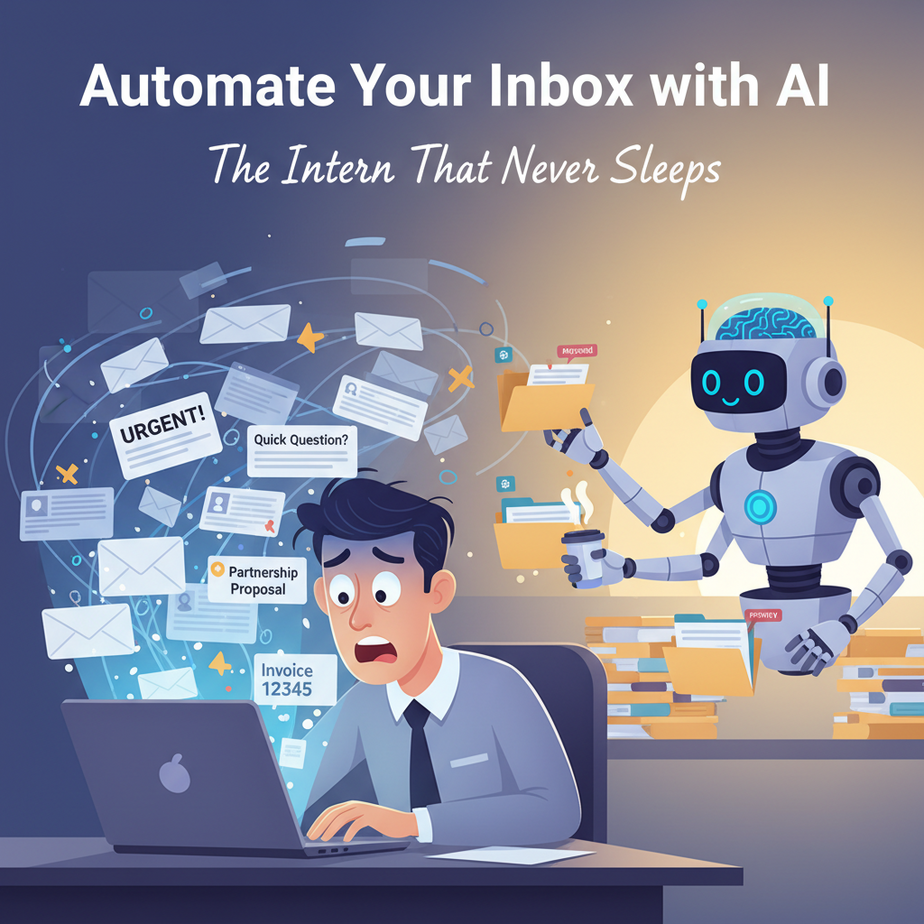
The Morning Meltdown
You open your laptop at 8:00 AM. There are 47 new emails. The subject lines scream: “URGENT!”, “Quick Question?”, “Partnership Proposal”, “Invoice 12345”, “Re: Re: Re: meeting”. Your brain short-circuits. You feel like a water wheel in a flood, trying to handle every drop at once. That’s not work; that’s survival mode.
What if you could hire a tireless, hyper-organized intern? An intern who reads every email instantly, categorizes it into buckets like “Urgent & Important,” “Follow-up Needed,” or “Newsletter (Delete),” and even drafts the first response for you. This isn’t a fantasy. This is an AI automation, and we’re building it today.
Why This Matters: Time, Sanity, and Scale
Let’s be blunt: manual email management is a time thief. A typical knowledge worker spends over 2.5 hours a day just reading and responding to emails. That’s more than 12 hours a week. Over a year, you’re losing months of your life to an inbox.
This automation gives you back that time. It replaces the need for an entire junior admin assistant for basic triage. It turns a reactive, chaotic inbox into a prioritized, action-oriented dashboard. It scales with your business; whether you get 50 emails or 5000, the AI handles the volume effortlessly. Your sanity is no longer tied to your email count.
What This Workflow Actually Is
We are building an AI Email Triage & Response Assistant. Here’s what it does:
- It scans your incoming emails (Gmail/Outlook).
- It analyzes the sender, subject, and body text.
- It classifies the email into a predefined category (e.g., “Client Inquiry,” “Billing,” “Promotional,” “Spam”).
- It drafts a suggested reply for high-priority emails, tailored to the context.
- It can take simple actions, like adding a label in Gmail or moving a message.
What it does NOT do: It doesn’t send emails on its own (unless you configure it to, which we’ll discuss later as an advanced step). The goal is to make you a manager, not an employee. You review and approve, but the grunt work is done.
Prerequisites: What You Need
Brutally honest list. This is a beginner-friendly build, but we need tools.
- An Email Account: Gmail is easiest because of its powerful API and labels. Outlook works too.
- An AI Model Access: We’ll use an API like OpenAI’s GPT-4-turbo or an open-source model via Hugging Face. You’ll need an API key (often costs a few cents per email).
- A Workflow Automation Tool: We’ll use Make.com (formerly Integromat) or Bardeen.ai. These are visual, no-code platforms that connect your email to the AI. Think of them as the glue in your automation factory.
- Basic Comfort: The ability to copy-paste code and follow logical steps. No prior coding required.
Don’t be intimidated. If you can set up a social media account, you can set this up. We’ll start small.
Step-by-Step Tutorial: Build Your AI Email Intern
We’ll use **Make.com** for this walk-through because of its visual clarity. It’s like building with LEGO blocks. The logic is: When a new email arrives -> Send it to AI for analysis -> Get the result -> Create an action (like sending a summary to Slack or drafting a reply).
Step 1: Set Up Your Gmail Connection
- Create a free account on Make.com.
- Create a new “Scenario” (this is your automation recipe).
- Search for the “Gmail” app. Connect your Gmail account by following the prompts. You may need to allow permissions. This is standard and secure.
Step 2: Trigger the Automation
In your Make Scenario, search for the “Gmail” module and select the trigger “Watch Emails”. Configure it to check for “unread” emails in your Inbox. Set a check interval (e.g., every 1 minute). This is your intern’s first job: keeping a watchful eye on the inbox.
Step 3: The AI Analysis Core
Now, we connect the AI brain. Search for the “OpenAI” module (or your chosen AI provider). Use the action “Create a Chat Completion”.
Prompt Engineering is Key: You need to tell the AI what to do. This is like giving your intern clear instructions. Your prompt will look something like this:
You are an email management assistant. Categorize the following email and draft a concise, professional reply.

**Email to Categorize & Respond To:**
Sender: {{1.sender}}
Subject: {{1.subject}}
Body: {{1.body}}

**Instructions:**
1. Analyze the content. Determine the category (Client, Billing, Spam, Newsletter, Personal).
2. Draft a polite reply if the email requires a response. If it's spam or a newsletter, just say "No reply needed."
3. Return the output in a clean JSON format: {"category": "CATEGORY_NAME", "reply": "DRAFTED_REPLY", "priority": "HIGH/MEDIUM/LOW"}.

Do not include any additional text.
In Make.com, you’ll map the `{{1.sender}}`, `{{1.subject}}`, and `{{1.body}}` from the Gmail trigger directly into this prompt. The AI will analyze this and return the JSON we need.
Step 4: Process the AI’s Decision
We need to parse the AI’s JSON response. Use a tool like “JSON Parse” or a code module. Then, we route the workflow based on the `priority` and `category`.
Let’s create a simple branching path. We’ll use Make.com’s “Router” module to split the path.
- Path 1: If Priority = HIGH: Send an instant alert to your Slack or phone (via SMS) with the sender, subject, and AI-drafted reply.
- Path 2: If Category = Billing: Add a “Billing” label in Gmail and forward it to your finance email.
- Path 3: If Category = Newsletter: Apply the “Read” label and archive it, or just archive it directly.
- Path 4: Default: Just log the email in a Google Sheet for your later review.
Step 5: Add a Review Step (The Human-in-the-Loop)
This is the most critical step. For high-priority emails, we won’t auto-send. Instead, we send you the drafted reply in a notification. You can copy-paste it, tweak it, and send it from your normal email client. This keeps you in control and builds trust in the system.
Final Alert Message Template:

**URGENT EMAIL NEEDS YOUR EYES**
From: {{sender}}
Subject: {{subject}}

**AI-Drafted Reply (review before sending):**
{{ai_generated_reply}}

[Click here to open the original email]
Complete Automation Example: The Consultant’s Lifeline
Let’s make it real. Meet Sarah, a marketing consultant. Her inbox is a battlefield of client requests, proposal inquiries, and scheduling chaos.
Her Old Workflow: She spent 2 hours every morning triaging emails. Misplaced urgent requests. Slow to respond to new leads, sometimes losing them.
Her New Automated Workflow:
- Trigger: New email in inbox.
- AI Analysis: The prompt identifies “New Client Inquiry,” pulls out the key details (business type, project needs).
- AI Draft: It drafts a warm, personalized reply: “Hi [Name], Thanks for reaching out! I specialize in helping [business type] like yours. I’d love to chat. Are you free for a 15-min call next Tuesday?”
- Action: The high-priority inquiry triggers an SMS to Sarah: “New lead from [Company]. Reply drafted. Tap to approve.” She taps a link on her phone, which pre-fills the email with the draft in her Gmail, ready to send.
Result: Sarah cuts her inbox time from 2 hours to 30 minutes. Her lead response time drops from 4 hours to under 10 minutes. She closes more deals. Her intern never sleeps.
Real Business Use Cases (5 Examples)
- E-commerce Store Owner: Problem: Drowning in order status and return requests. Solution: AI auto-categorizes “Order #123” emails, drafts tracking updates, and labels “Returns” for a dedicated team member.
- Freelance Developer: Problem: Juggling bug reports, feature requests, and project updates. Solution: AI tags emails by project, drafts “Thanks for reporting this, I’ll look into it” replies, and prioritizes bugs for immediate attention.
- Small Law Firm: Problem: Sensitive client emails mixed with administrative messages. Solution: AI classifies “Client Confidential,” drafts “We have received your documents, thank you,” and flags them for attorney review. Moves admin emails to a separate folder.
- Real Estate Agent: Problem: Mixed bag of new leads, open house reminders, and transaction documents. Solution: AI identifies “New Lead” from portals, drafts an initial welcome/availability response, and adds the contact to your CRM (if you have that integration) or a Google Sheet.
- SaaS Startup Founder: Problem: Support tickets, investor updates, and partnership pitches all in one inbox. Solution: AI routes support tickets to the helpdesk, drafts investor updates with key metrics, and flags partnership pitches for the founder’s attention.
Common Mistakes & Gotchas
- Over-Automation: The biggest mistake is letting the AI auto-send replies without human review, especially for sensitive or complex topics. Always start with a “draft and notify” model.
- Vague Prompts: Garbage in, garbage out. A prompt like “summarize this” is too weak. Be specific about categories, tone, and format (like the JSON example). Test your prompts thoroughly.
- API Cost Surprises: AI costs money per email. Start with your most important 10-20 emails a day. Monitor costs. Use smaller, cheaper models (like GPT-3.5) for simple categorization, reserve expensive models for complex replies.
- Privacy & Security: You’re sending email content to an AI provider. Understand their data policies. For highly sensitive info (legal, medical), consider using local open-source models or on-premise solutions, which is an advanced topic.
How This Fits Into a Bigger Automation System
Your AI email intern is a powerful module in a larger system. It connects to other parts of your automation factory:
- CRM Integration: When the AI detects a “New Client” email, it can trigger a Zapier/Make automation to create a contact in your CRM (HubSpot, Salesforce) and assign a task to a sales rep.
- Voice Agents: Imagine an incoming call goes to voicemail. The transcription is emailed to you. Your AI email intern reads the voicemail transcript and drafts a follow-up text or email.
- Multi-Agent Workflow: This is lesson territory. Your “Email Intern” could pass a complex request to a “Research Agent” that goes and fetches data from the web, then passes it back to draft a detailed response.
- RAG (Retrieval-Augmented Generation):** For expert replies, your AI can be trained on your company’s knowledge base. Instead of just drafting a generic reply, it can pull from your documentation to give precise, accurate answers, turning your intern into a specialist.
What to Learn Next: From Intern to Executive Assistant
You’ve now built a reactive system. It waits for emails and responds. In our next lesson, we’ll turn this intern into a proactive executive assistant. We’ll teach it to scheduled your day based on email content. Imagine your AI not just triaging emails, but actually finding time slots, blocking your calendar, and sending out meeting invites automatically.
This is Lesson 3 of the Underground AI Automation Academy. You’ve taken control of your inbox chaos. Now, master your calendar. The course builds piece by piece, creating a suite of AI employees that handle every boring part of your business.
Go set up your Make.com scenario. Send a test email. Watch the AI analyze it. Feel the power. Your intern is clocking in for the first time.
“,
“seo_tags”: “email automation, AI assistant, business productivity, make.com tutorial, Gmail automation, inbox zero”,
“suggested_category”: “AI Automation Courses