
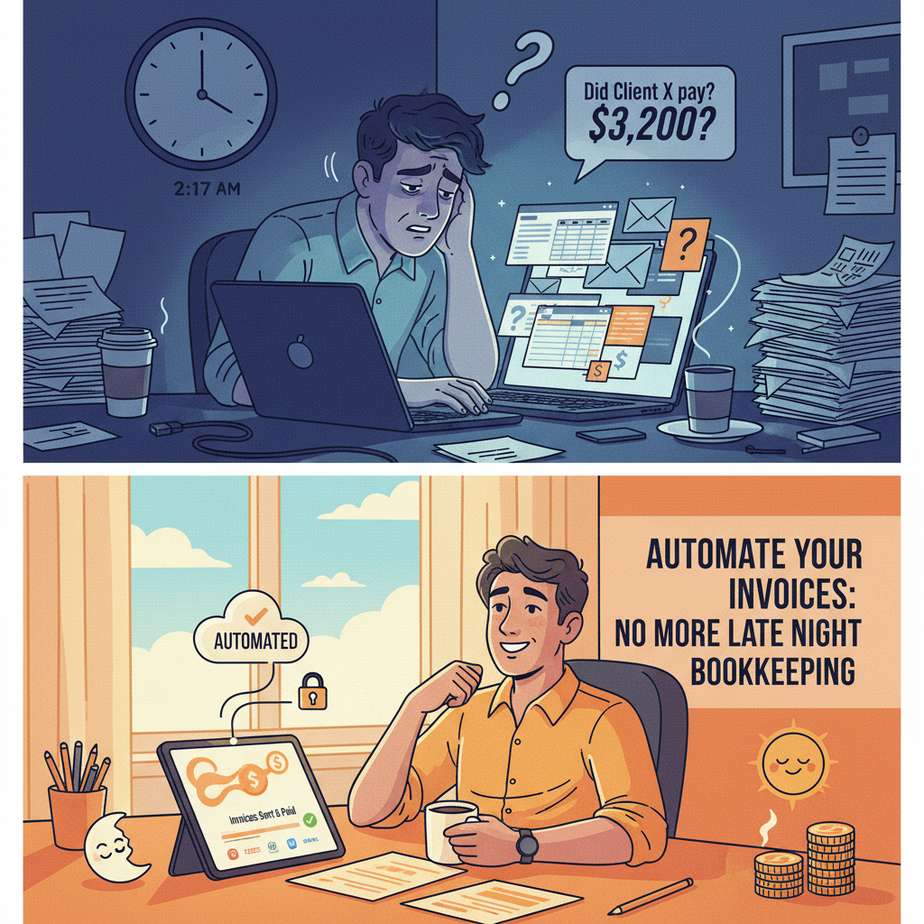
The 2 AM Invoice Panic
You squint at the screen. 2:17 AM. Your eyes burn. You’re digging through emails, trying to remember if Client X paid that $3,200 invoice from last Tuesday. You find the contract. Then you have to open Excel, find the right row, type the numbers, save as PDF, email it, and then—crucially—set a calendar reminder to follow up in 7 days.
This is you, playing the role of a human spreadsheet. It’s not just tedious; it’s expensive. Every minute you spend on this is a minute you’re not selling, creating, or leading. You’re doing the work of a low-cost intern, except you’re paying yourself a founder’s salary.
What if your invoice pipeline was a factory with robots doing the boring work? What if you only had to approve exceptions, not create every single document?
Why This Matters
This isn’t about looking professional (though you will). It’s about cash flow.
- The Problem: Manual invoicing = delayed payments. A 10-day delay on a $5k invoice means you’ve lost the time value of money. At a 5% opportunity cost, that’s a $50 loss. Do that 50 times a year? That’s $2,500 in lost potential.
- The Scale: As you grow, this pain multiplies. More clients = more invoices. If it takes 10 minutes per invoice (typing, formatting, sending, filing), 20 invoices a month is over 3 hours of forced, mind-numbing work.
- The Sanity Tax: The mental load of tracking payments, chasing late payers, and reconciling accounts steals your cognitive energy. It’s brain fog you can’t afford.
Who This Replaces: You, your bookkeeper (if you have one), and the junior freelancer you might hire just for admin. We’re not firing people; we’re upgrading our systems so humans can focus on creative, high-value work.
What This Automation Actually Is
We’re building an AI-Powered Accounts Receivable Agent. It’s a workflow, not a single button. Here’s what it does:
- Trigger: A new sales signal (e.g., a deal closed in your CRM, a new client sign-up form submitted).
- Generate: It automatically creates a polished, accurate invoice with all details (client info, line items, dates, totals).
- Send: It emails the invoice to the client with a professional cover note.
- Track: It logs the invoice status (sent, viewed, paid) in your dashboard.
- Remind: On day 7, 14, and 21 if unpaid, it sends a polite reminder. It can even draft a response if the client replies with a question.
- Alert You: It pings you only for truly abnormal situations (e.g., a large invoice is overdue by 30+ days, or a client disputes a charge).
What It Doesn’t Do: It doesn’t magically deposit money into your bank (though that would be nice). It doesn’t handle complex, multi-entity accounting. It’s a smart automator for the routine, high-frequency tasks of the A/R cycle.
Prerequisites
Be brutally honest with yourself: If you’ve never used a no-code tool before, this is your perfect starting point. The pain you’re solving is universal, and the tools are visually intuitive.
- A no-code automation platform: We’ll use Make.com (formerly Integromat). It has a generous free plan. Think of it as the robotic arm that connects all your apps.
- A form/spreadsheet source: Google Sheets or Airtable. This is your ‘command center’ where new invoice requests live.
- A document generator: Google Docs. We’ll use its templates to create invoices that look professional.
- An email service: Gmail or Outlook. This is your voice for sending invoices and reminders.
You need zero coding knowledge. You just need to think in terms of “If This Happens, Then Do That.” You’ll build this in under 90 minutes.
Step-by-Step Tutorial: The Invoice Factory
Step 1: Set Up Your Invoice Command Center (Google Sheets)
We need a central place to control the automation. Create a Google Sheet named ‘Invoice Command Center’.
Create these columns:
Client Name | Client Email | Project Name | Amount | Due Date | Status | Invoice Sent On | Invoice PDF Link | Payment Reminder OnNow, think like a robotic arm. We need two sheets in this workbook:
- ‘New Requests’: This is where you (or a form) drop new invoice data. We’ll focus on this.
- ‘Archive’: This is where the automation moves paid/completed invoices. Keep it clean.
Step 2: Create Your Invoice Template (Google Docs)
Open a new Google Doc. Create a basic invoice template. Use placeholders in {{double braces}} for the data we’ll pull from Sheets.
INVOICE #{{Invoice Number}}

To: {{Client Name}}
Email: {{Client Email}}
Project: {{Project Name}}

Description: Consulting Services
Amount: ${{Amount}}

Due Date: {{Due Date}}
-----------------------------------
Total Due: ${{Amount}}

Thank you for your business!
Save this doc. It’s our master template. The automation will duplicate it for every new invoice.
Step 3: Connect Your Tools in Make.com
Sign up for a free Make.com account. Create a new ‘Scenario’ (this is the name for an automation workflow).
Step 4: Build the ‘Invoice Creator’ Module
- Trigger: Add a Google Sheets module. Select ‘Watch New Rows in a Spreadsheet.’ Connect your ‘Invoice Command Center’ sheet and point it to the ‘New Requests’ tab.
- Generate Invoice Number: Add a Tools module (the wrench icon). Select ‘Set Variable’. Name it
invoice_number. In the formula, use:INV-{{formatDate(now; 'YYYYMMDD')}}-{{round(1000+9999 * random(1))}}. This creates a unique number like INV-20231027-4521. - Create the Document: Add a Google Docs module. Select ‘Create a Copy from a Template.’ Map your placeholders:
{{Invoice Number}}= Your variableinvoice_number{{Client Name}}= ‘Client Name’ from your Sheet{{Client Email}}= ‘Client Email’ from your Sheet- And so on for Project Name, Amount, Due Date.
- Export as PDF: Add a Google Docs module. Select ‘Export a Document as PDF.’ Use the document from the previous step.
- Update Sheet Status: Add a Google Sheets module. Select ‘Update a Row.’ Update the row with the new status: ‘Sent,’ the current date in ‘Invoice Sent On,’ and the PDF link in ‘Invoice PDF Link.’
- Send Email: Add a Gmail module. Select ‘Send an Email.’ To: the client email. Subject: “Invoice {{invoice_number}} from Your Company”. In the body, write a polite message and attach the PDF from the previous step.
Test it. Add a fake row to your ‘New Requests’ sheet. Turn on the scenario. Watch the magic happen. You should get a PDF in your Google Drive and an email to your test inbox.
Complete Automation Example: The Client Onboarding Flow
Let’s connect this to a real business workflow. You sell a $2,000 ‘Setup Consultation.’
- Trigger: A client signs up using a Typeform (or Google Form) on your website. The form fields: Name, Email, Company, Package Selected.
- Pass to Airtable/Sheets: The form submissions automatically populate your ‘Invoice Command Center’ Sheet. This is our trigger for Invoice Creator automation.
- Automation Launches: As described above, the Make.com scenario picks up the new row. It generates the invoice PDF, emails it, and updates the status.
- Payment Follow-up: A separate, scheduled Make.com scenario runs daily. It scans the Sheet for rows where:
– Status = “Sent”
– Current Date > ‘Invoice Sent On’ + 7 days
– No payment received (you’d update this manually or via bank webhook). - Human Handoff: Only if a payment is 21 days late do you get a Slack/Email alert. You step in for a personal touch.
It then sends a polite reminder email.
The result? You only touched the process twice: once to confirm the deal, and maybe once to follow up on a truly late payment. Everything else—creation, sending, initial chasing—is automated.
Real Business Use Cases
- Freelance Developer: You use GitHub Issues or a Trello board. When you move a card to ‘Done,’ it triggers an invoice for the task’s quoted price. Instant invoicing = faster payment.
- SaaS Startup (Pre-Venture Budget): A user upgrades their plan in Stripe. A webhook triggers your automation. An invoice for the upgrade fee is automatically generated and emailed. Zero developer time spent on billing logic.
- Marketing Agency: Monthly retainers. The automation runs on the 1st of every month, generates 50 invoices for all retainers, and emails them. The bookkeeper only sees a clean ‘Paid’ column to reconcile.
- Consulting Firm (Project-Based): You use ClickUp for project management. When a phase milestone is approved by a client in ClickUp, it triggers a partial invoice. Ensures cash flow aligns with project progress.
- E-commerce Dropshipper (B2B): You have repeat wholesale clients. A simple SMS (via Make.com’s Twilio module) or WhatsApp message to a dedicated number with a phrase like “Invoice Order #123” triggers the full invoice creation for that order number, pulling all data from your order sheet.
Common Mistakes & Gotchas
- Over-Automating Too Soon: Start with the basic chain: Sheet -> Doc -> Email. Don’t add complex logic (like tiered late fees) until you’ve tested the core for a month.
- Ignoring the ‘Human Exception’ Path: Your automation MUST have an easy way for you to pause it or handle disputes. Build in a ‘Status’ column you can manually change to ‘HOLD’.
- Template Typos: Double-check your Google Docs placeholders. A `{{Client Name}}` that doesn’t match the Sheet column name will break everything. Test with a row of dummy data.
- Forgetting the Archive: Once paid, move the row to an ‘Archive’ tab. This keeps your ‘New Requests’ trigger clean and prevents duplicate invoice generation.
- Not Setting Up Payment Tracking: This automation tracks ‘sent’ status, not ‘paid.’ For a true closed-loop, you’d need a bank webhook or manual update. That’s a lesson for when you’re ready for Level 2.
How This Fits Into a Bigger Automation System
This invoice agent is a crucial cog in your Revenue Machine.
- CRM Connection: Instead of a manual Sheet, your trigger could be a deal marked ‘Closed-Won’ in HubSpot or Salesforce. The automation pulls all client data from the CRM.
- With Voice Agents: An AI phone agent confirms a project with a new lead. After the call, it automatically populates the Invoice Sheet to kick off the process.
- Multi-Agent Workflow: Invoice Agent (creates & sends) + Collections Agent (chases payments) + Ledger Agent (updates your master financial dashboard). They work in tandem.
- RAG System Enhancement: Connect a RAG system (like a custom GPT) to your historical invoices. A client emails a billing question. The RAG agent instantly retrieves the invoice details and drafts a perfect reply for you to approve and send.
What to Learn Next
You’ve just built your first robotic employee for the most stressful, unglamorous part of business. The relief of seeing that PDF generate and send automatically is palpable.
In our next lesson, we’ll take this same invoice data and plug it into a live financial dashboard. You’ll see your MRR, cash runway, and collection efficiency update in real-time without ever opening Excel.
But first, go set this up. Take a screenshot of your successful test run and post it in the course community. The momentum from building this one automation will change how you view every repetitive task in your business.
Your factory is now hiring. Welcome to automation.
“,
“seo_tags”: “invoice automation, automated invoicing, no-code business automation, Make.com tutorial, accounts receivable automation, AI for small business, finance automation workflow”,
“suggested_category”: “AI Automation Courses