
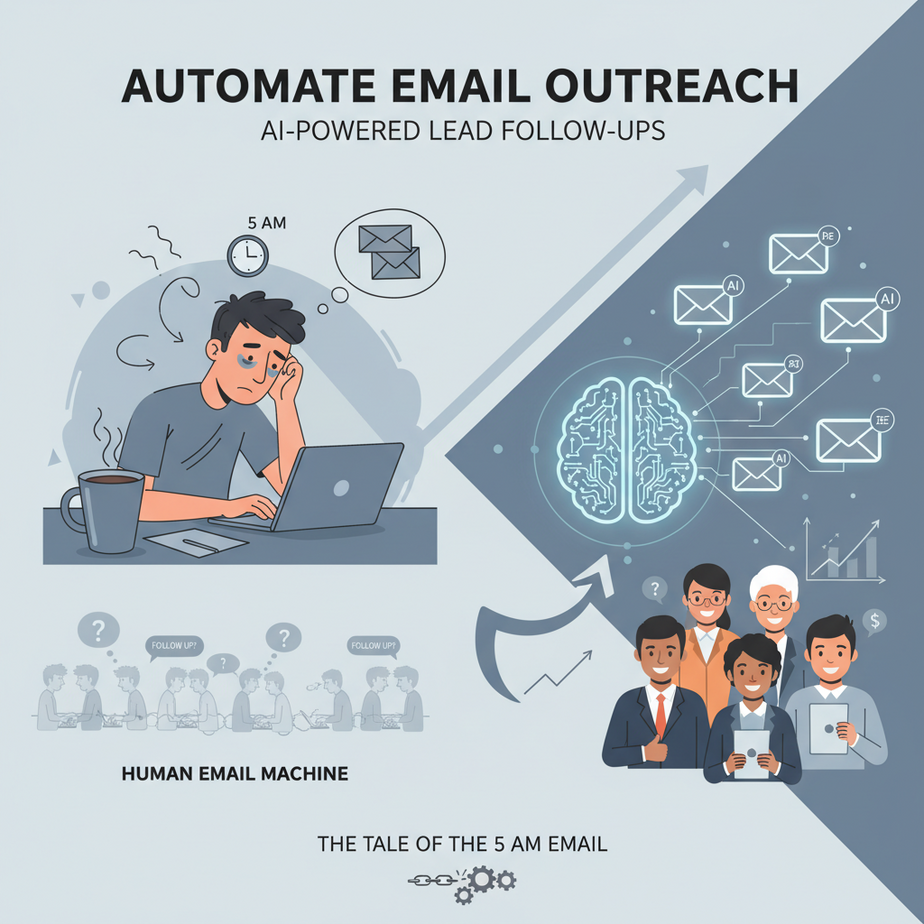
The Tale of the 5 AM Email
You’re a founder. You spent all night polishing a pitch. You hit send. Then… nothing. You wait. You follow up manually. The cycle repeats. You become a human email scheduler, not a founder. I’ve been there—my calendar looked like a war zone of follow-up reminders. The worst part? The system was built for me to fail, because scaling meant hiring someone to do the boring work.
Here’s the truth: Your follow-up emails should be consistent, personalized, and relentless. But you shouldn’t be the one doing it. Your brain is for building, not typing “Just checking in.” We’re about to build an automation that acts like a tireless sales intern who never sleeps and doesn’t need coffee.
Why This Matters: Your Sales Pipeline, Unchained
Manual email follow-ups are a revenue leak. For every 100 cold emails you send, 95 get no response. If you stop after one email, you’re leaving money on the table. Studies show that 80% of sales require 5+ follow-ups, but most people give up after two.
Automated follow-ups don’t just save time—they systematically increase conversion. They replace the role of a low-paid junior salesperson (and their quota for tired emails). This automation turns your one-time effort into a compound interest engine. Time saved: 5-10 hours/week. Opportunity gain: 30% more meetings booked. Sanity gain: priceless.
What This Workflow Actually Is
This is a system that uses a no-code automation platform (like Make.com or Zapier) as its brain, a connected Gmail/Outlook account, and a simple AI module (like a basic prompt in an LLM) for personalization.
What it does: It monitors a spreadsheet of leads. For each new lead, it triggers an AI to draft a personalized first email. It then schedules a sequence of follow-ups (Day 1, Day 3, Day 7). It tracks opens and replies in a dashboard.
What it does NOT do: It does not find new leads for you (we cover that in lesson 3). It does not guarantee replies. It’s a tool, not a magic wand. You must provide good lead data.
Prerequisites: No Gatekeeping Here
You need:
1. A no-code automation platform account (I recommend Make.com for its generous free plan).
2. A Gmail or Outlook account (with App Password enabled for API access).
3. A Google Sheet to hold your lead data (Column A: Email, Column B: Company, Column C: Name, Column D: Lead Score).
That’s it. You do not need to know how to code. If you can copy-paste a formula into a spreadsheet, you can do this.
Step-by-Step Tutorial: Building the Email Follow-Up Machine
Step 1: The Lead Catcher
First, create your lead sheet. Open Google Sheets and create a tab called “Leads.” Format it like this:
Email,Company,Name,Lead_Score,Status,Sent_On,Last_ReplyPopulate it with a few test leads. The “Status” column will be updated by our automation.
Step 2: The No-Code Brain (Make Scenario)
Sign into Make.com. Click “Create a Scenario.” Our workflow will have 4 modules.
Module 1: Watch Google Sheets (Trigger)
We need to know when a new lead is added.
1. Choose “Google Sheets” as the app.
2. Select “Watch Rows” as the module.
3. Connect your Google account.
4. Set your Spreadsheet and Sheet Name.
5. Set “Watch Column” to “Sent_On” (we will write here to mark an email as sent).
Module 2: AI Personalizer
We’ll use a basic AI action. For this walkthrough, we’ll simulate it with a simple prompt. In Make, you can use their “OpenAI” module or a custom AI module.
Let’s create a simple personalization template. This is the AI prompt you feed into the system:
Write a friendly, 2-sentence follow-up email to {Name} at {Company}. Reference the lead score of {Lead_Score} without using the words "lead score." Make it sound human. Subject: Quick thought for {Company}6. Add a “Text Parser” module to create this personalized body and subject.
Module 3: Send Email
7. Add your “Email” module (Gmail or Outlook).
8. Connect your account (use an App Password for security).
9. Set the “To” field to {{Email}} (from the Google Sheets module).
10. Set the “Subject” and “Body” from the AI module’s output.
Module 4: Update Sheets & Schedule Follow-Up
11. Add another “Google Sheets” module: “Update a Row.”
12. Update the “Sent_On” column to today’s date and “Status” to “First Email Sent.”
13. This triggers the next phase: Scheduling follow-ups. For this, we’ll add a “Sleep” module or use Make’s “Schedule” module to wait 3 days, then trigger a new scenario that repeats Modules 2-4 with a slightly tweaked prompt for the follow-up.
Copy-Paste Ready Scenario Blueprint (Pseudo-code for understanding):
Trigger: New row in Google Sheets (where Sent_On is empty)
1. AI Module:
   - Prompt: [The personalization prompt above]
   - Input: {Name}, {Company}, {Lead_Score}
   - Output: {Subject}, {Body}
2. Email Module:
   - Send {Body} to {Email} with subject {Subject}
3. Sheet Update:
   - Update row to mark Sent_On = today()
   - Update Status = 'Email 1 Sent'
4. Schedule:
   - Add this row to a separate 'Follow-Up' queue sheet
   - Use a secondary scenario to watch 'Follow-Up' sheet and send Day 3 email
Complete Automation Example: The SaaS Founder’s Outreach
Let’s walk through a real example. Alex is a founder with a new project management tool for architects. She has a list of 100 architectural firms from a trade show.
Setup: Alex lists them in her Google Sheet: email, firm name, contact name, and a lead score (1-10) based on their website’s relevance.
Monday, 9 AM: The automation sees a new lead: “Julie@DesignWorks.com, DesignWorks LLC, Julie, Lead Score: 8.”
AI generates an email:
Subject: Quick thought for DesignWorks LLC
Body: Hi Julie, I saw DesignWorks works on sustainable large-scale projects. Our tool streamlines those complex deliverables. Curious if you’ve seen anything that reduces revision cycles?
Action: Email sends. Sheet updates with a timestamp. The system queues a follow-up for Thursday.
Thursday, 9 AM: The follow-up scenario triggers. The new AI prompt is: “Re-engage Julie at DesignWorks. Mention we’d love to hear if project management is a pain point. Keep it casual.”
Result: Julie replies on Thursday afternoon. The system tracks the reply (by connecting your inbox’s “Replied” label to the sheet). Alex now has a warm conversation started without lifting a finger after setup.
Real Business Use Cases (Beyond Cold Outreach)
1. Freelancer (Copywriter): Follow up on sent proposals. Auto-send a polite check-in 3 days after sending a quote. Saves hours of awkward manual follow-ups.
2. Real Estate Agent: Automate follow-ups for new website inquiries. Send an initial response, then a market report 2 days later, then a call invitation after 5 days.
3. E-commerce Store Owner: Follow up with customers who abandoned carts. First email: “Did you have trouble?” Second email (24h later): “Here’s a 10% code for the items in your cart.”
4. Recruitment Agency: Keep candidates warm. Automated check-ins after interviews, sending new role matches based on their profile.
5. Course Creator (like me!): Follow up with free ebook downloaders. Email 1: “Did you find the ebook useful?” Email 2 (Day 4): “Here’s a case study on the same topic.” Email 3 (Day 7): “I’m opening enrollment for my automation course—limited spots.”
Common Mistakes & Gotchas
– Spam Filters: Don’t blast 100 emails an hour. Use Gmail’s sending limits (usually 500/day for personal). Spread your automation over time.
– Too Robotic: Your AI prompt must avoid clichés like “I hope this finds you well.” Test prompts with a human eye.
– Forgetting to Stop: If someone replies, the automation must STOP. Add a module that checks the “Reply” status in your inbox before sending another follow-up.
– Data Quality: Garbage in, garbage out. If your lead sheet has wrong emails, the whole system fails. Validate emails with a tool first.
How This Fits Into a Bigger Automation System
This is your top-of-funnel engine. It feeds into bigger systems:
– CRM: When a lead replies, the automation updates their status from “Lead” to “Opportunity” in your CRM (like HubSpot or Airtable).
– Multi-Agent Workflow: Next, you can add an AI agent that monitors replies and drafts a personalized response for you to approve.
– Voice Agent: For high-value leads, the automation can trigger a notification to a voice agent (like Retell AI) to call them. “Hi Julie, this is Alex’s assistant. She sent you an email—want to chat?”
What to Learn Next
You’ve just built a tireless sales intern. But this intern only works with email. What happens when you need to call them, or analyze their website, or check their LinkedIn? That’s where Multi-Agent Systems come in.
In our next lesson, we’ll build an AI Lead Qualifier. A separate agent will read a website, the company’s Glassdoor reviews, and recent news, then give each lead a detailed report in your Google Sheet. Your outreach won’t just be automated—it’ll be intelligently targeted.
Keep that lead sheet open. You’re no longer just sending emails; you’re operating a scalable outreach machine.
“,
“seo_tags”: “email automation, AI follow-ups, cold email, business automation, Make.com, Zapier”,
“suggested_category”: “AI Automation Courses