
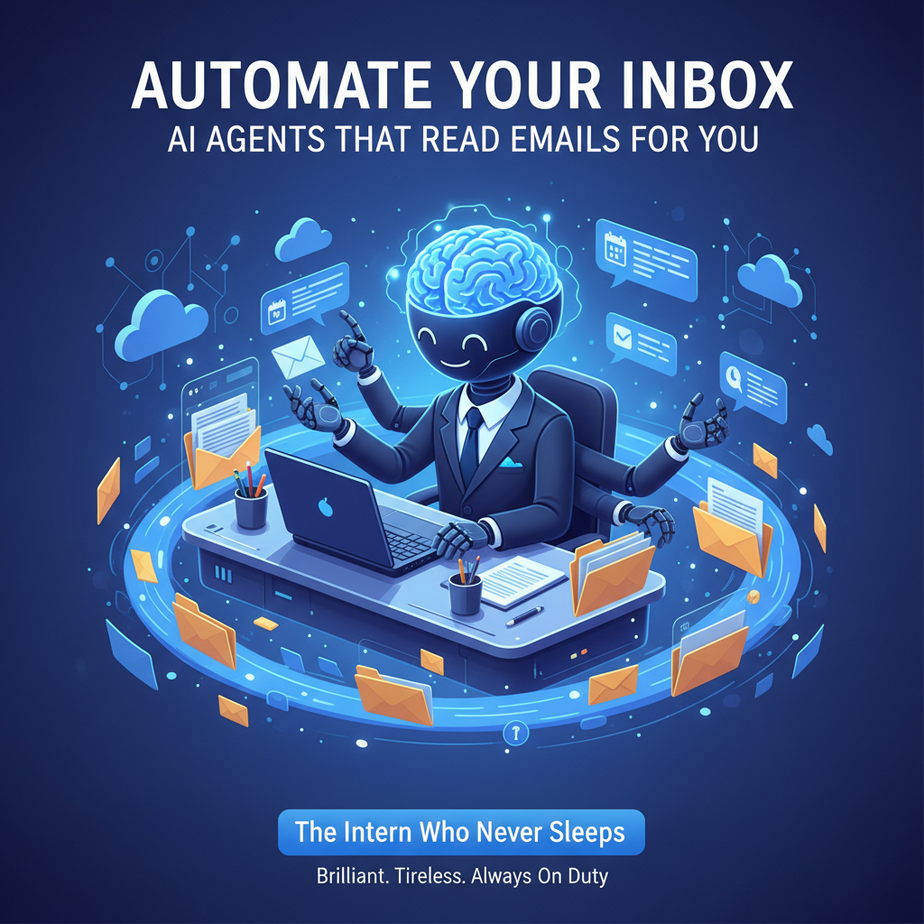
Hook: The Intern Who Never Sleeps
Imagine you have a new intern. This intern is brilliant at reading, understanding, and acting on every single email you receive. They never get tired, never miss a deadline, and always know which emails are critical versus which can wait until tomorrow. The best part? This intern costs $0 per hour and works 24/7.
Yesterday, a client told me they spent 3 hours manually sorting 200 emails. Three hours! That’s time they could have spent building their product, closing a deal, or enjoying a coffee. Instead, they were playing digital janitor. This is absurd. Your inbox shouldn’t be a chore—it should be a priority queue.
Why This Matters: The Cost of Inbox Chaos
Every unprocessed email is a tiny debt on your mental bandwidth. Left unchecked, these debts compound. You miss time-sensitive opportunities, your clients feel ignored, and your brain gets stuck in context-switching hell. We’re not just talking about wasted time—we’re talking about lost revenue.
When you automate email triage, you replace a manual task with a consistent, repeatable system. Instead of you deciding what’s urgent, an agent does it based on your rules. You move from reactive firefighting to proactive strategy. This isn’t just productivity—it’s business preservation.
What This Automation Actually Is (And Isn’t)
We’re building an AI agent that connects to your email account (like Gmail), reads the content of incoming messages, categorizes them (e.g., “Urgent,” “Read Later,” “Spam”), and can draft context-aware replies based on simple prompts. It uses modern language models to understand intent, not just keywords.
What it DOES: Reads emails, extracts key info (sender, topic, urgency), categorizes based on your business rules, drafts smart replies, and can trigger external actions (like adding a calendar event).
What it DOES NOT do: It won’t magically negotiate complex deals for you. It won’t replace human judgment for sensitive emails. And it won’t create spam—it’s designed to handle legitimate, human-to-human correspondence.
Prerequisites: Just Your Email and a Basic Tool
Brutally honest here: you need zero coding skills. We’ll use a visual automation tool (like Make, Zapier, or n8n) that lets you connect services with clicks, not code. You also need a Gmail account (or similar) and a free API key from a service like OpenAI (which gives you some free credits).
If you’re nervous, good. You should be. Your email is personal. So we’ll start with a test Gmail account. Never, ever run a new automation on your primary inbox without testing. Remember the first rule of automation: protect your data.
Step-by-Step: Build Your First Email Agent
- Set Up Your Test Email: Create a new Gmail account. This is your sandbox. Never automate your main personal or business inbox first.
- Enable App Passwords: Go to your Google Account > Security > 2-Step Verification > App Passwords. Generate a password for your automation tool. This is your key.
- Choose Your Automation Tool: Sign up for a free account on a visual automation platform like Make (make.com). They often have free tiers for low-volume tasks.
- Create a New Scenario/Workflow: In your tool, create a new automation. We’ll start with a simple trigger: “When a new email arrives in Gmail.”
// Visual Workflow Setup (Pseudo-Code) // Trigger: Gmail "New Email" // Action 1: Get email content (subject, body, sender) // Action 2: Send content to AI for analysis // Action 3: Based on AI response, label or move email - Configure the Gmail Trigger: Connect your test Gmail account. Set the trigger to watch the inbox. You can filter for new messages (leave the folder as “Inbox”).
- Add an AI Analysis Module: Connect to an AI service (like OpenAI). Send the email subject and body as a prompt. Ask the AI to categorize it and suggest an urgency level. Your prompt might be: “Analyze this email. Return a JSON with fields: category (“Urgent”, “To Review”, “Spam”) and draft_reply (a short, professional response).”
// Sample AI Prompt "You are an email assistant for a small business. Analyze this email. Return JSON with keys: 'category' (one of: Urgent, To Review, Ignore) and 'draft_reply' (a short, polite sentence)." - Parse the AI Response: Your automation tool will receive the AI’s JSON output. Extract the category and draft reply.
- Take Action Based on Category:
– If “Urgent”: Apply a red label “URGENT”, move to a priority folder, and send you a notification (via SMS or Slack).
– If “To Review”: Apply a yellow label “Follow Up” and leave it in the inbox.
– If “Ignore”: Archive the email. - Optional: Send a Draft Reply: For “Urgent” emails, you can set the automation to automatically reply using the draft from the AI. ALWAYS set a delay (e.g., 5 minutes) for you to review before sending.
// Safety Check in Automation If email category is "Urgent": Wait 5 minutes Show me draft: [AI generated reply] Let me click "Send" or "Edit" - Test Thoroughly: Send test emails to your sandbox account. Check that labels are applied, drafts are accurate, and notifications work. Run the automation for at least 24 hours.
Complete Automation Example: The Freelance Consultant
Business: A freelance consultant who gets client inquiries via email.
Problem: Gets 50 emails/day. Misses urgent client questions buried under newsletters and spam.
Automation:
- Agent reads every incoming email.
- Uses AI to detect if email contains phrases like “deadline,” “urgent,” or “contract.” If yes, category = “Urgent.”
- If category = “Urgent”: It drafts a reply: “Hi [Name], thanks for reaching out. I’ve seen your message and will respond with a full proposal by EOD tomorrow. Best, [Your Name].”
- It applies a “CLIENT-URGENT” label, moves it to a “Priority” folder, and sends a Slack alert to the consultant’s phone.
- If the email is a “To Review” (e.g., a general inquiry), it drafts a polite acknowledgment and marks it for manual reply during a scheduled “Client Reply Time” block (2-4 PM daily).
Outcome: The consultant responds to urgent emails within an hour instead of 6 hours. Client satisfaction scores improve. She regains 2 hours daily previously spent on email triage.
Real Business Use Cases
- E-commerce Store Owner: Handles order inquiries, shipping questions, and return requests. The agent prioritizes “return defective item” emails as urgent, others are queued for daily batch processing.
- Real Estate Agent: Filters property inquiries by urgency (e.g., “I need to move in 2 weeks” vs. “Just looking”). Creates calendar invites for urgent tours automatically.
- Small Law Firm: Sorts client emails by case type (e.g., “Family Law,” “Business Contract”) and auto-drafts acknowledgment replies, routing to the right paralegal via labels.
- Online Course Creator: Separates “Course Access Issue” (Urgent) from “Feedback” (To Review). Auto-resolves common access issues with pre-written links, saving support time.
- Non-Profit Fundraiser: Flags “Donation Inquiry” and “Grant Proposal” emails for immediate follow-up. Archives press releases and newsletters automatically.
Common Mistakes & Gotchas
- Over-Automating Sentiment: AI can misinterpret sarcasm or cultural nuances. Never auto-delete based on AI classification—always archive instead.
- Security Blunders: Never use your primary personal email. Create a dedicated email for automation testing. Your AI tool needs access; protect it like your bank password.
- Ignoring Volume Limits: Free email API quotas are low. Start with 10-20 emails/day. Scale to a paid plan only after you’ve validated the workflow.
- Forgetting Human Oversight: Your first automation should only take low-risk actions (like labeling). Add drafts, don’t send them, until you’re 100% confident.
How This Fits Into a Bigger Automation System
This email agent is your front-line filter. It’s the intake valve for your entire business automation system. Here’s how it connects:
- CRM Integration: If the AI detects a lead email, it can create a new contact in your CRM (like HubSpot or Salesforce) and assign a task to a sales rep.
- Task Management: Urgent emails can create tasks in Asana or Trello for you or your team.
- Multi-Agent Workflows: This email agent passes extracted info to other agents (e.g., a billing agent for invoice queries, a scheduling agent for meeting requests).
- RAG (Retrieval-Augmented Generation): For complex questions, the agent can pull your knowledge base (FAQ, past proposals) to draft more accurate replies.
Think of your business as a factory. This email agent is the quality control inspector at the entrance, ensuring only the right raw materials (information) get to the assembly line (your tasks).
What to Learn Next: From Triage to Action
Now that your inbox is no longer a digital junk drawer, the next logical step is action. In our next lesson, we’ll build a “Calendar Agent” that reads your categorized emails, creates smart calendar events from meeting requests, and automatically declines conflicts. It’s the perfect handoff—your email agent flags the priority, and your calendar agent locks in the commitment.
Imagine going from inbox chaos to a perfectly booked calendar without lifting a finger. That’s not science fiction; it’s the next button you’ll click in this course. The momentum is building. Your automated business is taking shape, one agent at a time.