
Hook
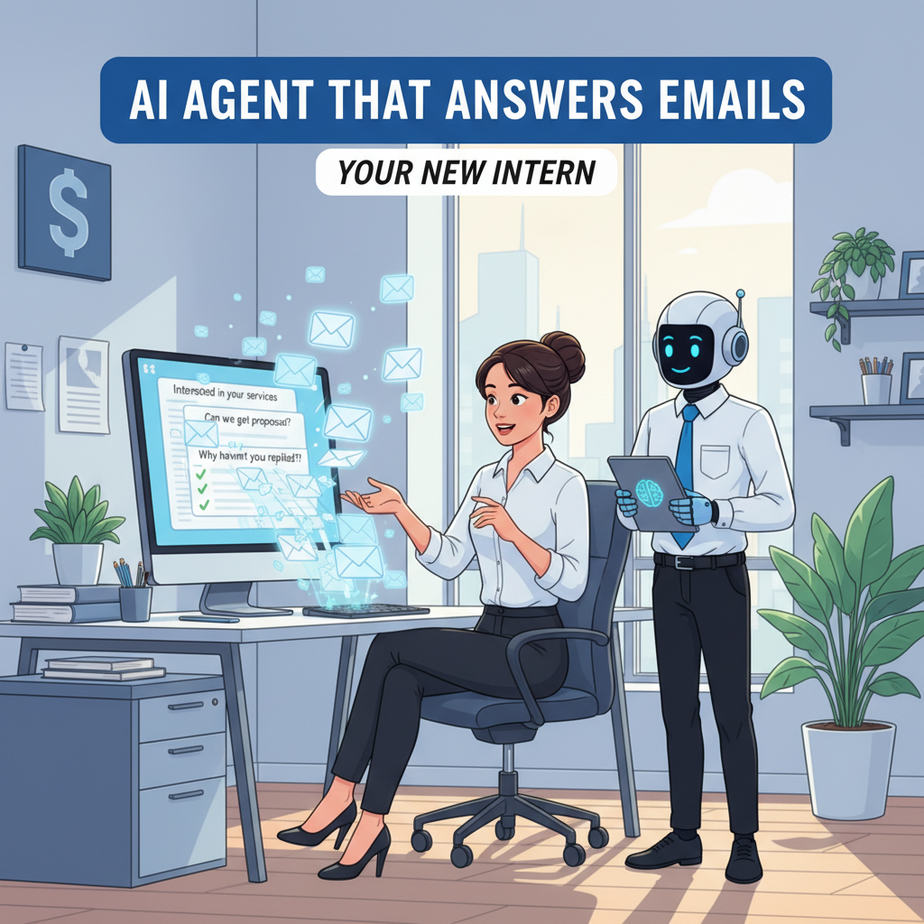
Meet Sarah. She runs a boutique marketing agency. Every morning, she wakes up to 150 unread emails. “Interested in your services,” “Can we get a proposal?,” “Why haven’t you replied?!”
She spends 90 minutes a day just reading, triaging, and replying. It’s death by a thousand “quick” emails. Her business is growth, but her inbox is a black hole.
She fired her previous intern for missing a crucial client email. Now, she needs a new intern—one that doesn’t sleep, doesn’t get grumpy, and doesn’t cost $20/hour.
That’s what we’re building today: an AI Agent intern for your inbox.
Why This Matters
Most emails aren’t complex. They’re repetitive. “What’s your pricing?” “When can we meet?” “Here’s the document.”
Handling these manually is like having a human scan every single item at a self-checkout. You pay them $40,000 a year to do a robot’s job.
This automation replaces:
- The junior staff member who just sorts inbox folders.
- The perpetual delay in responding to new leads.
- The missed opportunity because an email got buried.
Business impact: Respond to 80% of inquiries in under 5 minutes. Never lose a lead to your inbox again. Free up 10+ hours per week for actual strategy and work.
What This Actually Is (And Isn’t)
What it IS: A workflow that watches your inbox, reads new emails, decides if it’s a standard inquiry (pricing, meeting, document request), and sends a drafted, appropriate reply. It also flags the “urgent” or “complex” ones for human review.
What it is NOT: A sentient AI having deep conversations. It’s not for legal contracts, sensitive data, or emotionally charged emails. It’s a triage and drafting assistant, not a replacement for your judgment.
Prerequisites
Brutally honest: You don’t need to code. But you need to be comfortable with a visual workflow tool (n8n) and setting up an API key.
- n8n account: The free tier is plenty. It’s a visual, node-based tool like a digital circuit board.
- OpenAI API key: You can get this from platform.openai.com (costs pennies for this task).
- Gmail account: We’ll use Gmail for this example, but works with Outlook too.
If you can set up a Netflix account and connect it to your TV, you can do this.
Step-by-Step Tutorial: Building Your Inbox Intern
Step 1: Set Up the Trigger
Open n8n. Create a new workflow. Add the Gmail node.
Node Type: Gmail (Trigger)
Trigger On: New Email Received
Folder: Inbox
Search Query: "is:unread"
Why: This is the motion detector. It only wakes up when a new, unread email hits your inbox. This prevents loops and saves your API costs.
Step 2: Parse the Email
Add an AI Agent (or simply a Chat GPT node in n8n). Connect it to the Gmail trigger.
Configure the prompt. This is the brain of your intern. Tell it what to look for.
System Prompt: You are a helpful assistant for [Your Name]. Your job is to triage emails. Look for common requests: pricing questions, meeting requests, document sharing. Do NOT respond to legal or sensitive topics. Identify the sender's intent and urgency.Use the email body and subject as the input. The AI will output a structured decision.
Step 3: Add Decision Logic
Add an IF node to route the email based on the AI’s analysis.
IF (AI output contains "urgent") → Route to Human Review
ELSE IF (AI output contains "pricing inquiry") → Route to Pricing Draft
ELSE IF (AI output contains "meeting request") → Route to Meeting Draft
ELSE → Route to Simple Reply
Why: This is the routing station. Simple inquiries get automated answers. Complex ones get flagged for you.
Step 4: Draft the Reply
For the “Pricing Draft” path, add another AI node with a specific prompt.
System Prompt: Draft a friendly, professional reply to a pricing inquiry. Include a link to our pricing page and ask if they'd like a custom proposal. Keep it short.
User (from previous node): {{ $json.email_body }}
The output is a draft. For extra safety, connect to a Google Sheets node to log the draft before sending, or set the Gmail node to “draft only” to let you approve it. Start by letting it draft. Later, you can automate sending.
Step 5: Send (or Save) the Reply
Add the final Gmail node to send the drafted reply.
Operation: Send Email
To: {{ $json.sender }}
Subject: Re: {{ $json.subject }}
Body: {{ $json.draft_reply }}
From: Your Gmail
Crucial Safety Step: In n8n, you can set this node to “Test Mode” first. Run the workflow a few times manually. Review the drafts. Only switch to full automation when you trust it.
Complete Automation Example
Scenario: A new lead emails you: “Hi, I love your work. What are your rates for a social media campaign?”
What Happens:
- Gmail Trigger catches the email. n8n wakes up.
- AI Analyzer reads it: “Intent: Pricing Inquiry. Urgency: Low. Sender: New Lead.”
- IF Node routes it to “Pricing Draft.”
- Draft AI writes: “Hi [Name], thanks for reaching out! Our social media campaigns start at $1,500/month. I’ve attached our detailed pricing sheet. Would you like to schedule a call to discuss your specific goals?”
- Gmail Node sends the reply. Total time from inbox to reply: 45 seconds.
- Log to Sheets adds the interaction to your lead tracker.
Sarah doesn’t see the email until her weekly review. The lead gets an instant response and feels attended to.
Real Business Use Cases
- Consultant: Filters out “Are you available for a quick call?” emails, drafts a calendar link response, flags custom project requests for review.
- Real Estate Agent: Handles “Can I see the house on Elm Street?” with automated viewing times, flags “What’s my home worth?” for a personal call.
- E-commerce Store: Responds to “Where is my order?” by pulling tracking info and replying, and sends “When will X be back in stock?” to a stock alert system.
- Freelance Developer: Auto-replies to “Can you fix my website?” with a link to her booking form, keeps client project updates for manual response.
- SaaS Founder: Triages feature requests and bug reports into separate Google Sheets, sends “Thanks, we’ve logged it!” replies to all.
Common Mistakes & Gotchas
- Using it for sensitive data: Never let an AI auto-reply to legal, HR, or confidential client matters. Always have a human filter.
- Costs spiraling: Each email processed uses a tiny bit of OpenAI credit. Start with a budget. Monitor costs. One email is ~$0.005.
- The AI hallucinates: It might invent a “custom proposal” if not prompted correctly. Always test with your exact customer language.
- API limits: Gmail has rate limits. For 100+ emails/day, you need a paid Google Workspace account and might need to slow the workflow.
- Missing the personal touch: Don’t auto-reply to long, thoughtful emails. The AI should flag anything over 3 sentences or from known contacts.
How This Fits Into a Bigger Automation System
This email agent is your first, most visible soldier. It’s the front door. But it connects to your entire battlefield:
- CRM Integration: When the AI identifies a lead, it can create a contact in your CRM (HubSpot, Salesforce) via their API node.
- Calendar Scheduling: For meeting requests, the draft can include a link to your Calendly/Calendly-like tool. The next lesson builds a scheduling agent.
- Multi-Agent Workflow: This agent can trigger a reporting agent that analyzes the week’s leads and sends you a Monday morning summary.
- Voice Agent Handoff: If the AI flags an “urgent” or “complex” email, it could trigger a voice agent to call you and read the critical details aloud.
- RAG System: Connect it to your knowledge base. Instead of a generic pricing link, the AI could pull your latest pricing PDF and summarize it for the client.
This isn’t just an email helper. It’s the orchestrator of your communication layer.
What to Learn Next
Today, you built a reactive inbox triage system. In our next lesson, we’re going to make it proactive.
Next Up: The Scheduling Agent.
Imagine this: The same lead who asked about pricing gets a personal, automated meeting invitation from your calendar—without you ever opening your calendar. We’ll build an agent that negotiates meeting times with your clients using a multi-step AI conversation.
You’ve started building your digital workforce. One agent down, a full team to go.
Now go test it with 5 emails. Be ruthless. Be your own intern’s first boss.
“,
“seo_tags”: “AI automation, inbox management, email automation, n8n, OpenAI, business productivity, AI agent, workflow automation”,
“suggested_category”: “AI Automation Courses