
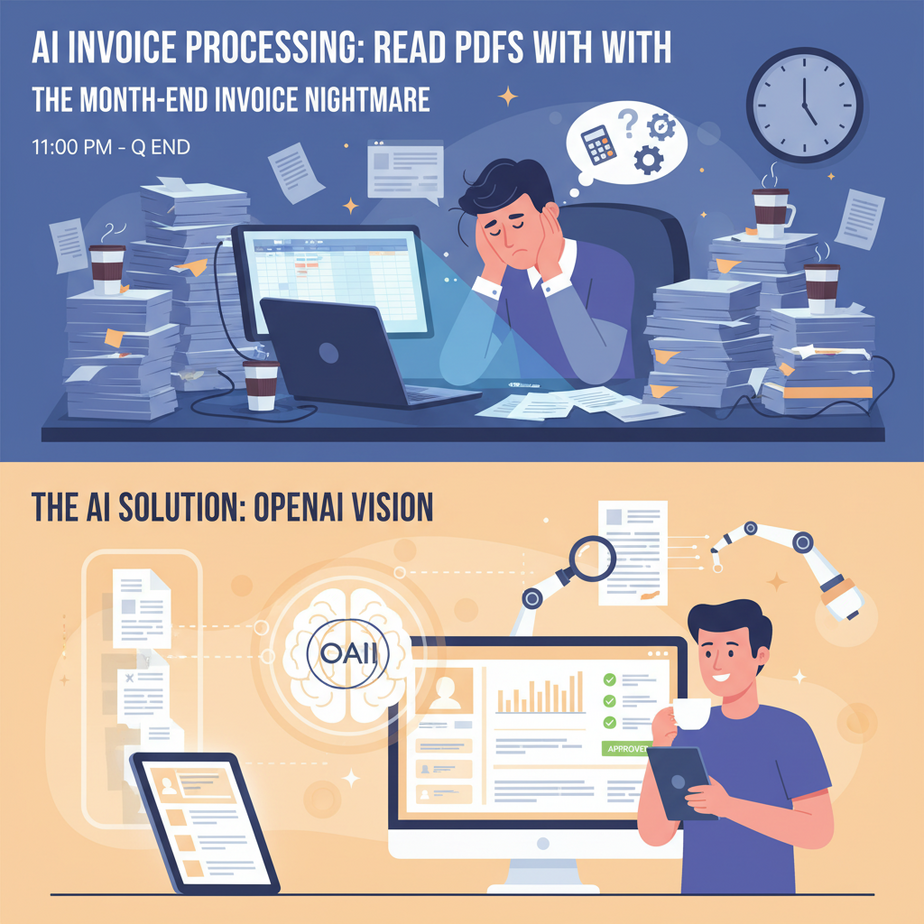
The Month-End Invoice Nightmare
It’s 11 PM on the last day of the quarter. You’re surrounded by a fortress of cold coffee cups and PDF invoices. Your mission, which you were forced to accept, is to manually enter every line item, every date, and every total into your accounting software.
You type “ACME Corp, Invoice #845B-2, Total: $1,405.50“. Your brain is numb. Your eyes blur. You accidentally type $1,405.05. You don’t notice. Three months from now, your accountant will call to ask why the books are off by forty-five cents, and you will contemplate throwing your laptop into the sea.
This soul-crushing, error-prone, mind-numbing work is a tax on every business owner and freelancer. It’s the digital equivalent of digging a ditch with a spoon. Today, we’re trading in the spoon for an AI-powered excavator.
Why This Matters
Automating invoice processing isn’t a small productivity hack; it’s a fundamental upgrade to your business’s central nervous system.
- Time & Money: The average cost to manually process a single invoice is estimated to be over $10. For a business with hundreds of invoices a month, that’s thousands of dollars in wasted time. This automation costs pennies per invoice.
- Accuracy: Humans make typos, especially when they’re bored. The AI doesn’t get bored. It extracts data with surgical precision, eliminating costly accounting errors.
- Cash Flow: When invoices are processed faster, you can pay them on time (avoiding late fees) and get a real-time view of your expenses, leading to better financial decisions.
- Replaces: This replaces the need for a dedicated data entry clerk, the hours you lose doing it yourself, and the expensive specialized software that charges a fortune for this one feature.
You’re building a digital filing clerk that works 24/7, never makes a mistake, and costs less than a single cup of that coffee you’re surviving on.
What This Tool / Workflow Actually Is
We’re using two powerful features from OpenAI: the Vision API and Function Calling.
What it does:
Think of the Vision API as giving the AI a pair of eyes. It can look at an image (like a photo of a receipt or a screenshot of a PDF invoice) and read the text on it, just like a person would. It’s OCR (Optical Character Recognition) on steroids, because it doesn’t just see letters; it understands the *layout* and *context*.
Function Calling is the magic trick for reliability. It’s how we force the AI to give us a perfectly structured response. Instead of asking it to “summarize the invoice,” which might give us a chatty paragraph, we give it a very strict template—a JSON schema—and say, “Fill this out. No exceptions.” It’s the difference between asking an intern to write a report and telling them to fill out a specific form. The form is always better for automation.
What it does NOT do:
This system doesn’t pay your bills for you. It doesn’t automatically log into your bank. It is a data *extraction* system. Its job is to take the messy, unstructured world of invoices and turn it into clean, predictable data that other automations can then use.
Prerequisites
This is where we leave the world of free, local AI and use a commercial tool for a specialized job. Don’t worry, it’s cheap.
- An OpenAI API Key: Go to platform.openai.com, create an account, and add a payment method (you’ll need to fund your account with at least $5). Then, go to the API Keys section and create a new secret key. This is your password.
- Python Installed: Our automation language of choice.
- New Python Libraries: We need a few tools. Open your terminal and install them.
pip install openai python-dotenv Pillow - A Sample Invoice: Find any PDF invoice on your computer. For this guide, we’ll use a simple image. Right-click and save the image below, or take a screenshot of it, and save it as
invoice.pngin your project folder.
Step-by-Step Tutorial
Let’s build your robotic accountant.
Step 1: Set Up Your Project
Create a new folder. Inside, create two files: process_invoice.py and .env. The .env file is where we’ll safely store our API key.
Open the .env file and add your key like this:
OPENAI_API_KEY="sk-YourSecretKeyGoesHere"Step 2: The Image Encoding Function
We can’t just send an image file to the API. We need to convert it into text, a format called base64. It’s like packaging your image in a special envelope that the API can open. Add this helper function to the top of your process_invoice.py file.
import base64

# Function to encode the image
def encode_image(image_path):
    with open(image_path, "rb") as image_file:
        return base64.b64encode(image_file.read()).decode('utf-8')
Step 3: Write the Main Script
This is the core of our automation. We will load the key, prepare the API call with our image and our special ‘form’ (the function call schema), and then process the response. Add the following code to your process_invoice.py file. Read the comments carefully!
import os
import json
from openai import OpenAI
from dotenv import load_dotenv

# --- Helper function from Step 2 ---
import base64
def encode_image(image_path):
    with open(image_path, "rb") as image_file:
        return base64.b64encode(image_file.read()).decode('utf-8')

# --- Main Script ---

# 1. Load environment variables
load_dotenv()
api_key = os.getenv("OPENAI_API_KEY")
if not api_key:
    raise ValueError("OpenAI API key not found. Please set it in the .env file.")

# 2. Initialize the OpenAI client
client = OpenAI(api_key=api_key)

# 3. Path to your invoice image
image_path = "invoice.png"
base64_image = encode_image(image_path)

# 4. The main API call
print("Sending invoice to OpenAI for processing...")
response = client.chat.completions.create(
    model="gpt-4o", # The latest vision model
    messages=[
        {
            "role": "user",
            "content": [
                {
                    "type": "text",
                    # This is the prompt. We're telling it its job.
                    "text": "You are an expert accounting assistant. Extract the information from this invoice."
                },
                {
                    "type": "image_url",
                    # Here we send the image itself
                    "image_url": {
                        "url": f"data:image/png;base64,{base64_image}"
                    }
                }
            ]
        }
    ],
    # This is the 'Function Calling' or 'Tool Choice' part.
    # It forces the AI to structure its output.
    tools=[
        {
            "type": "function",
            "function": {
                "name": "invoice_parser",
                "description": "Parses an invoice and returns structured data",
                "parameters": {
                    "type": "object",
                    "properties": {
                        "vendor_name": {"type": "string"},
                        "invoice_number": {"type": "string"},
                        "invoice_date": {"type": "string"},
                        "total_amount": {"type": "number"},
                        "line_items": {
                            "type": "array",
                            "items": {
                                "type": "object",
                                "properties": {
                                    "description": {"type": "string"},
                                    "quantity": {"type": "integer"},
                                    "unit_price": {"type": "number"},
                                    "line_total": {"type": "number"}
                                }
                            }
                        }
                    }
                }
            }
        }
    ],
    tool_choice={"type": "function", "function": {"name": "invoice_parser"}}
)

# 5. Extract and print the structured data
print("--- PROCESSING COMPLETE ---")
# The AI's response is a string, so we need to parse it into a real JSON object
raw_arguments = response.choices[0].message.tool_calls[0].function.arguments
parsed_data = json.loads(raw_arguments)

# Pretty print the final result
print(json.dumps(parsed_data, indent=2))
Complete Automation Example: Running the Processor
Your folder should now have three things: process_invoice.py, .env, and invoice.png.
Open your terminal, navigate to the folder, and run the script:
python process_invoice.pyAfter a few seconds, you should see a beautifully formatted JSON object printed to your console. It will look something like this:
{
  "vendor_name": "ACME DYNAMICS",
  "invoice_number": "INV-007",
  "invoice_date": "2024-05-21",
  "total_amount": 1250.00,
  "line_items": [
    {
      "description": "Quantum Carburetor",
      "quantity": 1,
      "unit_price": 750.00,
      "line_total": 750.00
    },
    {
      "description": "Flux Capacitor Sealant",
      "quantity": 2,
      "unit_price": 250.00,
      "line_total": 500.00
    }
  ]
}
That’s it. You took a flat image and turned it into structured, usable data that a computer can understand, all in about 50 lines of code.
Real Business Use Cases
This exact script is the starting point for countless automations:
- Expense Reporting for Consultants: Take photos of receipts with your phone. A script on your server processes them and adds them as line items to a draft invoice for your client in QuickBooks.
- Real Estate Management: Automatically process utility bills (gas, electric, water) for multiple properties, extracting account numbers and amounts due to schedule payments.
- Retail Store Operations: Digitize packing slips as inventory arrives. The AI extracts product codes and quantities, which can then be used to automatically update your inventory management system.
- Healthcare Administration: Process medical bills or explanation of benefits (EOB) forms to extract patient details, service codes, and billed amounts for record-keeping.
- Logistics and Shipping: Read Bills of Lading to automatically extract shipper, consignee, and contents information to track shipments without manual entry.
Common Mistakes & Gotchas
- API Key Issues: Forgetting to create the
.envfile or putting the key directly in the code (a big security no-no!) is the most common error. - Complex PDFs: This example uses a PNG. To handle multi-page PDFs, you’d need a library like
PyMuPDFto first convert each PDF page into an image before sending it to the Vision API. - Hallucinations: The AI is great, but it’s not perfect. For extremely messy or unusual invoices, it might occasionally misread a number. For mission-critical accounting, always have a ‘human review’ step for a final check.
- Schema Mismatch: If you change the properties in your function calling schema, the AI will change its output. Your code that processes the output needs to be updated to match.
How This Fits Into a Bigger Automation System
This script is a powerful ‘sensor’ for your business. It takes visual, unstructured information and makes it digitally native. Now you can plug it into anything:
- Email Automation: Set up a system (using tools like Zapier or Make, or another Python script) to monitor an inbox like
invoices@yourcompany.com. When an email with a PDF attachment arrives, it triggers this script. - Database Logging: Take the resulting JSON and insert it into an Airtable base or a SQL database. Now you have a structured, searchable record of every invoice your business has ever received.
- Accounting Integration: Use the APIs for QuickBooks, Xero, or Stripe to automatically create a draft bill from the structured data, ready for you to approve with one click.
You’ve just built the universal adapter between the messy paper world and your clean digital systems.
What to Learn Next
Our AI can now see and interpret the world. It can read documents and structure the data within them. This is a critical input.
But what if the information we need isn’t in a document? What if it’s live on a website? What if we need to check a supplier’s online portal for pricing, or scrape a competitor’s website for product information?
In the next lesson, we’re giving our AI hands to navigate the internet. We’re going to dive into browser automation, teaching our AI agent how to open a web browser, log into websites, fill out forms, and extract live data. We’re moving from reading static documents to interacting with the dynamic, living web.
“,
“seo_tags”: “AI Invoice Processing, OpenAI Vision, Python, Function Calling, Automation, Data Extraction, Accounting Automation, OCR”,
“suggested_category”: “AI Automation Courses