
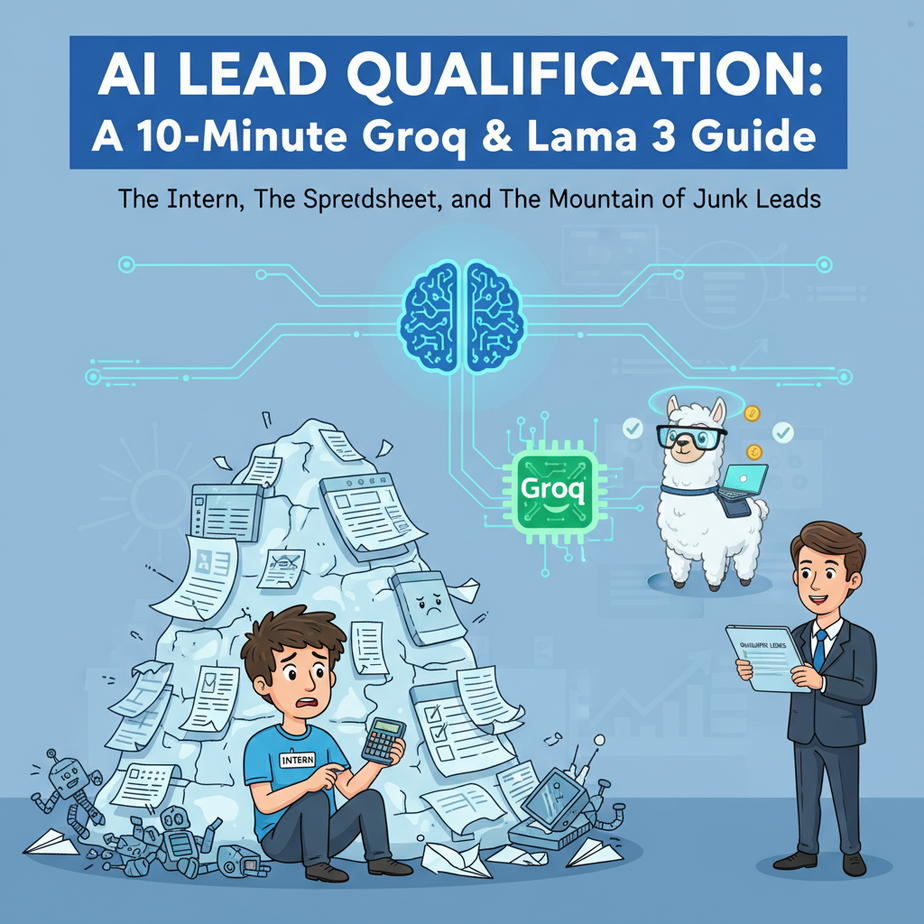
The Intern, The Spreadsheet, and The Mountain of Junk Leads
Picture this. Your new ad campaign is a wild success. The lead form on your website is on fire. You feel like a genius. For about ten minutes.
Then you open your inbox. 347 new submissions. You hire a cheap intern named Timmy. His only job is to copy-paste every lead into a Google Sheet and mark the “good ones” in yellow. But Timmy’s definition of “good” seems to be “contains the letter E.”
The result? Your expensive sales team spends half their day calling people who thought your “B2B SaaS product” was a new brand of artisanal cheese. Every junk lead they call costs you real money in wasted salary and lost morale. Timmy is fired. You are back at square one, staring at a mountain of digital garbage, wondering if it’s all worth it.
This is the silent killer of growth: lead friction. Today, we’re building the robot that replaces Timmy. A robot that never sleeps, never gets it wrong, and works so fast it’s basically magic.
Why This Matters
In business, speed is a weapon. The time between a potential customer filling out your form and them getting a relevant response is critical. Every minute you wait, their interest cools, and a competitor gets a chance to swoop in.
This automation isn’t about being fancy; it’s about pure business efficiency. We are building an automated bouncer for the front door of your sales pipeline. Its job is to instantly read every incoming lead, decide if they’re a VIP, and either roll out the red carpet or politely show them the door.
This workflow replaces:
- Manual data entry and qualification.
- Paying a human (or yourself) to do boring, repetitive work.
- The chaos of a shared inbox where good leads get buried.
The business outcome is simple: Your sales team talks to more qualified people, faster. That’s it. That’s the whole game.
What This Tool / Workflow Actually Is
Groq: The Engine
Imagine two cars. One is a normal Toyota. The other is a Formula 1 car. They both have an engine and can get you to the grocery store. But one does it with face-melting speed. Groq is the F1 engine for AI models. It’s not the AI brain itself; it’s the specialized hardware (they call it an LPU, or Language Processing Unit) that runs the AI brain at ludicrous speeds. For tasks like this, where you want an instant decision, that speed is everything.
Llama 3: The Brain
This is the actual language model, developed by Meta. It’s incredibly smart, great at following instructions, and perfect for structured tasks like analyzing a block of text against a set of rules. We give Llama 3 our lead data and our qualification rules, and it gives us a decision.
The Workflow: The Assembly Line
We’re using a tool like Make.com (or Zapier) to build a simple assembly line. A new lead comes in (from a form, a spreadsheet, whatever), Make.com grabs it, sends it to the Llama 3 brain running on the Groq engine, gets the verdict back, and then routes the lead to the right place. It’s a simple, powerful, and ridiculously fast data pipeline.
Prerequisites
I know this sounds complex. It’s not. If you can make a cup of coffee, you can do this. I’m being brutally honest. Here’s all you need:
- A GroqCloud Account: It’s free to get started. Go to console.groq.com and sign up. This is where we’ll get our secret key (the API key).
- A Make.com Account: Or Zapier, or n8n. I’ll use Make.com because its visual interface is great for learning. The free plan is more than enough for this.
- A Source of Leads: For this tutorial, we’ll use a simple Google Sheet. In the real world, this could be your website form (like Webflow, Typeform, etc.).
That’s it. No coding experience needed. No server to set up. Just clicking and copy-pasting.
Step-by-Step Tutorial
Let’s build the machine. We’ll start with the core component: the API call to Groq.
Step 1: Get Your Groq API Key
This is your password to access the super-fast engine. Guard it well.
- Log in to your GroqCloud account.
- On the left-hand menu, click on “API Keys”.
- Click the “+ Create API Key” button.
- Give it a name, like “LeadQualifier_Bot”.
- Copy the key that appears. This is the only time you’ll see it. Paste it into a temporary notepad file.
Step 2: Set Up Your Trigger in Make.com
First, we need a place for our leads to land. Create a Google Sheet with these columns: Timestamp, Name, Email, CompanySize, Message, Status, Reasoning.
Now, let’s tell Make to watch this sheet.
- In Make.com, create a “New scenario”.
- Click the big plus button and search for “Google Sheets”.
- Choose the trigger “Watch for New Rows”.
- Connect your Google account, select your spreadsheet and the correct sheet.
- For “Table contains headers,” select “Yes.”
- Set the limit to 1 for now, so it only processes one lead at a time as we test.
- Right-click the module and choose “Run this module only” to pull in a sample row of data. Make sure you have at least one row filled out in your sheet!
Step 3: Configure the Groq API Call
This is the magic step. We’re sending the lead data to the AI for analysis.
- Click the “+” button next to your Google Sheets module to add another module.
- Search for and select the “HTTP” module.
- Choose the action “Make a request”.
- Now, fill in the fields exactly like this. This is the important part.
URL:
https://api.groq.com/openai/v1/chat/completionsMethod:
POSTHeaders:
You need to add two headers. Click “Add a header” twice.
- Item 1: Name =
Authorization, Value =Bearer YOUR_GROQ_API_KEY_HERE(Paste your key here. The word “Bearer” and the space after it are required). - Item 2: Name =
Content-Type, Value =application/json
Body type:
RawContent type:
JSON (application/json)Request Content (The JSON Body):
This is where you give the AI its instructions. Copy this whole block and paste it into the “Request Content” box. I’ll explain what it means below.
{
  "model": "llama3-8b-8192",
  "temperature": 0.2,
  "max_tokens": 1024,
  "top_p": 1,
  "response_format": {
    "type": "json_object"
  },
  "messages": [
    {
      "role": "system",
      "content": "You are a lead qualification expert for a marketing agency. Your job is to analyze incoming leads and classify them. Follow these rules precisely. A 'Hot' lead is from a company with more than 50 employees AND their message mentions a specific need like 'SEO', 'PPC', or 'new website'. A 'Warm' lead has either over 50 employees OR mentions a specific need, but not both. All other leads are 'Junk'. Your response MUST be a JSON object with three keys: 'qualification_tier' (string, can be 'Hot', 'Warm', or 'Junk'), 'reason' (string, a brief one-sentence explanation for your decision), and 'next_step' (string, suggest 'Immediate Sales Call' for Hot, 'Add to Nurture Sequence' for Warm, and 'Log and Ignore' for Junk)."
    },
    {
      "role": "user",
      "content": "Here is the new lead:\
Company Size: {{2.D}} (This is where you map the 'CompanySize' from your Google Sheet)\
Message: {{2.E}} (This is where you map the 'Message' from your Google Sheet)"
    }
  ]
}
CRITICAL: In the Make.com interface, you need to replace the placeholder text like {{2.D}} with the actual data fields from your Google Sheets module. Just delete my placeholder text and click on the variable from the pop-up list. The numbers might be different for you.
Finally, check the box that says “Parse response”. This will make the AI’s answer easy to use in the next steps.
Click “OK” and run the scenario. If it works, you’ve just built an AI brain.
Complete Automation Example
Let’s put it all together into a useful workflow.
The Goal: Qualify leads and route them automatically. Hot leads go to Slack for the sales team. Warm leads get updated in the sheet. Junk leads get ignored.
The Setup:
- Trigger: Google Sheets “Watch for New Rows” (we already built this).
- Action: HTTP “Make a request” to Groq (we already built this).
- Add a Router: Click the “+” between the modules and add a “Router”. This lets us create different paths based on the AI’s decision.
Path 1: The “Hot” Lead Path
- Connect a new module to the router. Set up a filter on the connecting line.
- Label the filter “Hot Lead”.
- The condition should be:
{{2.data.choices[0].message.content.qualification_tier}}(this is the data from the HTTP module) — Text operators: Equal to —Hot. - Add a Slack module and choose “Create a Message”.
- Post to your #sales channel with a message like: “🔥 New Hot Lead! 🔥 Name:
[Name from Sheet], Email:[Email from Sheet]. AI says:[reason from AI response]. Suggested next step:[next_step from AI response].”
Path 2: The “Warm” Lead Path
- Connect another module to the router. Set up a filter on the line.
- Label it “Warm Lead”.
- Condition:
{{2.data.choices[0].message.content.qualification_tier}}— Text operators: Equal to —Warm. - Add a Google Sheets module and choose “Update a Row”.
- You need to specify which row to update. Map the “Row number” from the original trigger module.
- Update the “Status” column with the
qualification_tierfrom the AI. Update the “Reasoning” column with thereasonfrom the AI.
Now you have a fully functioning machine. New lead hits the sheet, the AI qualifies it in milliseconds, and it’s either in your sales team’s Slack or updated for a future marketing campaign. No Timmy required.
Real Business Use Cases
This exact pattern can be used everywhere. Don’t just think about contact forms.
- SaaS Company: Triage incoming support tickets. A user submits a ticket. The AI reads it and classifies it as `Bug Report`, `Feature Request`, or `Billing Question`, then routes it to the correct Jira board or Zendesk queue.
- Real Estate Agency: Qualify property inquiries. The AI reads the message (“I want to see 123 Main St”) and checks for keywords like “investor,” “pre-approved,” or “first-time buyer” to prioritize follow-ups.
- E-commerce Store: Analyze customer reviews. A new review is posted. The AI classifies its sentiment as `Positive`, `Negative`, or `Neutral`. Negative reviews automatically create a high-priority ticket for the customer service team to handle.
- Recruiting Firm: First-pass resume screening. Resumes are uploaded to a folder. The AI scans the summary for keywords (`Python`, `5+ years experience`, `PMP certified`) and tags the candidate’s record in an applicant tracking system (ATS).
- Content Creator: Sort YouTube comments. The AI reads every new comment and classifies it as `Question`, `Praise`, or `Spam`. Questions can be automatically added to a spreadsheet for the next Q&A video.
Common Mistakes & Gotchas
- Vague Prompting: Your qualification rules in the system prompt need to be crystal clear. If your rules are ambiguous (“look for good leads”), the AI will give you ambiguous answers. Be specific.
- Not Forcing JSON Output: This is the #1 beginner mistake. If you don’t use the `response_format: { “type”: “json_object” }` parameter, the AI might give you back a chatty sentence instead of clean data. Structured data is the foundation of automation.
- Ignoring Temperature: For tasks like this, you want the AI to be deterministic and predictable. Set the `temperature` to a low value like 0.1 or 0.2. A high temperature encourages creativity, which is the last thing you want from a qualification bot.
- Leaking Your API Key: Never, ever put your Groq API key in front-end code (like website Javascript). It should only live inside a secure, server-side environment like your Make.com or Zapier account.
- Forgetting the Human: The goal is not to have the AI close the deal. The goal is to have the AI empower your humans to close the deal. This system flags opportunities; it doesn’t replace real conversation.
How This Fits Into a Bigger Automation System
Think of this lead qualifier as a single, powerful gear in a much larger machine.
- CRM Integration: A “Hot” lead shouldn’t just go to Slack. It should trigger another step that creates a new deal in HubSpot or Salesforce, assigns it to a sales rep, and logs the AI’s reasoning as the first note in the contact’s history.
- Personalized Email Outreach: The output of this workflow can be the input for another. Once a lead is qualified as “Hot,” it could trigger a different AI agent that scrapes their LinkedIn profile and drafts a hyper-personalized outreach email.
- Connecting to Voice Agents: For the truly ambitious, a “Hot” lead could trigger an AI voice agent to call the sales rep’s phone with a summary of the lead and ask if they want to be connected to the prospect right now.
- RAG Systems: If a lead’s message contains a specific question (“Do you integrate with Shopify?”), this qualifier could first query a private knowledge base (a RAG system) to find the answer, and include that answer in the Slack notification to the sales team, arming them with information before they even make the call.
This isn’t an isolated trick. It’s the front door to a massive world of intelligent automation.
What to Learn Next
You did it. You built an AI gatekeeper that’s faster and more accurate than any human could be. You’ve taken a messy, chaotic process and turned it into a clean, predictable system.
But qualification is just the beginning. Now that we know *who* to talk to, the next question is *what* to say.
In our next lesson, we’re going to take the output from this very system and plug it into another AI workflow. We’re going to teach our machine to research a hot lead’s company, find a relevant piece of news or a post they made, and draft a personalized, non-robotic first-touch email. We’re moving from sorting data to creating conversations.
This is how you build a real revenue machine. Stay tuned.
“,
“seo_tags”: “ai automation, lead qualification, groq, llama 3, make.com, zapier, business automation, no-code, sales automation, productivity”,
“suggested_category”: “AI Automation Courses