
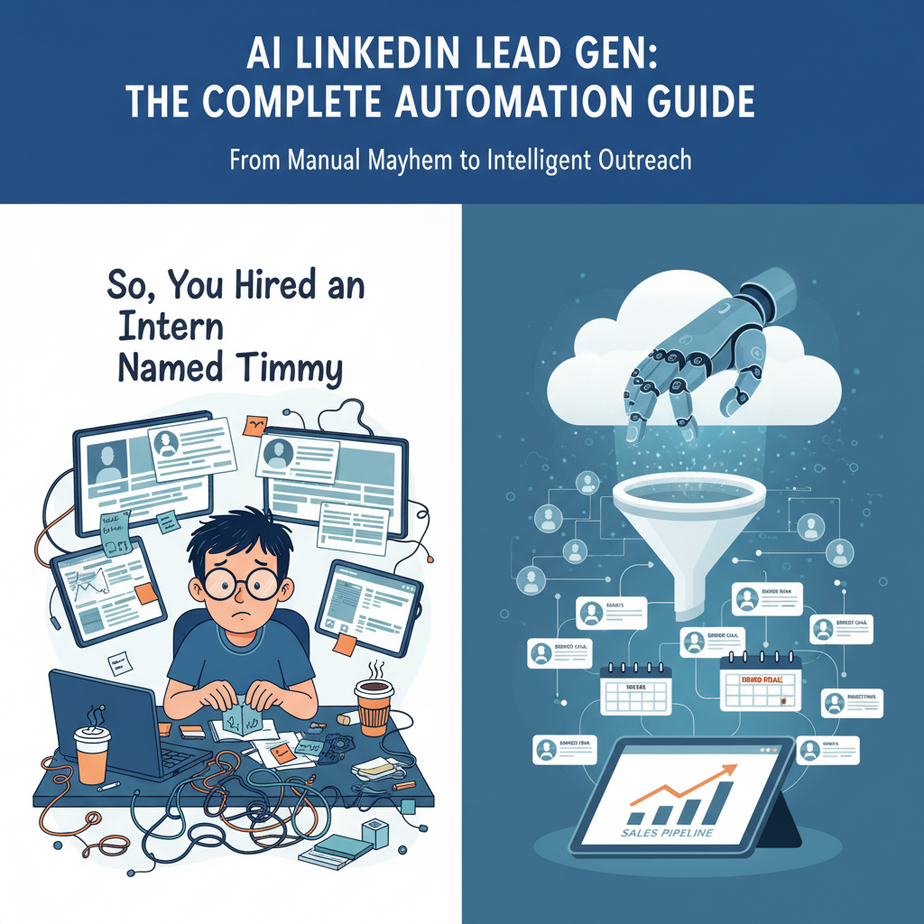
So, You Hired an Intern Named Timmy
Let me tell you about Timmy. You hired Timmy to handle “lead generation.” You had visions of a bustling pipeline, a calendar packed with demos, and a sales chart that looked like a rocket launch.
Instead, you got this: Timmy spends eight hours a day with two windows open. On one screen is LinkedIn Sales Navigator. On the other is a Google Sheet. His life is a blur of `Ctrl+C`, `Alt+Tab`, `Ctrl+V`. He copies a name, a title, a company. Then, the worst part: he has to write a connection request.
He stares at a blank text box, the cursor blinking mockingly. He types out the same soul-crushing message every time: “Hi [Name], I saw your profile and was impressed by your experience. I’d love to connect.”
You’re paying Timmy to be a human copy-paste machine. His conversion rate is abysmal, his morale is lower than the Titanic’s current address, and you’re burning cash. Timmy is not the problem. The *system* is the problem. Today, we’re going to fire that system and build a new one. We’re going to build an AI that does Timmy’s job, but a thousand times faster, a million times smarter, and it never asks for a coffee break.
Why This Matters: The Difference Between Noise and a Signal
In the world of sales and networking, everyone is shouting. Generic outreach is just noise. Your “I’d love to connect” message is instantly archived next to a dozen others just like it. You might as well be throwing business cards into the wind.
Personalization is the signal. It’s the thing that cuts through the noise. A message that says, “Hey Sarah, I saw your post about deploying Kubernetes clusters with Ansible; we’re working on a similar challenge,” gets a response. Why? Because it proves you did the bare minimum of homework. It shows you see them as a person, not just a row in a spreadsheet.
The problem? Real, thoughtful personalization takes time. A lot of time. And time is money. This automation doesn’t just save you time; it manufactures a competitive advantage. It allows you to send 100 *thoughtful* messages in the time it takes your competitor to send 100 generic ones. This is how you book more meetings, find better candidates, and build a real network.
What This Workflow Actually Is: Your AI Research Assistant
We are building an automated pipeline. Think of it like a tiny, hyper-efficient factory. Raw materials go in one end, and a finished product comes out the other.
Our Factory Components:
1. The Assembly Line Foreman (n8n): This is our workflow automation tool. It’s the boss who tells everyone what to do and when. When a new lead appears, n8n kicks the whole process off. It’s the brain of the operation.
2. The Warehouse (Google Sheets): This is where we store our raw materials (leads) and our finished products (personalized messages). It’s simple, free, and everyone knows how to use it.
3. The Genius Intern (OpenAI/GPT): This is our AI. We feed it a person’s LinkedIn bio and a few other details. It reads, understands, and then writes a unique, personalized message based on that information. It’s the Timmy we always wanted.
The Process:
A new lead (a LinkedIn profile URL and their bio) is added to a Google Sheet. -> n8n detects the new row. -> It sends the lead’s information to OpenAI. -> OpenAI crafts a personalized connection request message. -> n8n takes that message and puts it back into the correct row in the Google Sheet, ready for you to review and send.
Prerequisites: What You’ll Need to Open the Doors
I believe in honesty. This isn’t magic, but it’s close. You don’t need to be a coder, but you do need to be able to follow instructions and have a credit card handy (we’re talking pennies, not paychecks).
- An n8n Account: The easiest way is to sign up for an n8n Cloud account. They have a free tier to get you started. You can also self-host it if you’re feeling adventurous, but let’s walk before we run.
- A Google Account: For Google Sheets. You have one. Don’t lie to me.
- An OpenAI API Key: Go to platform.openai.com, create an account, and add a payment method (a few dollars is more than enough to start). Then, create a new API key. Guard this key like it’s your house key.
- A List of Leads: This workflow *personalizes*, it doesn’t *find*. You need to come to the table with a list of LinkedIn profile URLs and their ‘About’ section copied into a sheet. You can get this from tools like Phantombuster, a virtual assistant, or by building your own scraper (a lesson for another day!).
The Step-by-Step Tutorial: Building Your Message Machine
Alright, class is in session. Roll up your sleeves. This is where the magic happens.
Step 1: Prepare Your Warehouse (The Google Sheet)
Create a new Google Sheet. The first row is for your headers. Make them exactly like this:
FullName | LinkedInURL | Title | Company | AboutSection | GeneratedMessage | Status
The AboutSection is the most important input for the AI. The GeneratedMessage is where the AI’s work will go. The Status column will tell us if a row has been processed. Now, paste a few leads into this sheet to have some test data. Fill in everything except GeneratedMessage and Status.
Step 2: Start Your Assembly Line (n8n Workflow Trigger)
- Log in to n8n and create a new, blank workflow.
- Click the ‘+’ button to add your first node. Search for “Google Sheets” and select it.
- Under “Trigger”, choose “On Row Added”. This tells n8n to wake up and work whenever you add a new lead.
- Authentication: You’ll need to connect your Google account. Click “Create New” under “Credential for Google Sheets API” and follow the prompts. Give n8n permission.
- In the “Sheet ID” field, paste the ID from your Google Sheet’s URL. The URL looks like this: `https://docs.google.com/spreadsheets/d/THIS_IS_THE_ID/edit#gid=0`.
- In the “Sheet Name” field, make sure it matches the name of your sheet (usually “Sheet1”).
- Click “Test step” to pull in your sample data. You should see the lead information you added earlier. Success!
Step 3: Hire Your Genius (The OpenAI Node)
- Click the ‘+’ below your Google Sheets node to add the next step.
- Search for “OpenAI” and select the “OpenAI” node (not the chat model one, the standard one is more flexible for this).
- Authentication: Again, “Create New” under credentials. Give it a name like “My OpenAI Key” and paste in the API key you got from the OpenAI website.
- Operation: Set this to “Chat Completion”.
- Model: Choose `gpt-3.5-turbo`. It’s fast, cheap, and more than smart enough for this task.
- Now for the most important part: the prompt. Click “Add Message Item” and select “User” as the role. In the “Text” box, we will write our instructions. This is where you tell the AI exactly what you want.
Copy and paste this battle-tested prompt into the “Text” field:
You are a world-class sales development representative specializing in creating highly personalized, non-spammy LinkedIn connection requests.

Your task is to write a short, 2-sentence connection request message to a person based on their professional background.

Here is the information about the person:
- Name: {{ $('Google Sheets Trigger').item.json.FullName }}
- Title: {{ $('Google Sheets Trigger').item.json.Title }}
- Company: {{ $('Google Sheets Trigger').item.json.Company }}
- About Section / Bio: {{ $('Google Sheets Trigger').item.json.AboutSection }}

Instructions:
1. Read their 'About Section' carefully and find ONE specific, interesting detail. This could be a project they mentioned, a unique skill, or a personal passion they shared.
2. Write a message that starts by referencing this specific detail.
3. Keep the tone professional but approachable. Do not use overly casual language or emojis.
4. The entire message must be 2 sentences max.
5. Do NOT use generic phrases like "I was impressed by your profile" or "I'd love to connect."

Produce only the message text and nothing else.
Why this prompt works: We give the AI a role (world-class SDR). We give it context using the data from our Google Sheet (those `{{…}}` things are variables that n8n fills in). We give it crystal-clear, numbered instructions and constraints. This is how you get great results.
Step 4: Update Your Records (The Google Sheets Update Node)
- Click the ‘+’ below the OpenAI node. Search for “Google Sheets” again.
- This time, under “Operation”, choose “Update Row”.
- The credentials, Sheet ID, and Sheet Name should be the same as your trigger.
- We need to tell it *which* row to update. In the “Row Index” field, we use a variable from our trigger. Click the little dots icon (Expressions) and paste this in: `{{ $(‘Google Sheets Trigger’).item.index }}`. This ensures it updates the same row it started with.
- Under “Columns to Update”, click “Add Field”.
- In the “Column Name” field, type `GeneratedMessage`. In the “Value” field, drag the output from the OpenAI node. It will look something like this: `{{ $(‘OpenAI’).item.json.choices[0].message.content }}`.
- Click “Add Field” again. For “Column Name”, type `Status`. For “Value”, type `Processed`. This marks the row as complete so we don’t accidentally run it again.
Step 5: Flip the Switch
Your workflow is built! At the top right of the screen, click the toggle from “Inactive” to “Active”. Now, go to your Google Sheet, add a new row with a new lead’s information, and wait about 30 seconds. Watch as the `GeneratedMessage` and `Status` columns magically populate with a perfectly crafted message. You did it. You built the machine.
Real Business Use Cases (This is Not Just for Sales)
This exact workflow can be repurposed for dozens of scenarios:
- Hyper-Personalized Recruiting: Instead of sales, the prompt is for recruiting. The AI can analyze a candidate’s GitHub projects or portfolio mentioned in their bio to craft an outreach message that shows you actually did your research.
- Podcast Guest Outreach: Want to invite experts onto your show? Feed the AI their LinkedIn bio, and it can generate an invitation highlighting their specific expertise and why they’d be a perfect fit for your audience.
- Investor & Partner Networking: When seeking investment or partnerships, first impressions are everything. Use this system to research potential partners and write an initial message that references a company they advised or an article they wrote.
Common Mistakes & Gotchas (How Not to Blow This Up)
- Garbage In, Garbage Out: If the `AboutSection` you provide is empty or just says “Results-driven professional,” the AI has nothing to work with. The quality of your input data determines the quality of your output.
- Forgetting the ‘Status’ Column: If you don’t update the status, you risk creating an infinite loop or re-processing leads every time you run the workflow. This is the #1 rookie mistake.
- Being a Robot Spammer: The goal is to *assist* a human, not replace them. Always review the AI-generated messages before sending them. Sometimes the AI can be a little weird. Your job is to be the human quality control at the end of the assembly line.
- Ignoring API Costs: OpenAI isn’t free. Using `gpt-3.5-turbo`, each message costs a tiny fraction of a cent. But if you process 10,000 leads, it adds up. Keep an eye on your OpenAI dashboard.
How This Fits Into a Bigger Automation System
Congratulations, you’ve automated the most time-consuming part of outreach: the research and writing. But this is just one piece of a much larger puzzle.
Think about it. Where do the leads come from? How do you send the message? What happens when they reply?
This Google Sheet is now a centralized command center. It can feed into other systems:
- It could create a task in your CRM (like HubSpot or Pipedrive) for a sales rep to review and send the message.
- You could connect it to a (very carefully used) LinkedIn automation tool that sends the connection request for any row you approve.
- When someone replies, you could have another system (like a webhook) that updates their status in the sheet from “Contacted” to “Replied”.
This isn’t just a workflow; it’s a module. A building block for a much more powerful and intelligent business machine.
What to Learn Next: From Simple Messages to Full Profiles
Our AI research assistant is brilliant, but it’s working with limited information. It has a LinkedIn bio, but what if it could know more? What if it knew the person’s company email, the technologies their company uses, or recent news about their industry?
The message would go from great to unstoppable.
In our next lesson, we’re going to build the system that feeds *this* system. We’ll learn how to build an AI Lead Enrichment Pipeline. You’ll give it a name and a company, and it will automatically find their email address, job title, and other critical data, preparing a perfect, enriched lead profile for our AI writer to analyze.
Stay tuned. We’re just getting started.
“,
“seo_tags”: “AI Automation, LinkedIn Lead Generation, n8n tutorial, OpenAI for Sales, Automated Outreach, Business Automation, Google Sheets Automation”,
“suggested_category”: “AI Automation Courses