
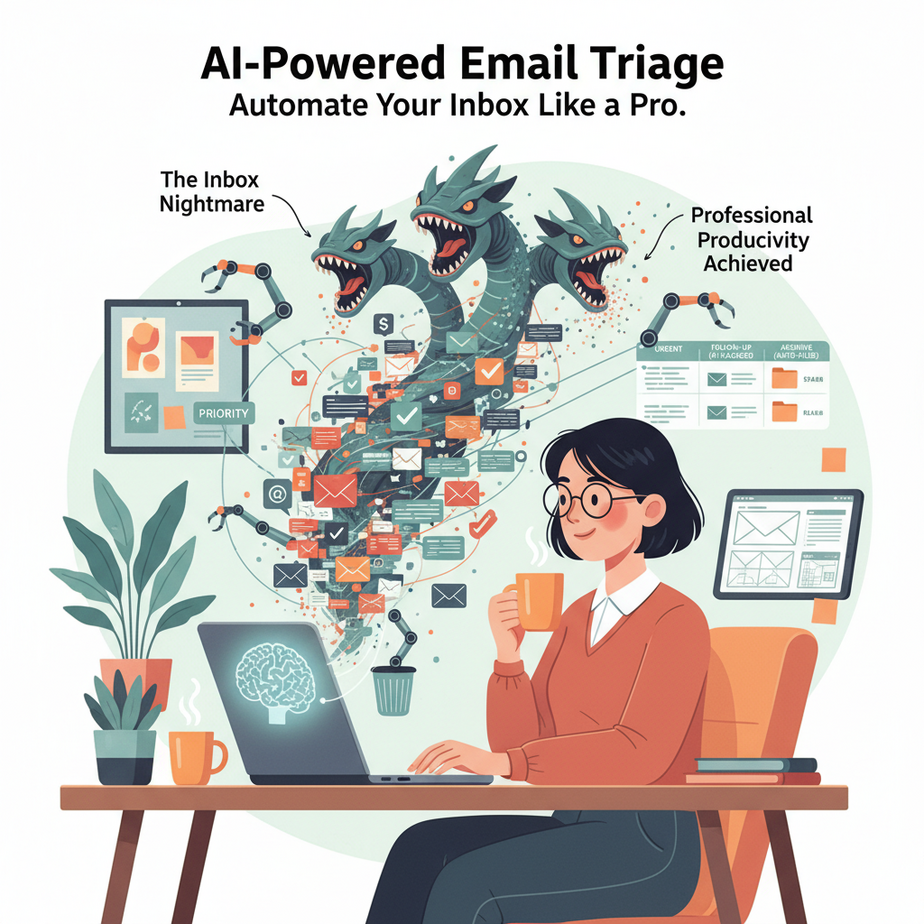
Hook: The Inbox Nightmare
Let me tell you about Sarah. Sarah runs a small design agency. Every morning, she wakes up, pours coffee, and opens her laptop to face the digital equivalent of a tidal wave: her inbox. 127 new emails. An urgent client request from last night is buried under a newsletter about cat memes and a “gentle reminder” from a vendor she hasn’t spoken to in six months.
She spends the next two hours playing detective. Which emails are fires? Which are noise? Which need a real human reply, and which just need a canned response? By the time she’s done sorting, her creative energy is gone. Sound familiar?
What if I told you that you could hire a tireless, super-smart intern whose only job is to read, sort, and draft replies to your entire inbox before you even finish your coffee? That’s what we’re building today.
Why This Matters
This isn’t just about saving time; it’s about reclaiming your focus. The average knowledge worker spends 28% of their workweek just reading and answering emails. That’s over 11 hours a week. For a founder, that’s time you should be spending on strategy, product, or closing deals.
Our AI triage system replaces:
- The manual, repetitive scanning and labeling you do every morning.
- The mental energy wasted on context switching between emails.
- The risk of missing a critical client message in a sea of noise.
This workflow turns your inbox from a source of anxiety into a prioritized, actionable to-do list. It’s the difference between being reactive and being proactive.
What This Tool / Workflow Actually Is
At its core, this automation is an AI agent that connects to your email (via Gmail API or Outlook), reads incoming messages, and performs three key actions:
- Classify: It reads the email and assigns it a category (e.g., “Urgent Client Request,” “Invoice/Payment,” “Newsletter/Spam,” “Internal Team”).
- Prioritize: It assigns a priority score (1-5) based on the sender, keywords, and sentiment.
- Draft: For certain types of emails, it generates a human-sounding draft reply based on pre-defined logic.
What it does NOT do: This is a triage agent, not a fully autonomous robot overlord. It will NOT send emails without your final approval. It will NOT handle nuanced, complex negotiations. Its job is to prepare the battlefield, not fight the war for you.
Prerequisites
Don’t panic. You don’t need to be a senior engineer for this. If you can follow a recipe, you can build this.
- A Gmail or Outlook account: We’ll use Gmail for this example, but the logic is identical for Outlook.
- A Make.com (formerly Integromat) account: The free tier is plenty to get started. This is our automation “factory floor.” It’s a visual tool that connects APIs without writing backend code.
- An OpenAI API account: This is where our “AI Brain” lives. You’ll need to add a small amount of credit ($5 is enough to start).
If you can sign up for these three services, you’re qualified. Let’s go.
Step-by-Step Tutorial
Step 1: The Trigger (Watching the Mailbox)
First, we need our automation to know when there’s new work to do. In Make.com, we’ll create a new Scenario and add a “Gmail > Watch Emails” module. This module polls your inbox for new messages. We’ll configure it to only look for emails that are unread.
Step 2: The AI Brain (Analysis & Categorization)
Once we have the email content (subject, body, sender), we send it to our AI. We’ll use OpenAI’s “Create a Completion” module. This is where the magic happens. We’ll feed the AI a specific prompt.
Prompt Template:
You are an expert executive assistant. Analyze the following email and provide a response in a strict JSON format.

Email Subject: {{Subject}}
Email Sender: {{From}}
Email Body: {{Body}}

Return ONLY a JSON object with the following keys:
- "category": Choose ONE from this list: "Urgent Client", "Invoice", "Internal", "Spam/Newsletter", "General"
- "priority": A number from 1 (highest) to 5 (lowest)
- "draft_reply": If a reply is needed, write a concise, professional draft. If not, return "null".

Example JSON:
{
  "category": "Urgent Client",
  "priority": 1,
  "draft_reply": "Hi [Name], thanks for reaching out. I've seen your request and will get back to you with a detailed plan within the next 2 hours."
}
Step 3: The Router (Routing the Work)
Now we parse the AI’s JSON response. We’ll use Make’s “Router” module. The Router acts like a traffic cop, sending the email down different paths based on its category.
- Path 1 (Urgent Client): Send a push notification to your phone (using Pushover or a similar service) and add the email to a specific “Action Required” label in Gmail.
- Path 2 (Invoice): Add the email to a Trello board called “Accounting” or forward it to your bookkeeper’s email.
- Path 3 (Spam/Newsletter): Automatically archive it. Out of sight, out of mind.
- Path 4 (General with draft): If the AI generated a draft reply, save it as a draft in Gmail so it’s ready for your review.
Step 4: Logging & Organization
Finally, for every email processed, we’ll add a single row to a Google Sheet. This creates a searchable log of all communications the system has handled. Columns would be: Date, Sender, Subject, Category, Priority, and a link to the email itself. This is your new command center.
Complete Automation Example
Let’s watch this in action. A client, “Mark from Acme Corp,” sends you an email at 10 PM on a Tuesday.
Subject: “Re: Project Alpha – Need changes ASAP”\p>
Body: “Hey, the latest mockups look great but the client is demanding a change to the color palette. Can you look at this tonight?”
- Make.com sees the new unread email from mark@acmecorp.com.
- It sends the email to OpenAI. The AI analyzes it and returns:
{"category": "Urgent Client", "priority": 1, "draft_reply": "Hi Mark, received. I'm taking a look at the color palette now and will send you an updated version within the hour."} - The Router sees the category is “Urgent Client” and priority is 1.
- Actions Triggered: You get a push notification on your phone that says: “Urgent Client: Mark from Acme Corp about Project Alpha. Priority 1.” Simultaneously, the draft reply is saved in your Gmail drafts folder, ready for you to review and hit send.
- The Log: A new line appears in your Google Sheet tracking the interaction.
- The Real Estate Agent: Automatically sorts incoming leads (from Zillow/Realtor.com) into “Hot,” “Warm,” or “Cold” buckets based on their message urgency and sends immediate “I’ll call you” drafts to the hot leads.
- The E-commerce Store Owner: Categorizes emails into “Shipping Inquiry,” “Return Request,” or “Product Question.” It drafts polite replies for shipping questions and creates a ticket in your helpdesk software for returns.
- The Freelancer: Separates “New Project Inquiries” from “Existing Client Revisions.” It can even draft a response asking for more project details, saving you from back-and-forth emails.
- The Hiring Manager: Filters applications. Keywords like “resume,” “portfolio,” and “apply” get routed to a specific folder and trigger a draft confirming receipt of their application.
- The VC or Investor: A huge volume of pitch decks and meeting requests come in. The AI scans for deal size, industry fit, and warm introductions, flagging only the top 1% for immediate attention and saving the rest for a weekly review digest.
- The Loop of Doom: If you’re not careful, your automation might pick up an email it has already processed and re-process it. Always use filters to check for specific labels or flags to ensure you don’t create infinite loops.
- Over-Trusting the AI: Never, ever let the AI send emails on your behalf without human review. The “draft_reply” is our safety net. The goal is to assist, not to apologize for a rogue AI later.
- Cost Creep: OpenAI’s API is cheap, but not free. If you get thousands of emails, the costs can add up. Keep an eye on your usage. Often, just filtering obvious spam *before* sending to the AI can save you 90% of the API calls.
- Connect to your CRM: If the email is from a known contact in your HubSpot or Salesforce, you can pull their entire deal history and add context to the priority score.
- Trigger Voice Agents: For a “Urgent Client” email, you could trigger a voice agent (using tools like Vapi or Retell AI) to make an automated phone call to your team, saying “We have a Code Red from client X.”
- Multi-Agent Workflows: Your Email Triage Agent passes the urgent email to a “Research Agent,” which then scans your past project files to gather context before creating a task for you with all the relevant information attached.
- Build a RAG System: Every email you process becomes a data point. Over time, you can feed all your historical emails into a vector database. This creates a “Company Knowledge Base” that a future AI can query to answer questions like “What were the most common client complaints last quarter?”
Meanwhile, a newsletter from “Best Marketing Tips” comes in. The AI categorizes it as “Spam/Newsletter.” The router immediately archives it. You never even see it. That is the power of triage.
Real Business Use Cases
Common Mistakes & Gotchas
How This Fits Into a Bigger Automation System
Email triage is the front door to your entire business operations. Think of it as the mailroom of your digital empire. Once you’ve sorted the mail, you can do amazing things:
What to Learn Next
You’ve just built the mailroom. You’ve learned how to take a chaotic stream of information and turn it into an organized, prioritized workflow. This is the fundamental concept of AI automation: Observe, Analyze, and Act.
But what happens when you need to handle more than just emails? What if you have customers asking questions on your website, in your DMs, and via email all at once?
In our next lesson, we’re going to scale this concept. We’re building a Unified Customer Inquiry Agent that pulls questions from Email, Slack, and your Website, and centralizes them into a single, unified dashboard. The real power of automation begins when you stop treating each channel as a separate silo.
Stay tuned, and welcome to the academy.
“,
“seo_tags”: “AI automation, email automation, business productivity, Make.com, OpenAI, inbox zero, workflow automation”,
“suggested_category”: “AI Automation Courses