
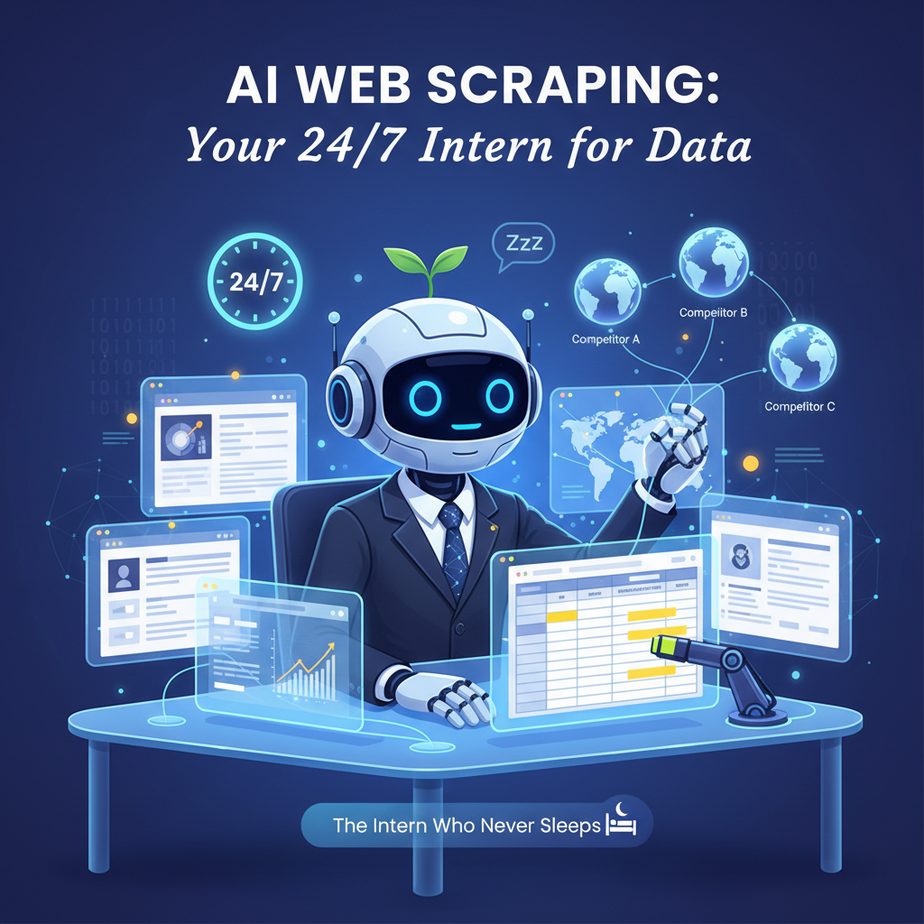
The Intern Who Never Sleeps
Imagine you hired an intern. Their full-time job is to visit three competitor websites every morning, copy their pricing, paste it into a spreadsheet, and highlight anything that changed. At 3 PM, they do it again. And again at 8 PM. They do this every single day, including weekends. They never complain. They never need coffee. They just… do it.
Except, you don’t have that intern. You have you. Or maybe you pay someone on Upwork twenty bucks an hour to do it. Either way, it’s boring, it’s repetitive, and it’s a terrible use of human brainpower.
This is the soul-crushing reality of manual data collection. You need information from the web, but getting it feels like digging a ditch with a spoon. In this lesson, we’re going to build you a shovel. No, we’re building you a full excavator. We’re teaching you AI-powered web scraping, a fundamental automation that replaces the intern and gives you superpowers.
Why This Matters: The Currency of Information
Data is the new oil, but it’s useless if it’s still in the ground. Web scraping is the pump. This automation isn’t just about saving time; it’s about making smarter decisions, faster. It replaces entire teams of low-level researchers.
- For E-commerce: Monitor competitor prices in real-time and automatically adjust yours to stay competitive. Imagine never being undercut without knowing.
- For Lead Generation: Scrape directories, social media, or public listings to build a constant stream of fresh leads. Your sales team will worship you.
- For Market Research: Aggregate reviews, articles, or forum posts to understand customer sentiment before you build your next product.
- For Content Aggregation: Build your own news feed or industry digest that pulls from only the sources you trust.
Previously, this required a developer, a messy script, and constant maintenance. Today, we’ll do it with a single, powerful tool.
What This Tool Is: Your Browser Controller
At its core, web scraping is about programmatically getting information from a website. We’re going to use a modern tool that combines the power of a real browser with the intelligence of AI. Let’s be clear about what we’re building.
What it IS: An automated workflow that visits a webpage, understands its structure, extracts the data you need, and can even interpret that data (e.g., is this review positive or negative?). It’s like giving a robot eyes and a brain.
What it is NOT: It’s not magic. It can’t bypass login walls or sophisticated anti-bot protection (for now). It respects robots.txt and is not for spamming or hacking. This is a tool for gathering public data ethically and efficiently.
The AI Advantage
Old-school scraping breaks if a website changes its layout by one pixel. AI scraping is smarter. You don’t say “get the text in the 3rd div.” You say, “get the price of the product.” The AI figures it out. It’s resilient and surprisingly robust.
Prerequisites: Just a Click
For this lesson, we will use Browse.ai. It’s a no-code tool that you install as a Chrome extension. That’s it. No Python, no JavaScript, no servers.
You need:
- A free Browse.ai account.
\li>The Chrome extension installed.
\li>A website you want to scrape (we’ll use a public demo site).
Don’t be intimidated. If you can browse the web, you can do this. This is the entry point into a much larger world of automation. Consider this your training wheels.
Step-by-Step Tutorial: Let’s Scrape a Store
Our mission: Scrape the titles and prices of the top 4 products from a demo e-commerce site. We’ll then send this data to a Google Sheet.
Step 1: Install the Robot
Go to the Chrome Web Store and search for “Browse.ai.” Click “Add to Chrome.” You’ll see a little blue robot icon appear in your extensions. Pin it. This is your new intern.
Step 2: Record Your Task
Navigate to the website you want to scrape. In this case, let’s use http://automationpractice.com/index.php, a classic demo site. Now, click the Browse.ai icon and choose “Monitor a website.”
The tool will ask you to teach it what to do. This is the ‘record’ phase. Go to the site, and as if you were showing a person, click on the first product’s title. Then click on its price. The AI sees what you’re selecting. Now, tell it to “Look for more items.” It will automatically find the other products on the page. It’s learning the pattern.
Step 3: Name and Refine Your Data
Give your robot a name, like “Daily Price Checker.” Browse.ai will show you a preview of the data it extracted in a neat table. You can rename the columns. For example, rename the first column to “Product Name” and the second to “Price.” This is like labeling the columns in your intern’s spreadsheet for them.
Step 4: Export Your Data
This is where the automation magic happens. Click “Export.” Browse.ai gives you several options. Let’s choose “Google Sheets.” You’ll be prompted to connect your Google account. Once connected, you can create a new spreadsheet or add this data to an existing one. Click “Export.”
Boom. The data is now in your spreadsheet. You’ve just automated a task that would have taken you 15 minutes manually.
Step 5: Set the Schedule
Now, let’s make the intern work on a schedule. In your Browse.ai dashboard, find your robot and click “Run Task.” You can set it to run on a schedule (e.g., every day at 9 AM). The robot will visit the site, extract the data, and automatically append it to your Google Sheet, creating a historical log. You can even set up alerts if the price drops below a certain amount.
Complete Automation Example: The Competitor Price Watch
Let’s put it all together in a real-world scenario.
Goal: You sell headphones. You want to know whenever your main competitor, “AudioMax,” changes the price of their top-selling headphones.
The Workflow:
- Robot: Create a robot named “AudioMax Watcher.”
- Target: Point it to the AudioMax product page for the headphones.
- Teach: Record a task to extract the price. The tool will find the price element.
- Destination: Connect it to a Google Sheet named “Competitor Pricing.”
- Trigger: Schedule it to run every 2 hours.
- Alerting: Use a simple integration (like Browse.ai’s built-in alerts or a Zapier connection) to send you an email if the extracted price is different from the previous one.
Outcome: You are now the first to know about price changes. You can react instantly, protecting your margins and market share. You did this without writing a single line of code.
Real Business Use Cases (The Power of 5)
Here’s how different businesses use this same simple automation.
- Real Estate Agency: Scrapes Zillow/Redfin daily for new listings in a specific zip code. Automatically feeds new leads to their agents’ CRM. Problem solved: Never miss a hot property.
- Recruitment Firm: Monitors company career pages for new “Software Engineer” job postings. Instantly notifies their recruiters to reach out. Problem solved: Be the first to pitch your candidates.
- Content Marketer: Scrapes industry news sites for headlines. Feeds these headlines into an AI that generates a daily “Industry Update” newsletter. Problem solved: Content creation is no longer a daily grind.
- Consultant: Tracks public government tender sites for new RFPs in the construction sector. Problem solved: A constant pipeline of high-value projects.
- Investor: Scrapes financial news sites for mentions of their portfolio companies. Uses sentiment analysis to gauge market reaction. Problem solved: Proactive portfolio management.
Common Mistakes & Gotchas
- The Infinite Scroll: Some sites load more content as you scroll. Most simple scrapers will only see what’s initially loaded. Solution: Look for tools that can “scroll” or use the full browser automation features.
- Not Respecting the Rules: Always check a site’s
robots.txtfile (e.g.,competitor.com/robots.txt). This file tells bots what they can and can’t scrape. Be a good internet citizen. - Over-Scraping: Don’t hit a server every 10 seconds. It’s a denial-of-service attack and will get you blocked. Schedule your tasks thoughtfully.
- Assuming 100% Uptime: Websites go down. Scrapers fail. Your automation needs basic error checking (e.g., “if no data found, send alert”).
How This Fits Into a Bigger Automation System
Scraping is never the end. It’s the beginning. It’s the raw ingredient. Your scraped data is the input for the rest of your automation factory.
- CRM: Scraped leads can flow directly into HubSpot or Salesforce using Zapier. Your intern just became your top sales prospector.
- Email Marketing: Scraped news can trigger a daily digest email to your subscribers via Mailchimp’s API.
- AI Agents: This is where it gets powerful. Your scraper feeds a list of product reviews to an AI agent (like GPT-4). The agent reads them, summarizes the sentiment, and flags any with negative feedback for your customer service team. You’ve just automated quality control.
- RAG Systems: Imagine scraping your entire competitor’s knowledge base. You can then feed this into a vector database. Now you have a custom AI chatbot that can answer questions based on your competitor’s own documentation. An intelligence edge.
What to Learn Next
You’ve just taken raw, unstructured information from the wild west of the web and turned it into organized, actionable data. You’ve replaced a human task with a robot. That’s the core of AI automation.
In our next lesson, we’re going to take that data you just scraped and put it to work with a Smart Email Assistant. We’ll teach an AI to read that data, write personalized emails, and even send them automatically based on triggers.
The goal is to build a system where your websites talk to each other, and your robots do the talking. Keep building.
“,
“seo_tags”: “web scraping, lead generation, automation, no code, browse ai, business automation, data collection”,
“suggested_category”: “AI Automation Courses