
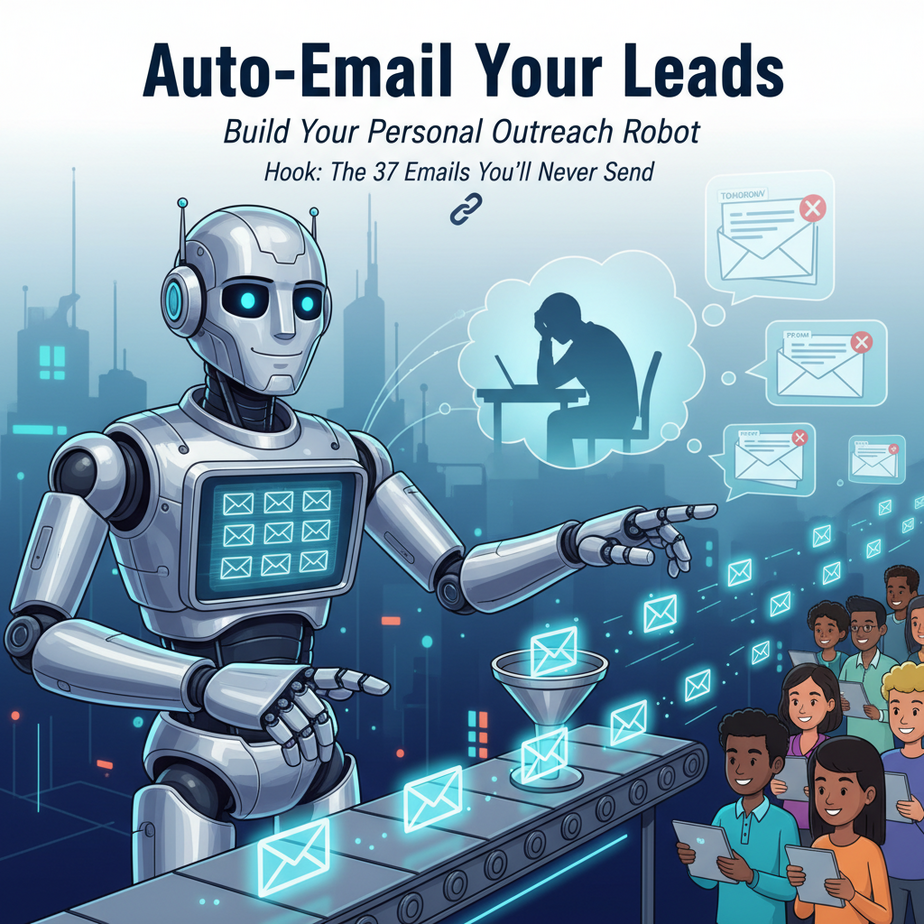
Hook: The 37 Emails You’ll Never Send
You just watched your best lead download your pricing sheet and… disappear. You know you should follow up. You *will* follow up. Tomorrow. Or maybe Friday. Definitely next week.
By then, they’ve bought from your competitor. Their inbox is a graveyard of good intentions. You’re not lazy; you’re just one human fighting an avalanche of tasks. That’s the problem. The solution isn’t a new productivity app. It’s building an intern that doesn’t sleep, forget, or get intimidated by sending 50 personalized emails.
Today, we build your email outreach robot. It’s your relentless, polite, and terrifyingly organized sales assistant.
Why This Matters: Your Inbox Is a Leak in Your Revenue Bucket
Let’s talk numbers. A missed follow-up isn’t just a missed email—it’s a missed deal. Statistically, 80% of sales require 5-12 follow-ups, but most reps give up after two. Why? It’s manual, boring, and time-consuming.
This automation replaces:
- The Intern: The one you can’t afford, who would mess up your email template.
- The Scatterbrain Method: Trying to remember who you emailed last Tuesday.
- Lost Opportunities: That 40% of leads that go cold simply because you didn’t have a system to keep the conversation warm.
When you automate this, you’re not just saving time. You’re systematically converting leads while you work on higher-value tasks, like closing deals or planning your next product feature. It turns a reactive chore into a proactive revenue engine.
What This Tool / Workflow Actually Is
What it is: A workflow that connects your lead list to your email client, uses a template to personalize messages, and sends them on a schedule. It’s like a conveyor belt in a factory where each lead gets a custom-tailored welcome package.
What it is NOT: A spam cannon. It’s not blasting generic “Dear Sir/Madam” garbage. It’s not a CRM itself (though it can connect to one). It won’t write the entire sales pitch for you; it handles the repetitive outreach so you can do the high-touch closing.
Prerequisites: The Honest Checklist
Before we build, let’s be brutally honest about what you need. Don’t worry—this is beginner-friendly, but you’ll need these three things:
- An Email Account: Gmail is ideal for this. Not your work email if it has strict IT rules. Create a new one if you must.
- A List of Leads: A simple Google Sheet or Airtable with columns for: Name, Company, Email, and any personal note (e.g., “Read your blog post on AI”).
- An Automation Platform: We’re using Make.com (formerly Integromat). It has a generous free tier and is visual—no code. Think of it as LEGO for automation.
If you have those three, you’re 100% ready. If you’re missing the platform, sign up for a free Make account right now. It’ll take 2 minutes.
Step-by-Step Tutorial: Building Your Outreach Robot
We’re going to create a scenario (that’s what Make calls a workflow) that watches your Google Sheet, finds new rows, and emails them. The magic is in the personalization.
Step 1: Set Up Your Google Sheet
Create a new sheet named “New Leads.” Use these exact columns in the first row:
Email | FirstName | Company | NotesPopulate it with a few test leads. This is your robot’s feed.
Step 2: Create the Scenario in Make
- Log into Make. Click “Create a new scenario.”
- Click the big “+” to add your first module. Search for “Google Sheets.”
- Select “Google Sheets” > “Search Rows.” Connect your Google account.
- In the configuration:
- Spreadsheet: Select your “New Leads” sheet.
- Sheet: Usually “Sheet1.”
- Filters: Add a filter. This is crucial. We only want NEW leads. Set it to: Status is not equal to “Emailed.” (You’ll add a “Status” column later. For now, we’ll simulate it.)
Step 3: Add Email Logic
Click the “+” after the Google Sheets module. Search for “Gmail.” Select “Send Email.”
Configure it. This is where the personalization happens. Don’t just copy-paste; understand why each field matters:
- To: Map to
Emailfrom your Sheet (click the little bubble to select it). - Subject: Here’s a template: Quick question about [Company], [FirstName]
- Body: This is the HTML content. Use this exact, personal template:
<html><body><p>Hi [FirstName],</p><p>I was just reading about [Company] and saw you were looking for solutions to [Notes - if blank, put "growth strategies"]. I’ve helped companies like yours achieve [specific result, e.g., "30% more inbound leads"].</p><p>Worth a quick 10-minute chat next week?</p><p>Best,</p><p>[Your Name]</p></body></html>Map the brackets like this: [FirstName] becomes the dynamic bubble from your Google Sheet. Make will ask for your authorization. Click “OK.”
Step 4: Update the Status (The Close the Loop Step)
Without this, your robot will email the same people forever. Add a final module: “Google Sheets” > “Update a Row.”
- Map the Row ID to the one from your initial “Search Rows” module.
- Set the “Status” column (if you added it) to “Emailed.”
Click “OK.” Turn the scenario on. Watch it run. You’ve just hired your first automaton.
Complete Automation Example: The “Cold Lead Nurturer”
Business: A digital marketing agency.
Problem: Their founder, Sarah, gets 20 new website signups a week. She used to email them manually, but would get busy and 60% would go cold.
Automation Solution:
- Trigger: A new row in their Airtable “Leads” base, from a Typeform signup.
- Process (Make Scenario):
- Module 1: Airtable “Search Records” for new signups where “Stage” is “New.”
- Module 2: Gmail “Send Email” with a 3-email sequence template (greeting, value, case study). It uses dynamic fields like
CompanyNameandDesiredService. - Module 3: Update Airtable, setting “Stage” to “Nurture Email 1 Sent.”
- Module 4 (a separate, scheduled scenario): Waits 3 days. Then checks if “Stage” is still “Nurture Email 1 Sent.” If yes, it sends the follow-up (Email 2: “One more tip…”).
Outcome: Sarah’s email inbox is calmer. Her lead-to-consultation rate increased by 35% in 2 months. Her robot followed up consistently, so she only has to jump in when the lead is genuinely hot.
Real Business Use Cases (MINIMUM 5)
- Freelance Designer: Problem: Networking on LinkedIn and sending proposal PDFs manually. Solution: Auto-email a personalized portfolio link to every new connection, with a line referencing their recent post.
- E-commerce Store: Problem: Cart abandoners. Solution: Trigger an email sequence 1 hour after cart abandonment, referencing the specific abandoned product.
- Consultant: Problem: Post-webinar no-shows. Solution: Auto-send the recording and a “catch-up” call invite to registrants who missed the live session.
- Real Estate Agent: Problem: Following up with open house visitors. Solution: System sends a “Thanks for visiting [Address]” email with a custom market report link, based on the visitor’s interest tags.
- SaaS Founder: Problem: Re-engaging free trial users who go inactive. Solution: Trigger an email sequence offering a one-on-one setup call if they haven’t logged in for 7 days.
Common Mistakes & Gotchas
- Not Throttling Emails: Sending 100 emails in one minute will get your domain flagged as spam. Use Make’s built-in delay (click the settings on a module) to add a 30-60 second gap between sends.
- Generic Templates: If your template isn’t at least 70% personalized, it’s spam. Use the data you have. The “Notes” field is golden.
- Forgetting the “Nurture”: One email is not a sequence. Build a multi-step nurture (e.g., Day 1: Intro, Day 3: Value, Day 5: Case Study). Use Make’s “Iterator” or multiple scenarios connected.
- Ignoring Bounces: Add a module after the email send that checks for bounce notifications and marks the lead as “Invalid” in your sheet. Don’t keep emailing ghosts.
How This Fits Into a Bigger Automation System
This email robot isn’t an island. It’s the first gear in a larger machine.
Connect it to your CRM: Instead of a Google Sheet, use HubSpot or Pipedrive as your trigger. Your email sequence updates the deal stage automatically.
Add a Voice Agent: After the email sequence, if a lead replies “Yes, call me,” trigger a voice agent to book the calendar slot via SMS.
Feed into a RAG System: Your outgoing emails are logged. Imagine a future assistant that answers customer questions by searching through all your past personalized email conversations for context.
Right now, you’ve built the entry point. The next step is making it intelligent and responsive.
What to Learn Next
You now have a 24/7 sales assistant. But what if you could listen for replies and act on them? In our next lesson, we’ll build the “Listen & Respond” module. We’ll teach your robot to read incoming emails, understand the intent, and either book a meeting or alert you if the lead is angry.
That’s where the real magic happens—when your automation starts to *think* and react like a human sales rep, but at machine scale.
Go set up your first scenario. Get one email sent. You’ve taken the first step out of the manual grind. Now, keep going.
“,
“seo_tags”: “email automation, sales automation, business automation, no-code, make.com, lead nurturing, email marketing”,
“suggested_category”: “AI Automation Courses