
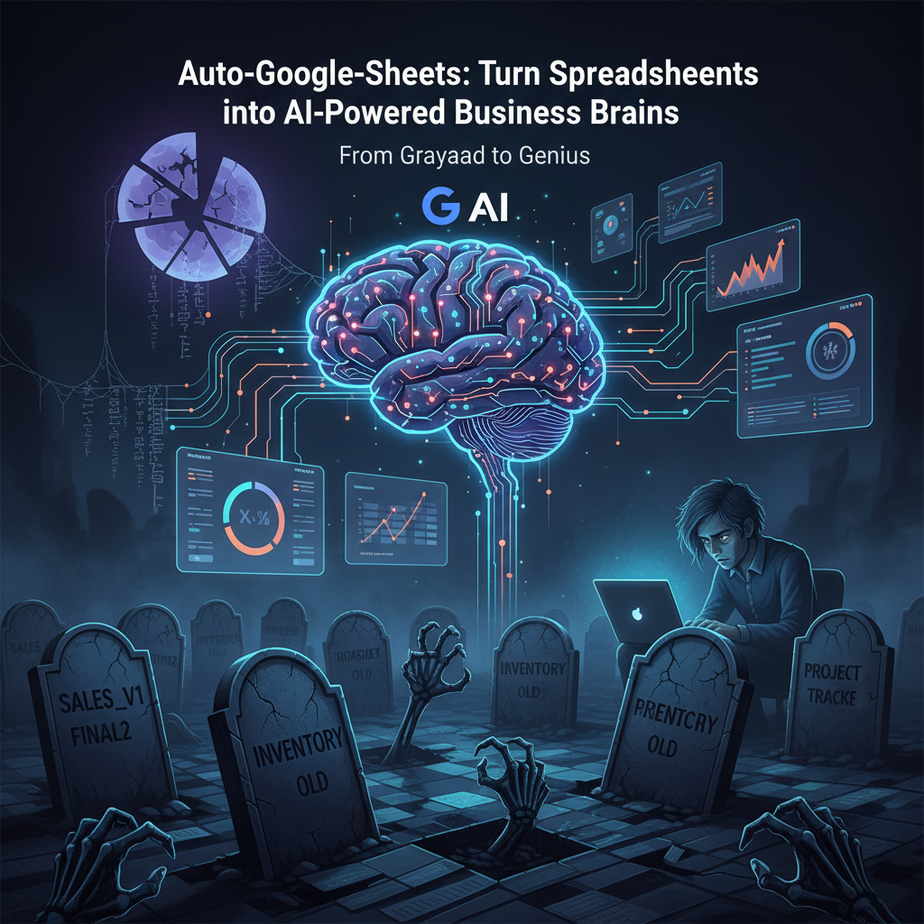
The Spreadsheet Graveyard: A Horror Story
Picture this: It’s 2 AM. You’re awake because you forgot to update your sales tracker. Your inventory spreadsheet is a mess of copied data, and you’re manually highlighting cells like you’re living in 1995. You have 15 tabs open, and each one represents a piece of your business brain—disconnected, dumb, and driving you crazy. This isn’t a spreadsheet. It’s a digital tombstone for lost time and missed opportunities. But what if that same boring grid could start thinking for you? What if it could flag inventory that’s about to run out, sort new leads by urgency, or even summarize sales data in plain English? That’s not a fantasy. That’s what happens when you stop using Sheets as a passive storage bin and start wiring them up to AI.
Why This Matters: Your Spreadsheet as an Intern
Most businesses treat Google Sheets as a digital filing cabinet. It’s where data goes to die. But a sheet is just a series of empty boxes waiting for instructions. An AI-powered sheet is different. It’s like hiring a super-intern who never sleeps, never makes copy-paste errors, and can sift through thousands of rows in seconds. This automation replaces the manual grind: checking inventory levels, following up on cold leads, analyzing last week’s revenue. It saves hours every day, prevents costly mistakes (like overselling or missing a hot lead), and scales with you. The goal isn’t just a prettier sheet—it’s a living system that makes business decisions faster than you can.
What We’re Building: The AI-Enhanced Sheet
Here’s the straightforward deal: We’re going to connect Google Sheets to an AI model (we’ll use a simple, powerful one like Google’s own PaLM API or a free alternative like Hugging Face Inference) using a tool called Google Apps Script. This is the magic glue for Sheets. Our sheet will take raw, messy data and use AI to categorize, summarize, and flag it automatically.
What it DOES: Automatically processes rows of data with AI, writes summaries, sorts by priority, and can even generate draft emails.
What it DOESN’T do: It won’t talk to strangers (no external APIs like Twitter), it won’t trade stocks, and it won’t handle sensitive data like credit card numbers unless you build extra security layers.
Prerequisites: No Spreadsheets, No Problem
You need a Google account and a free Google Sheets document. That’s it. No prior coding experience is required. If you can click buttons and follow a recipe, you can do this. We’ll use Google Apps Script, which is JavaScript-based but written in such a simple way that you’ll feel like you’re writing a to-do list. If you’ve ever written an email, you have the logical thinking skills needed here.
Step-by-Step Tutorial: The 15-Minute AI Sheet
Step 1: Create Your Battlefield (The Sheet)
Open a new Google Sheet. Let’s create a simple ‘Sales Leads’ tracker. In Row 1, set these headers: Name, Email, Notes, Priority, AI Summary. Fill in a few example rows in the columns below—messy notes are perfect for testing. This is your data source.
Step 2: Open the Laboratory (Apps Script)
In your Google Sheet, click on Extensions > Apps Script. This opens a new tab with a code editor. Don’t panic. On the left, rename ‘Untitled project’ to ‘AI Assistant’. This is where we’ll wire the intelligence.
Step 3: Write Your First Automation Command
Let’s create a function that reads the sheet and uses AI to prioritize leads. In the Apps Script editor, delete any code in the main file and paste this:
function categorizeLeads() {
  const sheet = SpreadsheetApp.getActiveSpreadsheet().getActiveSheet();
  const dataRange = sheet.getDataRange();
  const values = dataRange.getValues();
  const headers = values[0];

  // Find which column is 'Notes' and 'Priority'
  const notesCol = headers.indexOf('Notes') + 1; // +1 because Sheets use 1-based indexing for columns
  const priorityCol = headers.indexOf('Priority') + 1;

  // Loop through each row starting from row 2 (skip header)
  for (let i = 1; i < values.length; i++) {
    const note = values[i][notesCol - 1]; // We need 0-based index here for the array
    const existingPriority = values[i][priorityCol - 1];

    // Only process if there's a note and no priority set yet
    if (note && !existingPriority) {
      // This is where our AI prompt will go. For now, we'll use a simple keyword rule.
      // A real AI call would go here. Let's simulate with logic first.
      let priority = 'Medium'; // Default
      const lowKeywords = ['just curious', 'maybe', 'later'];
      const highKeywords = ['urgent', 'need now', 'budget ready'];

      const lowerNote = note.toLowerCase();
      if (highKeywords.some(k => lowerNote.includes(k))) {
        priority = 'High';
      } else if (lowKeywords.some(k => lowerNote.includes(k))) {
        priority = 'Low';
      }

      // Write the priority back to the sheet
      sheet.getRange(i + 1, priorityCol).setValue(priority);
    }
  }
}
Click the ‘Run’ button (▶️). Google will ask for permissions. Click ‘Review permissions’ and choose your account. It will warn you about unsafe apps. Click ‘Advanced’ > ‘Go to…’ > ‘Allow’. This is normal for our custom script.
Step 4: Add the REAL AI (Using a Simulated API Call)
For this lesson, we’ll simulate the AI call with a clean function. A real API call requires a key (from services like OpenAI or Hugging Face). Here’s the structure for when you’re ready. Replace the keyword logic above with a call to a function like this:
function getAIPriority(note) {
  // THIS IS A SIMULATION. To use a real AI, you would:
  // 1. Get an API key from a service (e.g., Hugging Face).
  // 2. Use UrlFetchApp to POST to their endpoint.
  // 3. Parse the JSON response.
  // For educational purposes, we're using a dummy response.

  const prompt = `Analyze the following lead note and return one word: High, Medium, or Low. Note: "${note}"`;

  // In a real scenario, you'd send 'prompt' to the AI API.
  // Here, we're using a simple mock.
  const mockResponse = 'High'; // This would be the AI's output.

  return mockResponse;
}
Integrate it into the loop. The key concept: Your script gets the data, packages it for the AI, sends the question, gets an answer, and writes it back. You are the conductor of an orchestra of APIs.
Step 5: Automate It (Set a Trigger)
Click the clock icon on the left of Apps Script (Triggers). ‘Add Trigger’. Choose the function ‘categorizeLeads’. Set it to run ‘On change’ or ‘Time-driven’ (e.g., every hour). Now your sheet is alive. Every time a new row is added, it will be processed. You have built an autonomous worker.
Complete Automation Example: The Smart Inventory System
Let’s build something real. Imagine a small coffee shop. They have a sheet for inventory: Item, Current Stock, Low Stock Threshold, Supplier.
The Pain: Staff checks the sheet manually, sees ‘Beans’ at 2kg, realizes the threshold is 3kg, panics, and tries to call the supplier. This happens daily.
The AI Automation:
- Trigger: The Apps Script runs every night at 2 AM.
- Action: It reads the ‘Current Stock’ and ‘Low Stock Threshold’ for every item.
- AI Logic: For any item where ‘Current Stock’ is below ‘Threshold’, it uses AI to draft a purchase order. The AI prompt: “Write a professional, concise email to our supplier [Supplier Name] requesting a restock of [Item]. Our current stock is [Current Stock] kg, and we need it to be at least [Threshold] kg. We are a coffee shop. Keep it friendly.”
- Output: The script writes the draft email text into a new column, ‘Draft Email’, and sets the item’s status to ‘Restock Alert’.
- Human Step: The manager reviews the draft email at 8 AM, clicks send. Chaos is averted. Time spent: 5 minutes instead of an hour of stress.
- API Limits: Free AI services have rate limits (e.g., 5,000 characters per minute). Don’t process 10,000 rows at once. Batch them.
- Data Privacy: Never send personally identifiable information (PII) to an AI API without a Business Associate Agreement (BAA) if you’re in healthcare/finance.
- Cost Creep: API calls cost money. Always set a budget alert. The ‘simulated’ version is free forever.
- Over-Engineering: Start with a simple keyword rule before adding the AI layer. Don’t build a rocket to fly to the store.
- Missing Triggers: If your automation doesn’t run, check the trigger log. 90% of errors are permission or trigger issues.
- CRM Bridge: Connect this sheet to your CRM (like HubSpot or Salesforce) via Zapier or another integration. New leads in your CRM pop into the sheet for AI sorting.
- Email Agent: The AI-generated draft emails (from our inventory example) get sent via a Gmail automated forward, creating a basic ‘voice agent’ for customer communication.
- Multi-Agent Workflow: One agent (the sheet) handles analysis. The output triggers another agent (Gmail) to send emails. This is a simple two-agent system.
- RAG System Component: This sheet can become your ‘Knowledge Base.’ Instead of a vector database, it’s a structured table that an AI can reference (e.g., “According to our inventory sheet, X has low stock”).
Real Business Use Cases (5 Viable Ones)
1. Freelancer: Client Proposal Tracker
Problem: Juggling 20 potential clients, manually checking emails for ‘next steps’.
AI Fix: A script that scans your ‘Notes’ column for phrases like “sent proposal,” “waiting on budget,” and uses AI to generate a personalized follow-up email draft. It then sets a follow-up date automatically.
2. Small E-commerce: Product Review Analyzer
Problem: Reviews are scattered on different platforms.
AI Fix: A script that pulls reviews into a sheet (using a manual paste or a simple scraper). AI analyzes sentiment (Positive/Neutral/Negative) and summarizes common complaints (“Sizing runs small”). It creates a dashboard for product improvement.
3. Marketing Agency: Social Media Content Ideas
Problem: Brainstorming content for clients is repetitive.
AI Fix: A sheet with client industries and brand voice. An AI function generates 5 social media post ideas in the ‘Content Idea’ column for each client each week.
4. Non-Profit: Donor Thank-You Letters
Problem: Writing personal thank-yous to every donor takes ages.
AI Fix: A script that takes donor name, amount, and campaign info. AI writes a heartfelt, personalized draft letter, which a staff member reviews and sends. It scales gratitude.
5. Consultant: Meeting Note Sorter
Problem: Raw, messy notes from client calls are hard to analyze.
AI Fix: Dump notes into a sheet. AI categorizes them into ‘Action Items,’ ‘Key Decisions,’ and ‘Open Questions.’ Creates a clean summary for the CRM.
Common Mistakes & Gotchas
How This Fits Into Your Automation Empire
This Google Sheet is your new central nervous system. It’s the core of your ‘Business Brain.’ Here’s how it connects:
What to Learn Next: Scaling to a Full Agent
You’ve just built the first real step in an AI-powered business: an autonomous data processor. This is the foundation. In our next lesson, we’ll take this sheet and connect it to a Voice Agent. Imagine receiving a phone call, having an AI take an order, and that order automatically populating your Google Sheet and triggering the inventory check we just built. Your sheet will stop being a passive list and become an active participant in your business conversation.
The journey from spreadsheet to autonomous system starts here. Now, go delete that 1995 sales tracker and build your first AI intern.
“,
“seo_tags”: “Google Sheets Automation, AI for Business, Apps Script, No-Code AI, Business Process Automation, Google Sheets AI, Automation Tutorial”,
“suggested_category”: “AI Automation Courses