
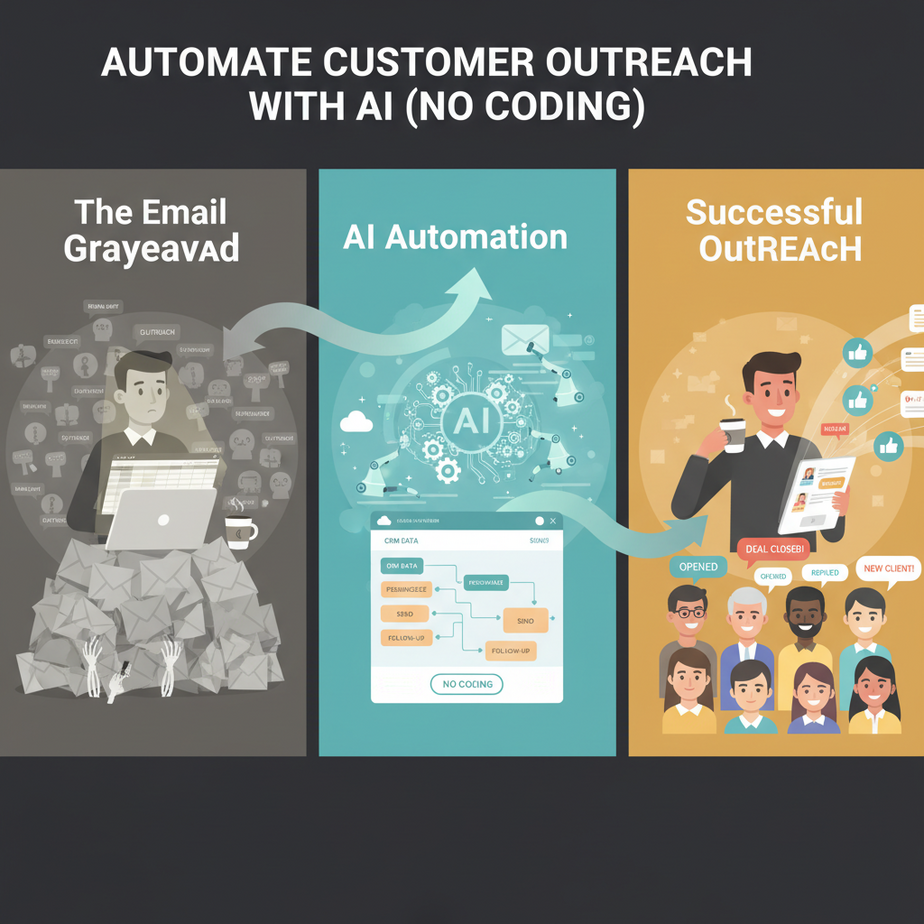
The Email Graveyard (A Cautionary Tale)
Meet my friend Alex. He runs a small B2B SaaS company. Every Monday morning, he drinks a black coffee and opens his spreadsheet. For the next three hours, he sends 30 personalized emails to potential clients. He copies, pastes, tweaks the intro, and adjusts the closing. By hour three, his brain is mush. The last 10 emails are sloppy clones of the first 20.
Alex isn’t lazy. He’s doing it wrong. He’s like a factory worker hand-carving every single screw when an assembly line is right behind him.
The result? 3% reply rate. 30 hours a month down the drain. And his best work is buried in the Email Graveyard, unread.
Why This Matters (The Math of Scalability)
Manual outreach is a dead-end. It scales poorly, exhausts you, and leads to burnout. You’re trading time for attention, and the exchange rate is terrible.
This automation replaces the human intern who just copies and pastes. It handles the repetitive grunt work, letting you focus on strategy and closing deals. Instead of 30 hours of work for 30 emails, you set it up once and generate 100 personalized emails in 10 minutes.
Business impact: More outreach, better personalization, higher reply rates, and you get back your time. That’s not just productivity; that’s leverage.
What This Automation Actually Is
We’re building an AI-powered outreach system that does three things:
- Scrapes public company data (like job listings or news).
- Generates a personalized opening line based on that data.
- Assembles a complete, contextual email for you to review and send.
What it does NOT do: It won’t spam people. It won’t send emails without your oversight. It’s a co-pilot, not a ghostwriter.
Prerequisites
You need three things:
- A Google account (for Google Sheets and Gmail).
- An OpenAI API key (free to get, pay-as-you-go).
- 20 minutes of focused time.
If you can use a spreadsheet, you can build this. No coding required.
Step-by-Step Tutorial: The AI Outreach Assistant
Step 1: Set Up Your Command Center (Google Sheet)
Create a new Google Sheet. Name it “AI Outreach Master.” Make these columns:
Company | Website | Recent News/Job Listing | Personalized Opening | Full Email Draft | StatusPopulate the first three columns manually for 5-10 test companies. For “Recent News/Job Listing,” paste a sentence or two about something they’ve done recently (e.g., “They just launched a new feature for remote teams.” or “They’re hiring a Senior Product Designer.”)
Step 2: Get Your AI Brain (OpenAI)
- Go to platform.openai.com and sign up.
- Go to “API Keys” and create a new secret key. Copy it immediately.
- Keep this key safe. We’ll use it in the next step.
Step 3: Build the Automation (Using Google Apps Script)
Google Sheets has a built-in scripting language. We’ll use it to call the AI.
- Open your Google Sheet. Go to Extensions > Apps Script.
- Delete the default code. Paste the following script. It’s copy-paste ready.
// REPLACE "YOUR_OPENAI_API_KEY" WITH YOUR ACTUAL KEY
const OPENAI_API_KEY = "YOUR_OPENAI_API_KEY";
const SHEET_NAME = "Sheet1"; // Change if your sheet is named differently

function generatePersonalizedEmail() {
  const sheet = SpreadsheetApp.getActiveSpreadsheet().getSheetByName(SHEET_NAME);
  const data = sheet.getDataRange().getValues();
  const headers = data[0];

  // Find column indices
  const companyCol = headers.indexOf("Company");
  const newsCol = headers.indexOf("Recent News/Job Listing");
  const openingCol = headers.indexOf("Personalized Opening");
  const emailCol = headers.indexOf("Full Email Draft");
  const statusCol = headers.indexOf("Status");

  // Loop through rows (skip header)
  for (let i = 1; i < data.length; i++) {
    if (data[i][statusCol] !== "Ready") continue;

    const company = data[i][companyCol];
    const news = data[i][newsCol];

    if (!company || !news) continue;

    // Craft the prompt for AI
    const prompt = `Generate a personalized opening line for a cold email to ${company}.
    They recently did this: "${news}".
    Make it specific, friendly, and under 20 words.`;

    // Call OpenAI API
    const response = callOpenAI(prompt);

    if (response && response.choices && response.choices[0]) {
      const openingLine = response.choices[0].message.content.trim();

      // Generate full email draft
      const fullEmail = `
        Hi there,

        ${openingLine}

        I'm reaching out because I help companies like yours ${getBenefit()}.
        Would you be open to a 15-minute chat next week?

        Best,
        [Your Name]
      `;

      // Write back to sheet
      sheet.getRange(i + 1, openingCol + 1).setValue(openingLine);
      sheet.getRange(i + 1, emailCol + 1).setValue(fullEmail);
      sheet.getRange(i + 1, statusCol + 1).setValue("Drafted");
    } else {
      sheet.getRange(i + 1, statusCol + 1).setValue("Error");
    }

    // Pause to avoid rate limits
    Utilities.sleep(2000);
  }

  SpreadsheetApp.getActiveSpreadsheet().toast("Batch processing complete!");
}

function callOpenAI(prompt) {
  const url = "https://api.openai.com/v1/chat/completions";
  const headers = {
    "Authorization": `Bearer ${OPENAI_API_KEY}`,
    "Content-Type": "application/json"
  };

  const payload = {
    "model": "gpt-4o-mini",
    "messages": [
      {"role": "system", "content": "You are a helpful business assistant."},
      {"role": "user", "content": prompt}
    ]
  };

  const options = {
    "method": "post",
    "headers": headers,
    "payload": JSON.stringify(payload),
    "muteHttpExceptions": true
  };

  try {
    const response = UrlFetchApp.fetch(url, options);
    return JSON.parse(response.getContentText());
  } catch (error) {
    Logger.log("API Call Error: " + error);
    return null;
  }
}

function getBenefit() {
  const benefits = [
    "cut their administrative costs by 30%",
    "automate repetitive tasks so they can focus on growth",
    "increase their team's productivity with AI tools",
    "streamline their client onboarding process"
  ];
  return benefits[Math.floor(Math.random() * benefits.length)];
}

// CREATE A MENU TO RUN THE SCRIPT
function onOpen() {
  const ui = SpreadsheetApp.getUi();
  ui.createMenu('AI Outreach Menu')
    .addItem('Generate Email Drafts', 'generatePersonalizedEmail')
    .addToUi();
}- Click the save icon (floppy disk). Name the script "Outreach Automator."
- Back in your Sheet, refresh the page. You should see a new menu: "AI Outreach Menu."
Step 4: Run It!
- In your Google Sheet, set the "Status" column to "Ready" for your test rows.
- Click "AI Outreach Menu" > "Generate Email Drafts."
- Grant the script permission when prompted (it needs access to your sheet and the internet).
- Wait a minute. Watch as the "Personalized Opening" and "Full Email Draft" columns fill up.
You've just automated the grunt work. The AI personalized each opener. You now review and click send.
Complete Automation Example
Scenario: A freelance UX designer wants to reach out to tech startups that recently raised funding.
- Setup: She finds 20 startups via TechCrunch. Puts their names and funding announcements in the sheet.
- Execution: Runs the "Generate Email Drafts" script. It creates openings like: "Congrats on the $5M Series A! Your focus on user-centric design really stands out."
- Output: Gets 20 fully drafted emails. She scans them for 5 minutes, edits the closing, and uses Gmail's "Schedule Send" to spread them over the week.
Result: Went from sending 5 emails/day (burnout) to managing 100 personalized emails/week (growth).
Real Business Use Cases
- Real Estate Agent: Automates outreach to homeowners in listings with expired deals. Opens with specifics about their neighborhood market.
- Recruitment Agency: Personalizes LinkedIn messages to candidates based on their recent projects. Fills roles 2x faster.
- Consulting Firm: Automates follow-ups after webinar registrations. References specific pain points from the event.
- E-commerce Brand: Sends personalized product recommendations to past buyers based on their purchase history and reviews.
- SaaS Founder: Automates feature update emails to free-tier users, highlighting benefits relevant to their usage patterns.
Common Mistakes & Gotchas
- Mistake 1: Not reviewing drafts. The AI is brilliant but not infallible. Always scan before sending.
- Mistake 2: Using a weak prompt. Be specific. "Write a nice email" is vague. "Write a cold email about our CRM to a VP of Sales at a mid-market company" works.
- Mistake 3: Hitting API limits. The script includes a 2-second pause. For 100+ rows, batch them and run the script in chunks.
- Mistake 4: Skipping personalization. The magic is in the unique data point. Without it, you get generic slop.
How This Fits Into a Bigger Automation System
This outreach automator is your lead-generation engine. Now, connect it to the rest of your machine:
- CRM Integration: Use Zapier to add "Drafted" emails to your CRM (HubSpot, Salesforce) for tracking.
- Follow-Up Engine: Add a "Follow-Up Date" column. Have a second script that sends a gentle follow-up after 3 days if no reply.
- Voice Agent Bridge: For warm leads who reply with a calendar link, use a voice agent (like Google’s PolyAI) to confirm appointments.
- Multi-Agent Workflow: The AI that writes the opener could be a different model (e.g., a more creative model) than the one that drafts the full email (e.g., a more formal model).
- RAG System Connection: Imagine this: Instead of manual news input, the system automatically scrapes a target company's news feed, analyzes it, and personalizes. That's your next-level automation.
What to Learn Next
You've just automated one of the most painful sales tasks. This is Lesson 2 in the AI Automation Course.
Next, we'll tackle the beast that follows outreach: Automated Meeting Scheduling & Note-Taking. Imagine a system that not only books the meeting but also preps a briefing document for you before you walk in.
Your AI intern just got a promotion. Are you ready to give it more responsibility?
",
"seo_tags": "AI Automation, Email Automation, Sales Outreach, Google Sheets, OpenAI, Business Productivity",
"suggested_category": "AI Automation Courses