
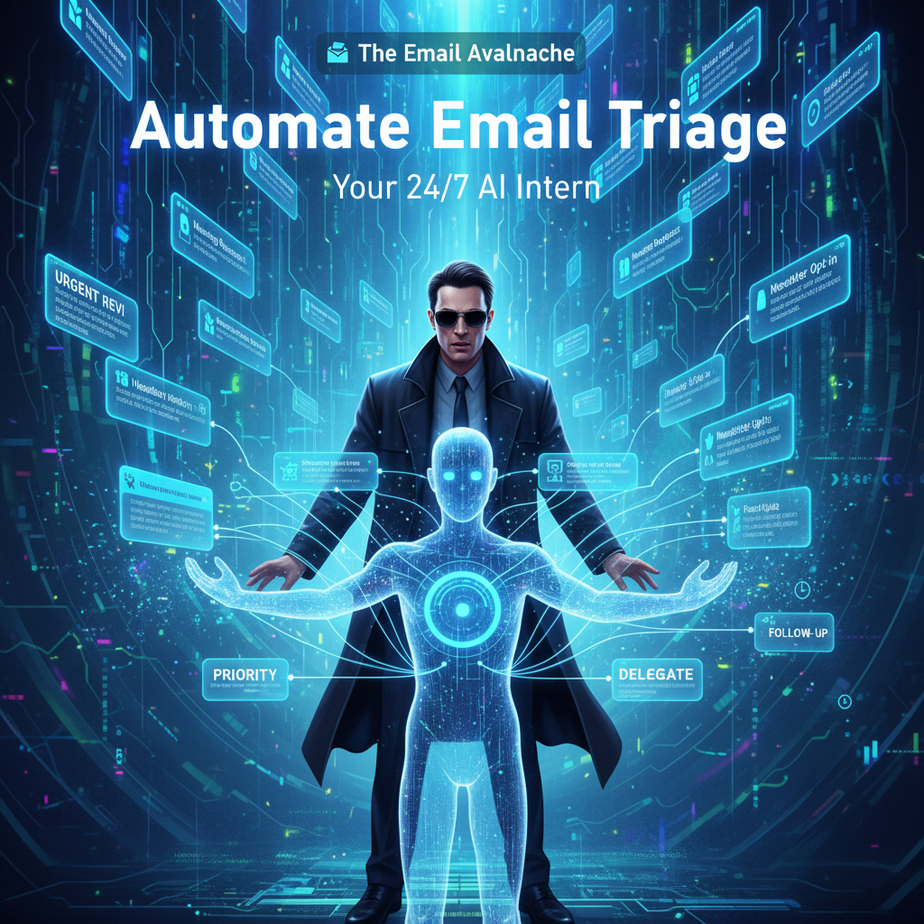
The Email Avalanche
Remember that scene in *The Matrix* where Neo is hit by an avalanche of green code? Replace the green code with emails. Every morning. Over 100 new ones. “Can you review this?” “Meeting reschedule.” “Invoice attached.” “Discount offer!” Your brain, even before coffee, has to process the difference between a nuclear blast and a spammy promo.
This isn’t productivity. This is digital trench warfare. And you’re losing.
Why This Matters: Your Mental Sanitation System
Let’s be brutally honest. Every minute you spend manually sorting emails is a minute stolen from deep work, strategy, or life. An AI email triage system doesn’t just organize—it acts as your first line of defense. It replaces the chaotic intern who misplaces everything, the overwhelmed assistant who misses a critical client email, and most importantly, the frantic part of *you* that feels perpetually behind.
Business Impact: You reclaim 30-60 minutes daily. That’s 3-6 hours per week. Per month? That’s 12-24 hours—time to close a deal, build a feature, or simply sleep. It scales instantly with your workload. Your sanity becomes the product.
What This Tool / Workflow Actually Is
Imagine a hyper-efficient librarian for your inbox. You feed it your emails (the unread ones). It reads the content, understands the intent (e.g., urgent request, general info, newsletter), assigns a priority tag (High, Medium, Low), and can even draft a generic reply for you. It then presents you with a clean, organized list. You’re not reading hundreds of emails; you’re scanning a curated dashboard of what requires *you*.
What it does: Automatically scans incoming emails, classifies them, prioritizes them, and can pre-draft responses for common types.
What it does NOT do: It does not read your mind for nuanced tone. It won’t replace your judgment. It’s a filter, not a replacement for human decision-making. You still have the final say.
Prerequisites
For absolute beginners: Do not panic. This requires no deep coding. We will use a visual automation tool (like n8n or Make.com) and a simple AI model (like a tiny LLM API). If you can follow a recipe, you can build this. If you can connect your email account (Gmail, Outlook), you’re already 90% there.
What you need:
- A free n8n.io account (or similar automation platform).
- Connected email account (Gmail is easiest).
- An OpenAI API key (or a similar LLM provider). A free tier often works for starters.
Assume zero prior knowledge. We start from square one.
Step-by-Step Tutorial: Building Your Triage Intern
Let’s build this in n8n (a visual workflow builder). Think of it as a pipeline where emails flow in, get processed, and come out organized.
Step 1: Create a New Workflow
Log into n8n. Click “New Workflow.” Name it “Email Triage Pilot.” We’re building a factory assembly line.
Step 2: The Trigger – Listen for New Emails
We need to know when new mail arrives. Add a “Gmail” node (or Outlook/IMAP) set to trigger on “new email.” Configure it with your connected account. Set the polling interval (e.g., check every 5 minutes). This is your conveyor belt, bringing in raw emails.
Step 3: The Brain – AI Classification
Add an “OpenAI” (or other LLM) node. Connect it to the Gmail trigger. We will send it the email’s subject and body.
# Prompt for the AI (Paste this into the system message field):
You are an expert office assistant. Analyze the provided email subject and body. Categorize it into ONE of these three priorities and provide a one-line summary:

- HIGH: Requires my direct action within 24 hours (e.g., client request, urgent meeting, crisis).
- MEDIUM: Important but not urgent (e.g., project updates, reports, info requests).
- LOW: Low importance (e.g., newsletters, spam, automated alerts).

Output ONLY in JSON format:
{"priority": "HIGH/MEDIUM/LOW", "summary": "one-line summary here"}
Connect the Gmail node’s output to this OpenAI node’s input. The AI reads the email and outputs a structured JSON, just like an intern handing you a sorted report.
Step 4: The Decision – The If-Else Router
Add an “IF” node. This is your smart routing system.
Condition: If the AI node’s output (specifically the `priority` field from the JSON) equals “HIGH”.
Connect the TRUE path to an action for high-priority items (e.g., send a Slack alert to your phone). Connect the FALSE path to another IF node for “MEDIUM”.
Step 5: The Action – Drafting Replies (For Medium/Low)
For emails classified as “MEDIUM” or “LOW,” we can automatically draft a polite acknowledgment.
Add an “OpenAI” node connected to the FALSE path. Use this prompt:
# Drafting Prompt:
You are drafting a polite acknowledgment for an email you received. Based on the summary "${input.summary}", write a concise, professional reply. Start with "Thank you for your email." Do not promise anything you can't deliver. Keep it under 50 words.
Finally, add an “Email Sender” node to actually send this draft or, safer for practice, add a “Google Sheets” node to log the draft. We’ll use a sheet for safety.
Step 6: Build & Test
Click “Execute Workflow.” Send yourself a test email with the subject “URGENT: Project Deadline!” Watch the flow in real-time. See the AI tag it, the router send it to the high-priority path. You’re done. The machine is learning.
Complete Automation Example: The Consultant’s Inbox
Scenario: Sarah, a freelance marketing consultant, receives 50+ emails daily. She’s missing client questions amid noisy newsletters.
Our Build:
- Trigger: New email in her client-facing address.
- AI Analysis: Classifies emails into “Client Request” (HIGH), “Proposal Follow-up” (MEDIUM), “Newsletter” (LOW).
- High Path: If marked “Client Request,” the workflow pings a “urgent” tag in her Asana project management tool and sends a critical alert to her phone via SMS.
- Medium Path: For “Proposal Follow-up,” it drafts a polite “I’ve received your message and will respond by EOD tomorrow.” It saves this draft in her Gmail drafts folder.
- Low Path: For “Newsletter,” it moves the email directly to a “Read Later” label, keeping the main inbox clean.
Result: Sarah opens her inbox and sees a clean list of 10-12 prioritized emails. No more digging. The frantic part of her day is automated away.
Real Business Use Cases
- E-commerce Store Owner: Problem: High volume of “Where is my order?” and “Return requests.” Solution: Auto-sort into “Fulfillment” (HIGH) vs. “General Inquiry” (MEDIUM). Draft an auto-reply with a tracking link for common questions.
- Real Estate Agent: Problem: Leads from Zillow/Redfin get buried in personal emails. Solution: Auto-classify anything with “listing” or “inquiry” as HIGH, creating a CRM entry and alerting the agent. Personal emails go to MEDIUM/LOW.
- Software Startup Founder: Problem: Critical user bug reports mixed with vendor invoices. Solution: Rule: Emails with words “bug,” “error,” or “crash” become HIGH. They auto-create a GitHub issue and alert the dev channel on Slack. Invoices are logged to an accounting sheet.
- Academic Researcher: Problem: Important journal alerts lost in conference spam. Solution: Auto-categorize based on sender domain (e.g., @nature.com = HIGH). Feed them directly into a Zettelkasten note-taking system.
- Nonprofit Director: Problem: Donor thank-yous and media requests buried under newsletter noise. Solution: Auto-tag donor emails (containing “donation” or “grant”) as HIGH. Assign to a volunteer intern’s queue via a shared Trello board.
Common Mistakes & Gotchas
- Over-Trust: The AI can misclassify. Never fully automate actions on HIGH-priority items without a final human review. Start with logging and alerts.
- API Costs: An AI call per email adds up. Start by filtering only the UNREAD emails. For a high-volume inbox, set a schedule to run less frequently (e.g., every 30 minutes).
- Privacy: You’re sending email content to an external AI service. Be mindful of what’s in those emails. For highly sensitive data, consider local AI models, but that’s for the advanced course.
- Test, Test, Test: Use a separate test email inbox first. Mistakes in automation can be embarrassing.
How This Fits Into a Bigger Automation System
Your email triage is the head of the pipeline. Now, where does the output go?
– High-Priority Emails could feed into a Voice Agent that calls the client if it’s truly urgent.
– Medium-Priority Emails could be logged into your CRM (like HubSpot or Airtable) as new leads or tasks, auto-created via API.
– Low-Priority Newsletters could be summarized by another AI agent and compiled into a weekly digest for you to skim.
This single automation is a foundational brick. Once you master it, you can connect it to your entire business stack, creating a self-operating company where information flows to the right place without you as a single point of failure.
What to Learn Next
You’ve just built the brain of your communications system. You’ve tamed the email beast. This feels like a superpower, doesn’t it?
In our next lesson, we’ll connect this triage system to a customer support chatbot. Imagine the bot answering low-priority queries while your AI triage feeds it only the complex cases you need to personally review. We’re building an army of automated workers, and you are their general.
Stay tuned. Your inbox is already quieter. Go execute.
“,
“seo_tags”: “email automation, AI triage, business productivity, n8n tutorial, automate inbox, workflow automation, email management, AI intern”,
“suggested_category”: “AI Automation Courses