
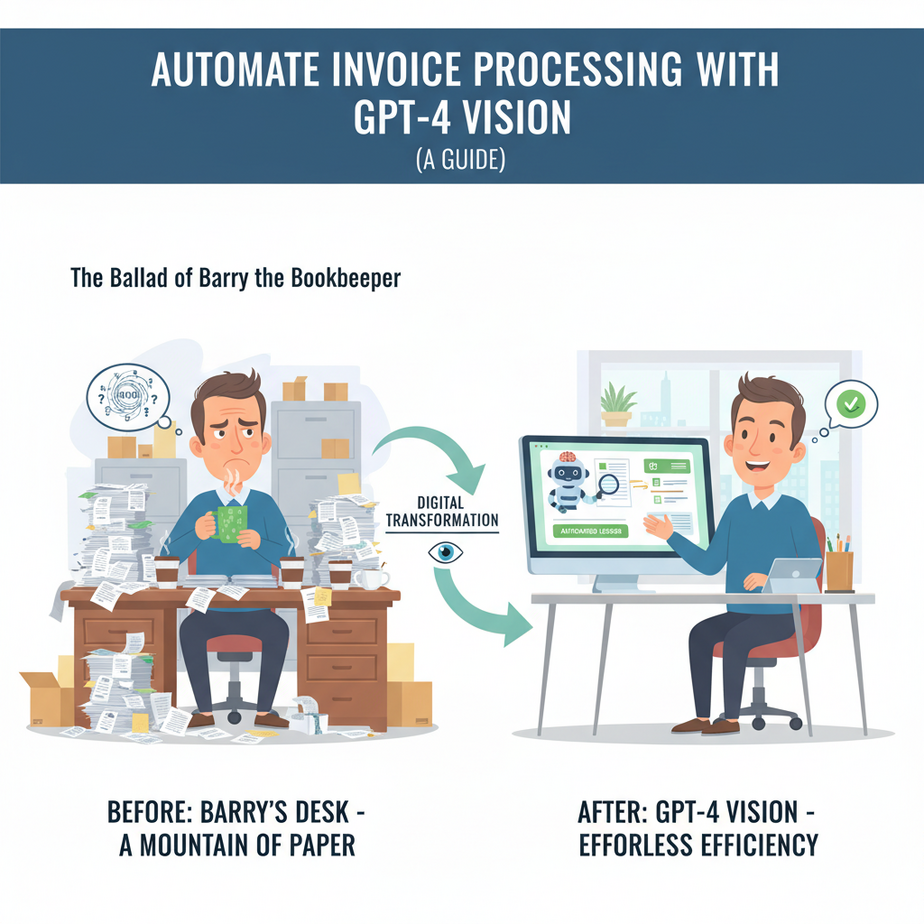
The Ballad of Barry the Bookkeeper
Let me tell you about Barry. Barry is a good guy. He’s the bookkeeper for a small, but growing, e-commerce business. Every month, Barry’s desk (and his desktop) is buried under an avalanche of invoices. PDFs from suppliers, JPGs of receipts from the marketing team’s lunch, and the occasional blurry photo of a crumpled packing slip.
Barry’s life is a cycle of opening a file, squinting at the screen, and manually typing the vendor name, invoice number, line items, and total amount into a spreadsheet. His eyes burn. His soul withers. He dreams in cells and columns. Barry is in data-entry purgatory.
We all have a bit of Barry in us. That part of our job that’s repetitive, mind-numbing, and feels like it could be done by a well-trained monkey. Well, today, we’re not just training a monkey. We’re giving it a PhD and a pair of superhuman eyes. We’re going to build an AI that reads documents for us. Welcome to the Academy.
Why This Matters (Hint: It’s About Money and Sanity)
Why are we starting with something as “boring” as invoices? Because every single business on the planet deals with them. And automating this process is one of the fastest ways to see a real, tangible return on investment from AI.
The Business Impact
Time is Money: Let’s say it takes 5 minutes to process one invoice. If you get 20 invoices a day, that’s over 33 hours a month. That’s nearly a full work week spent on a single, low-value task. What could you or your team do with an extra week every month?
Accuracy is Money: Humans make mistakes. We type 89 instead of 98. We miss a decimal point. These small errors can lead to overpayments, angry vendors, and messy books. An AI, when trained correctly, is ruthlessly consistent.
Scalability is Freedom: What happens when your business doubles? Do you hire another Barry? With an automated system, processing 1,000 invoices is as easy as processing 10. You’re not just saving time; you’re building a system that grows with you, not against you.
What This Workflow Actually Is
We’re using a tool called GPT-4 Vision (or GPT-4V). Forget everything you know about old-school OCR (Optical Character Recognition) that just pulls out raw text. That’s like hiring an intern who can read but can’t understand anything.
GPT-4 Vision is an intern who can read, understand context, and follow complex instructions. You can show it an image of an invoice and say, “Find the total amount,” and it won’t just find the text “$150.00”. It understands that this number is the total amount because of its position, its label, and the surrounding context. It’s the difference between seeing letters and understanding a story.
Our workflow is a simple, beautiful assembly line:
- Input: An image of an invoice (JPG, PNG) or a PDF.
- The Magic Box (GPT-4V): We send the image to the AI with a very specific set of instructions.
- Output: The AI sends back clean, structured data in a format called JSON. Think of it as a perfectly filled-out digital form, ready for any other software to use.
Prerequisites (The Honest, No-Fluff List)
I promised to make this accessible, and I will. No secret handshakes here. Here’s what you absolutely need:
- An OpenAI API Key: This is your password to access the AI. You can get one from the OpenAI website. Yes, it costs money to use, but we’re talking pennies per invoice. The cost of a coffee will likely get you through hundreds of documents.
- A Way to Run a Simple Script: For total beginners, we’ll use Google Colab. It’s a free, online tool that lets you run code in your browser. No installation, no fuss. If you’re a developer, you can run this anywhere you run Python.
- A Sample Invoice: Find a PDF invoice or take a screenshot of one. Save it as a `.png` or `.jpg` file. Don’t use anything with sensitive information just yet.
That’s it. You do not need to be a programmer. I’m giving you the code. Your job is to be the manager who tells the AI what to do.
Step-by-step Tutorial: Building Your Invoice Reader
Alright, class is in session. Let’s build this thing. Open up Google Colab and create a new notebook.
Step 1: Setup Your Environment
The first thing we need to do is install the official OpenAI library. It’s like giving our workspace the phone number to call the AI. In the first cell of your Colab notebook, type this and press the play button.
!pip install openaiStep 2: Authenticate and Prepare Our Tools
Now, let’s write the main script. We need to import the libraries we’ll be using, set up our API key, and create a helper function to prepare our image. Don’t just copy-paste; read the comments to understand *why* we’re doing each part.
IMPORTANT: Replace "YOUR_OPENAI_API_KEY" with your actual key. Keep this key secret!
import base64
import os
from openai import OpenAI

# --- 1. AUTHENTICATION ---
# Replace with your actual OpenAI API key
# For production, use environment variables for security
client = OpenAI(api_key="YOUR_OPENAI_API_KEY")

# --- 2. IMAGE ENCODING HELPER FUNCTION ---
# This function takes an image file path and converts the image into a format
# the API can understand (base64). Think of it as packaging the image for mailing.
def encode_image(image_path):
    with open(image_path, "rb") as image_file:
        return base64.b64encode(image_file.read()).decode('utf-8')
Step 3: Upload Your Invoice
In Google Colab, look at the left sidebar. There’s a folder icon. Click it. Then click the icon with an arrow pointing up (“Upload to session storage”). Upload your sample invoice image file. For this example, let’s assume you named it `invoice.png`.
Step 4: Crafting the Perfect Prompt
This is where the magic happens. We’re going to tell the AI *exactly* what to do. We define its role (an accounts payable specialist), give it the image, and specify the exact format for the output (JSON). This is called prompt engineering.
Add this code to the next cell in your notebook.
# --- 3. PREPARE THE IMAGE ---
# Path to your invoice image file
# Make sure you've uploaded this file to your Colab environment
image_path = "invoice.png"
base64_image = encode_image(image_path)

# --- 4. CRAFT THE PROMPT ---
# This is where you instruct the AI. We're telling it to act as a data entry clerk
# and extract specific pieces of information in a structured JSON format.
prompt_messages = [
    {
        "role": "user",
        "content": [
            {
                "type": "text",
                "text": "You are an expert accounts payable clerk. Your task is to extract information from the attached invoice image. Extract the following fields: vendor_name, invoice_number, invoice_date, total_amount, and a list of line_items. For each line_item, extract the description, quantity, and unit_price. Provide the output in a clean JSON format. Do not include any extra text or explanations outside of the JSON object."
            },
            {
                "type": "image_url",
                "image_url": {
                    "url": f"data:image/png;base64,{base64_image}"
                }
            }
        ]
    }
]
Step 5: Make the API Call and Get the Results
Now we send our packaged image and instructions to OpenAI. The AI will process it and send back its response. We then print out the result.
# --- 5. MAKE THE API CALL ---
try:
    response = client.chat.completions.create(
        model="gpt-4-vision-preview",
        messages=prompt_messages,
        max_tokens=2048 # Set a generous limit for the response
    )

    # --- 6. PRINT THE RESPONSE ---
    # The response from the AI is inside a nested structure, so we extract it.
    # We also clean up the response to make sure it's just the JSON.
    json_response = response.choices[0].message.content
    clean_json = json_response.strip('\
').strip('')
    print(clean_json)

except Exception as e:
    print(f"An error occurred: {e}")
Run this cell. After a few seconds, you should see a perfectly structured JSON object printed below, containing all the key information from your invoice. You just taught a computer to read.
Real Business Use Cases (This is just the start)
Extracting data is cool, but it’s useless unless you *do* something with it. Here’s where this becomes a superpower.
- Automated Bookkeeping: Parse the JSON output and use the APIs for QuickBooks, Xero, or Wave to automatically create a new bill. The entire process from receiving an invoice to having it logged in your accounting software can be 100% automated.
- Expense Report Automation: Build a system where employees can email photos of their receipts to a special address. Your AI reads the receipt, extracts the vendor, amount, and date, and pre-fills an expense report for them. All they have to do is review and submit.
- Supplier Contract Analysis: It’s not just for invoices. Feed a new supplier agreement (as an image or PDF) into the system and ask it to extract the renewal date, payment terms, and liability cap. Get an instant summary before you even read the first page.
Common Mistakes & Gotchas (I’ve made them so you don’t have to)
Garbage In, Garbage Out: The AI is amazing, but it can’t fix a terrible, blurry, coffee-stained scan. Ensure your input images are as clear as possible. A good scanner app on a phone is better than a shaky photo.
Trust, But Verify: Especially when you’re starting, don’t just blindly trust the output. Have a human review the extracted data. The AI might occasionally hallucinate or misinterpret a weirdly formatted document. The goal is to reduce manual work, not eliminate oversight.
Ignoring Weird Formats: Not all invoices look the same. Some might put the total on the top left. Your prompt needs to be robust, but you might find you need slightly different prompts for different vendors if their layouts are bizarre.
Forgetting the Cost: Vision API calls are more expensive than text-only calls. It’s still incredibly cheap, but if you’re planning to process 10,000 documents a day, you should check OpenAI’s pricing page and set up usage limits in your account.
How This Fits Into a Bigger Automation System
A script you run by hand is a tool. A system that runs itself is an asset. Our script is just one gear in a much larger machine.
Imagine this:
- The Trigger: A tool like Zapier or Make.com monitors your `invoices@yourcompany.com` inbox. When a new email with an attachment arrives…
- The Processor: It triggers a cloud function (like AWS Lambda or Google Cloud Functions) that runs our Python script, using the email attachment as the input image.
- The Action: The script runs, gets the JSON data, and then does three things:
- Sends the data to QuickBooks to create a draft bill.
- Posts a message in a #finance Slack channel: “New invoice from [Vendor Name] for [Total Amount] ready for approval.”
- Archives the email in Gmail.
Now, you don’t even have to click “run”. The entire workflow is autonomous. This is how you build a real automation pipeline.
What to Learn Next
Congratulations. You’ve successfully built a document-reading AI. You’ve taken a messy, unstructured image and turned it into clean, usable data. This is a foundational skill for almost any serious business automation.
But running a script manually is still work. What about that bigger system we just talked about? That self-running, fully autonomous pipeline?
In the next lesson, we’re going to build it. We’ll ditch Google Colab and set up a proper, automated workflow that triggers itself from a Google Drive folder. Every time you drop an invoice into that folder, our system will process it automatically. We’re going from building a tool to building a true digital employee. You’re not going to want to miss it.
“,
“seo_tags”: “”,
“suggested_category”: “AI Automation Courses