
Hook
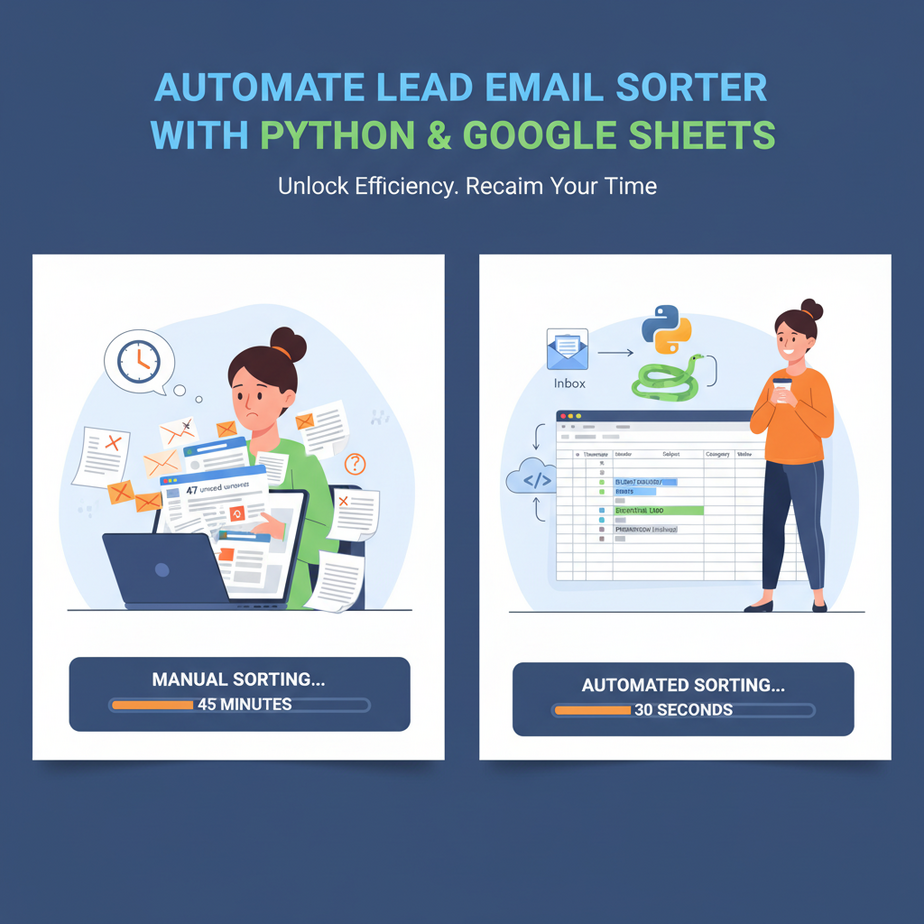
Sarah runs a boutique marketing agency. Last Tuesday, she got 47 emails. 32 were promotional junk, 7 were client requests, and 8 were potential leads. She spent 45 minutes manually reading each one, copying names into her master Google Sheet, and forwarding the promising ones to her sales intern. By the time she was done, she’d lost two actual client emails in the shuffle.
Her automation intern would have done it in 60 seconds. And it never gets tired, never forgets, and never wastes 45 minutes she could spend on actual revenue work.
Why This Matters
This isn’t about fancy AI. This is about replacing the most boring hour of your workweek. If you’re a small business owner, freelancer, or solo entrepreneur, you’re probably Sarah right now—acting as your own human CRM, email router, and data entry clerk.
What this automation replaces:
- The manual scan (feels productive, isn’t)
- The copy-paste into spreadsheets (error-prone)
- The “Oops, I forwarded this to the wrong person” moment
- The sheer dread of a full inbox on Monday morning
For a sales team of 10, this saves 3-5 hours per person, per week. That’s a full-time employee’s salary each month in recovered productivity.
What This Workflow Actually Is
We’re building a Python script that acts as a doorbell for your inbox. It monitors a specific email label (like “New Leads”), reads the email, extracts key information (name, company, email), and automatically appends a new row to a Google Sheet.
What it does:
- Connects to your email (Gmail)
- Filters for new lead emails
- Extracts contact info with simple pattern matching
- Writes to Google Sheets
- Can optionally move processed emails to another label
What it does NOT do:
- Write custom emails (we save that for the next lesson)
- Understand complex, non-standard email formats
- Replace a CRM system entirely
Prerequisites
Honest checklist:
- Google account: You need Gmail and Google Drive (free)
- Python installed: Download from python.org. This is your only “technical” step.
- Basic comfort: You can copy-paste and use a terminal. That’s it.
- An email to test with: Use a personal Gmail if you’re nervous.
Think of this like assembling IKEA furniture. The instructions are clear, you have all the parts, and you’ll have a working system by the end.
Step-by-Step Tutorial
Step 1: Enable Gmail API and Get Credentials
- Go to Google Cloud Console
- Create a new project (name it “Lead-Auto-Sorter”)
- Navigate to “APIs & Services” > “Enable APIs & Services”\li>
- Search for and enable the Gmail API
- Go to “Credentials” > “Create Credentials” > “OAuth client ID”\li>
- Select “Desktop App” as the application type
- Download the JSON file and rename it to
credentials.json
Step 2: Create a Google Sheet for Leads
- Open Google Sheets and create a new sheet
- Name it “Lead Database”
- In the first row, type: Name | Company | Email | Timestamp | Source Email
- Share this sheet (top right: “Share”) with the email from your credentials.json
- Copy the Sheet ID from the URL:
https://docs.google.com/spreadsheets/d/YOUR_SHEET_ID/edit
Step 3: Set Up Your Python Environment
- Open Terminal (Mac/Linux) or Command Prompt (Windows)
- Navigate to your project folder:
cd ~/Documents/Lead-Auto-Sorter - Create and activate a virtual environment:
python -m venv venv# Windows: venv\\Scripts\\activate# Mac/Linux: source venv/bin/activate - Install required libraries:
pip install google-api-python-client google-auth google-auth-oauthlib google-auth-httplib2pip install gspread
Step 4: The Main Script
Create a new file called lead_sorter.py and paste this code:
import os
import re
import datetime
import gspread
from google.oauth2.credentials import Credentials
from googleapiclient.discovery import build
from googleapiclient.errors import HttpError

# CONFIGURATION
CREDENTIALS_FILE = 'credentials.json'
SHEET_ID = 'YOUR_SHEET_ID_HERE'  # Replace with your actual ID
LABEL_NAME = 'New Leads'  # The Gmail label you'll use


def get_gmail_service():
    """Authenticate with Gmail API"""
    creds = Credentials.from_authorized_user_file(CREDENTIALS_FILE, ['https://www.googleapis.com/auth/gmail.modify'])
    service = build('gmail', 'v1', credentials=creds)
    return service


def get_google_sheets_client():
    """Authenticate with Google Sheets API"""
    creds = Credentials.from_authorized_user_file(CREDENTIALS_FILE, ['https://www.googleapis.com/auth/spreadsheets'])
    gc = gspread.authorize(creds)
    sheet = gc.open_by_key(SHEET_ID).sheet1
    return sheet


def extract_lead_info(email_body, from_email):
    """Extract lead details from email body"""
    info = {
        'name': '',
        'company': '',
        'email': from_email,
        'timestamp': datetime.datetime.now().strftime('%Y-%m-%d %H:%M:%S')
    }

    # Simple pattern matching
    email_lower = email_body.lower()

    # Look for common lead patterns
    patterns = {
        'name': r'(?:name|contact|person)\\s*[:|]\\s*([A-Za-z\\s]+)',
        'company': r'(?:company|business|firm)\\s*[:|]\\s*([A-Za-z\\s]+)',
    }

    for key, pattern in patterns.items():
        match = re.search(pattern, email_lower, re.IGNORECASE)
        if match:
            info[key] = match.group(1).strip().title()

    return info


def process_new_leads():
    """Main function to process new lead emails"""
    try:
        print("Starting lead processing...")
        gmail_service = get_gmail_service()
        sheet = get_google_sheets_client()

        # Step 1: Get label ID for 'New Leads'
        labels_response = gmail_service.users().labels().list(userId='me').execute()
        labels = labels_response.get('labels', [])
        label_id = None

        for label in labels:
            if label['name'] == LABEL_NAME:
                label_id = label['id']
                break

        if not label_id:
            print(f"Label '{LABEL_NAME}' not found. Creating it...")
            new_label = gmail_service.users().labels().create(
                userId='me',
                body={'name': LABEL_NAME, 'labelListVisibility': 'labelShow', 'messageListVisibility': 'show'}
            ).execute()
            label_id = new_label['id']

        # Step 2: Search for emails in 'New Leads' label
        query = f'label:{LABEL_NAME}'
        results = gmail_service.users().messages().list(userId='me', q=query).execute()
        messages = results.get('messages', [])

        if not messages:
            print("No new leads found.")
            return

        print(f"Found {len(messages)} new leads to process.")

        # Step 3: Process each message
        for msg in messages:
            msg_id = msg['id']
            message = gmail_service.users().messages().get(userId='me', id=msg_id, format='full').execute()

            # Extract from email
            headers = message['payload']['headers']
            from_header = [h['value'] for h in headers if h['name'].lower() == 'from'][0]
            from_email = re.search(r'<([^>]+)>', from_header)
            from_email = from_email.group(1) if from_email else from_header

            # Extract body
            body = ''
            if 'parts' in message['payload']:
                for part in message['payload']['parts']:
                    if part['mimeType'] == 'text/plain':
                        body = part['body'].get('data', '')
                        break
            else:
                body = message['payload']['body'].get('data', '')

            body = '' if not body else body

            # Convert base64 to readable text
            try:
                import base64
                body = base64.urlsafe_b64decode(body).decode('utf-8', errors='ignore')
            except:
                body = body.replace('\\r', '').replace('\
', ' ')

            # Extract lead info
            lead_info = extract_lead_info(body, from_email)

            # Add to Google Sheet
            sheet.append_row([
                lead_info['name'],
                lead_info['company'],
                lead_info['email'],
                lead_info['timestamp'],
                msg_id  # Keep reference to source email
            ])

            print(f"Added lead: {lead_info['name']} ({lead_info['company']})")

            # Step 4: Move email to another label (optional)
            # For now, just remove the 'New Leads' label
            gmail_service.users().messages().modify(
                userId='me',
                id=msg_id,
                body={'removeLabelIds': [label_id]}
            ).execute()

        print(f"\
Success! {len(messages)} leads added to your Google Sheet.")
        print("Check your 'Lead Database' sheet to see results.")

    except HttpError as error:
        print(f"An error occurred: {error}")
    except Exception as e:
        print(f"Unexpected error: {e}")


if __name__ == '__main__':
    process_new_leads()
Step 5: First Authorization Run
- Place
credentials.jsonin the same folder - Run the script:
python lead_sorter.py - Browser will open: Click “Allow” for Gmail and Sheets access
- It will create a
token.jsonfile (don’t delete this!)
Step 6: Test Your Setup
- Send a test email to your Gmail with subject “New Lead”
- Add a “New Leads” label to it (right-click in Gmail → Label → New Leads)\li>
- Run the script again
- Check your Google Sheet: You should see the lead appear!
Complete Automation Example
Let’s walk through a real scenario:
Scenario: You’re a consultant. Your website has a contact form. Form submissions are sent to your email. You want every submission logged in Sheets and tagged by date.
Setup:
- Create a filter in Gmail: If subject contains “Contact Form” → Apply label “New Leads”
- Run this modified version of our script (add email forwarding):
# Add this function to your lead_sorter.py
def forward_to_sales(email_body, to_address):
    """Forward lead to your sales team"""
    creds = Credentials.from_authorized_user_file(CREDENTIALS_FILE, ['https://www.googleapis.com/auth/gmail.send'])
    service = build('gmail', 'v1', credentials=creds)

    # Create message
    message = f"Subject: New Lead Alert\
\
{email_body}\
\
Check Google Sheet for details."
    raw_message = base64.urlsafe_b64encode(message.encode()).decode()

    body = {
        'raw': raw_message,
        'to': to_address
    }

    service.users().messages().send(userId='me', body=body).execute()

# Then modify your main loop to call it:
# After appending to sheet, add:
# forward_to_sales(body, 'sales@yourcompany.com')
print(f"Forwarded lead alert to sales team.")
Now every lead gets logged, and your sales team gets a notification email. No human touch required.
Real Business Use Cases
1. E-commerce Store
Problem: Abandoned cart emails need categorization by product interest.
Solution: Filter emails from cart platforms (Shopify, WooCommerce). Extract product names using regex, add to Sheet with columns: “Product,” “Email,” “Cart Value.”
2. Real Estate Agent
Problem: Zillow/Redfin lead emails are chaotic. Need to organize by property address and lead type.
Solution: Pattern match for addresses in email body, classify as “Buyer” or “Renter” based on keywords, log to Sheet with “Property Type” column.
3. Freelancer/Agency
Problem: Scattered project requests from email, lacks priority tracking.
Solution: Tag emails with labels like “Rush,” “Standard.” Create Sheet with “Priority” column. Auto-sort by urgency.
4. Event Planner
Problem: Venue inquiries from multiple sources, hard to track responses.
Solution: Filter emails from venues, extract date requirements and party size from body, add to “Event Lead Tracker” sheet.
5. Job Recruiter
Problem: Resume submissions clutter inbox, hard to search later.
Solution: Label “New Candidates,” extract skills from email body, add to Sheet with columns: “Name,” “Key Skills,” “Source.”
Common Mistakes & Gotchas
Mistake 1: Not Setting Up Proper Filters
Problem: Running script on all emails, creating duplicates or missing leads.
Fix: Always create Gmail filters FIRST. Make sure only relevant emails get the “New Leads” label.
Mistake 2: Over-Reliance on Pattern Matching
Problem: Script misses leads that don’t use “Name:” in their email.
Fix: This script is a starting point. For production, consider services like Hunter.io for email validation or NLP tools for better extraction. Start simple, then expand.
Mistake 3: Hardcoded Sheet ID
Problem: If you share the script, Sheet ID gets exposed.
Fix: Store sensitive info in environment variables:
import os
SHEET_ID = os.getenv('SHEET_ID')
Mistake 4: No Error Handling for Invalid Emails
Problem: A malformed email crashes the entire script.
Fix: Wrap processing in try/except blocks for each email. Log errors but continue.
How This Fits Into a Bigger Automation System
Think of this script as the first robot in your factory. Here’s the expansion roadmap:
- Input Layer (This Script): Captures and logs leads
- Processing Layer (Next Lesson): Send personalized welcome emails using templates
- CRM Integration: Connect to HubSpot/Salesforce via API
- Multi-Agent System: Add a “Qualification” agent that reads lead content and scores hot vs. cold
- RAG System: When a lead asks a common question, auto-reply from your knowledge base
Each layer builds on the last. Today’s Google Sheet becomes tomorrow’s central dashboard.
What to Learn Next
You now have a working lead router. But what happens after the lead is logged? Most leads need a warm welcome within 10 minutes.
Next Lesson: “Personalized Email Automation” – We’ll build a Python script that reads your Google Sheet, generates a custom welcome email for each new lead, and sends it automatically. It’ll feel like you wrote it yourself, but it only takes 15 minutes to set up.
Remember: Every automation you build today is an employee that works for you forever, for free. Keep building.
“,
“seo_tags”: “email automation, python automation, google sheets automation, lead management, business automation, productivity tools”,
“suggested_category”: “AI Automation Courses