
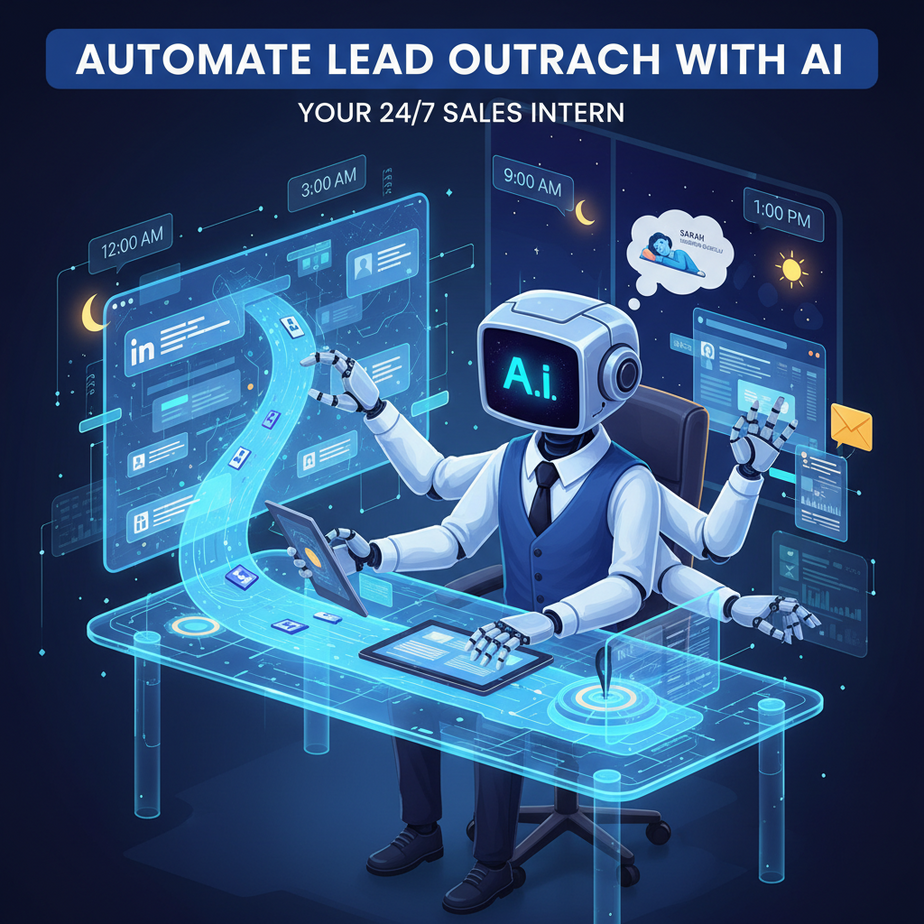
Hook: The Intern Who Never Sleeps
Meet Sarah. She runs a small consulting firm. Every Monday, she spends 3-4 hours digging through LinkedIn and industry blogs, hunting for potential clients. She writes personalized emails (well, “personalized” meaning she changes the first line). She tracks replies in a messy spreadsheet. By Wednesday, she’s exhausted. By Friday, she’s back to delivery work, and the lead list is forgotten.
Sound familiar?
Sarah’s biggest problem isn’t lack of leads. It’s the *process*. It’s manual, time-consuming, and emotionally draining. She’s not building a pipeline; she’s playing a tedious game of connect-the-dots.
Enter the AI Automation Intern.
Imagine a robot that wakes up every day, scours the web for fresh prospects, checks if they fit your ideal client profile, writes a sharp, personalized email, and sends it—all before you’ve had your coffee. This isn’t science fiction. It’s what we’re building today.
Why This Matters: Scaling Sales Without Scaling Headcount
This automation isn’t just about saving a few hours. It’s about changing your business model. Right now, you trade time for outreach. With this system, you trade *automation setup time* for *continuous prospecting*.
The Impact:
- Time: Reclaim 10+ hours a week from manual research and email writing.
- Scale: Contact 50 qualified leads a day, not 5 a week.
- Consistency: Your pipeline never takes a vacation. No more Monday morning dread.
- Sanity: Stop being a human search engine. Focus on closing deals, not finding them.
Who does this replace? The junior business development intern (who you might not afford yet) and the glorified copy-paster (who gets bored and makes mistakes). It replaces chaos with a predictable system.
What This Automation Actually Is
Think of this as a three-stage pipeline:
- Scout: The robot uses a search engine (like Google or a dedicated business database) to find companies or individuals matching your criteria (e.g., “Marketing Director at B2B SaaS companies with 50-200 employees”).
- Qualify & Personalize: It checks a few public details (like a LinkedIn headline or recent company news) and uses a small AI model to draft a short, relevant email intro.
- Outreach: It sends the email via your configured email service.
What it does NOT do: It doesn’t magically close deals for you. It doesn’t bypass spam filters if you’re reckless. It’s a lead generator and opener, not a closer. The human (you) still needs to handle the conversation once someone replies.
Prerequisites: You Need Three Things
This is beginner-friendly, but you’ll need access to these tools. Don’t worry, we’ll use free tiers where possible.
- An Automation Platform: We’ll use Make.com (formerly Integromat). It’s a visual, no-code tool for connecting apps. Sign up for a free account. It’s easier than writing code and more powerful than Zapier for complex logic.
- An AI Service: We’ll use OpenAI’s API (GPT-4o mini). You need an API key. Sign up at platform.openai.com and add a small credit (e.g., $5 will last ages for this). If you’re nervous about APIs, Make has a built-in AI module that’s even easier.
- An Email Service: Use Gmail or Outlook. We’ll connect it to Make. This is where your emails will send from.
Got your accounts? Good. Let’s build your intern.
Step-by-Step Tutorial: Building the Lead Outreach Bot
We’ll build this in Make.com. It’s a visual tool—imagine building with LEGO blocks. Each module (“app”) does one job, and you connect them with wires.
Step 1: Create a New Scenario in Make
1. Log into Make. Click “Create a new Scenario.”
2. We need a starting point. Since we want this to run daily, we’ll use a **Scheduler**. Search for “Scheduler” and add the module.
3. Set it to run once a day (e.g., every weekday at 8 AM). This is your intern’s clock-in time.
Step 2: Find Your Prospects (The Scout)
For this example, we’ll use a simple approach: scrape a list of companies from a Google Search. Important: For production, use a dedicated tool like PhantomBuster or a business database like Apollo.io. But for learning, we’ll use a public list.
- Add a **Google Search** module (from the HTTP app). Configure it with a search query, e.g., “B2B SaaS marketing directors”.
- We need to extract links. This is tricky in pure Make without extra tools. So, for our tutorial, we’ll use a simpler, more reliable method: **Import a pre-built list from Google Sheets**.
Practical Shift for Beginners: Let’s assume you have a Google Sheet with a column for “Prospect Name”, “Company”, “Email”. You populate this sheet manually (or via a web scraper once a week). Our automation will read this sheet daily.
- Add a **Google Sheets** module. Choose “Watch Rows” or “Search Rows”.
2. Connect your Google Account.
3. Select your spreadsheet and the sheet tab.
4. Set it to pull rows that have a “Status” column of “To Contact”.
Step 3: Qualify and Personalize (The AI Intern)
Here’s where the magic happens. For each row from your sheet, we’ll use AI to write a personalized email.
- Add an **OpenAI (GPT)** module after the Google Sheets module.
2. Connect your OpenAI API key.
3. In the prompt, craft something like this:
You are a helpful assistant. The user is a consultant specializing in [Your Niche, e.g., "process automation"]. Your task is to write a short, friendly, and professional email to a prospect.

Prospect Details:
Name: {{Name from Sheets}}
Company: {{Company from Sheets}}
[Optional: Recent news from a web scrape - we'll skip for simplicity]

Guide the user to use the following structure:
- Subject Line: A question or intriguing statement related to their role.
- Opening: Acknowledge their role or company achievement (be brief).
- Value Proposition: One sentence on how you can help with a specific pain point.
- Call to Action: Ask for a brief call.

Keep it under 100 words. Do not use markdown.- Map the `Name` and `Company` fields from the Google Sheets module into the prompt.
- Set the output to a text field. We’ll name the field `EmailBody`.
Step 4: Send the Email (The Delivery)
Now, send that crafted email.
- Add a **Gmail** module (or Outlook). Choose “Send an Email”.
2. Connect your email account.
3. Map the fields:
– **To:** {{Email from Sheets}}
– **Subject:** Ask the AI module to generate a subject line as well. You can add a second OpenAI module for this or just ask for one in the prompt.
– **Body:** {{EmailBody from the AI module}} - Crucially, add a **Router** after the Google Sheets module. One branch goes to AI & Send Email. The other branch should update the Google Sheets row status to “Contacted”.
Step 5: Update Your Tracking
After sending, go back to Google Sheets and update the row’s status to “Contacted”. This prevents you from emailing the same person twice. Add a **Google Sheets > Update a Row** module at the end of the branch.
Step 6: Test and Turn On
1. Save your scenario.
2. Click “Run Once” to test with 1-2 rows from your sheet.
3. Check your email (and spam folder!) to see if it worked.
4. If it works, set the Scheduler to “ON”. Your intern is now on duty.
Complete Automation Example: The Weekly Product Launch
Let’s visualize a full run. Your business is “CloudFlow Solutions,” a startup offering project management tools for remote teams. Your ideal client: Head of Operations at tech companies with 100-500 employees.
Monday, 8:00 AM: The Scheduler triggers.
8:01 AM: The Google Sheets module pulls 5 new entries from your manually maintained prospect list.
8:02 AM: For each entry, the AI module processes a prompt like:
Write an email to Sarah, Head of Operations at TechFlow Inc. She recently posted about remote work challenges on LinkedIn. Mention that CloudFlow can automate their task handoffs. Ask for a 10-minute call.
8:03 AM: The AI generates:
Subject: Taming the Remote Work Chaos?
Hi Sarah, I saw your post about the challenges of keeping remote teams synced. At CloudFlow, we automate task handoffs to eliminate those daily check-in meetings. Would you have 10 minutes next week to see how it works?
8:04 AM: Gmail sends the email from your address. The Google Sheets row is updated to “Contacted – Pending Reply”.
By 8:10 AM: 5 personalized emails are in inboxes. Your intern is done for the day. You can now focus on client calls, product development, or even going for a run.
Real Business Use Cases (5 Examples)
1. Freelance Web Developer:
Problem: Constantly pitching on platforms with low fees.
Solution: Automates finding local businesses with outdated websites and sends a personalized audit offer. Lands direct clients with higher rates.
2. E-commerce Brand:
Problem: Struggles to get influencers to review products.
Solution: Scans social media for micro-influencers in the niche, sends AI-crafted collaboration invites with a free sample offer.
3. B2B SaaS Startup:
Problem: Sales team is overwhelmed with inbound leads.
Solution: Automates first-touch outreach to downloaded trial users who haven’t activated, increasing activation rates.
4. Real Estate Agent:
Problem: Manual follow-up with online inquiry forms is slow.
Solution: Instantly follows up with every new web lead with a personalized message about the specific property they viewed.
5. Executive Coach:
Problem: Hard to reach decision-makers for high-ticket coaching.
Solution: Targets managers at companies undergoing mergers or restructuring (found via news alerts) with a message about managing change.
Common Mistakes & Gotchas
1. Spam Folder Jail: Sending too many emails too fast from a new IP address. Fix: Warm up your email address. Send 10-20 emails manually for a week, then gradually increase automation. Use a reputable email service (not a free Gmail for bulk).
2. Generic & Cringey AI Output: The AI sounds like a robot if the prompt is vague. Fix: Be hyper-specific in your prompt. Include tone (“friendly, not salesy”), length (“under 100 words”), and structure.
3. Neglecting Follow-Ups: This automation only handles the first touch. Fix: Build a separate automation for follow-ups. Example: If no reply in 5 days, send a second email with a case study link.
4. Privacy & Scraping Issues: Don’t scrape websites that prohibit it. Fix: Use public business data sources (LinkedIn Sales Navigator, Apollo, Hunter.io) legally. Always respect unsubscribe and privacy requests.
How This Fits Into a Bigger Automation System
This lead outreach bot is a powerful module, but it’s just one piece of your “AI Sales Engine.” Here’s how it connects:
- CRM (HubSpot, Salesforce): Your bot can add new contacts and log emails sent directly to your CRM, giving you a single source of truth.
- AI Voice Agent: When a prospect replies “Interested, let’s talk,” your bot can trigger an AI voice agent to schedule a call automatically via Calendly.
- Multi-Agent Workflow: This bot can pass qualified “Hot Leads” (replied, clicked link) to a different AI agent focused on sending in-depth proposal PDFs.
- RAG System: Integrate your company’s knowledge base (case studies, whitepapers). The AI can pull specific, relevant success stories to cite in emails.
This bot isn’t an island. It’s the frontline scout in a larger army of automation.
What to Learn Next: From Outreach to Conversion
You’ve just built a tireless prospector. Next in our “AI Sales Engine” course, we’ll tackle the follow-up. We’ll build an automated sequence that nurtures leads over 7-14 days, using AI to adapt the message based on engagement (Did they open the first email? Click a link?).
You’ll learn to set up triggers, conditional logic, and personalized content sequences. It’s where the magic of turning a warm lead into a hot opportunity happens.
Your system is now awake. The first train is running. Let’s get the next one on the tracks.
“,
“seo_tags”: “ai automation, lead generation, email automation, sales automation, make.com, beginner guide, business tools, ai for sales, outreach”,
“suggested_category”: “AI Automation Courses