
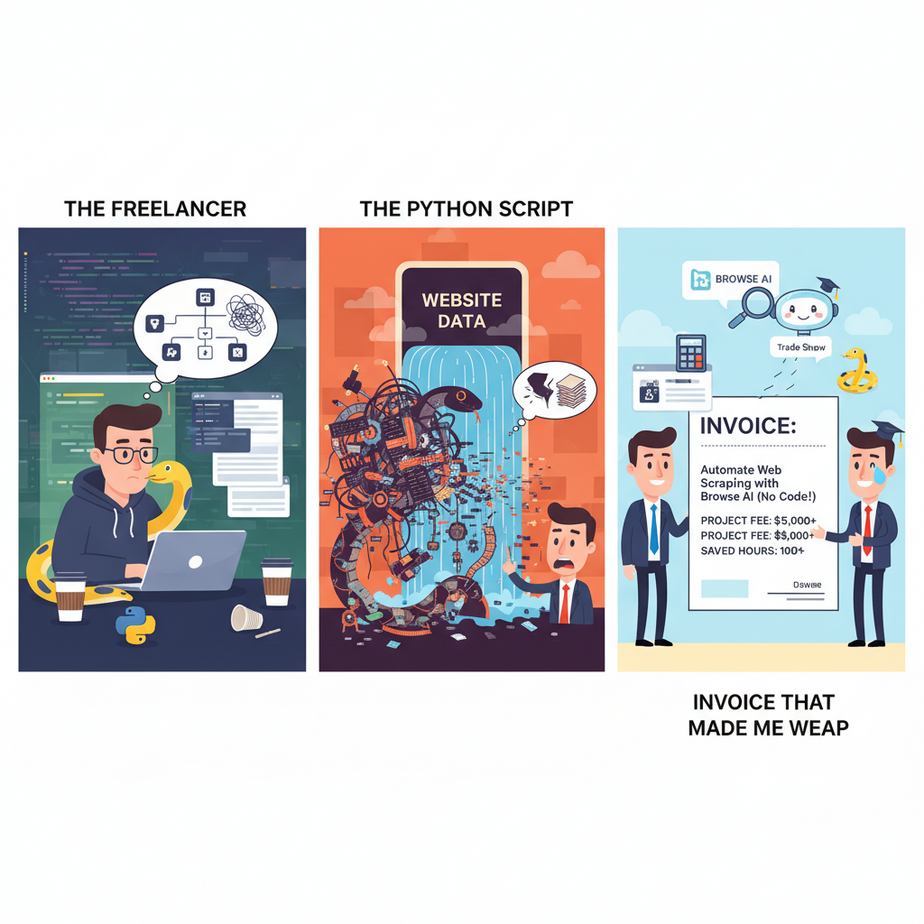
The Freelancer, The Python Script, and The Invoice That Made Me Weep
Let me tell you about Barry. Barry was a founder with a brilliant idea and a tiny budget. He found a trade show website with a public list of 5,000 attendees—a goldmine of potential customers. He thought, “I’ll just scrape this!” His first move? He posted a job on Upwork. A freelancer named Vlad quoted him $800 and a two-week timeline. Ouch.
Undeterred, Barry turned to Google. “How to scrape website with Python,” he typed. Three hours later, he was drowning in a swamp of `pip install`, `BeautifulSoup`, `lxml` parsers, and cryptic `div` tags that seemed to change every time he refreshed the page. He was blocked, frustrated, and no closer to his lead list. Barry gave up and paid Vlad.
This story is a tragedy, and it plays out every day. The web is the largest database in human history, but most of that data is locked in HTML cages. We’re told the only keys are expensive freelancers or complex code. That’s a lie. Today, we’re giving you a universal key. We’re going to build a robot that sees the web like a human and extracts data with point-and-click simplicity.
Why This Matters: Turning the Web Into Your Private Database
Web scraping isn’t some shady, black-hat activity. It’s the automation of a process you already do manually. Every time you copy a name from a website and paste it into a spreadsheet, you are ‘scraping.’ Automating this is a fundamental business superpower.
Lead Generation on Autopilot: Instead of manually searching directories, you can build a machine that pulls 1,000 targeted companies from a niche directory, complete with their websites and services, while you sleep.
Competitive Intelligence: Don’t just visit your competitor’s website; monitor it. Build a robot that checks their pricing page every single day and emails you the moment it changes. That’s not just data; that’s leverage.
Market Research at Scale: Need to analyze 500 product reviews on G2 or Amazon? A scraper can pull the review text, star rating, and date for every single one in minutes, giving you a dataset that would take a team of interns weeks to compile.
What This Tool Actually Is: A Robot Butler You Train by Example
We’re going to use a tool called Browse AI. The best way to understand it is to forget everything you think you know about scraping. You are not going to write code. You are not going to inspect HTML elements.
Instead, you are going to *teach a robot by showing it what to do*. Imagine you’re sitting next to a robot intern. You point to the screen and say, “See this name? I want this. See this job title? I want this too. Now, see all the other similar names and titles on the page? Get all of those for me. Oh, and when you’re done, click the ‘Next Page’ button and do it all over again.”
That’s it. That’s Browse AI. It’s a Chrome extension that records your actions, understands the patterns on the page, and then turns that recording into a powerful, cloud-based robot that can run on a schedule, 24/7. It’s not a code library; it’s a visual training academy for data-gathering robots.
Prerequisites: What You Need to Build Your First Robot
Let’s get down to business. Here’s your pre-flight checklist.
- A Browse AI Account: They have a generous free tier that’s perfect for learning. Go sign up now.
- A Target Website: This is critical. Don’t just follow along aimlessly. Have a real-world mission. A local business directory, a list of speakers at an upcoming conference, a directory of software companies—anything with a list of data you want.
- Google Chrome (or Brave/Edge): Browse AI works through a browser extension, so you’ll need a Chromium-based browser.
- 15 Minutes of Focus: You don’t need coding skills, but you do need to follow a logical process. Pay attention, and you’ll build something amazing.
Step-by-step Tutorial: Scraping a Directory for Sales Leads
Our mission: We will scrape a list of marketing agencies from Clutch.co, a popular B2B directory. We will extract each agency’s name, their tagline, their website URL, and their location.
Step 1: Install Your Robot’s Brain (The Browse AI Extension)
This is the easy part. Go to the Chrome Web Store, search for “Browse AI,” and install the extension. Log in to your Browse AI account within the extension. Done.
Step 2: Start the Training Session
- Navigate to the Clutch.co page with the list of agencies you want to scrape.
- Click the Browse AI extension icon in your browser toolbar.
- A small popup will appear. Click the big purple button that says “Extract Structured Data.”
Your screen will change slightly. You are now in ‘training mode.’ A small Browse AI panel will appear on the right side of your screen. This is your robot’s control panel.
Step 3: Show the Robot What to Capture (Point and Click)
We will now teach the robot what data points we care about for a single item in the list.
- Hover your mouse over the name of the first agency in the list. It will be highlighted. Click on it.
- In the control panel, a popup will ask what you want to capture. Select “Capture Text.” Give this data point a name, like `company_name`.
- Now, click on the agency’s short tagline. Again, select “Capture Text” and name it `tagline`.
- Finally, hover over the company name again. This time, a link icon will appear. Click it and select “Capture Link URL.” Name this `website_url`.
- Repeat this for any other data points you want, like location (`location`).
You’ve now defined the data structure for one company. The control panel shows your captured fields.
Step 4: Teach the Robot the Pattern (Creating the List)
This is where the magic happens. Browse AI is smart. It has already analyzed the page and probably guessed what the full list is.
- Look at the screen. You should see that Browse AI has highlighted all the other agencies on the page in a different color.
- In the control panel, it will ask you to confirm the list. Click the checkmark or the “Enter” key to confirm.
- Browse AI will now show you a preview of the data it has extracted from the entire first page. Scroll through it to make sure it looks correct. It’s incredible, right?
Step 5: Teach the Robot to Change Pages (Handling Pagination)
A true rookie mistake is only scraping page one. Let’s teach our robot how to navigate.
- Scroll to the bottom of the page and find the “Next” or `>` button for pagination.
- Click on it.
- In the control panel, a popup will ask what this link is. Select “Next Page Link.”
- Now, tell the robot how many pages you want it to scrape. For this test, let’s enter `3`.
Step 6: Name Your Robot and Deploy It
- Click the “Finish Recording” button.
- Give your robot a memorable name, like “Clutch Marketing Agency Scraper.”
- Click Save. You’ll be taken to your Browse AI dashboard.
That’s it! Browse AI is now running your newly trained robot in the cloud. Within a minute or two, it will complete the task, and you can download all the data as a clean CSV file. Barry just shed a single, jealous tear.
Real Business Use Cases (Go Beyond Simple Lists)
- Job Board Aggregation: Scrape five different job boards for “Remote Marketing Manager” roles. Feed all the results into a single Google Sheet to create your own personalized job feed, filtering out the noise.
- Real Estate Deal Finding: Monitor Zillow or your local real estate site for new listings that match specific criteria (e.g., “foreclosure,” “price reduced,” “investor special”). Get an instant notification when a new match appears.
- Building Public Relations Lists: Scrape a list of journalists who have recently written about your industry. Extract their name, publication, and a link to their latest article. This is the perfect raw material for a highly relevant media outreach campaign.
Common Mistakes & Gotchas (How to Avoid Robot Rebellion)
- Scraping Behind a Login: Many valuable lists require you to log in. Browse AI can handle this! During the recording session, you can simply perform the login steps, and the robot will replicate them every time it runs.
- The Website Changes Its Design: Your robot is trained on the current website structure. If the site owner redesigns their page, your robot might break. The fix is simple: just re-train it. It takes 5 minutes. Set up a monitor to alert you if a robot fails.
- Trying to Scrape Too Much at Once: Don’t try to scrape 10,000 pages in a single run. Break it down. Scrape 500 pages, then the next 500. Be a polite and considerate web citizen. Browse AI helps by running jobs at a reasonable pace.
- Forgetting About Popups: Cookie banners and newsletter popups can interrupt your robot. During training, simply click the “close” button on these elements. The robot will learn to do that too.
How This Fits Into a Bigger Automation System
What we’ve built is an incredible **Data Acquisition Engine**. It’s the top of the funnel for our entire automation system. But data is only potential energy. A CSV file sitting on your desktop isn’t generating revenue.
The full, unstoppable automation pipeline looks like this:
Browse AI (Data Acquisition) –> Clay (Data Enrichment) –> Smartlead (Personalized Outreach)
First, Browse AI scrapes the raw list of *companies*. Then, that list is automatically sent to Clay. Clay’s job is to take each company and find the *right person*—the Head of Marketing, the CEO—and find their verified email address. Finally, the enriched lead is pushed to an email tool like Smartlead to begin a personalized outreach sequence.
What to Learn Next
You are now a master of data acquisition. You can pull structured information from virtually any website on the internet, on demand. But we have a list of companies, not a list of people. How do we bridge that gap?
In our next lesson, we are going to build the crucial second stage of our factory. We will connect Browse AI directly to Clay. We will build a workflow where the moment our robot scrapes a new company, it automatically triggers a process in Clay to find the decision-maker and their contact information. We’re going from raw data to actionable leads, completely on autopilot.
“,
“seo_tags”: “Browse AI tutorial, web scraping no code, automate lead generation, data extraction, scrape website, no code automation, lead list building”,
“suggested_category”: “AI Automation Courses