
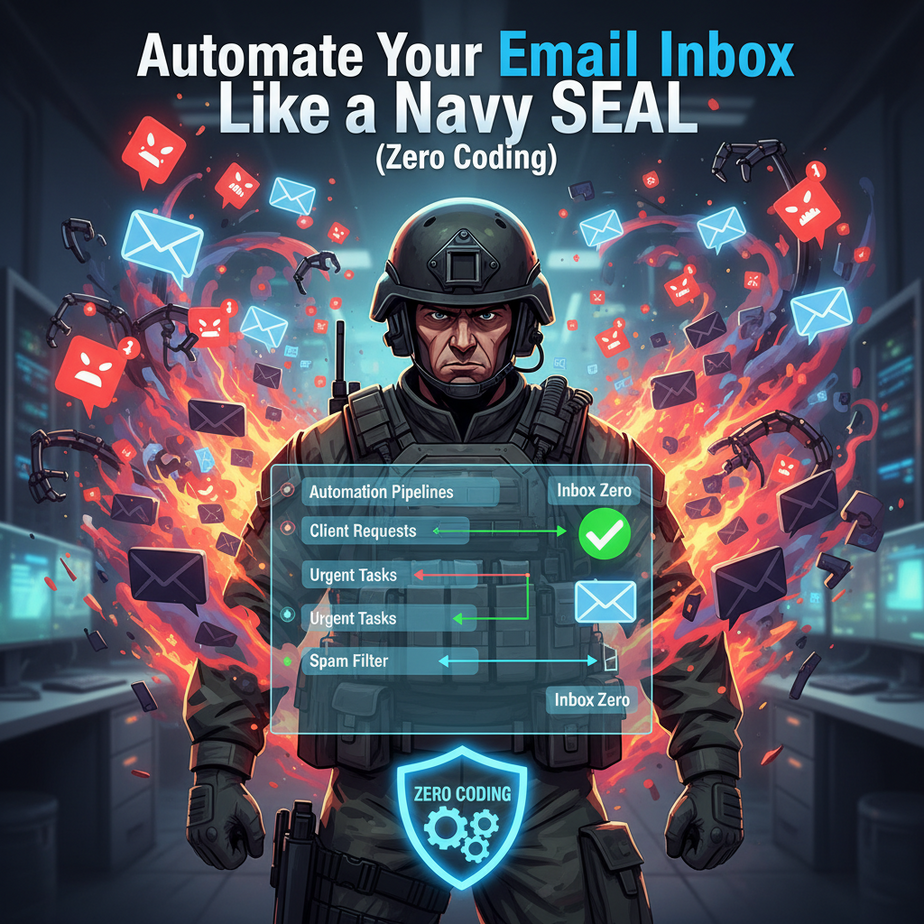
Hook: The Day My Inbox Fought Back
I once watched a founder check their email every 90 seconds. Not for work, but out of sheer panic. 412 new messages overnight. It looked like a digital war zone: “Urgent!” “Follow-up!” “Payment pending!” and 387 newsletters. She wasn’t managing her business; she was being managed by a stream of random subject lines.
Her solution? Hire a virtual assistant for $12/hour to play inbox cop. That’s a band-aid. The real fix isn’t a human intern—it’s an AI one. One that never sleeps, never gets bored, and knows exactly what matters.
This is your lesson on building that AI Intern. We’re going to automate your inbox. You’re not just organizing emails; you’re deploying a tactical filter that separates gold from garbage, drafts your replies, and routes complex tasks to the right person. Let’s turn your inbox from a war zone into a command center.
Why This Matters
Time is your only non-renewable resource. The average knowledge worker spends 28% of their week on email. That’s 2.5 hours a day, 11 hours a week, 12.5 days a year.
What if you could slash that by 70%? Not with a trick, but with a system. This isn’t just about cleaning up—it’s about scaling your attention. The AI Intern handles the noise, so you can focus on the signal: client calls, product decisions, and revenue growth.
Who does this replace? The overwhelmed assistant, the reactive founder, and the frantic freelancer checking their phone during dinner. It replaces chaos with predictable, automated order.
What This Tool / Workflow Actually Is
An AI Email Automation is a set of rules powered by language models that processes your emails for you. It does NOT: send spam, write poems to your ex, or open attachments without your permission.
It DOES: read (and understand) the content of incoming messages, categorize them, draft intelligent replies, flag urgent items, and even forward tasks to the right tools or people.
We’re building a pipeline, not a single script. Imagine a factory assembly line: emails enter as raw material, get sorted (categorized), partially assembled (drafted replies), and then packaged and shipped (sent/forwarded). Your job is to design the flow; the AI does the heavy lifting.
Prerequisites
Brutal honesty time: This is a *build-it-yourself* lesson. You need two things:
- An Email Account with API Access: Gmail is the easiest. You’ll need to enable IMAP access and create an App Password. No, you don’t need a programmer to do this for you. Google walks you through it in Settings.
- A Zapier Account (Free Tier): This is our automation backbone. Think of Zapier as the glue that connects your email to the AI brain. It has a free plan with enough runs to get you started. Create one here if you don’t have it.
That’s it. No coding, no servers, no mysterious black boxes. If you can set up a smart home device, you can set this up. Take a deep breath; you’ve got this.
Step-by-Step Tutorial: Building Your AI Email Triage System
We’re going to build a 3-step Zap (automation) that: 1) Watches your inbox, 2) Sends a specific email to an AI for analysis, and 3) Acts on the AI’s decision.
Step 1: Create the Trigger – Watch for New Emails
- Log into Zapier and click Create Zap.
- Search for the Gmail app.
- Choose the Trigger Event: New Email in Mailbox.
- Connect your Gmail account and follow the prompts.
- In the Filter step (you might need to click “All” to see it), set it to only trigger for emails from specific senders. For this example, let’s filter for emails from *@yourclient.com. This keeps our automation focused on what matters most.
Step 2: Add the AI Brain – Send to ChatGPT (via OpenAI)
- Add a new Action step. Search for OpenAI.
- Choose the Action Event: Send Prompt to ChatGPT.
- Connect your OpenAI account (you’ll need an API key from platform.openai.com). This requires a credit card on file, but the cost for this simple task is pennies per email.
- Configure the prompt. This is the magic. You’re telling the AI what to think. Paste this exact prompt in the Prompt field:
Role: You are an expert executive assistant.
Task: Analyze this email and provide a JSON response with these fields:
1. Priority (High, Medium, Low)
2. Action Required (Yes/No)
3. Category (Invoice, Project Update, Meeting Request, Other)
4. Draft Reply (If Action Required is Yes, write a concise, polite draft reply in under 3 sentences. If No, write: "No reply needed.")

Email Context: Subject: {{Subject}}. Sender: {{From}}. Body: {{Body}}
Pro Tip: In Zapier, you insert data from your trigger step using the curly brackets, like {{Subject}}. This tells the AI to analyze the actual email it just received.
Step 3: Act on the AI’s Decision – Create a Task or Draft
- Add a final Action step. We’ll use two options. First, let’s have it create a Google Sheets row to log the AI’s analysis.
- Choose the Google Sheets app and select Create Spreadsheet Row.
- Map the fields from the AI’s output to your Sheet columns: Priority, Action, Category, Draft Reply. (The AI’s JSON response will appear in the Zapier step, which you can map directly.)
- Now, let’s get smarter. Add a Filter step before creating the sheet row. Set it to only continue if the Action Required (from the AI step) is Yes. This means we only take action on emails that need a reply.
- If it passes the filter, add another Action: Gmail (or Outlook) -> Create Draft.
– In the Body field, insert the AI’s Draft Reply.
– To make it perfect, add a header: “AI-Drafted Reply – Review Before Sending:” followed by the draft. This is your safety net—you always get the final say.
Complete Automation Example
Here’s what happens in the wild:
- An email from client@bigdeal.com arrives: “Hi, can you send the Q3 report? Need it by Friday.”
- Zapier Trigger fires because the sender matches our filter.
- AI Brain analyzes it:
{ "Priority": "High", "Action Required": "Yes", "Category": "Invoice", "Draft Reply": "Hi, Thanks for reaching out. I'm attaching the Q3 report now. Please let me know if you need anything else. Best, [Your Name]" } - Filter sees “Yes” and passes it through.
- Google Sheets gets a new row logged for tracking.
- Gmail Draft is created with the AI’s reply, prefixed with “AI-Drafted Reply – Review Before Sending:”. It sits in your Drafts folder, waiting for your 10-second review before you hit send.
Total time for you: 10 seconds to review. Manual process? 5+ minutes to read, think, and type. That’s a 96% time saved.
Real Business Use Cases
- Freelance Graphic Designer:
Problem: Wastes hours each week fielding “Can you design a logo?” emails that don’t include a budget or brief.
Solution: The AI tags these as “Low Priority/Proposal Needed” and auto-drafts a reply: “Thanks for your interest! To provide an accurate quote, could you please fill out this brief: [link]?” It forces potential clients to qualify themselves. - E-commerce Store Owner:
Problem: Drowning in customer service emails (“Where’s my order?”, “Can I return this?”).
Solution: AI categorizes by issue (Shipping, Returns, Product Question). For shipping delays, it drafts a reply with the tracking link and an apology, prioritized as “High.” It routes return requests to a dedicated channel automatically. - Real Estate Agent:
Problem: Misses urgent client texts/emails about new listings or offer deadlines while showing properties.
Solution: AI filters for emails containing “urgent,” “offer,” or from known client domains. It creates a draft with: “I’ve seen your message and will call you within 15 minutes.” It also pings your phone via an additional Zap (SMS alert). - Consulting Firm Founder:
Problem: Internal emails from partners and project managers get lost in a sea of external pitches.
Solution: AI scans sender domains and keywords (“QBR,” “project update,” “budget”). It flags these as “Medium Priority” and drafts replies that acknowledge receipt and suggest a scheduled call, bypassing the inbox chaos for critical internal communication. - Solopreneur (SaaS Founder):
Problem: Product feedback and bug reports are essential but mixed with random spam.
Solution: AI looks for keywords (“bug,” “crash,” “suggestion,” “feedback”) and sender addresses from beta testers. It logs them in a dedicated Trello or Jira board (via another Zap) and drafts a polite “Thank you” reply, ensuring no valuable feedback is lost.
Common Mistakes & Gotchas
- The Trust Fall: Never let the AI send automatically. Always use a draft. One hallucination (AI making up facts) could be embarrassing.
- Filter Myopia: Being too specific with your trigger filter (e.g., only *one* client). You’ll miss important emails. Start broad, then narrow.
- Cost Creep: Zapier’s free tier has limits. If you get thousands of emails, you’ll hit them. Monitor your runs. For high volume, the cost of Zapier + OpenAI will still be far less than a VA’s salary.
- Privacy Paranoia: You’re sending email content to OpenAI. For highly sensitive data, consider their data privacy opt-out or explore local AI models (a more advanced topic for later in the course).
How This Fits Into a Bigger Automation System
This email automation is the gateway drug. It connects to everything:
- CRM: If an email is from a new prospect (AI detects “I’m interested in your service”), Zapier can create a new lead in your CRM (like HubSpot or Salesforce) automatically.
- Calendar & Voice Agents: An AI that detects a meeting request can check your availability via Google Calendar and draft a reply with proposed times. Imagine a future where a voice agent calls you to summarize these drafts.
- Multi-Agent Workflows: This is one agent (Email Triage). The next agent could be a Project Manager that sees the “Project Update” category and pulls the latest data from your project management tool to add context to your reply.
- RAG Systems: For advanced users, this email bot could be connected to a vector database containing all your past client communications. It could then answer questions like “What did we promise Client X last quarter?” using retrieval-augmented generation.
What to Learn Next
You’ve just built an AI Intern. But an intern only handles communication. In our next lesson, we’ll build the AI Project Manager—the automation that syncs your email, your task list, and your calendar to ensure nothing ever falls through the cracks. We’re building a fully autonomous system for your business, one connected component at a time.
Class dismissed. Go turn your inbox into your most valuable employee.
“,
“seo_tags”: “ai email automation, zapier automation, inbox zero, business automation, automate email replies, email productivity, chatgpt automation, gmail automation, tutorial for beginners”,
“suggested_category”: “AI Automation Courses