
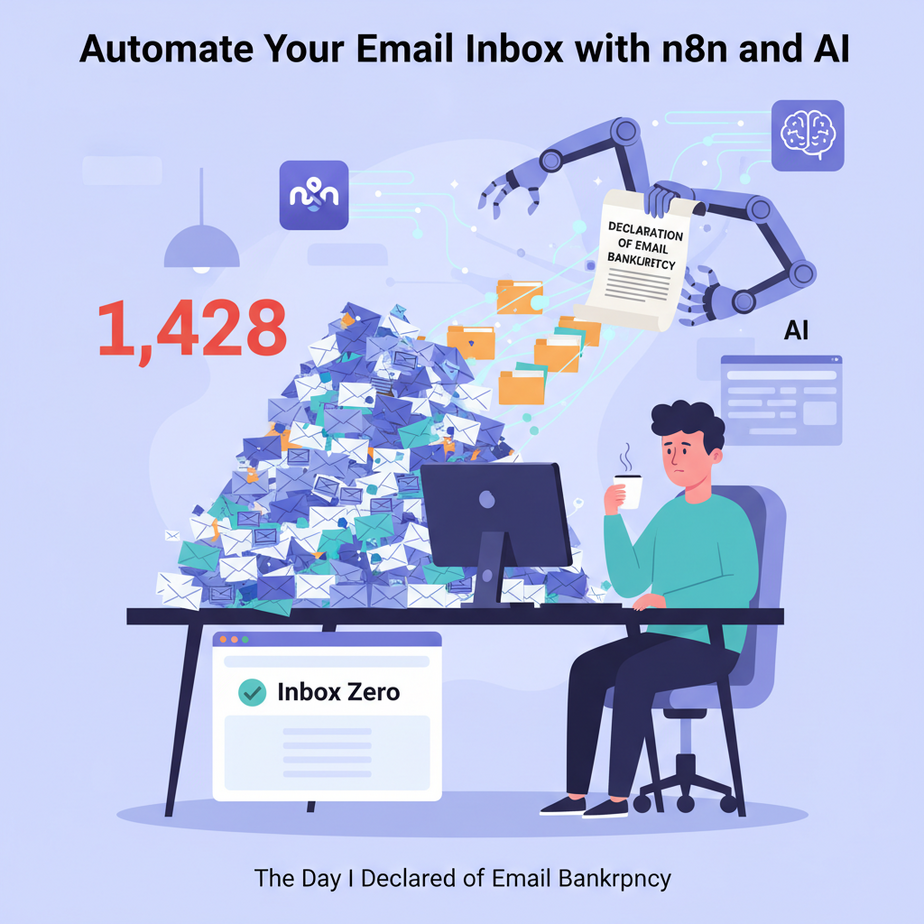
The Day I Declared Email Bankruptcy
It was a Monday morning. I opened my laptop, took a sip of coffee, and stared at the number in my inbox: 1,428 unread emails. It was a horrifying mix of real client emergencies, spam from a guy selling “tactical” flashlights, newsletters I vaguely remember signing up for, and a dozen pointless CCs from my own team.
My job had become “professional email janitor.” I spent the first 90 minutes of every day just sweeping the trash out of the way to find the one or two messages that actually required my brain. I missed a critical client request that day. It was buried under an avalanche of junk. That was it. I declared email bankruptcy. I couldn’t live like this.
Instead of trying to clean the mess, I decided to build a machine to prevent the mess from ever happening again. A smart assistant that stands at the door of my inbox, reads every incoming letter, and hands me a tiny, organized stack of only the important stuff.
Why This Matters
Your inbox is a terrible to-do list created by other people. Letting it run your day is insane. An automated email processing system is your shield. It’s a full-time digital assistant who works 24/7 for pennies.
This workflow replaces:
- Your morning email triage: The 1-2 hours you waste every day just sorting, deleting, and forwarding.
- A junior assistant: You’re automating the exact task you’d hire someone to do: “Read all our incoming mail and tell me if anything is on fire.”
- Missed opportunities: It ensures that every sales lead, every urgent support ticket, every investor email is instantly identified and escalated.
This isn’t about getting to “inbox zero.” It’s about achieving “inbox irrelevance.” Your inbox becomes a boring processing queue for your robot, not a source of anxiety for you.
What This Tool / Workflow Actually Is
We’re using two main tools to build our assistant:
1. n8n (pronounced n-eight-n): Think of this as a digital factory floor. It’s a visual automation tool where you connect different apps and services like LEGO bricks. One brick can be “When a new email arrives,” another can be “Send a Slack message.” You draw lines between them to create a workflow. It’s incredibly powerful and the visual interface makes it easy for beginners.
2. An LLM (The AI Brain): This is the smart part. We’ll use a cloud AI like Claude or OpenAI. Its job is to be the “decision-maker” in our factory. It will read the unstructured text of an email and turn it into structured data, like a category (“Sales Lead”) and a summary. We could also use the local Ollama model we set up in the previous lesson for a free, private option.
The workflow is simple: n8n sees a new email, grabs the content, hands it to the AI for analysis, and then, based on the AI’s answer, performs a series of actions like adding a row to a spreadsheet or alerting your team.
Prerequisites
Don’t be nervous. If you can follow a recipe to bake a cake, you can do this.
- An n8n Account: The easiest way to start is with a free trial on n8n’s cloud service. You can sign up in 30 seconds. No server setup needed.
- An Email Account to Connect: We’ll use Gmail because it’s the most common, but any email service that supports IMAP will work.
- An AI API Key: You’ll need an API key from a service like Anthropic (for Claude) or OpenAI. This will cost money, but we’re talking about less than a dollar to process thousands of emails. It’s wildly cheap.
That’s all. You will not be writing any code. You will be clicking, dragging, and copy-pasting.
Step-by-Step Tutorial
Let’s build our first email-sorting robot. Its mission: identify potential sales leads from a generic `info@` inbox and alert the sales team.
Step 1: Create the Trigger
In your n8n account, create a new blank workflow. The first node is always the trigger.
- Click the + button to add your first node.
- Search for “Gmail” and select it. (If you use another provider, search for the “IMAP Email” node).
- For “Authentication”, you’ll need to connect your Google account. n8n will walk you through the secure sign-in process.
- In the “Resource” dropdown, select “Message”. In the “Event” dropdown, select “On message received”.
- Click “Test step”. n8n will fetch your most recent email as sample data. You should see its contents (subject, body, sender) appear on the right side of the screen.
This node is now your sentinel. It will automatically run every time a new email hits your inbox.
Step 2: Add the AI Brain
Now we need to give the email to our AI for analysis.
- Click the + below your Gmail node.
- Search for “Anthropic” (or “OpenAI”) and add the node.
- Connect your API key under “Authentication”.
- In the “Mode” dropdown, choose “Chat”.
- Now for the magic. In the “Text” field, we’ll write our prompt. This is where we tell the AI its job. Drag the `text` field from the Gmail node’s output on the left into the prompt box. This dynamically inserts the email body.
Here’s a great starting prompt. Copy-paste this into the “Text” field:
You are an expert sales assistant responsible for monitoring an inbox. Your job is to analyze the following email and determine if it is a potential sales lead. A sales lead is a message from a new person or company expressing interest in our products or services.

Respond ONLY with a valid JSON object. Do not include any other text or explanations.

The JSON object should have two keys:
1. "is_lead": a boolean (true or false).
2. "summary": a one-sentence summary of the user's request.

Here is the email body:

{{ $('Gmail').item.json.text }}
Click “Test step”. n8n will send the sample email from Step 1 to the AI. The output should be clean JSON, like `{“is_lead”: true, “summary”: “Globex Corp is asking for a quote on enterprise services.”}`
Complete Automation Example
We have the trigger and the brain. Now let’s build the arms and legs to take action. Our goal: if an email IS a lead, send a Slack alert and add it to a Google Sheet. If it’s NOT a lead, just archive it.
Step 3: The Decision Maker (IF Node)
- Click the + after the AI node and add an “IF” node. This node directs the workflow down different paths based on a condition.
- In the first “Value” field, we need to reference the `is_lead` output from our AI. Click the `f(x)` button and enter this expression: `{{ $(‘Anthropic Chat Model’).item.json.response.is_lead }}`.
- Leave the “Operation” as “Boolean” and set the “Value 2” to “true”.
Now your workflow has two outputs: TRUE and FALSE.
Step 4: The TRUE Path (It’s a Lead!)
- Click the + on the TRUE output of the IF node and add a “Slack” node.
- Connect your Slack account.
- In the “Channel” field, pick your `#sales-leads` channel.
- In the “Text” field, craft your message using data from BOTH the original email and the AI’s summary. For example: `New Lead!
From: {{ $(‘Gmail’).item.json.from.email }}
Summary: {{ $(‘Anthropic Chat Model’).item.json.response.summary }}` - Now, click the + AFTER the Slack node. Add a “Google Sheets” node.
- Connect your account, select your “Leads” spreadsheet and sheet name, and map the columns: `Sender Email` gets the email from the Gmail node, `Summary` gets the summary from the AI node, etc.
Step 5: The FALSE Path (Not a Lead)
- Click the + on the FALSE output of the IF node.
- Add a “Gmail” node.
- In “Resource”, select “Message”. In “Operation”, select “Archive”.
- For the “Message ID” field, drag the `messageId` from the original Gmail trigger node.
That’s it! Activate your workflow. Your autonomous email assistant is now live.
Real Business Use Cases (MINIMUM 5)
This exact pattern can be adapted for countless business processes:
- Customer Support Desk: The AI classifies emails by urgency and topic (`Billing`, `Bug Report`, `Feature Request`). The n8n workflow adds the appropriate tag in Zendesk or Help Scout.
- HR & Recruiting: When a candidate applies via email, the AI extracts their name, the role they applied for, and attached resume. n8n creates a new candidate profile in your Applicant Tracking System.
- E-commerce Order Management: A customer emails “Where’s my stuff?”. The AI extracts the order number. n8n looks up the order in Shopify, gets the tracking link, and uses another AI node to draft a friendly reply with the status.
- Founder/Executive Assistant: The AI categorizes emails into `Urgent`, `Requires Response`, `FYI`, and `Newsletter`. Urgent emails trigger a push notification. The rest are added to a daily digest document.
- Content Moderation: For platforms with user-submitted content via email, the AI can analyze the text for spam or inappropriate content, flagging it for human review and automatically removing the rest.
Common Mistakes & Gotchas
- Forgetting to Handle a Path: In our example, we handled TRUE and FALSE. What if the AI gives a weird response and the IF node doesn’t know what to do? Always have a default or error path.
- Creating Infinite Loops: If your workflow sends an email, make sure your trigger is set to ignore emails from your own address, or you’ll create a robot that talks to itself forever.
- Not Being Specific in Your Prompt: If your AI output is messy, your prompt is to blame. Be brutally clear. Use phrases like “Respond ONLY with JSON.” “Do not add commentary.”
- Ignoring Rate Limits: If you suddenly point this at an inbox with 30,000 unread emails, you will hit API limits and run up a bill. Start with new emails first, and process backlogs slowly.
How This Fits Into a Bigger Automation System
An email processor is the gateway to your entire automation ecosystem. It’s the digital receptionist.
- CRM Enrichment: After identifying a lead, the workflow can pass the person’s email to another service (like Clearbit) to enrich their profile with company data before creating the record in your CRM.
- RAG (Retrieval-Augmented Generation): If a customer email asks a complex question, this workflow can use the question to search your internal knowledge base, feed the relevant documents and the question into an AI, and draft a perfect, context-aware reply.
- Connecting to Other Automations: Identifying a support ticket via email is step one. Step two is another n8n workflow that is triggered by the new ticket, which then assigns it to the right person, starts a timer for SLA compliance, and updates the customer.
What to Learn Next
You’ve built a system that can understand and categorize incoming information. You have mastered defense—protecting your time and attention. The next logical step is to master offense.
How do we use this same intelligence to proactively engage? How can we create personalized outreach, follow up on leads, and draft responses that don’t sound like they were written by a robot from 1985?
In our next lesson, we will build an AI Auto-Responder That Actually Sounds Human. We’ll take the leads identified by today’s workflow, automatically research their company online, and then use that context to draft a personalized outreach email, saving it in your Gmail drafts for you to review and send with a single click. You’re about to go from sorting the mail to writing it.
“,
“seo_tags”: “n8n tutorial, email automation, ai email assistant, automate gmail, n8n workflow, business process automation, ai productivity, zapier alternative, inbox management”,
“suggested_category”: “AI Automation Courses