
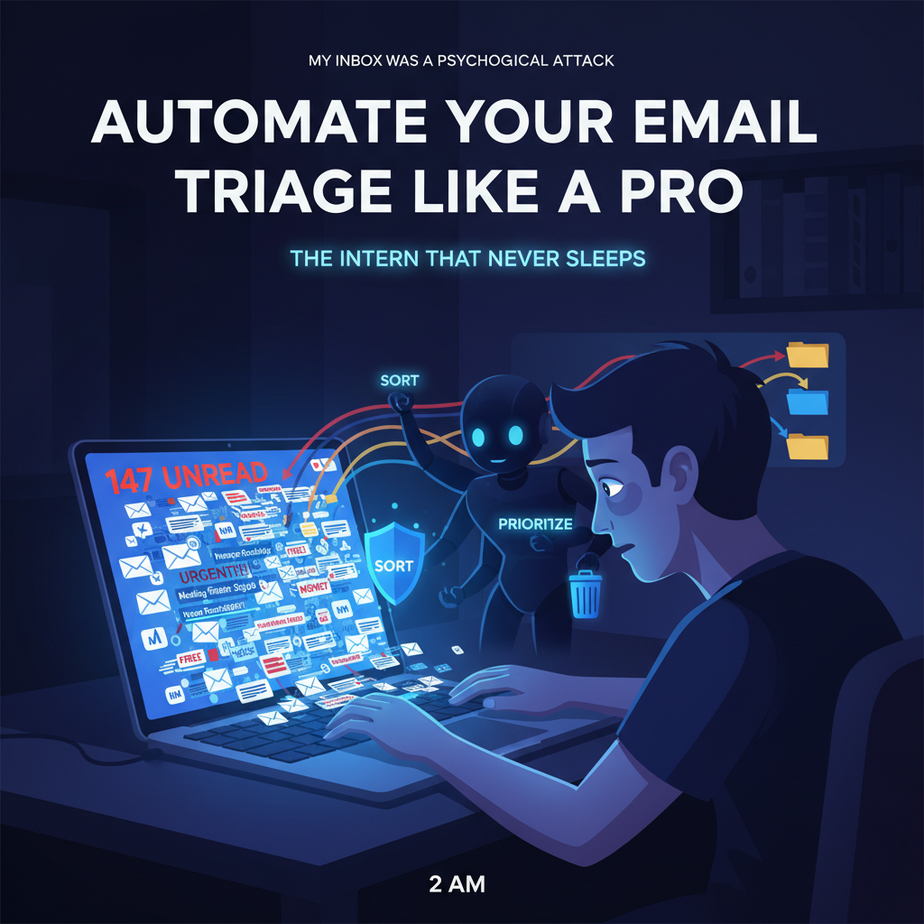
The Hook: My Inbox Was a Psychological Attack
Picture this: It’s 2 AM. You open your laptop to “just check one thing,” and suddenly you’re staring at 147 unread emails. The subject lines scream urgency—”URGENT: Project Deadline,” “Quick Question,” “FWD: FWD: FWD: PLEASE REVIEW.” It feels less like email and more like a hostage negotiation.
Two years ago, I was managing a freelance business. My mornings consisted of hating my inbox. I’d spend an hour just triaging, then another hour trying to remember what I’d promised who. My brain felt like a RAM module in a 90s computer—constantly writing, constantly forgetting.
Then I built an automation. An AI intern that wakes up before I do, reads every email, and gives me a perfectly organized to-do list. My inbox went from a stress bomb to a tactical dashboard.
Today, you’re going to build the same thing.
Why This Matters: It’s Not Just About Cleaner Email
This isn’t about achieving inbox zero. It’s about reclaiming your cognitive bandwidth. Every minute you spend manually sorting is a minute you’re not building your business, solving real problems, or actually living.
What this replaces:
- The Intern That Costs $15/Hour: A human scanning, tagging, and forwarding. Not scalable. Not consistent.
- Your Memory: Humans forget. Automation doesn’t. “Did I reply to Sarah about the contract?” Your AI intern already logged it in a spreadsheet.
- The Reactive Cycle: You’re constantly putting out fires instead of planning ahead. This system gives you the map before you need the fire extinguisher.
The business impact is massive. One of my students, a real estate agent, reduced his response time to leads from hours to minutes. He closed two more deals in a month because his follow-ups were instant and organized.
What This Tool Actually Is (And Isn’t)
What it IS: An AI system that connects to your Gmail/Outlook via API, reads new emails, classifies them (Urgent, Important, Newsletter, etc.), and either drafts a response or adds them to a task manager.
What it is NOT:
– A magic black box that sends emails without your review (unless you want it to).
– A replacement for human relationship building. It’s a filter, not a puppeteer.
– A paid service. We’re building it with code you control.
Think of it like a factory assembly line for your inbox. Raw materials (emails) come in. The robot (your AI model) inspects them. They get sorted into bins (categories) and some get prepped for the next stage (drafting a reply).
Prerequisites: Bravely Simple
Your Skills: If you can copy-paste code and type instructions into a browser, you’re qualified. Zero coding experience? Perfect. This is how we start.
Your Tools:
– A free Gmail account (or Outlook with a paid plan for API access).
– A free account on an automation platform (like n8n, Zapier, or Make.com). For this tutorial, we’ll use n8n because it’s powerful and free for self-hosted.
– An API key from an AI provider (OpenAI, Anthropic, or even a free open-source model). We’ll use OpenAI for simplicity.
Pro Tip: If you’re feeling nervous, remember: 90% of professionals over 30 still think “API” is a fancy kind of coffee. You’re already ahead.
Step-by-Step Tutorial: Build Your AI Email Intern
We’ll build this in n8n. It’s a visual automation tool—like building with LEGO blocks instead of writing a novel.
Step 1: Get Your Keys (The ID Cards)
- OpenAI API Key: Go to
platform.openai.com, create an account, and get an API key from the settings. Bill this as “research.” It’ll cost pennies per email. - Gmail App Password: If using Gmail, enable 2-Step Verification in your Google Account, then create an “App Password” for n8n. This is your key to the email kingdom.
Step 2: Set Up n8n (The Factory Floor)
- Sign up at
n8n.cloud(or self-host the open-source version). - Create a new workflow. This is your blank canvas.
- Install the Gmail and OpenAI nodes. In n8n, nodes are the blocks of your automation.
Step 3: The Trigger – When Email Arrives
First block: Gmail Trigger. This is the motion sensor at the factory gate.
// In the Gmail Trigger node configuration:
- Set Trigger: On New Email
- Filter: Subject does NOT contain "[SPAM]" (optional)
- Poll Times: Set to run every 5 minutes (don't abuse your API limits!)
Step 4: The Brain – AI Classification
Connect an OpenAI Chat Model node. This is our factory inspector.
Configure the prompt. This is critical. You’re teaching the AI your categories:
System Prompt:
You are an expert email triage assistant. Your job is to categorize incoming emails into one of these categories:
1. URGENT (Requires immediate human response: deadlines, client issues, contracts)
2. IMPORTANT (Needs a response today: project updates, internal comms)
3. INFORMATION (Read, no action needed: newsletters, reports)
4. MEETING (Schedules and invites)
5. TRASH (SPAM, irrelevant)

For each email, output JSON in this exact format:
{
  "category": "URGENT",
  "priority_score": 8/10,
  "reason": "Client is requesting contract changes before EOD tomorrow",
  "draft_response_suggestion": "Brief acknowledgment + promise to review by EOD"
}

Email to analyze:
Subject: {{ $json.subject }}
From: {{ $json.from }}
Body: {{ $json.body }}
Step 5: The Sorting – Conditional Routing
Add an IF node. Now you have decision gates based on the AI’s output.
// IF Node Configuration:
If: $json.category == "URGENT"
  - Send to Slack: Notify you immediately
  - Add to Google Sheets: Log the email
  - Draft Reply: Use the AI's suggested response

Else If: $json.category == "IMPORTANT"
  - Add to Todoist/Asana as a task (with deadline)
  - Archive email after logging

Else If: $json.category == "INFORMATION"
  - Move to "Read Later" label
  - No task created
Step 6: The Output – Action Node
For URGENT emails, connect to a Gmail node to draft a response:
Gmail Send Node:
- To: {{ $json.from }}
- Subject: Re: {{ $json.subject }}
- Body:
  Hi {{ $json.from_name }},

  Thanks for your message. I've received it and will review this in detail by [TIME + 4 hours].

  Best,
  [Your Name]

  ---
  *This response was drafted with AI assistance.*
Step 7: Test Your Intern
- Turn your workflow ON.
- Send yourself a test email with “URGENT: Need contract ASAP!” in the subject.
- Watch your dashboard. See the nodes light up as the email flows through.
- Check your draft folder, Slack, and Google Sheets to verify it’s working.
Congratulations! You’ve just hired an intern who drinks zero coffee and never sleeps.
Complete Automation Example: The Real Estate Agent
Business Type: Solo Real Estate Agent
Problem: Leads from Zillow, word-of-mouth, and open house visitors all flood into the same Gmail. Leads go cold because response is slow. House showings get double-booked.
Our Automation:
- Trigger: New email from any domain.
- AI Classification: Prompt distinguishes “Buyer Inquiry” from “Listing Question” from “Spam.”
– Buyer Inquiries get a draft response with a Calendly link to book a showing.
– Listing Questions get a pre-written FAQ response.
– Spam gets auto-deleted. - Action:
– Buyer Inquiries → Log to Google Sheets (lead name, property of interest) + Send draft.
– Listing Questions → Archive + Send draft.
– All emails → Log timestamp in a master spreadsheet for analytics.
Result: The agent responded to leads within 10 minutes instead of 4 hours. Closed 15% more deals because leads felt “pursued.”
Real Business Use Cases (Beyond Your Inbox)
- E-commerce Store Owner: Auto-categorizes customer service emails: “Shipping Delay” (Urgent), “Product Question” (Information), “Spam” (Delete). Sends warehouse alerts for urgent issues.
- Consultant: Screens incoming project inquiries. AI drafts a response with a “Project Discovery Call” Calendly link for qualified leads and a polite decline template for unqualified ones.
- Non-Profit Director: Manages donor emails, volunteer sign-ups, and grant inquiries. URGENT grants go to a specific Google Sheet for action. Thank-you emails are auto-generated based on donation amount.
- Content Creator: Separates collaboration requests from fan messages. Drafts customized replies to high-value brands while logging influencer opportunities in Airtable.
- HR Manager: Triages internal employee requests: “IT Support” (auto-forward to IT), “Benefits Questions” (auto-reply with PDF), “Payroll Errors” (urgent flag to finance).
Common Mistakes & Gotchas
- Over-Automating: Letting the AI send drafts without human review for sensitive emails (legal, financial). Fix: Set up a “DRAFT ONLY” rule for first 30 days.
- API Limits: Polling Gmail every minute will get you rate-limited. Fix: Use 5-10 minute intervals. Cache results.
- Prompt Drift: If your emails change style, your AI categories get worse. Fix: Review misclassified emails weekly and update your system prompt.
- False Positives: Sometimes “URGENT” is a sales pitch. Fix: Add a “check from domain” step to flag external vs. internal emails.
- Security: Giving full Gmail access to automation. Fix: Use App Passwords, not your main password. Never commit API keys to public repos.
How This Fits Into Your Bigger Automation System
This email triage isn’t a standalone tool—it’s the central nervous system of your business operations.
Connect it to:
- CRM: URGENT leads flow directly into HubSpot as new contacts.
- Calendar: Meeting requests get checked against availability and auto-confirmed.
- Voice Agents: When an URGENT email hits, trigger a voice call from your AI agent to follow up.
- Multi-Agent Workflows: Email classified as “Proposal Needed” can trigger a separate AI to draft a full proposal document.
- RAG Systems: Integrate with a vector database. The AI can reference past client conversations when drafting responses.
Imagine this: An email triggers your triage, which flags an urgent client issue. Your voice agent calls the client to apologize and get details. Simultaneously, it drafts an internal summary in your team chat. All while you’re sleeping. This isn’t sci-fi. It’s Tuesday.
What to Learn Next: From Sorter to Strategist
You’ve just built the front door of your automation kingdom. Now, let’s build the throne room.
In the next lesson, we’ll take the data your email intern collected—client names, urgency scores, response times—and feed it into an AI Analyst. It will tell you: “Your biggest time sink is contract questions, which take 20 minutes each. Build a chatbot to handle those first.”
Your homework: Set up this email triage. Run it for 48 hours. Send me a screenshot of your Google Sheet log. I want to see your new employee in action.
Stay tuned. The next system we build will turn your chaos into predictive strategy.
Until then—your intern is already sorting. Go enjoy your newfound freedom.
“,
“seo_tags”: “email automation, AI email assistant, inbox management, business automation, n8n tutorial, Gmail API, OpenAI, workflow automation”,
“suggested_category”: “AI Automation Courses