
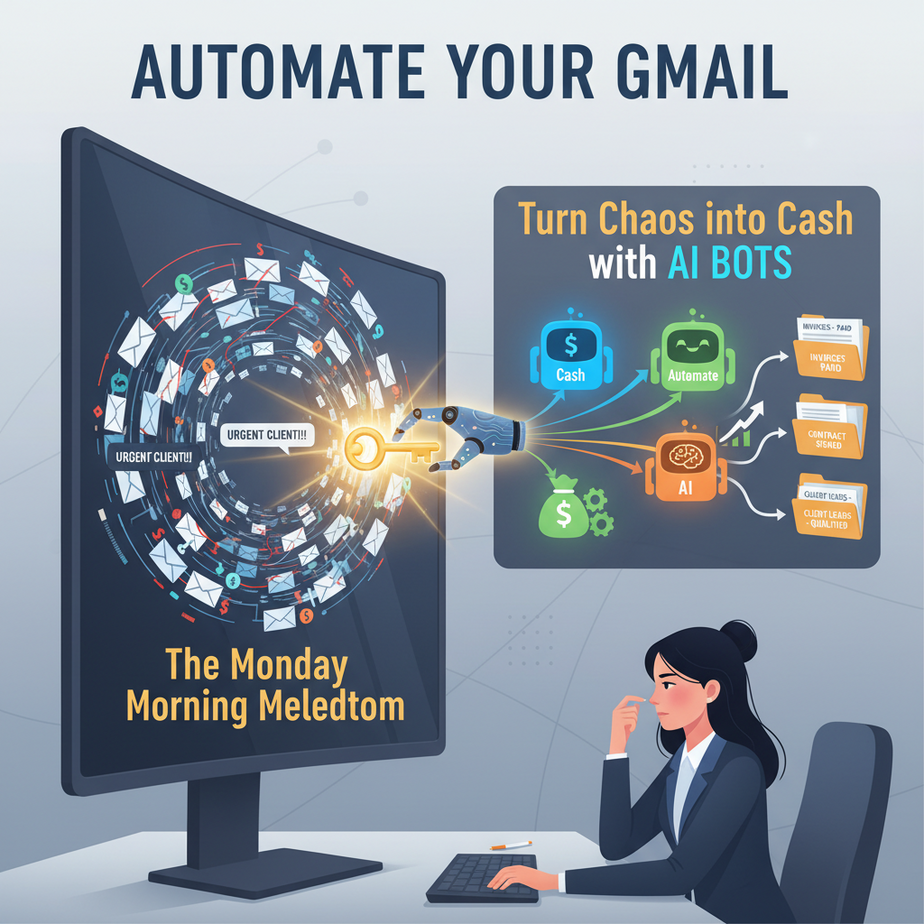
The Monday Morning Meltdown
It’s 8:47 AM. You open your laptop and your Gmail inbox hits you like a freight train. 217 unread emails. A client asking for an invoice. A vendor sending a contract. A lead from a newsletter subscriber who wants to “pick your brain.” Your calendar says you have a meeting in 10 minutes.
For most of us, this is a normal Monday. We spend the first two hours just reacting, not building. We’re not CEOs; we’re email clerks. And worse, we’re missing opportunities because we’re buried in the noise.
Why This Matters: Your Inbox is a $10,000/Month Leak
Every email that sits there is a silent revenue leak. A lead goes cold. A follow-up gets forgotten. A happy customer waits for a reply. Manual email handling is like bailing water out of a leaky boat. It’s exhausting, low-skill work that pulls you away from actual business building.
This automation replaces one thing: the junior intern who does nothing but sort and file. But unlike a human, this bot works 24/7, never gets tired, and can process hundreds of emails while you sleep. It turns your inbox from a chaos pit into a prioritized task list.
What This Tool Actually Is (And Isn’t)
This is an AI-powered email processing agent. Think of it as a smart filter for your brain. It reads incoming emails, understands the context, sorts them into priority folders, and can even draft and send replies.
It IS a tool that can categorize emails, extract key info, and send template-based replies. It’s built with a no-code workflow tool (like Make or Zapier) and a free AI model (like Google’s own AI or a simple GPT model).
It IS NOT a magic black box. It won’t negotiate deals for you or write a novel. It’s not sentient. It follows clear rules you set, using AI to understand language, not create it from scratch.
Prerequisites: Zero Coding, Maximum Confidence
You need:
- A Google/Gmail account
- A free account on a no-code automation platform (we’ll use Make.com, which has a generous free tier)
- 15 minutes of focus
That’s it. If you can send an email, you can build this.
Step-by-Step Tutorial: Build Your Email Intern in 15 Minutes
Step 1: Create the Automation Backbone in Make
First, we build the factory conveyor belt. This tool (Make.com) will watch our Gmail and then trigger the next steps.
- Sign up at Make.com. The free plan is enough.
- Click “Create a new Scenario”.
- Search for and add the “Gmail” module. Choose “Watch Emails”. This is your trigger—the new email.
- Click the Gmail icon, click “Add Connection”, and log in to authorize it. This lets Make see your inbox.
- Set the filter to “only unmarked emails”. This prevents your bot from re-processing old emails.
Step 2: Give Your AI Brain a Field to Read
Now, we need to understand what the email says. We’ll add a step that analyzes the text.
- Click the “+” after the Gmail module. Add a new module.
- Search for and add “Google’s AI Studio” (or “OpenAI” if you prefer GPT). We’ll use Google’s AI for this example as it’s integrated nicely.
- Set up the connection if needed.
- In the “Prompt” field, we’ll give the AI a clear job. Paste this:
Given the following email, determine its priority and category. Return a JSON object with two fields: "priority" (must be: HIGH, MEDIUM, or LOW) and "category" (must be: LEAD, CLIENT, VENDOR, or OTHER).

Email Body: {{$text$}}
In the module, map the email body from the Gmail module. Make.com lets you drag fields from previous steps. Find the `[$text$]` field from Gmail and drag it into our prompt where it says `{{$text$}}`.
Step 3: Route the Email Like a Traffic Cop
Now we act based on the AI’s decision. We use a “Router”.
- Add a new module after the AI: search for “Router”.
- We’ll create routes for our categories. Click “Add a route”. Set condition: where `$category$` equals “LEAD”.
- Do this for “CLIENT”, “VENDOR”, and “OTHER”.
Step 4: Take Action for Each Route
For each route, we’ll add a “Gmail” module to take action.
For the LEAD route:
- Add a Gmail “Move Email” module. Move it to a label/folder you create called “Hot Leads”.
- Then add another Gmail “Send Email” module to reply automatically.
- Subject: “Thanks for reaching out!”
- Body: Hi, thanks for your email! This is an automated message to let you know we’ve received your inquiry. We’ll get back to you personally within 24 hours. Best, [Your Name]
For the CLIENT route: Move to “Client Priority” folder. Optionally, send an email with a scheduled calendar link for a faster follow-up.
Step 5: Activate and Test
Click the big blue “Run Once” button. Send a test email to yourself (e.g., “Potential Lead for Website Design”) and watch the magic happen. See it move to your new folder!
Complete Automation Example: The “Lead-to-Cash” Pipeline
Here’s a full business workflow:
- Trigger: A newsletter subscriber, Jane, emails: “Love your content! Can you help me with my marketing?”
- AI Analysis: Our bot reads it. Sets `priority: HIGH`, `category: LEAD`.
- Action 1 (Router): Triggers the LEAD path.
- Action 2 (Filter): Moves email to “Hot Leads” folder.
- Action 3 (Reply): Sends auto-reply acknowledging receipt.
- Action 4 (Create Task): *Bonus Step* Add a “Google Sheets” module to log Jane’s email and the time received into a master lead tracker spreadsheet.
- Result: You check your “Hot Leads” folder daily. No more scanning 200 emails. The spreadsheet is a living lead list. Your next step is a human follow-up on a warm, pre-sorted lead.
Real Business Use Cases (5 Examples)
- Freelance Designer: Every inquiry from a portfolio site gets auto-categorized. “Logos” go to one label, “Full Website” to another. Starts a project proposal template draft.
- E-commerce Store Owner: “Where’s my order?” emails from customers trigger an auto-reply with a tracking link and move to a “Customer Service” folder. No more manual searching.
- Real Estate Agent: Emails from property portals are auto-tagged by neighborhood (Eastside vs. Westside) and moved to dedicated folders for quick response.
- Consulting Firm: Automated triage of partnership requests. Only “Partnership” tagged emails move to the “Partnerships” folder and trigger a calendar invite link for the director.
- SaaS Startup: “Bug report” emails from users are auto-categorized, moved to a “Bug Tracker” folder, and create a new card in a Trello board for the dev team.
Common Mistakes & Gotchas
- The “Too Many Rules” Trap: Start simple. Don’t try to categorize 20 categories on day one. Begin with 3-4: Lead, Client, Vendor, Other. It’s a factory, not a Swiss Army knife.
- Forgetting the “Human-in-the-Loop”: The AI makes a best guess, not a final decision. Your first stop should be your “High Priority” folder to review, not your entire inbox.
- Ignoring Daily Review: You still need to check the results once a day. Automation isn’t “set and forget”; it’s “set and manage.”
- Privacy First: You’re letting an external tool access your email. Use a service you trust. For highly sensitive data, consider a dedicated email account for testing.
How This Fits Into Your Automation Empire
This email triage bot is the gatekeeper. It’s the first step in a larger system:
- Connects to CRM: When the bot finds a “Lead”, it can add them directly to your CRM (HubSpot, Salesforce) via their API.
- Triggers Voice Agents: A “High Priority” client email could trigger an AI voice agent to call you and say, “John, an urgent client email needs your attention.”
- Feeds RAG Systems: The categorized emails become a structured knowledge base. A future AI assistant could answer questions like “What was our last email about pricing with Client X?”
- Fuels Multi-Agent Workflows: One agent sorts, another drafts replies, a third schedules meetings. Each is a specialist in your digital team.
What to Learn Next: From Sorting to Selling
Now that your inbox is no longer in charge, let’s talk about proactive revenue. In our next lesson, we’ll build on this foundation to create an AI Lead Qualification System. That system will automatically score new leads based on their email content and website behavior, sending only the hottest prospects to your sales calendar.
Ready to stop managing your inbox and start managing your business? The next step is where the real money is made. See you in the next lesson.
“,
“seo_tags”: “AI automation, Gmail automation, email workflow, business productivity, no-code tools, lead generation, AI email assistant, Make.com tutorial”,
“suggested_category”: “AI Automation Courses