
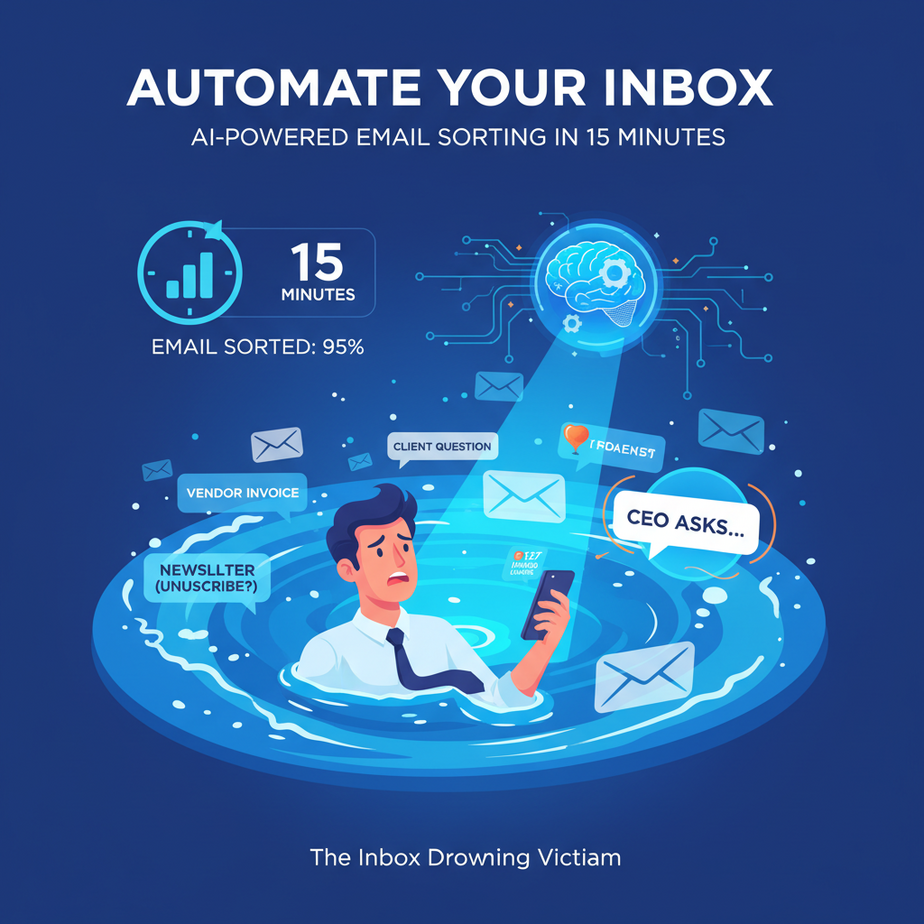
The Inbox Drowning Victim
You wake up, check your phone, and see 127 unread emails. A vendor invoice. A client’s vague question. A newsletter you swear you unsubscribed from. A CEO asking for yesterday’s report. Your brain short-circuits. Is anything actually urgent? You spend the next 45 minutes archiving, deleting, and flagging, only to find another 20 emails in your “Important” folder.
This isn’t productivity. It’s triage. And it’s stealing hours of your life every week. What if you had an AI assistant who walked into that digital chaos, sorted every piece of mail with surgical precision, and handed you a prioritized list?
Why This Matters: Replacing the Human Intern Who Makes Mistakes
Emails aren’t just messages; they are business signals. A late payment. A critical feedback. A solvable problem. But buried under noise, they become invisible.
An automated inbox sorter acts like your best intern—never tired, never distracted, and never misses a pattern. It replaces the manual, error-prone task of scanning and categorizing with a consistent, intelligent layer of automation. The business impact is pure scale: you handle 10x the volume without the mental fatigue, ensuring the right emails get the right attention instantly. This isn’t about getting emails out of the box; it’s about getting the signal out of the noise.
What This Tool / Workflow Actually Is (And Isn’t)
This is a simple automation workflow that connects your email account to an AI model via a no-code platform. It reads the subject line and body of each incoming email, analyzes its content and sentiment, and then takes an action based on your rules.
What it does: It classifies emails, writes a concise summary, drafts a polite response if needed, and can even label or archive them automatically.
What it does NOT do: It doesn’t have a full-blown conversation history. It won’t make a phone call. It’s not a replacement for complex human judgment on sensitive topics. It’s a first-pass filter and organizer.
Prerequisites: Brutally Honest Setup
Before you begin, you need three things. This is non-negotiable, but don’t panic—it’s easier than it sounds.
- A Gmail Account: Any Gmail will work. We’ll use its built-in features to forward emails.
- A Zapier Account: A free plan is sufficient for this lesson. Zapier is our ‘glue’ that connects apps. Think of it as the conveyor belt in our factory.
- An OpenAI API Key: You’ll need a free OpenAI account and a small amount of credits (as little as $5). This is our ‘brain’ that reads the emails.
If you have all three, you’re ready. If not, spend 5 minutes signing up for Zapier and OpenAI. This lesson will wait for you.
Step-by-Step Tutorial: Build Your AI Inbox Butler
We’re building a workflow that triggers when an email arrives, sends its text to an AI, and takes action. Here is the blueprint.
Step 1: Create the Trigger in Zapier
Log into Zapier. Click “Create Zap.” The first part is the trigger—what starts the automation. Search for and select “Gmail.” Choose the trigger event New Email in Label. This is cleaner than “New Email in Inbox” as we can target a specific label. If you don’t have a label, create one in Gmail called “AI Processing.” Connect your Gmail account.
Step 2: Prepare the Email Data for the AI
In the Zapier trigger setup, we need to tell it which email fields to send to the AI. The most important are the Subject and Body (Plain Text). We will send both to the AI as a single piece of text for analysis.
Step 3: Send to OpenAI (The Brain)
Add a new step in your Zap. Select “OpenAI” as the app and “ChatGPT” (or “Send Prompt”) as the action. Connect your OpenAI account using your API key.
In the prompt field, we will give the AI a clear, structured instruction. This is where you teach it what to do. Here is the exact prompt you can copy-paste:
You are an expert office assistant. Your job is to triage and respond to emails. You will be given an email subject and body. Analyze the content and complete the following tasks:

1. CLASSIFICATION: Classify the email into ONE of these categories: Urgent, Important, Informational, Spam.
2. SENTIMENT: Is the sender positive, neutral, or negative?
3. SUMMARY: Write a one-sentence summary in plain English.
4. RESPONSE: Draft a polite, professional, one-sentence response if the email requires one. If no response is needed, output "None".

Format your entire response as JSON with the keys: classification, sentiment, summary, response.

EMAIL TO ANALYZE:
Subject: {{Subject}}
Body: {{Body Plain Text}}
In the “Body Plain Text” part of the prompt, use the Insert Field button in Zapier to map the Gmail Body field. Do the same for Subject. This tells Zapier to fill in the blank with real email data.
Step 4: Parse the AI’s JSON Response
The AI will return a structured JSON object. In Zapier, you need to extract these fields. Add a new step after OpenAI called “Format Text.” Select “Pick from a Spreadsheet.” In the input field, paste the output from the previous step. This will create variables for classification, sentiment, summary, and response.
Step 5: Take Action Based on Classification
Add a final step: “Filter by Zapier.” This is our decision maker. Set up filters like this:
- IF Classification is ‘Urgent’: Then move to a new Gmail step labeled “Send to VIP Folder” and send to yourself with the summary as the body.
- ELSE IF Classification is ‘Spam’: Then move to a Gmail step to “Mark as Read and Archive.”
- ELSE (Important/Informational): Use a Gmail step to “Add Label” (e.g., “Needs Review”) and “Send an email to yourself” with the AI’s suggested response (for you to review and send manually).
You can even add a step to send the summary to a Slack channel or a Google Sheet for a daily digest.
Step 6: Test and Activate
Turn your Zap ON. Send yourself a test email through your Gmail. Watch Zapier process it. Check if the labels, summaries, and drafts appear as expected. Tweak the prompt if the classifications are off. Once it’s working for your typical emails, you’re live.
Complete Automation Example: The Freelancer’s Inbox
Let’s trace a complete workflow for a freelance designer, Alex.
- Trigger: A new email arrives from a potential client with the subject: “Quote needed for logo design.”
- AI Analysis: The AI receives the subject and body. It classifies it as “Important.” Sentiment is “Neutral.” It generates a summary: “Client requests a quote for a logo design project.” It drafts a response: “Thanks for your inquiry. I’ve received your request and will send a detailed quote by end of day tomorrow.”
- Action in Zapier: The filter sees “Important.” It applies a label “Quote Request” in Gmail. It drafts a reply with the AI’s suggested response, saved as a draft in Gmail for Alex to review and send.
- Outcome: Alex’s main inbox remains clean. The email is labeled for easy tracking. A draft response is waiting. Alex only spends time on high-value tasks—reading the actual email and sending the quote—while the AI handled the sorting and initial reply.
Real Business Use Cases (Beyond Personal Productivity)
- Real Estate Agency: Automates lead qualification from websites. Emails from “Looking for a 3-bed in Maplewood” are classified as “Urgent,” summarized, and forwarded to a sales agent’s mobile notification. Spammy vendor offers go to a filter.
- E-commerce Store: Handles customer service. Emails with words like “refund,” “broken,” or “missing” get “Urgent” classification and are routed to a support queue. Order confirmation emails are automatically archived after the AI extracts the tracking number into a spreadsheet.
- Recruitment Agency: Screens candidate emails. The AI analyzes a resume and cover letter, classifies the match level (e.g., “High Potential,” “Potential,” “Not a Fit”), and drafts a polite rejection or next-step email for the recruiter to approve.
- Small Law Firm: Triage client intake. Urgent emails from existing clients are flagged for immediate attention. New inquiry emails get a standard “We’ve received your inquiry” response and are logged in the case management system.
- Consulting Business: Sorts project updates from clients. “Urgent” emails are those asking for changes on deliverables. “Important” emails are updates requiring action. The AI can generate a weekly summary report of all client communications, sent every Monday morning.
Common Mistakes & Gotchas
- The Overly Verbose Prompt: Your first instinct might be to write a 10-sentence prompt. Don’t. Start with the simple one above. Complexity can confuse the AI. Add complexity only after testing.
- API Cost Surprise: The OpenAI API is cheap for this, but monitor your usage. Each email processed is a tiny API call. On a free Zapier plan, you’re limited to 100 tasks/month. For heavy volume, a Zapier Starter plan is ~$20/month.
- Sentiment is Nuanced: AI can misread sarcasm or formal language. Don’t rely 100% on the “Urgent” flag for financial decisions. Use it as a triage assistant, not an autonomous system.
- Privacy & Data: You’re sending email content to OpenAI’s API. For highly sensitive business data, check OpenAI’s data usage policy. Zapier’s privacy standards are also worth reviewing.
How This Fits Into a Bigger Automation System
Your AI inbox sorter is the first node in a larger machine.
- Connect to CRM: If an email is classified as “Client Feedback,” a Zapier step can create a task in your CRM (like HubSpot or Pipedrive).
- Feed a Voice Agent: The AI’s summary can be read aloud by a voice assistant like Alexa for a hands-free morning briefing.
- Multi-Agent Workflow: This single agent can be part of a chain. The “Urgent” email summary could trigger a separate Zap that drafts a more detailed proposal using a different AI model.
- Build a RAG Knowledge Base: Archive all classified emails into a database. Later, you can ask questions like, “What did Client X say about the Q2 report?” using a Retrieval-Augmented Generation system.
What to Learn Next: From Sorting to Actions
You’ve just built a sensory system—a digital nose that smells what’s important in your inbox. Next, we teach it to have hands.
In our next lesson, Lesson 3: Automate Client Proposals with AI-Generated Docs, we’ll take that “Urgent” client inquiry from this system and automatically generate a draft proposal in Google Docs, pull in pricing from a sheet, and set up a follow-up calendar event.
You’re not just organizing noise anymore; you’re starting to build an engine that responds to business opportunities. Your automation journey is just beginning.
“,
“seo_tags”: “AI email automation, Zapier tutorial, business productivity, OpenAI API, no-code automation, inbox management”,
“suggested_category”: “AI Automation Courses